

Value Composer runs at sync time - it produces the values that land in a storage record. To include a value from another storage without syncing it in, see Mapped fields - they resolve as the response is built, so the value appears alongside the stored fields.
Four slot modes
Each field in the storage mapping is a slot. Every slot operates in one of four modes:
Schema Field and Static are straightforward - pick a source field or enter a constant. Computed Value is where the Value Composer becomes interesting: a declarative language of chainable operations that take feed fields, static inputs, and the output of other operations as arguments.
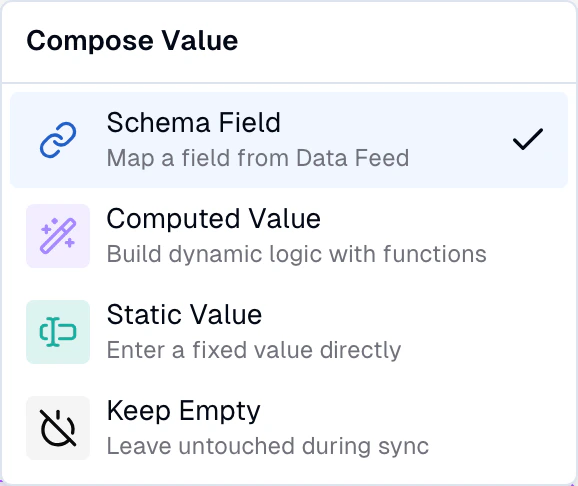
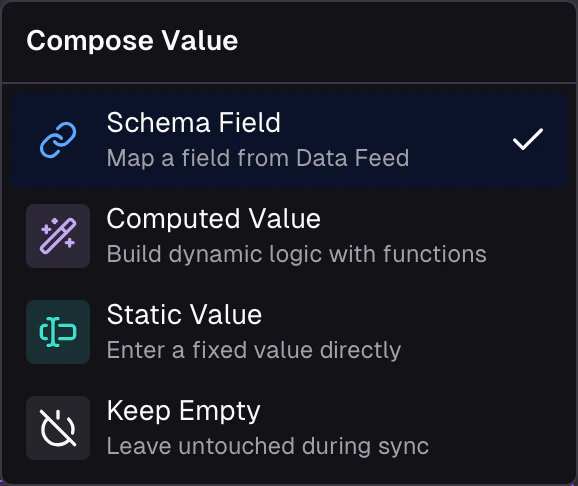
The four slot modes - Schema Field, Computed Value, Static Value, Keep Empty
Operations
Computed Value mode gives you access to a wide range of operations across categories like logic, comparison, text, math, array, object, and transform. Operations are type-aware - the UI only shows operations compatible with the slot’s expected output type, so you don’t have to memorize what’s available. See the Value Composer reference for the full catalogue with arguments and return types.Working with slots
Every slot in the composer can be switched between the four modes. When you select Computed Value, a dialog opens where you build the operation chain visually.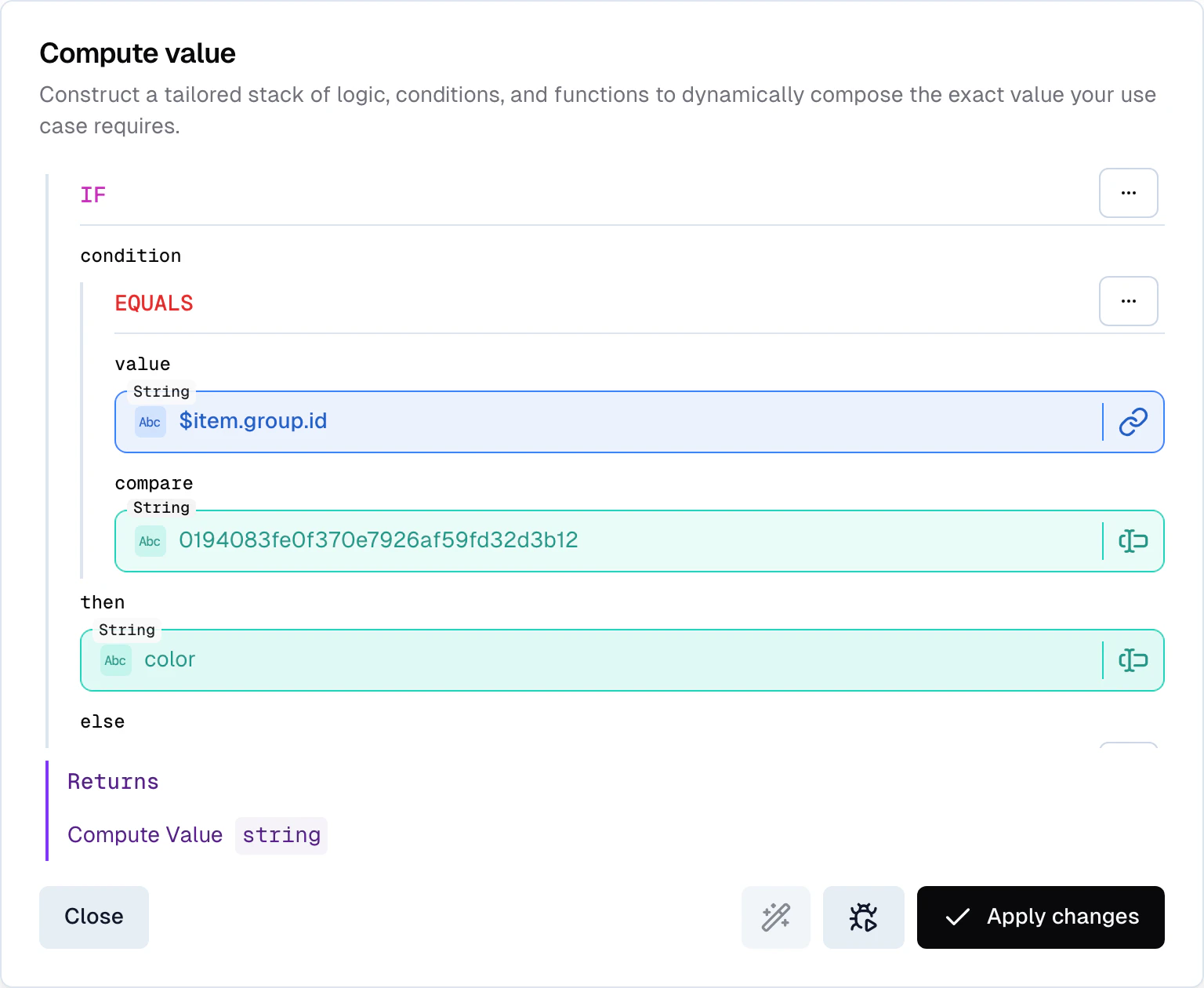
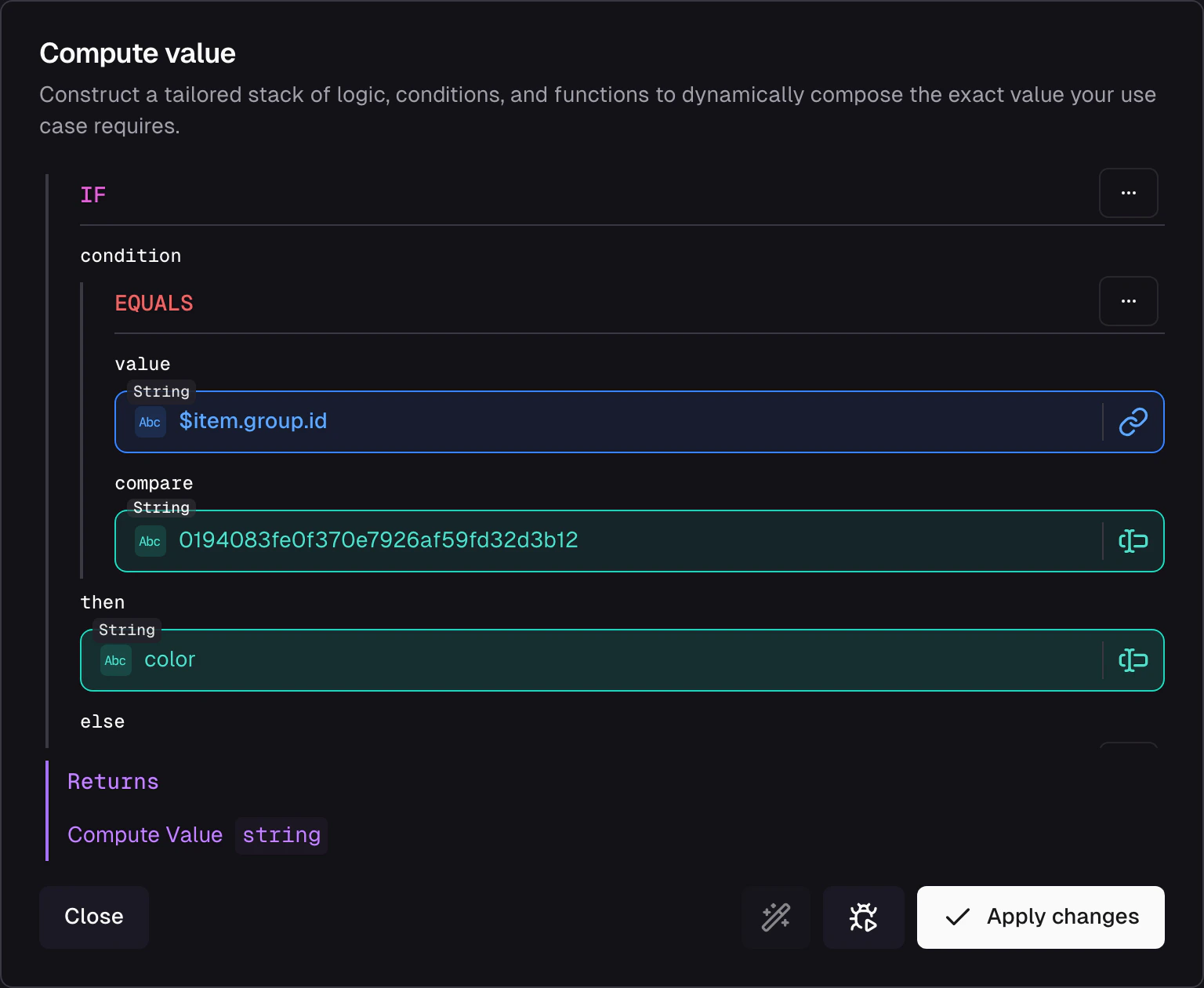
Compose Value dialog - an IF operation with nested EQUALS condition
Copy, paste, and wrap
Slots support clipboard operations that speed up repetitive work:- Copy a slot’s configuration to reuse it on another field
- Paste a copied configuration into a different slot - the UI checks type compatibility before allowing it
- Wrap an existing slot inside a new operation. For example, wrap a Schema Field in an
ifto make it conditional, or wrap aconcatresult intolowerto normalize it. The UI shows which operations are compatible wrappers for the current slot type.
Iteration context
When working inside an array mapping (e.g. transforming an array of images into an array ofMediaFile composites), the Value Composer provides special variables:
$item- the current element in the array being iterated$parent- access the parent iteration context when nesting arrays inside arrays
$item.url for the current variant and $parent.alt for the parent image’s alt text.
Auto-complete from feed schema
When selecting a Schema Field, the UI auto-completes from the feed schema. If a field doesn’t appear in auto-complete, either the schema hasn’t been inferred yet (no records have arrived) or the field needs to be added manually in the feed’s Schema tab. You can also create new feed schema fields directly from the composer UI.Debug configurations
The Value Composer has a built-in debugger that runs your configuration against a JSON payload. Load an initial payload from a feed record with Search Record, paste your own, or edit the current one at any time - the payload persists between runs and is fully yours to manipulate. It’s not connected to the live record, so changes you make stay until you load a different one. The payload is shared across both debugger levels.Field-level debugger
Open the debugger from the Compose Value dialog to test a single field’s configuration in isolation: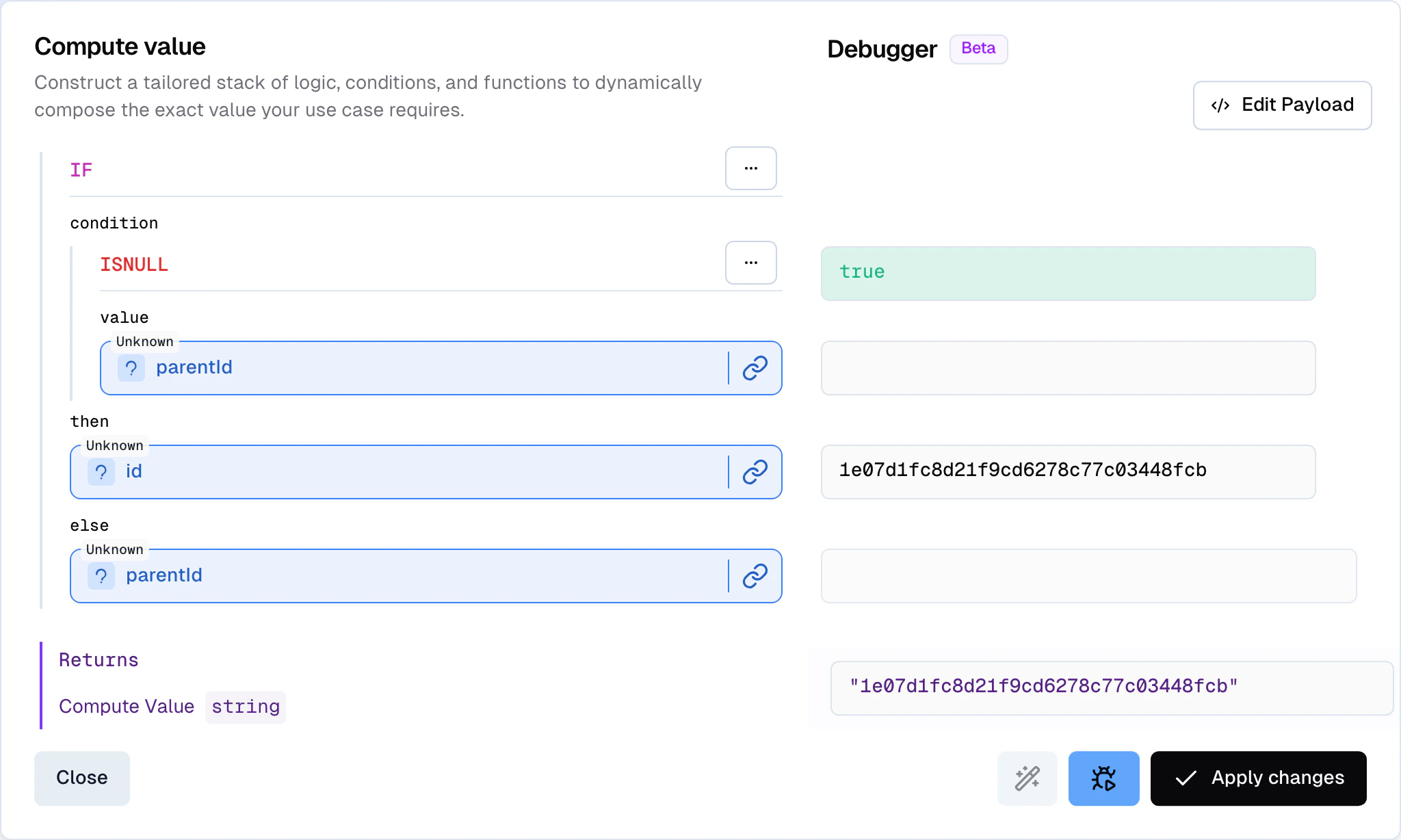
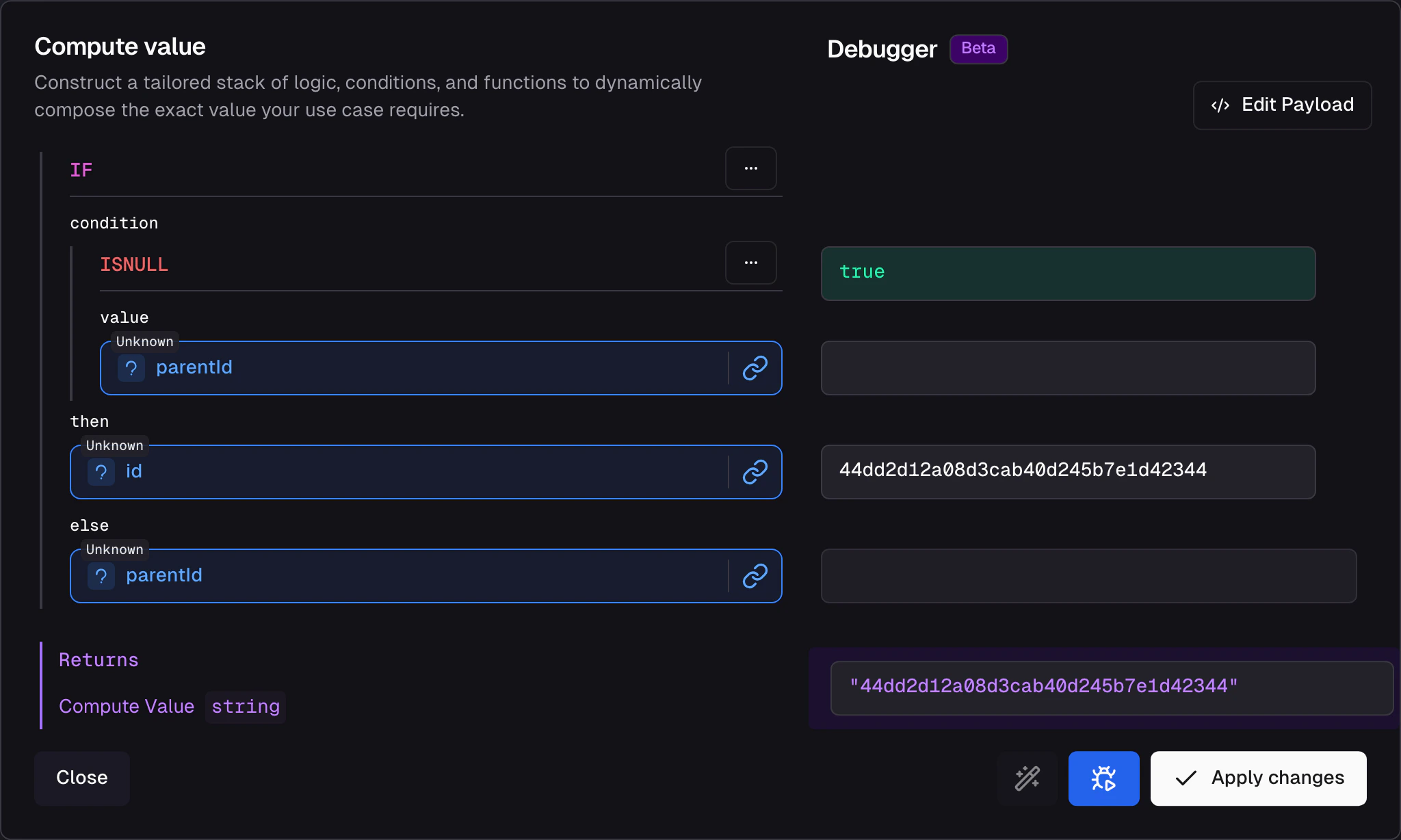
Field-level debugger with node-wise output and Search Record
- Node-wise output - see what each operation in the chain produces before it feeds into the next
- Live updates - results refresh as you modify the configuration
Record-level debugger
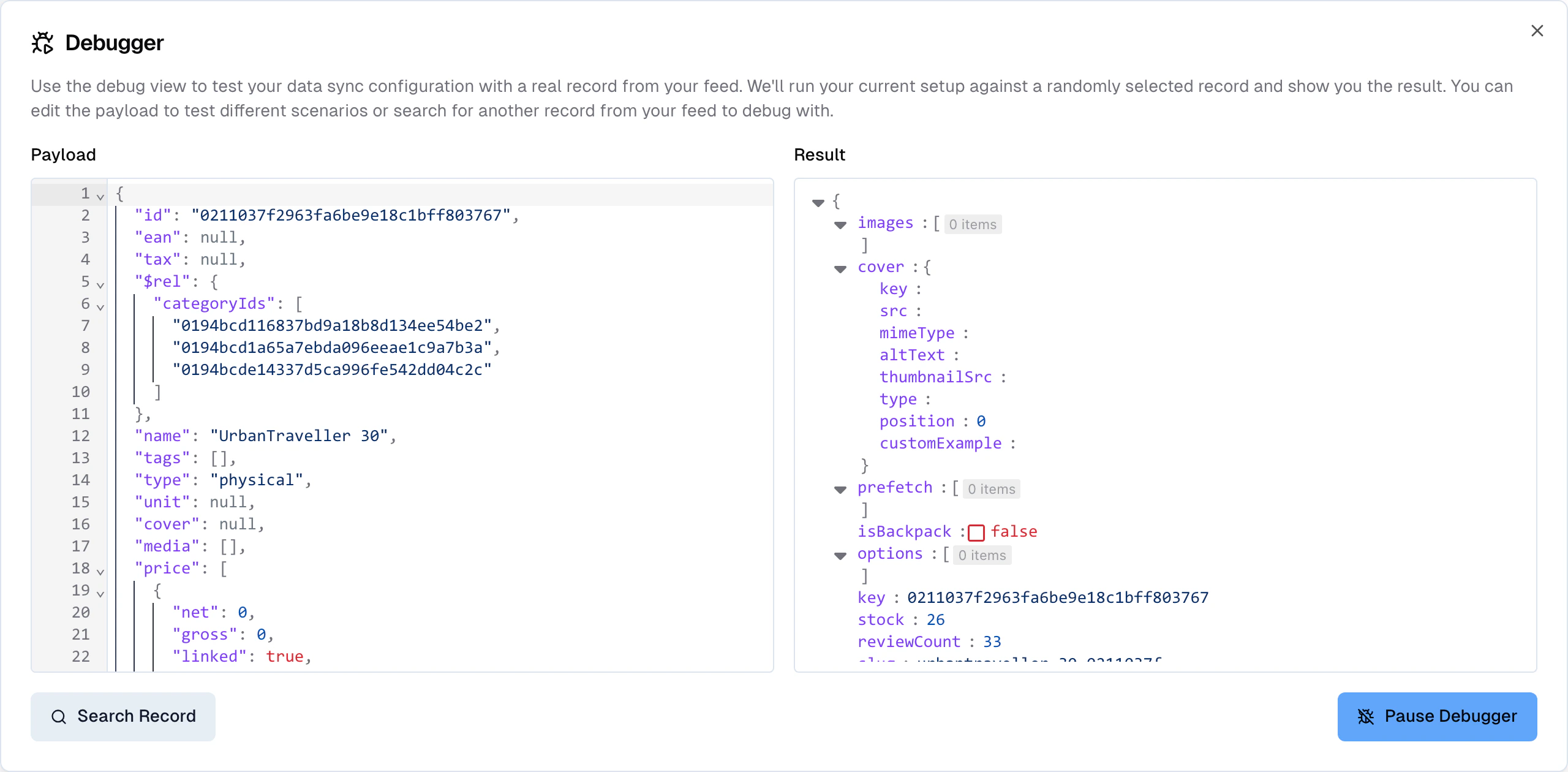
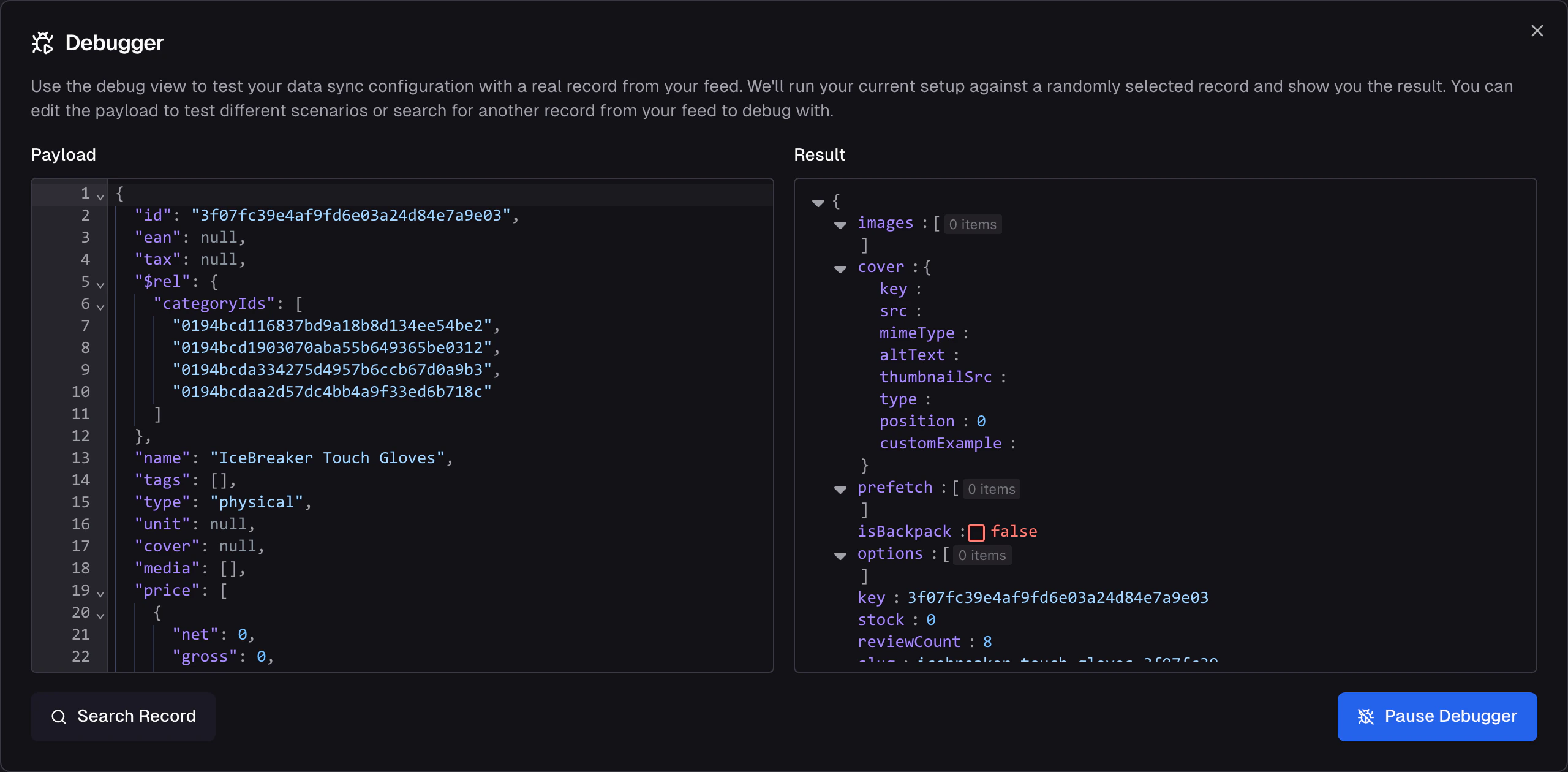
Record-level debugger - all fields at once, errors highlighted
- Runs every slot’s configuration against the selected record
- Shows the complete output for each storage field
- Highlights fields with errors so you can spot broken configurations without checking each one individually
Worked examples
The examples below use a sample product record. Each covers a pattern that shows up in most Data Syncs. Each example below comes from a working Samples Data Sync configured against the payload above. The hero shot shows all four mappings side by side; each example then zooms in on the field-level debugger with the live result.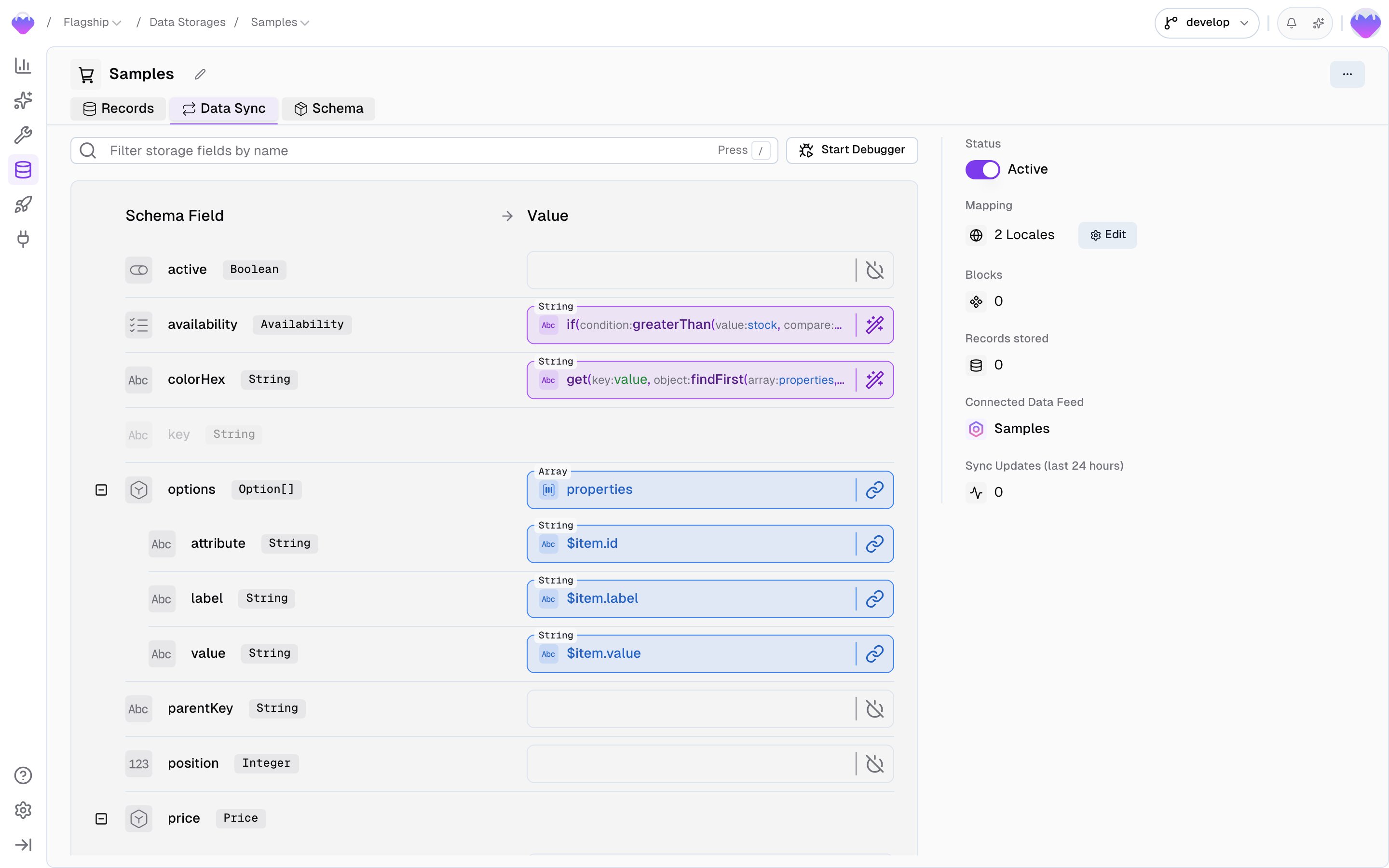
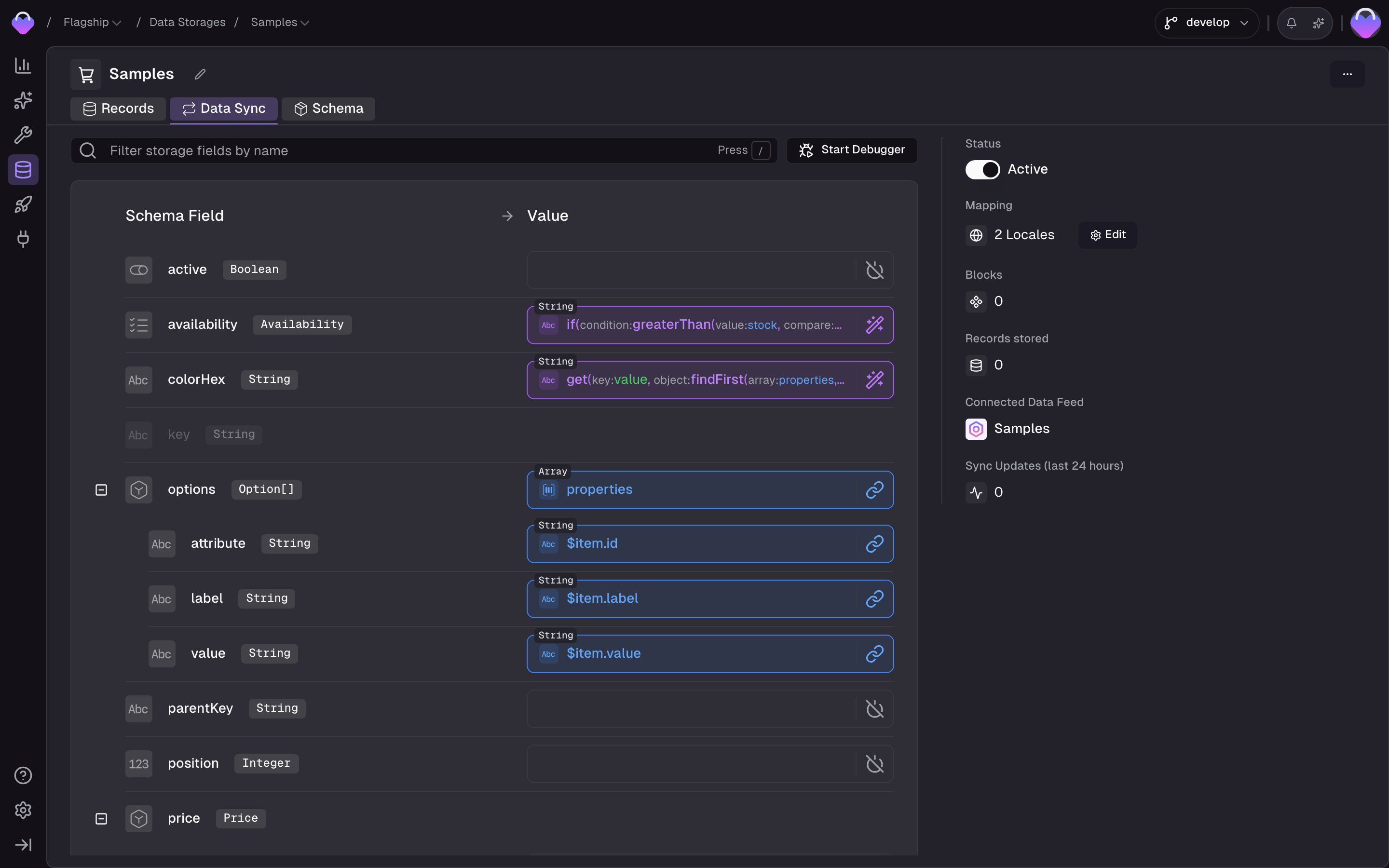
Samples Data Sync - all four worked examples configured on a single storage
Example 1: Concatenate values
Combinevendor.name and the top-level name into a single title field - producing “Apple - iPhone Pro”.
- Switch the
titleslot to Computed Value and addconcat- it exposes three slots:value1,value2,separator. - Wire
value1to Schema Field →vendor.name,value2to Schema Field →name, andseparatorto Static Value →-. - Open the field-level debugger to see the result update against the loaded payload.
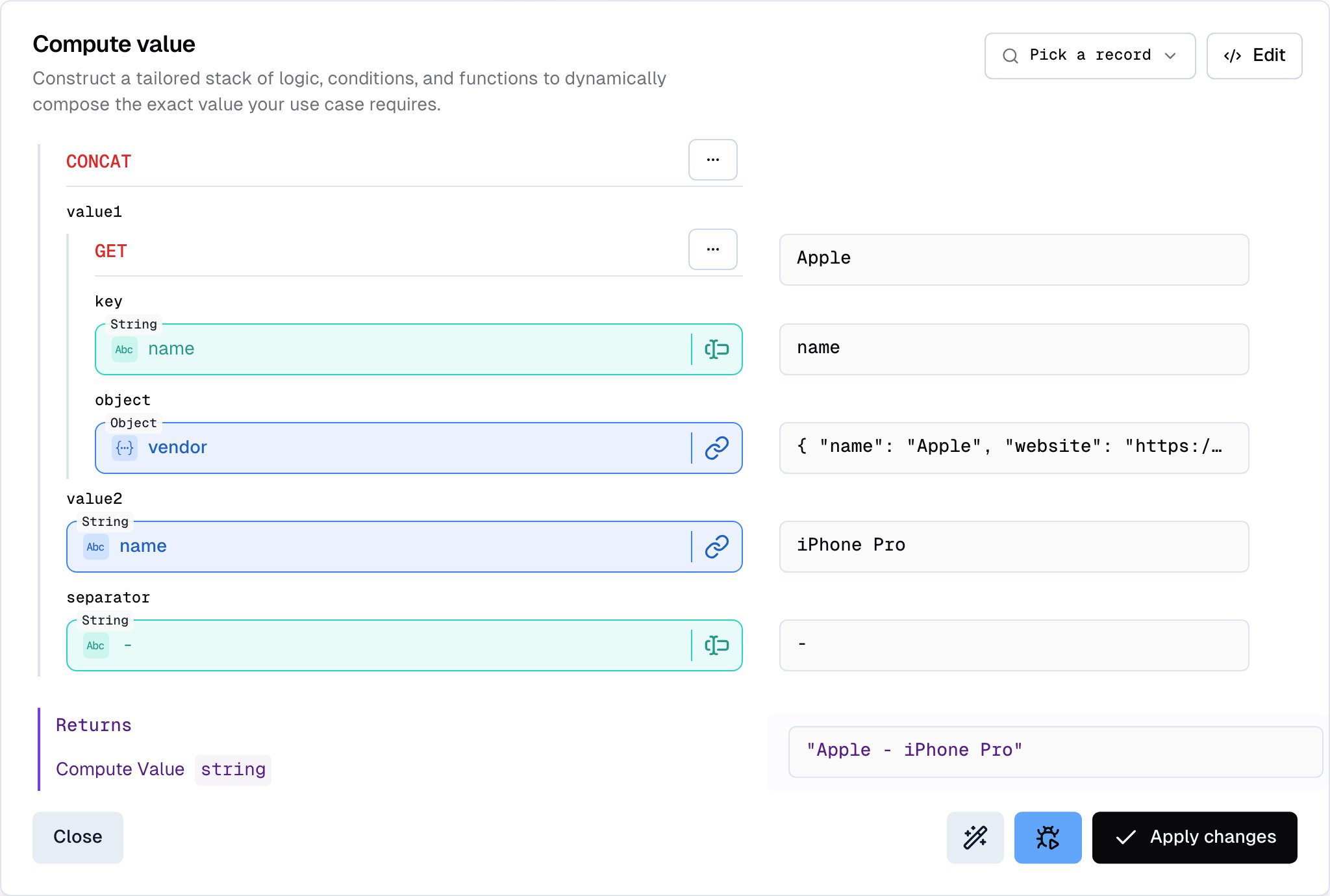
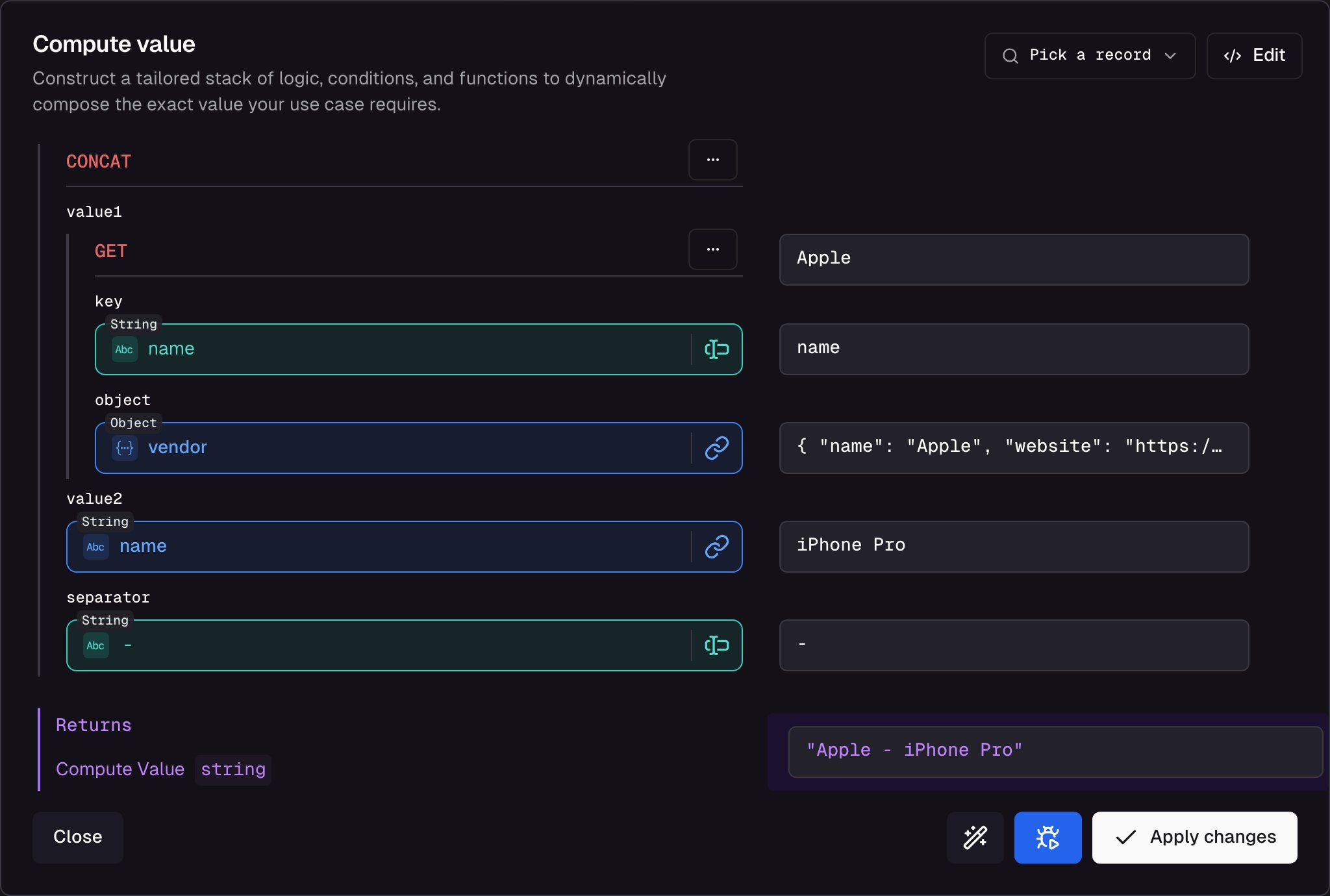
title slot: concat of vendor.name and name with a dash separator - resolves to 'Apple - iPhone Pro'
Example 2: Conditional logic into an Enum
Set theavailability enum (members in-stock, out-of-stock, preorder, backorder) based on whether the record has any stock.
- Switch the
availabilityslot to Computed Value and addif. It has three slots:condition,then,else. - Set
conditionto Computed Value →greaterThan, withvalue→ Schema Field →stockandcompare→ Static Value →0. - Set
then→ Static Value →in-stockandelse→ Static Value →out-of-stock(both from the Enum dropdown).
stock: 15), the result is in-stock. Click Edit Payload and change stock to 0 to flip it to out-of-stock.
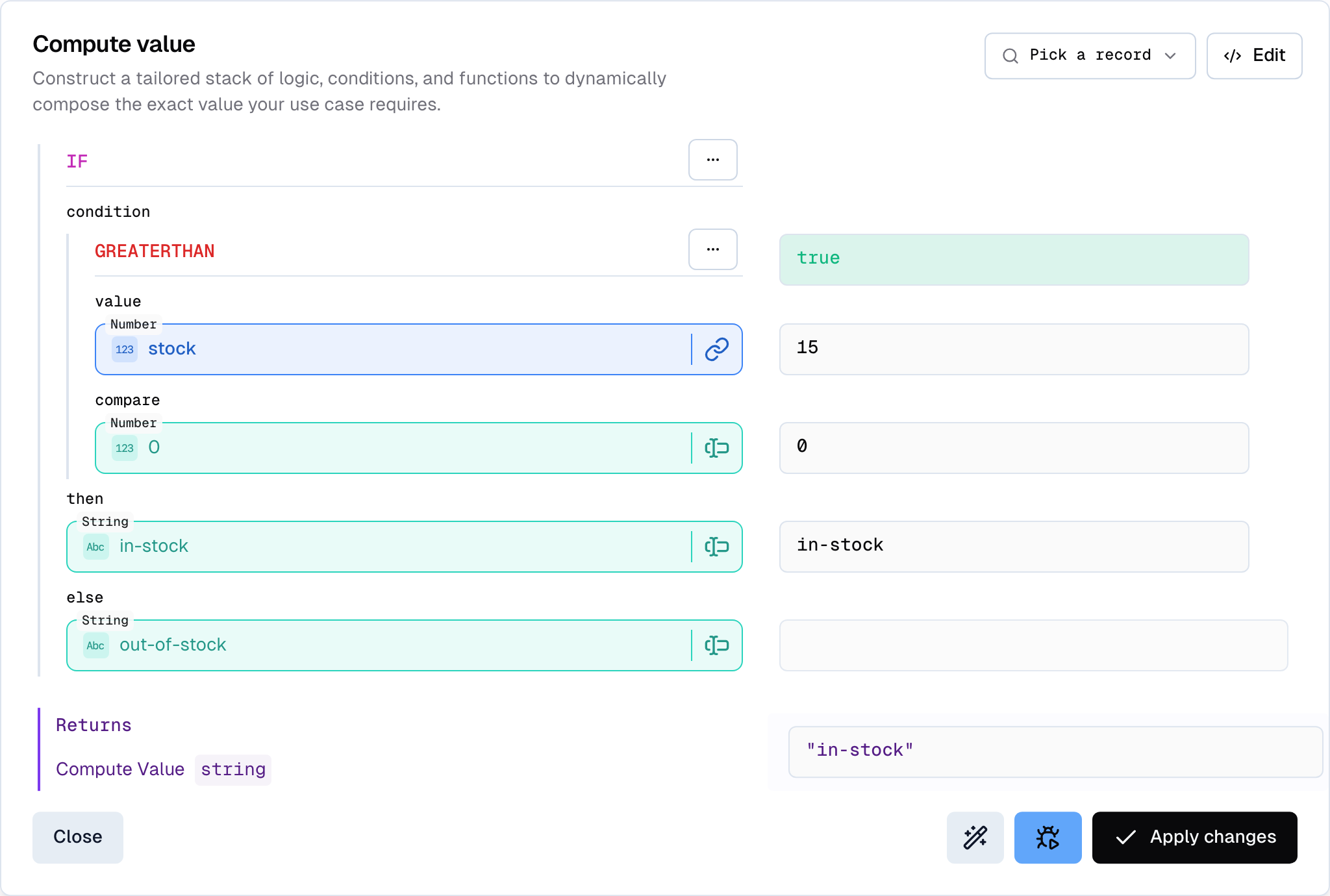
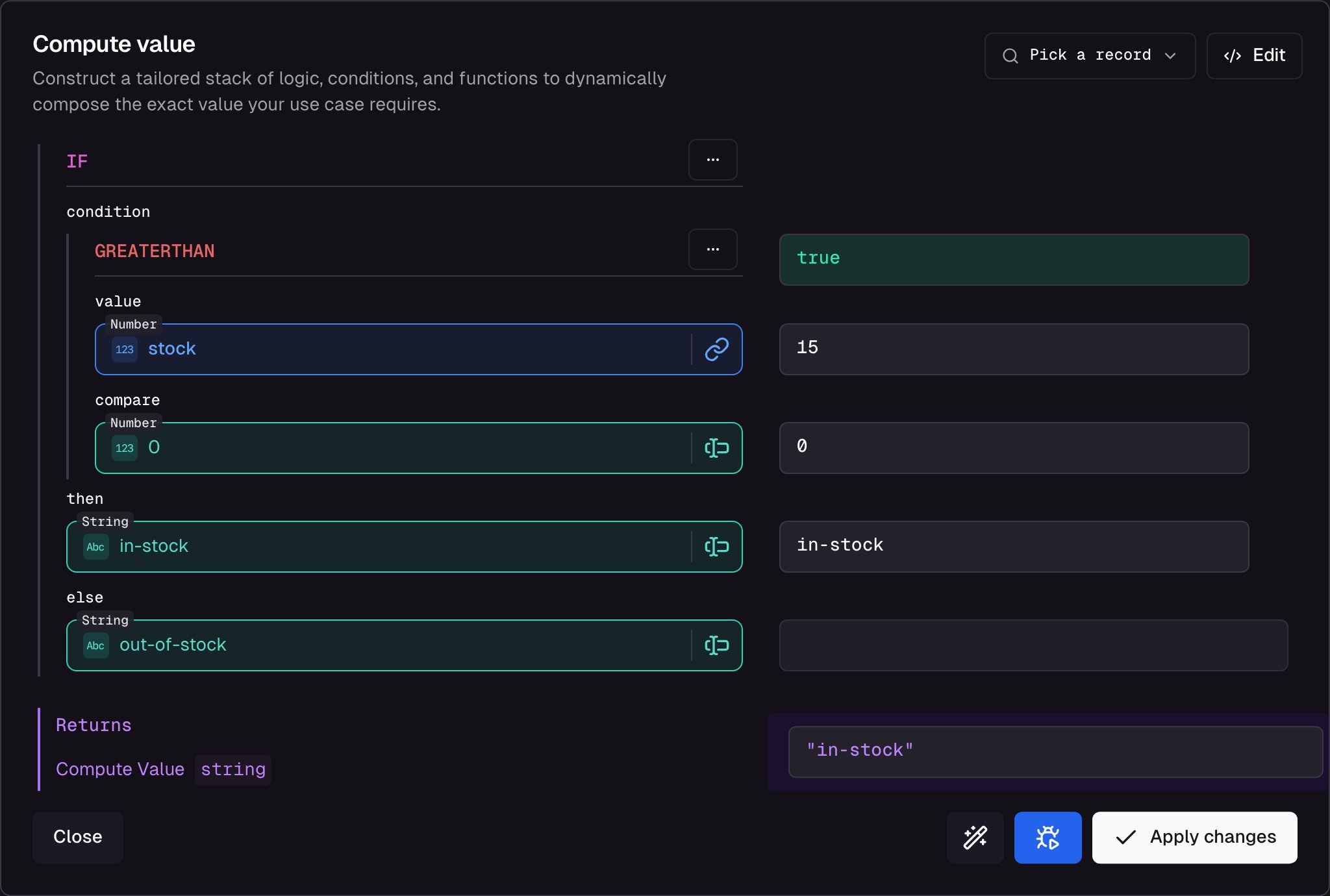
availability slot: if stock is greater than 0 then in-stock else out-of-stock - resolves to 'in-stock'
Example 3: Array transformation
Transform the feed’sproperties array - items like { id, label, value } - into the storage’s options field, an array of Option composites (attribute / label / value).
Array transformations are configured inline on the mapping page, not in a separate dialog: the storage’s options row exposes a reference array slot plus one slot per sub-field of Option, all visible at once.
- On the
optionsrow, set the reference array to Schema Field →properties. This is what the composer iterates over - oneOptionper source element. - Inside the iteration, each sub-field maps from the current element using
$item:attribute→ Schema Field →$item.idlabel→ Schema Field →$item.labelvalue→ Schema Field →$item.value
If
properties doesn’t show up in auto-complete, the feed schema hasn’t picked it up yet. Add the field manually on the Data Feed’s Schema tab, or type it in and confirm - the schema accepts new fields you declare from the composer.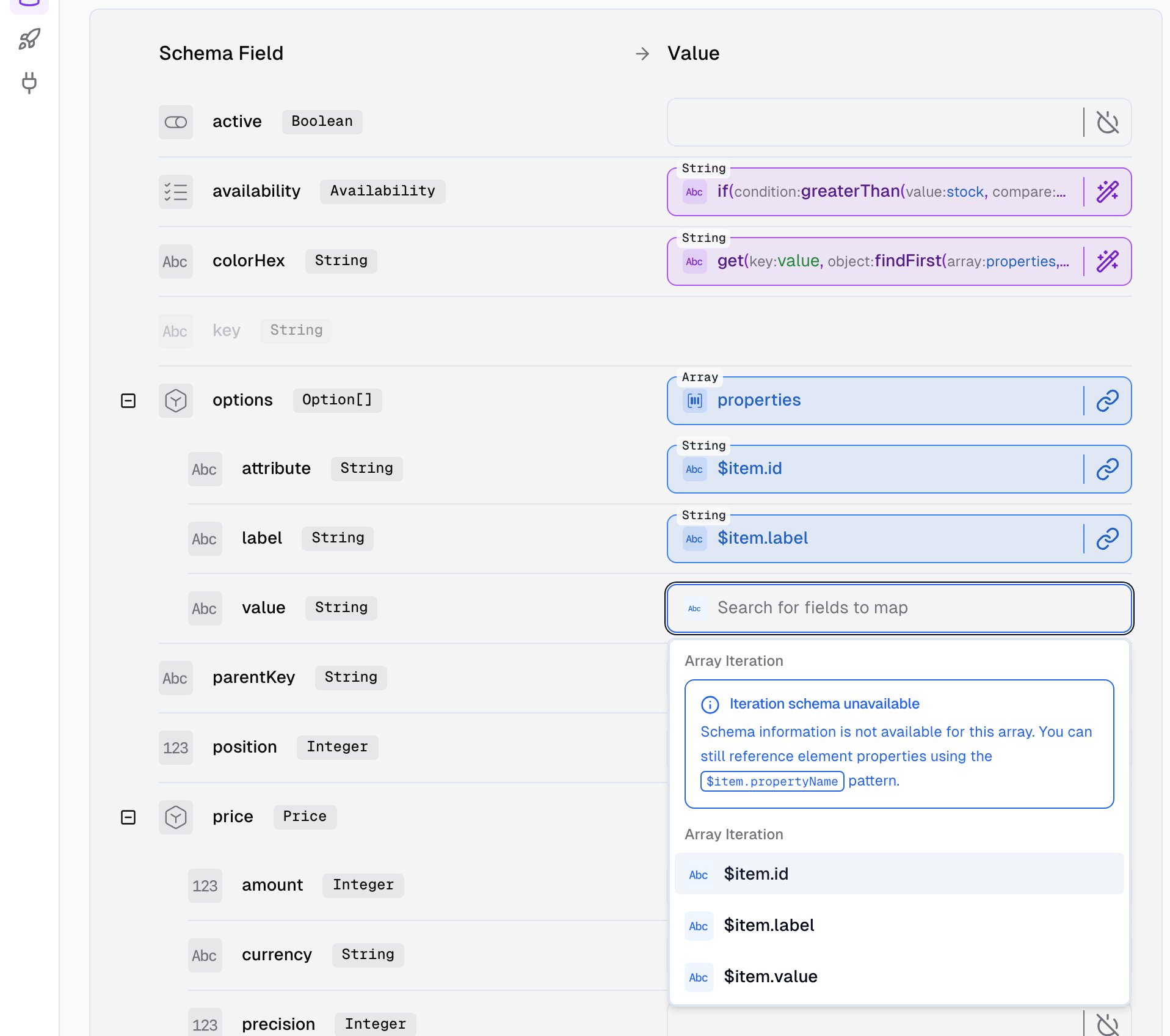
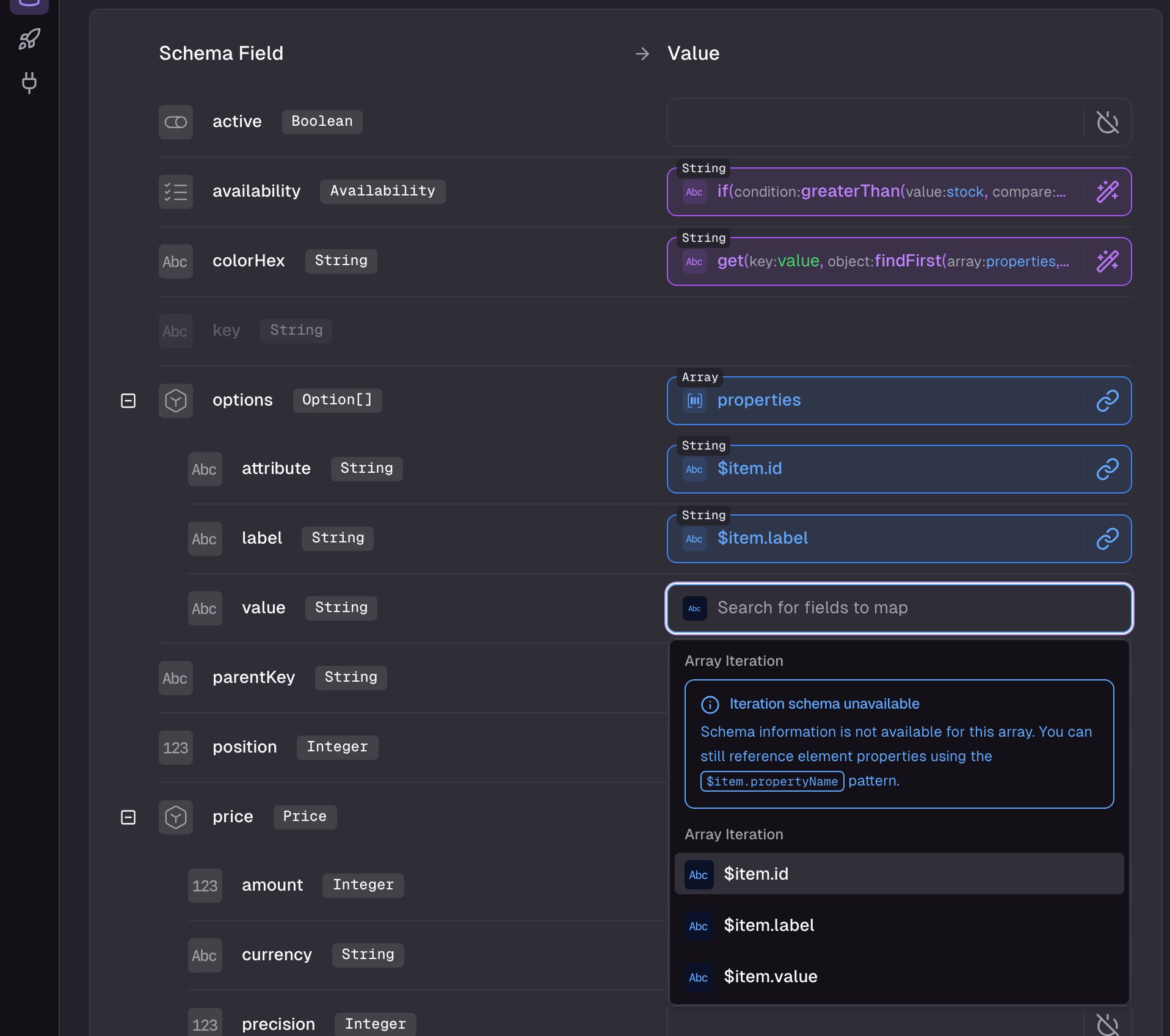
options[] inline array mapping - properties iterated with $item.id, $item.label, $item.value
Example 4: Extract a single value from a nested array
Example 3 mapped every property - but often you just need one. Here, extract the color hex out of the sameproperties array and store it on the top-level colorHex field, ready to render as a swatch.
- Switch the
colorHexslot to Computed Value and addfindFirst- it has anarrayslot and afilterFunctionslot. - Set
arrayto Schema Field →properties. Then onfilterFunction, addequalsand wire itsvalueslot to Schema Field →$item.idand itscompareslot to Static Value →color. This keeps only the property whoseidiscolor. findFirstreturns the whole matched object; we want just itsvalue. Wrap thefindFirstslot inget, then setget’skeyto Static Value →value.
#2F4F4F.
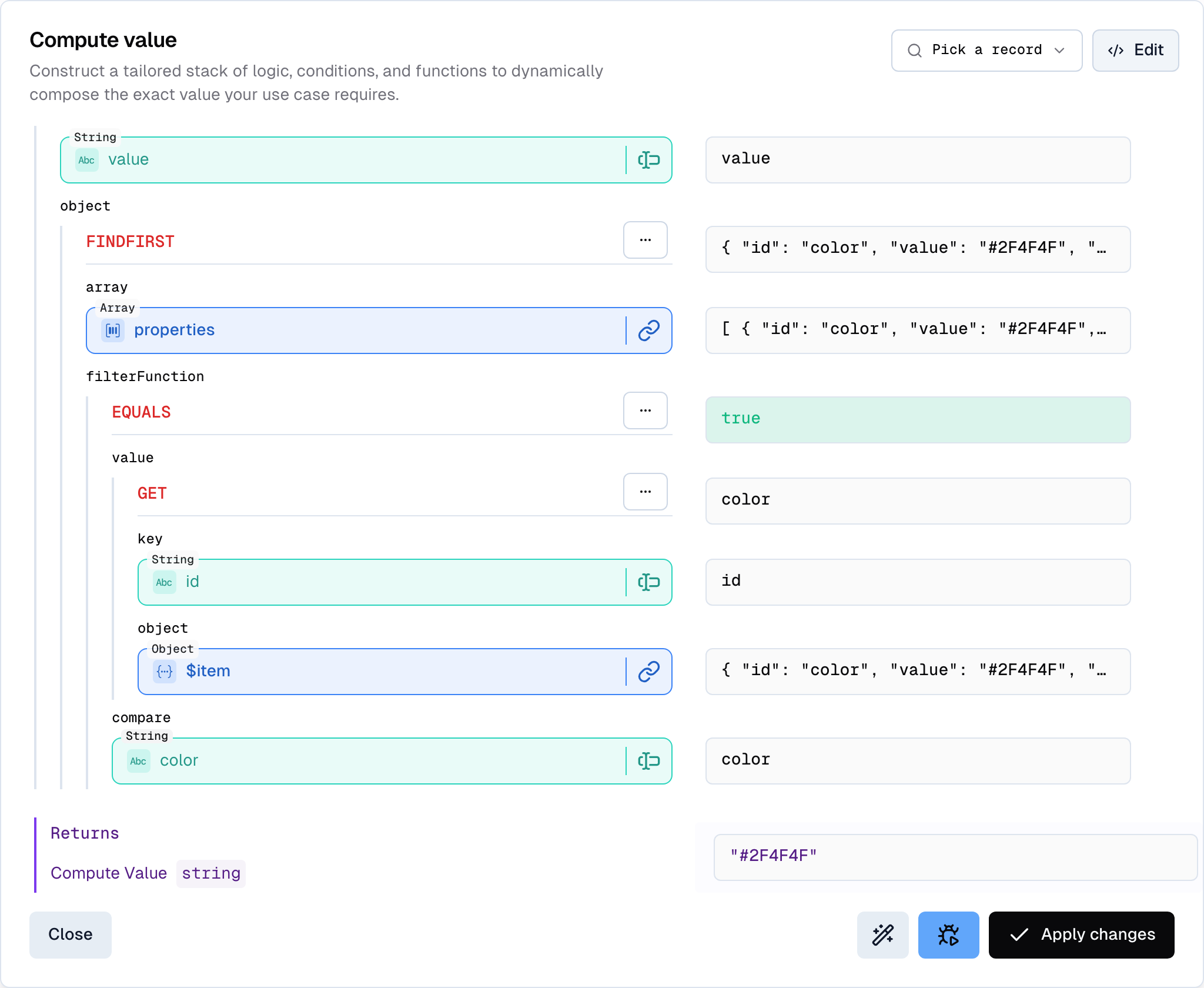
colorHex slot: get the value of the property whose id equals 'color' - resolves to '#2F4F4F'
Tips
- Start with Schema Field, upgrade when needed. Most fields start as direct mappings. Switch to Computed Value when you discover the simpler mode can’t express what you need.
- Use the debugger early and often. The field-level debugger shows node-wise output, so you can pinpoint exactly which operation in the chain produces the wrong result.
- Use wrap to extend existing configurations. Need to lowercase a mapped field? Don’t rebuild - wrap the existing Schema Field slot in a
toloweroperation. - Edit the payload when real data hasn’t arrived yet. Craft a test input that exercises the edge cases you care about without waiting for production data.
- Cast types when they don’t match. Source data often has numbers as strings (e.g.
"123"instead of123). UsetoNumber,toBoolean, ortoStringto make sure the value matches the storage field type - a price field expects a number, not a string that looks like one. - Watch the feed schema. Fields you reference need to exist in the schema. If auto-complete isn’t finding a field, check the feed’s Schema tab or add it manually.
- Let Buddy build the first draft. Describe the source shape and the target shape, and Buddy will propose a working configuration you can refine in the UI.
Related
Data Storages
Storage schemas, field types, and how Data Syncs connect feeds to storages.
Ingest Data
Connectors and Data Feeds - where the source records come from.
Value Composer reference
Complete catalogue of every operation with arguments and return types.
Storage Field Types
The field types your storage supports and that composer outputs must match.