

What’s in Studio Settings
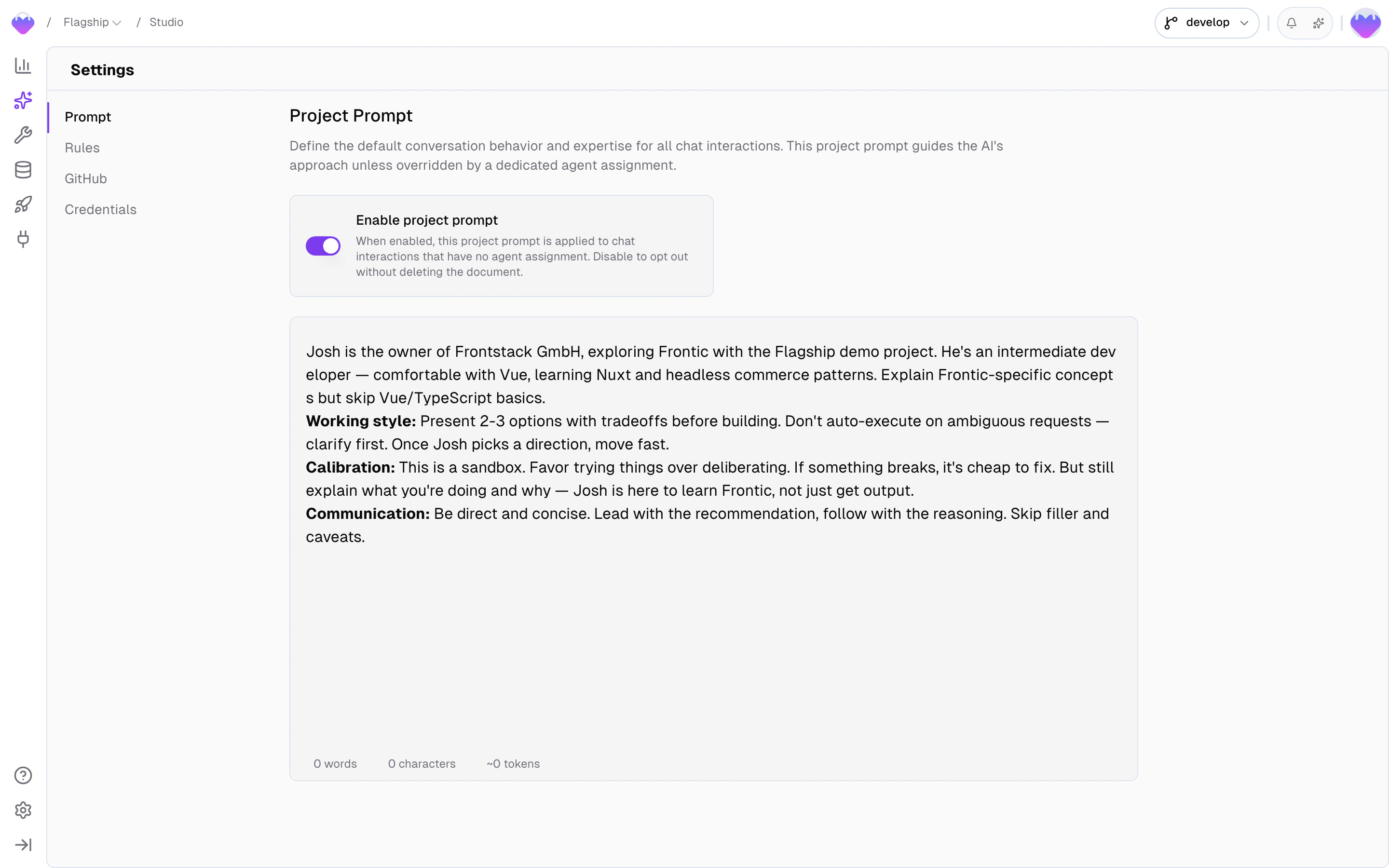
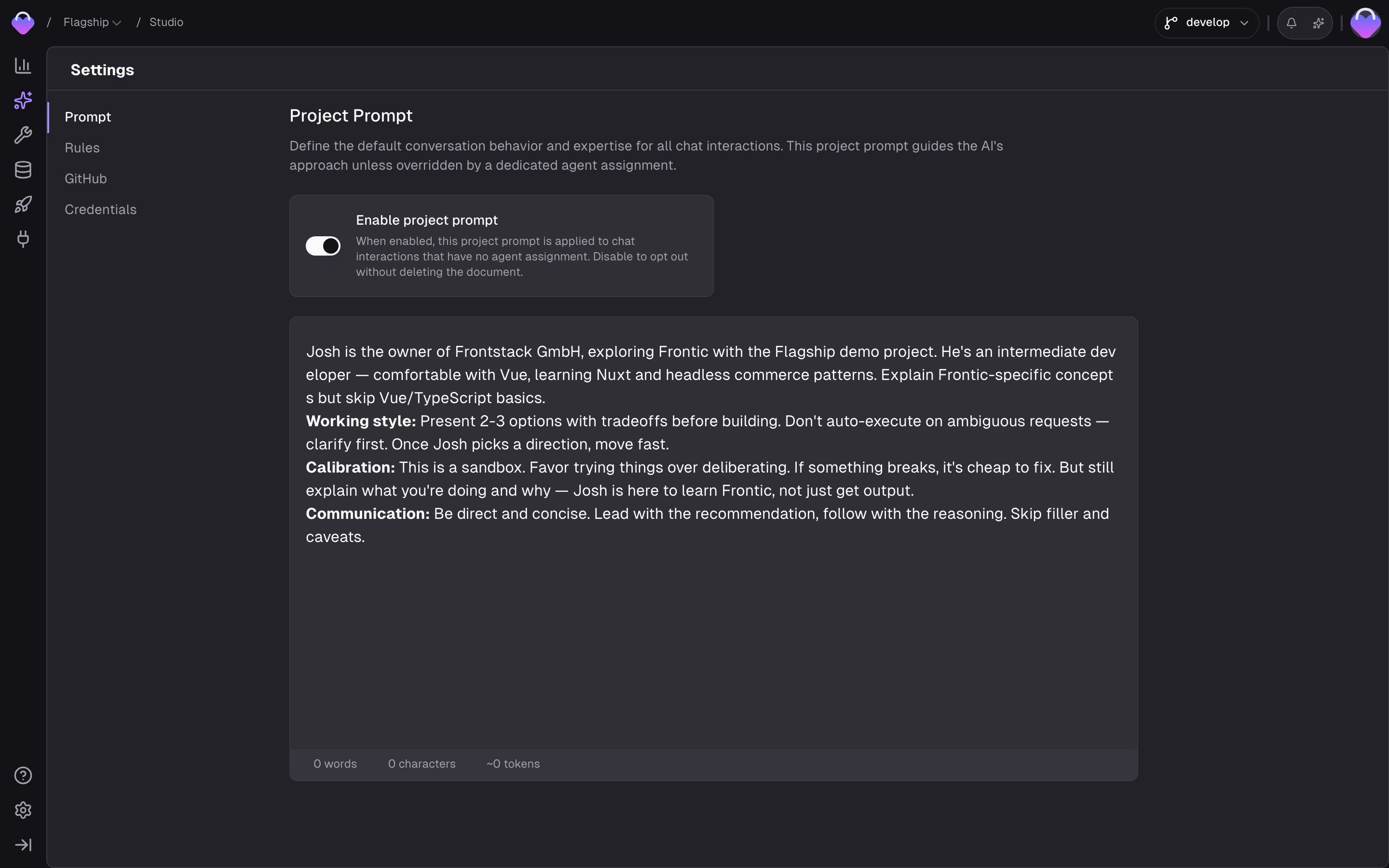
Studio Prompt
Project-specific supplement to Studio’s base system prompt - business context, working style, response style.
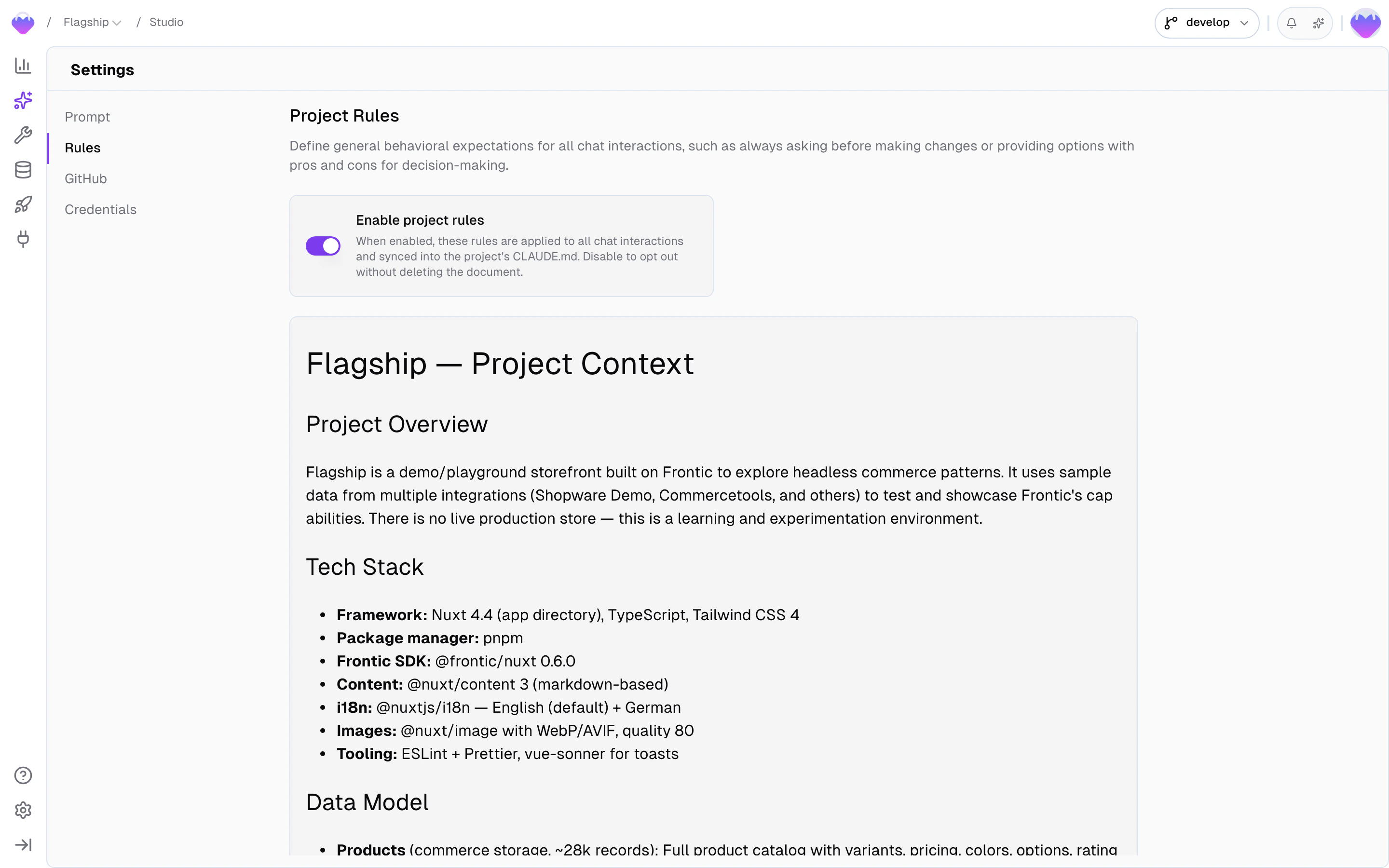
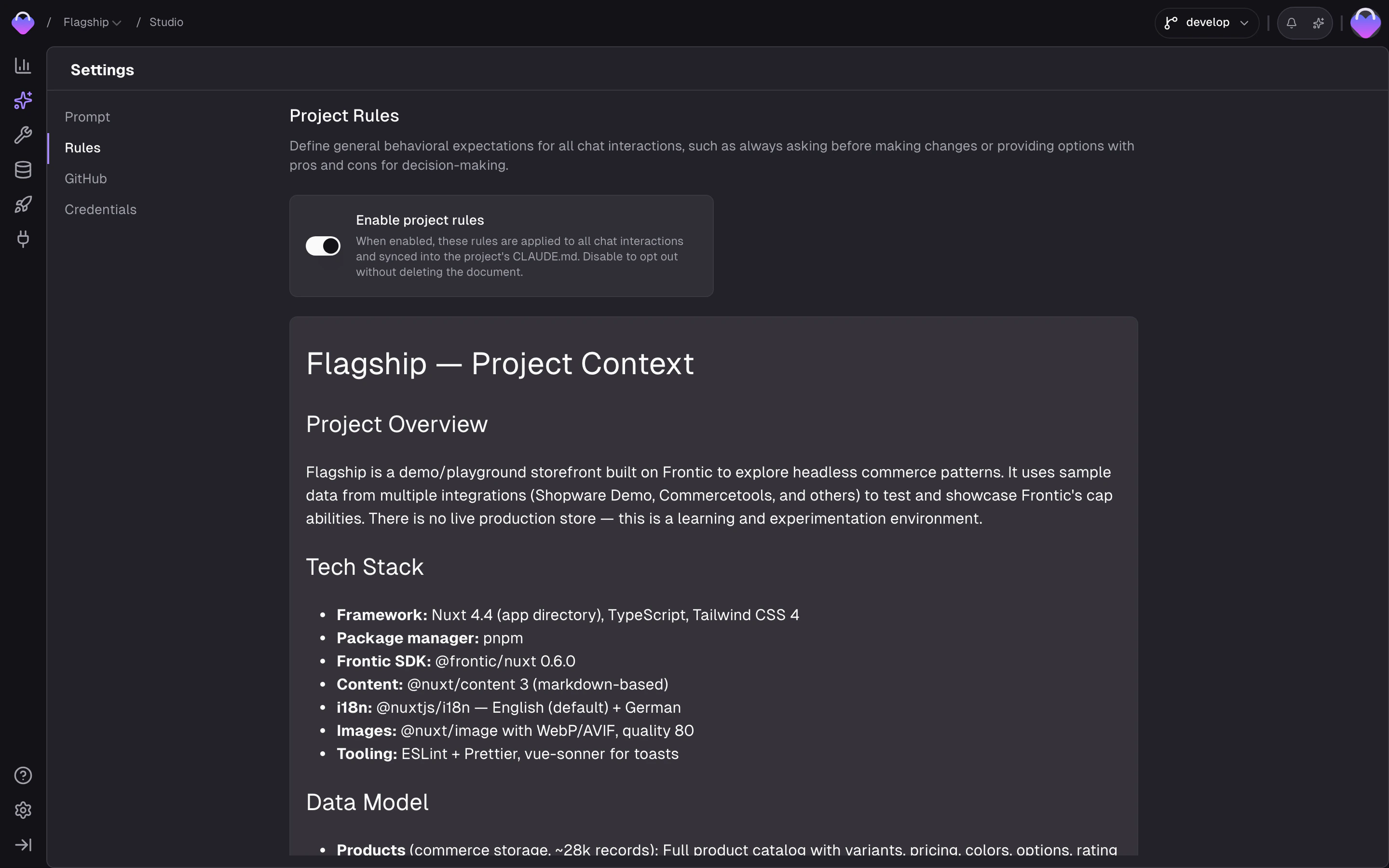
Project Rules
Project-scoped rules synced to every agent surface. Parallel to Context Rules; see below.
GitHub Integration
Optional GitHub App installation for the project. See GitHub Integration.
Credentials
Project-scoped vault for API keys and secrets, auto-injected into every Studio workspace.
Studio Prompt
The Studio Prompt is a project-specific supplement to Studio’s built-in system prompt. Studio already ships with a senior-level e-commerce consultant persona, tool knowledge, verification habits, and delegation patterns. What the base prompt can’t know is your specific project: what you sell, how your team works with agents, and how replies should land in chat. A good default Studio Prompt covers:- Business context - what the project sells and who it’s for. “Acme is a DTC performance-footwear brand selling running shoes and apparel to runners in North America.” Anchors the agent’s tone, feature priorities, and design calls.
- Working style - how the agent should operate alongside your team. “Check in before wide-reaching changes; prefer small, verifiable steps; ask rather than guess when scope is unclear.”
- Response style - how the agent should talk in chat. “Keep answers short. Assume senior-level context; skip re-explaining basics.”
- Frontend stack (framework, language, design system) → Context Rules. These apply across every agent surface and every workspace.
- Naming conventions, commit format, architectural guardrails, brand voice applied to generated output → Context Rules.
- Reusable task patterns (“how to add a locale”, “how to build a category page”) → Context Base Skills.
- Pointers to the Context Base - it’s synced into every workspace automatically; the agent already has it.
Project Rules
Project Rules are a single rules document Studio loads on every task - always applied, no targeting. Use Project Rules for constraints that only make sense in this project: repository layout quirks, one-off architectural calls, project-only commit conventions. When a rule would also belong on other projects, write it as a Context Rule instead.Context vs. Project Rules
Both live at the project level and both shape Studio’s behavior on every task. They differ in structure and in how precisely you can target them:Project Rules
One document, always applied. Best for a short list of things that should never be missed in this project.
Context Rules
Modular with per-rule targeting. One concern per rule, each declaring when it should run. Worth it as your rule set grows.
Settings scope
One thing to note: Studio Settings are per-project, not per-user. Everyone on your team sees the same prompt, the same rules, the same GitHub connection, and the same credential vault. This is intentional:- It keeps the team’s agent experience consistent - one person doesn’t accidentally use different rules from another
- It keeps GitHub access centrally managed via a single GitHub App installation, not per-user OAuth tokens
- It matches how the Context Base works (also per-project)
GitHub Integration
Studio Settings holds the optional GitHub App installation for the project. A GitHub admin installs the Frontic GitHub App on your organization once, and every teammate on the project gets Git access in Studio - no per-user account linking. The connection powers production shipping across every workspace; Studio works without it too (you just skip this section). The repository each job targets is picked in the Create Job dialog, not here. See GitHub Integration for the setup walkthrough, commit mechanics, PR flow, and troubleshooting.Credentials
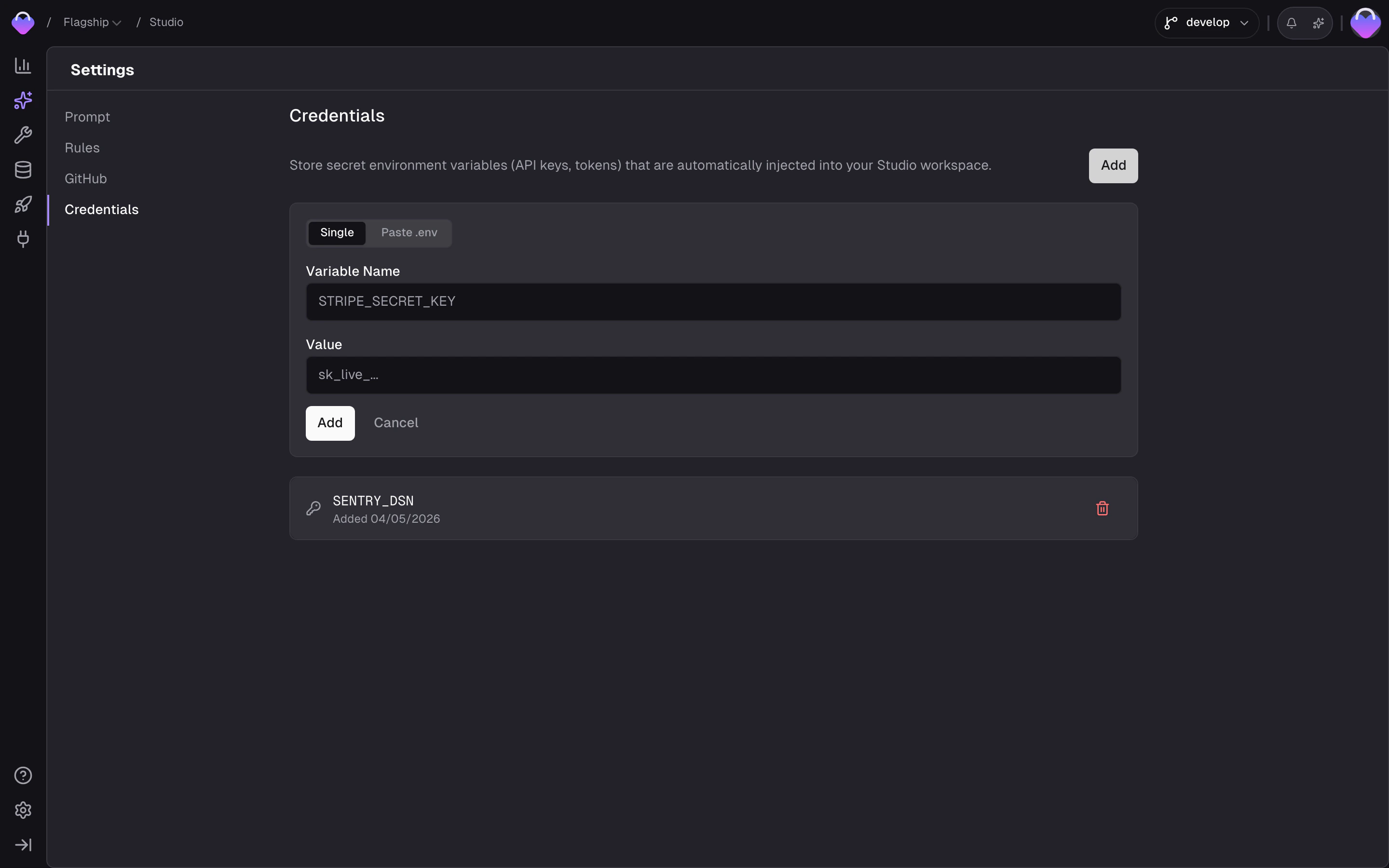
The Credentials tab holds the project’s encrypted secret vault - API keys, tokens, and any other environment variables your code needs at runtime (Stripe keys, OpenAI keys, third-party tokens). Stored credentials are automatically injected into every Studio workspace when a job starts, so the agent’s code reads them as environment variables without any extra wiring.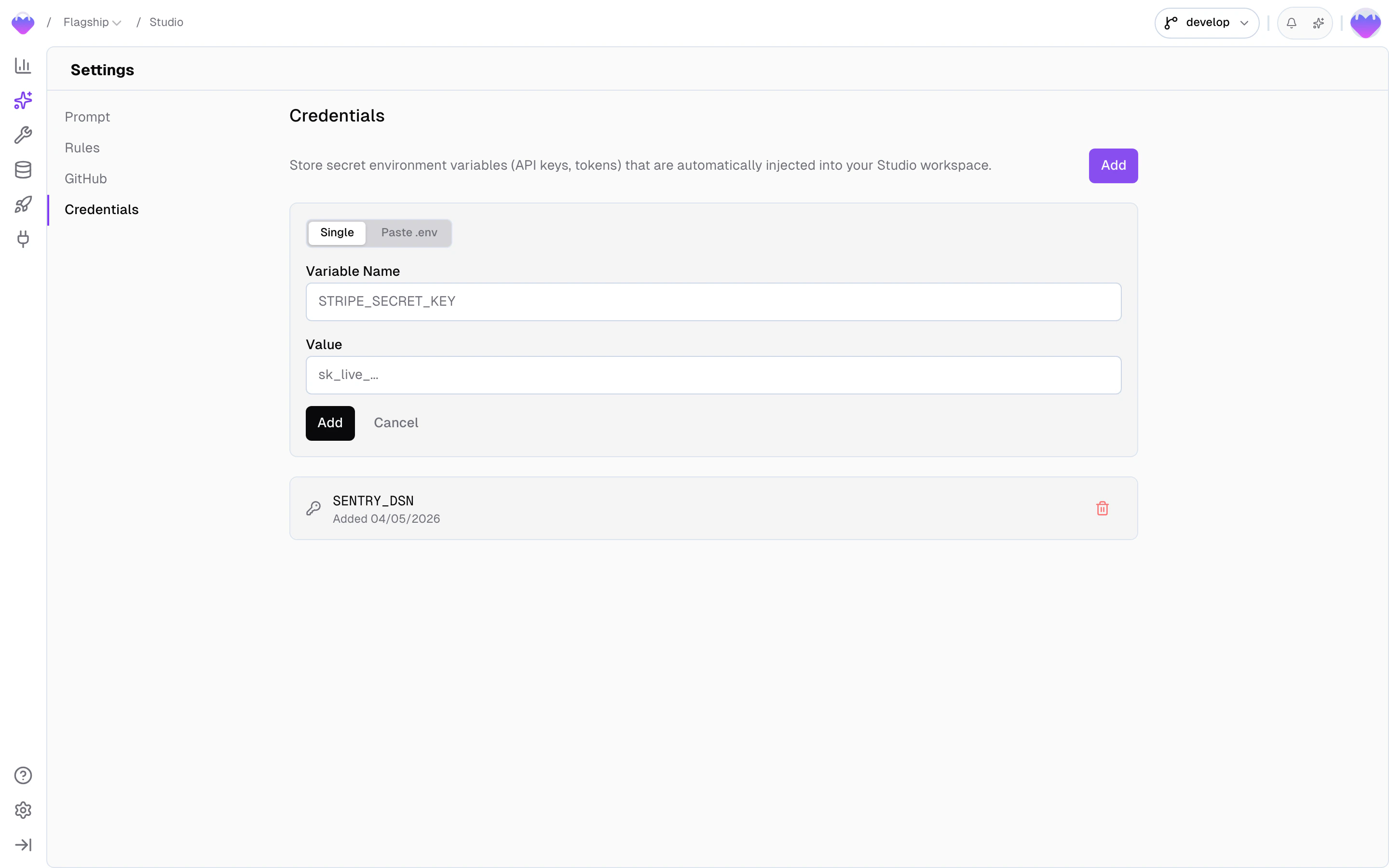
Adding credentials
Click Add to open the form. Two input modes:- Single - fill in a variable name and a value. Variable names follow standard env-var rules (letters, digits, underscores; cannot start with a digit).
- Paste .env - paste raw
KEY=VALUElines from an existing.envfile to import many at once. Pasting into the variable-name field also triggers parse-and-import.
What gets stored
The variable name is visible in the list. The value is write-only - once saved, it is never shown back in the UI. To rotate a value, delete the credential and add it again with the new value. Individual credentials can be removed at any time.How credentials reach the workspace
Saved credentials are pulled into the workspace environment at job start, so the variable names you chose are available to your code on the first request without restart. If the agent runs into a missing credential mid-task - for example, a script the agent just wrote needsSTRIPE_SECRET_KEY and the vault doesn’t have one yet - Studio surfaces a Credential required modal in the chat. Provide the value and Studio saves it to the vault and injects it into the running workspace immediately, so the agent’s next step picks it up. You can also defer with Later if you don’t want to provide the value right now.
Related
Context Base
How Skills, Rules, and Commands shape the Studio chat’s behavior.
GitHub Integration
Setup, commit, and PR flow.
Frontic Studio
Jobs, the Board, and how settings apply during a session.