

- Preview - a live-rendering view of the code, updating as files change
- Changes - the Git state of the workspace (new files, modified files, deleted files, branch state)
The sandbox environment
When you create a job, Studio stands up a fresh workspace for it:- a sandbox with your repository at the base branch you picked, with a new feature branch created for the job
- a running dev server that the Preview panel renders from
- isolation from every other workspace in the project - each has its own branch, its own sandbox, its own running processes
- the project credential vault, injected as environment variables - anything you stored under Studio Settings → Credentials is available to the running code from the first request
The Preview panel
The Preview panel is a live-rendering view of the code in the workspace. As files change - through the agent’s edits or through your own - the preview updates. It talks to Frontic via the generated Client SDK, which Studio points atdevelop - the live stack state - so the preview reflects what you’re building on the stack side too. Studio keeps the SDK in sync as stack config changes, no manual regenerate step.
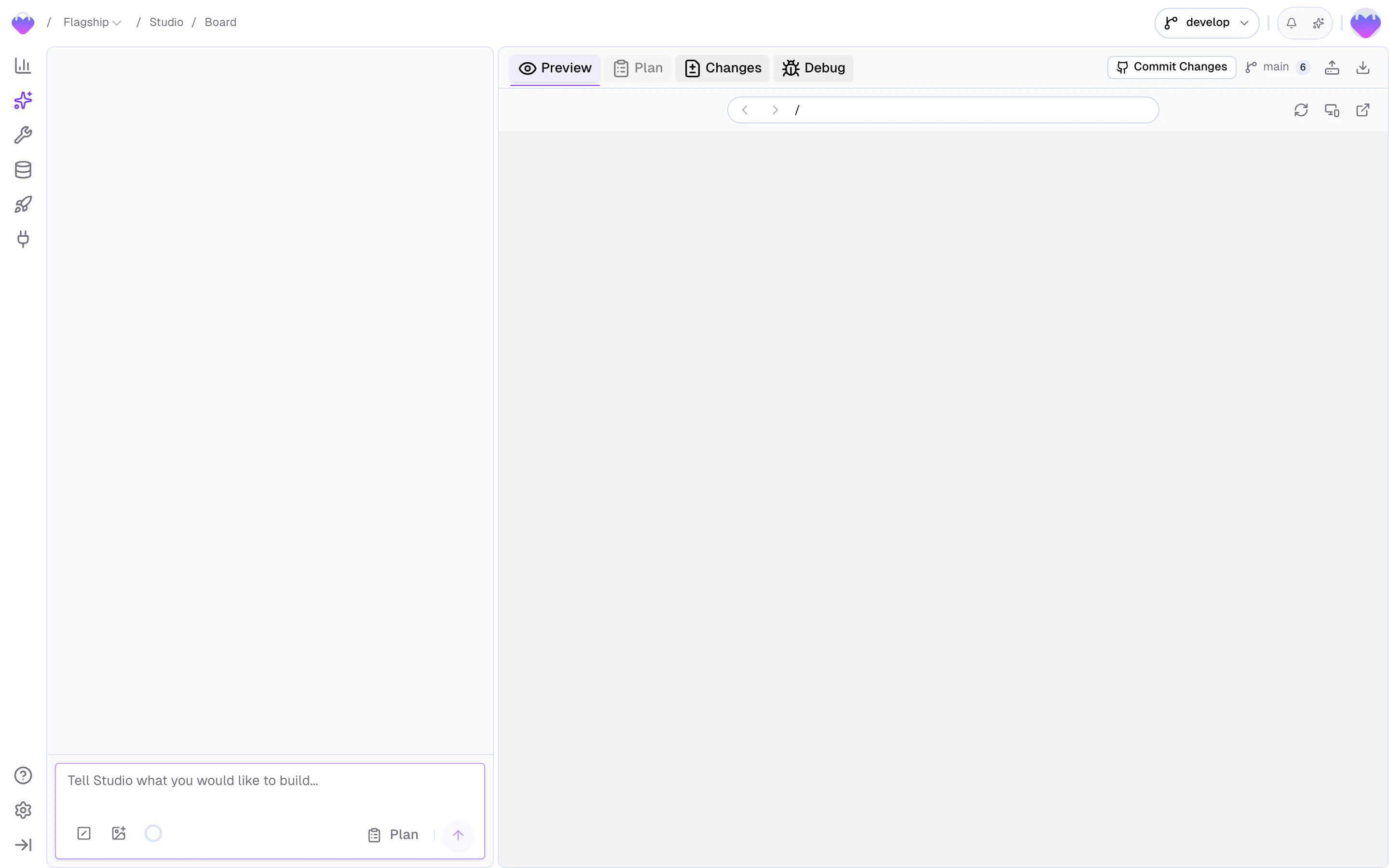
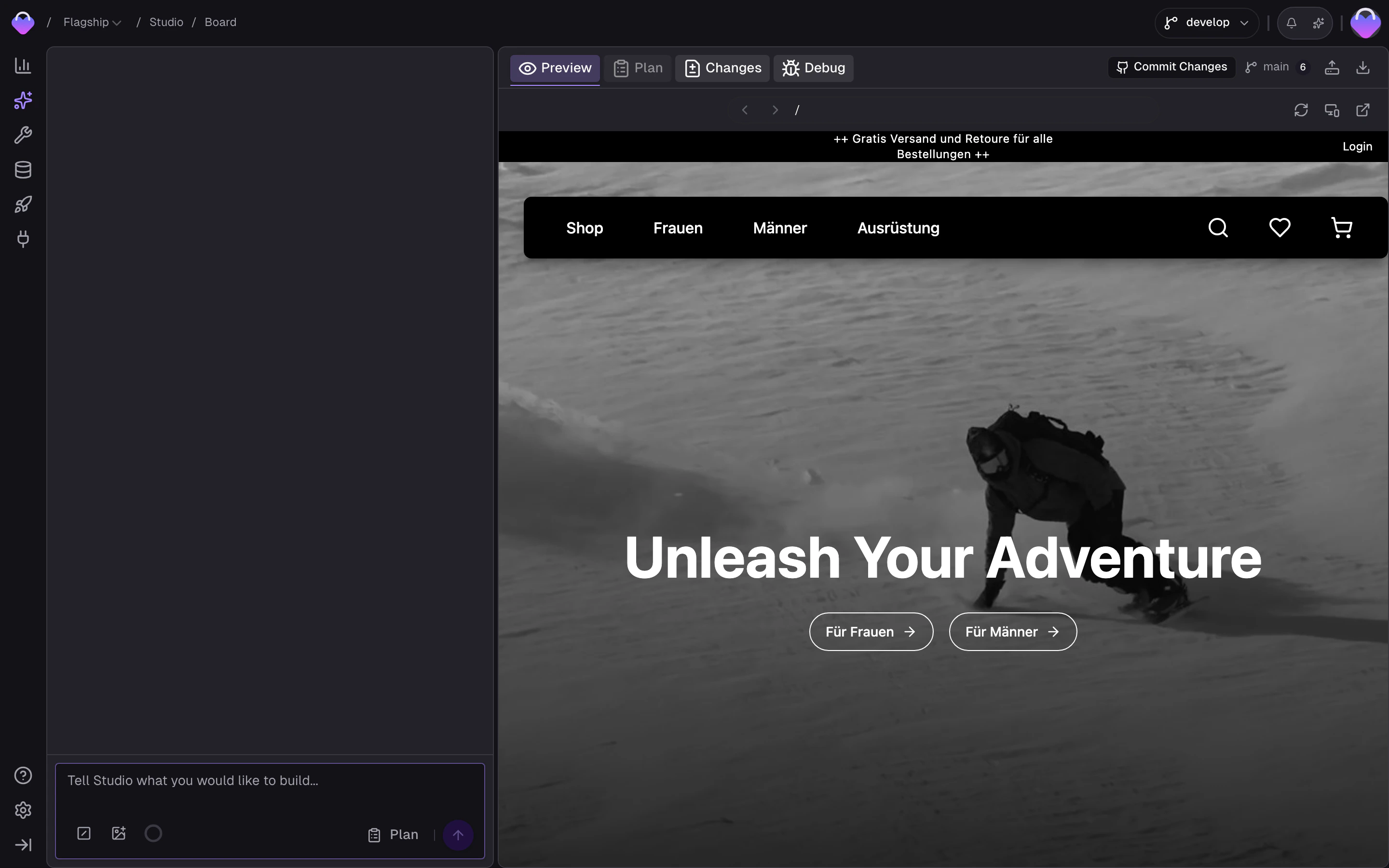
What you can do in Preview
Refresh
Force a reload of the preview. Useful when a file change doesn’t
trigger a hot-reload automatically.
Switch viewport
Toggle between desktop and mobile viewport sizes. Commerce
experiences need mobile testing - do it without leaving Studio.
Open in a new tab
Launch the preview in its own browser tab. Better for long
interactive testing where you want the full viewport, or for
sharing a preview URL with a teammate.
Download the project
Grab a snapshot of the entire workspace as a zip. Useful for
experimental projects or for moving the work to another environment
entirely.
Upload static assets
Drop static application assets - logos, icons, fonts, or config
file - straight into the workspace. On upload, the agent is
notified and moves the file to the right directory in the project,
ready to use in the code.
Select elements
Click elements in the preview to ground your next message in
specific UI nodes. Picked elements appear as numbered chips in the
chat input and are included in the prompt, so the agent knows
exactly which component you mean.
Selecting elements for context
Sometimes the fastest way to point the agent at something is to point at it. Select elements mode lets you pick nodes directly in the live preview and attach them to your next message - the agent then knows exactly which component you mean instead of parsing a description.Turn on select mode
A floating Select elements control sits at the bottom-center of
the preview whenever a preview is loaded. Click it to enter select
mode - the cursor becomes a crosshair and a highlight follows your
pointer across the page.
Pick the elements you mean
Click any element to capture it. It gets a numbered marker in the
preview and a matching numbered chip in the chat input. Keep clicking
to add more - the overlay shows a running count.
Annotate a pick
Optional: click a numbered marker in the preview to open its comment
card, then type an instruction for that specific element - “make this
green”, “remove this”. The comment shows under the matching chip in
the chat input. One comment per element.
Send
Write your message and send as usual. The picked elements - and any
comments - are included with the prompt so the agent can locate and
act on each exact node.
What to do in Preview
Don’t only scan the preview for visual problems. Click through the UI the way a user would:- Type in a search box
- Click a filter and make sure the results update
- Navigate between pages and confirm the URL and content both change
- Hit the back button
- Submit a form
- Check the mobile layout with the viewport toggle
- Test an empty state (filter everything out)
- Test an error state (intentionally trigger a 404)
What the agent does in Preview
The same panel is the agent’s testing harness. While the agent is editing code, it inspects the running preview the way a human would:- Visual checks. The agent captures screenshots of the rendered preview to confirm a visual change actually landed, navigates between pages to check secondary states, and catches layout regressions you’d otherwise have to flag in chat.
- Browser-level diagnostics. When something behaves wrong, the agent reads console output, inspects network activity, and runs targeted JavaScript probes against the running page to trace the cause. Say “the price isn’t showing” and you’ll often see the agent surface the failed request or the broken selector in the next message instead of asking you to dig.
Preview limitations
- It’s a dev build, not a production build. Bundle splitting, asset optimization, real SSR in some frameworks - those only happen in a production build. The Preview is a fast-iteration dev server, not a staging environment.
- Share the preview URL with teammates only. The workspace sandbox isn’t sized for wider traffic, so for stakeholders, customers, or anyone outside the team, use your hosting platform’s PR deploy URL instead.
- The preview suspends when idle. The sandbox sleeps after inactivity and cold-starts on the next request - opening the preview after a break may take a moment to come back.
- External image domains may block the preview. Some shop image CDNs disallow cross-origin requests (no permissive
Access-Control-Allow-Origin) or enforce a Referrer policy that rejects requests not coming from the production storefront. The preview runs from a Frontic-hosted sandbox URL, so those policies treat its requests as untrusted and the images don’t render. The fix lives on the image domain - allow the sandbox origin (or*during development) onAccess-Control-Allow-Origin, and either relax the Referrer policy or allow the sandbox origin to send a Referer your CDN accepts.
The Changes panel
The Changes panel is the workspace’s equivalent ofgit status + git diff. Every file change the Studio chat makes shows up here, diffable, reviewable, and ready to commit.
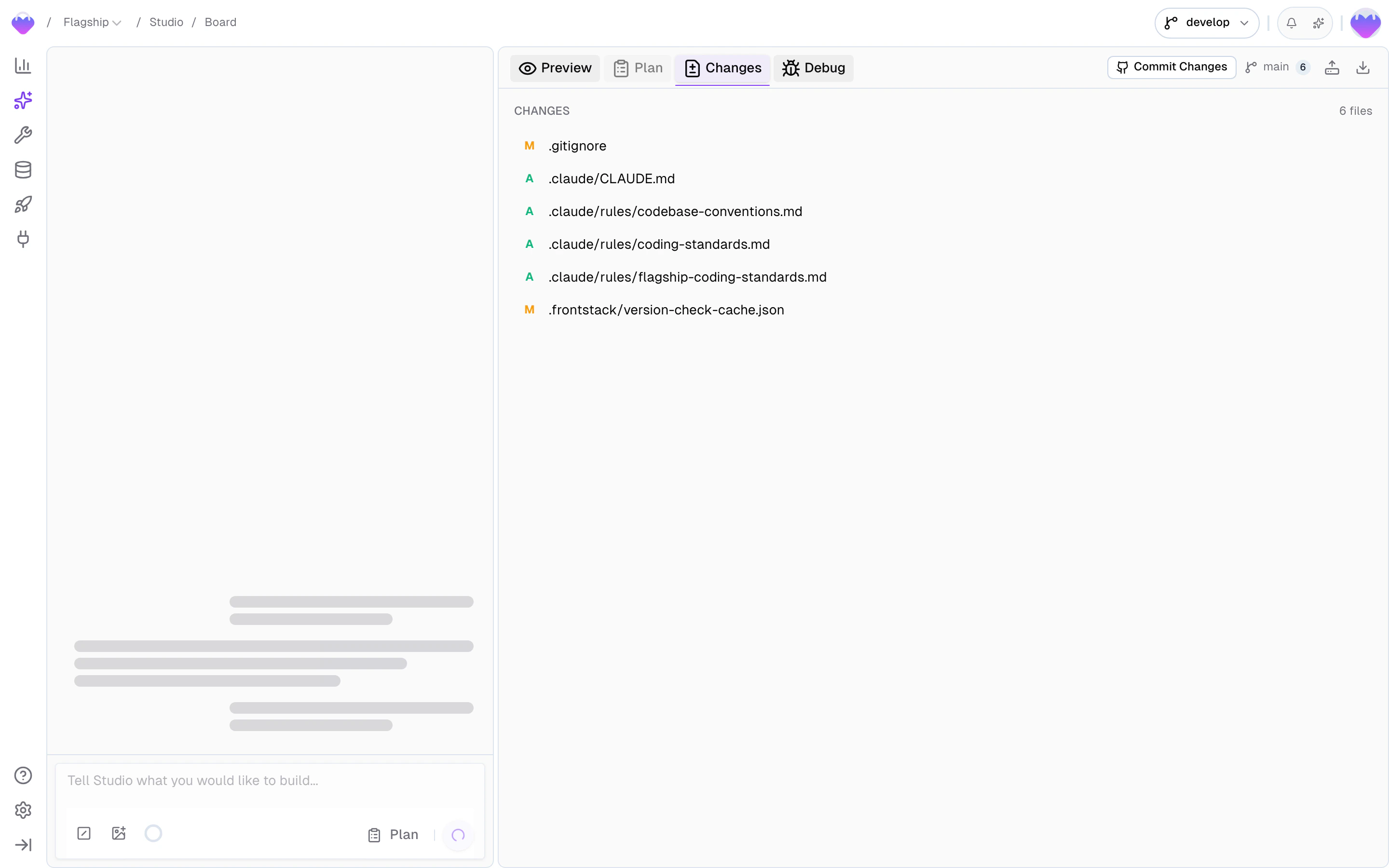
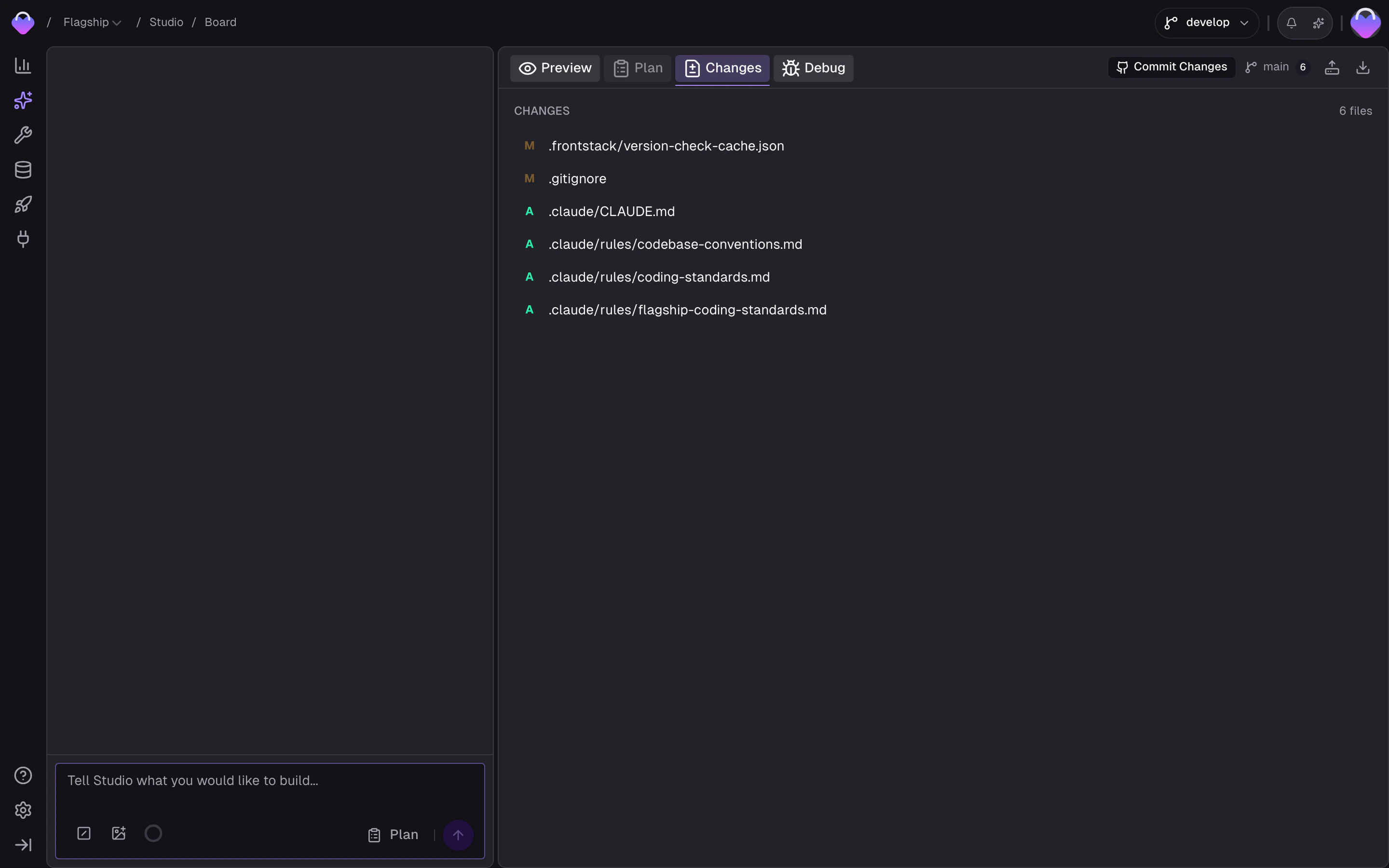
What it shows
- New files - files the agent created, with full content
- Modified files - line-by-line diffs against what was in the file before
- Deleted files - files the agent removed, with the content that was deleted
- Branch state - how many commits ahead of the base branch the workspace is, whether anything is unpushed, whether the branch has diverged from remote
- Uncommitted changes - the current working tree delta since the last commit
Reviewing diffs
Every diff should get eyes before it’s committed. The Studio chat is usually right, but it’s not always right, and the cost of catching a wrong edit in review is a tenth the cost of catching it after merge.Open the Changes panel
Switch from Preview to Changes.
Read every file, not only the ones you expected
Agents sometimes touch files you didn’t mention - imports, shared
utilities, generated files. Read those too.
Check for the things that matter
- Did the agent pass
requestUrlto Frontic API calls? - Did it handle the non-200 cases for
client.page()? - Did it use the typed SDK methods instead of raw fetch?
- Did it reference design system components you have?
- Are imports clean, or did it leave orphaned ones behind?
Flag issues in chat, not in the diff
If you find something wrong, tell the agent in the chat. “The
search input on line 42 isn’t debounced - can you add a 300ms
debounce?” The agent edits the file, and the Changes panel
updates. Don’t hand-edit the file - let the agent keep its
mental model.
A typical flow
Here’s what day-to-day work in a workspace looks like - chat on the left, Preview and Changes on the right, you moving between them:Describe the task
Tell the agent what you want to build. Be specific enough that the
agent doesn’t have to guess, vague enough that it has room to
propose structure.
Review the agent's plan
The agent responds with a plan - which files it’ll touch, which
backend pieces it needs, any clarifying questions. Confirm or
redirect before it starts executing.
Watch the preview
As files change, the Preview panel updates with the live result.
Click through the actual UI - not only the chat’s summary of what
it did. Need the agent to focus on something specific?
Select it in the preview to ground
your next instruction.
Review the changes
Open the Changes panel to inspect repository status and the full
diff. Read the files the agent touched, including the ones you
didn’t explicitly ask about.
Ship it
When you’re happy, commit from the Changes panel. If
GitHub is connected, the branch
pushes and you can open a PR from the compare link. If not, the
work stays in the workspace - download it or share the preview URL
with a teammate. Started from a template and want a repository? Use
Create Repository in the workspace toolbar to create one from
the job.
Tool approvals
Studio surfaces an approval prompt before each tool call the agent makes - file edits, code searches, shell commands, browser actions. You see the tool, its arguments, and confirm or deny before the agent proceeds. This is separate from Plan mode, which gates the agent’s plan up front, and from the Credential required prompt, which asks for a missing secret. By default, every job runs in Always ask mode - the agent pauses on each tool call. The chat input toolbar has a shield toggle to switch to Skip approvals, which auto-approves every tool call without prompting. Click it again to switch back. The setting is saved per user per project, so a teammate working on the same project keeps their own preference. When to switch to Skip approvals:- You’re iterating fast on trusted, low-stakes work and the per-step prompts are getting in the way
- You’ve already reviewed a Plan and want the agent to execute without interruption
- You’re rerunning a well-understood task the agent has done before
- Unfamiliar tasks where you want to watch each step
- Destructive operations, or anything you’d want to catch before it runs
- New skills or rules where the agent’s tool choices haven’t earned trust yet
Parallel workspaces
You can have multiple jobs open at the same time, each in its own workspace, working against the same repository on different feature branches. Studio handles the Git isolation - each workspace has its own branch, its own sandbox, its own running processes. Two agents (or you and an agent) can work on unrelated tasks without collision. Where this gets tricky: coupled changes. If one job depends on a change another hasn’t merged yet, its branch is missing that work. The usual fix is to finish the dependency first, merge it, and rebase the dependent job onto the updated base. Studio doesn’t do anything magical to resolve this - it’s Git.What’s not in the workspace
A few things a Studio workspace deliberately doesn’t include:- A full editor. Workspace editing happens through the Studio chat, not a local text editor. If you need to edit a file by hand, pull the branch locally and work in your own editor.
- A terminal. You can’t run arbitrary shell commands in a Studio workspace. The agent runs commands through its tool calls, but there’s no open shell. For arbitrary terminal work, pull the branch locally.
- A debugger. The preview is a browser window; you can use the browser’s devtools on it, but there’s no integrated debugger for the code itself.
Related
GitHub Integration
Commit, push, and open a PR from the Changes panel.
Context Base
How Skills, Rules, and Commands shape the Studio chat’s behavior.
Settings
Project-wide defaults that apply across every job.