

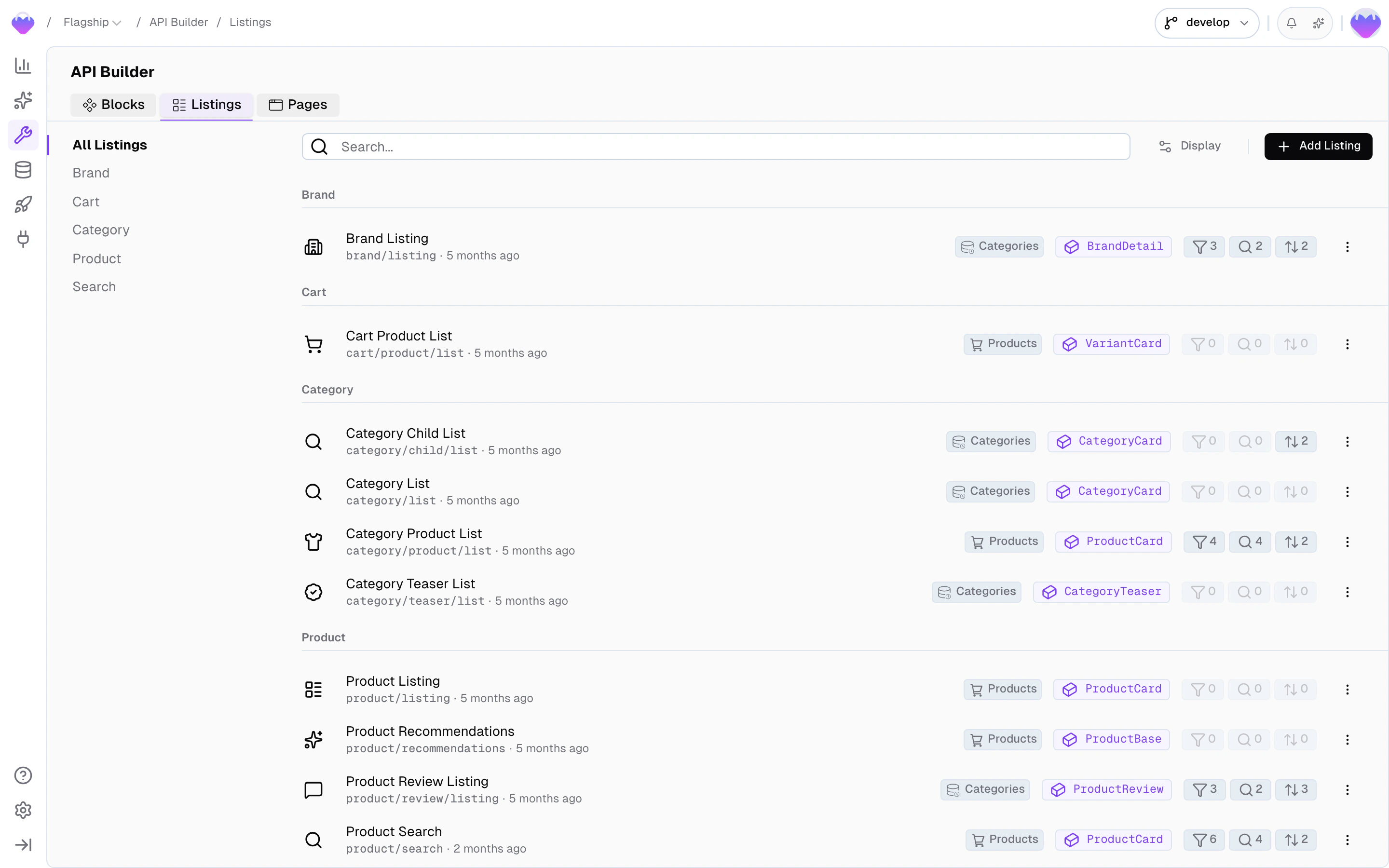
Search Listings in the API Builder
Create a listing
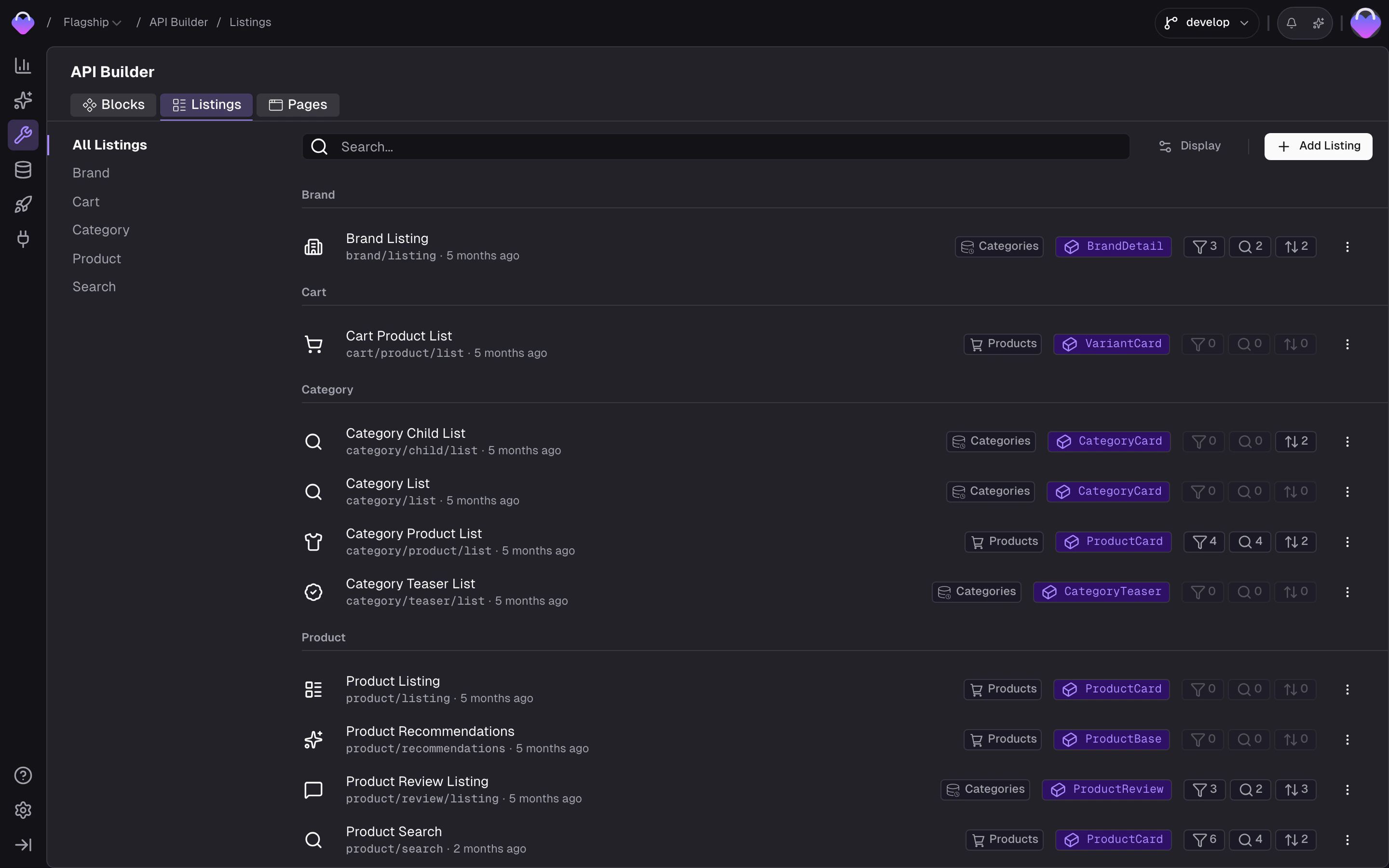
Head to the API Builder and click Add Listing.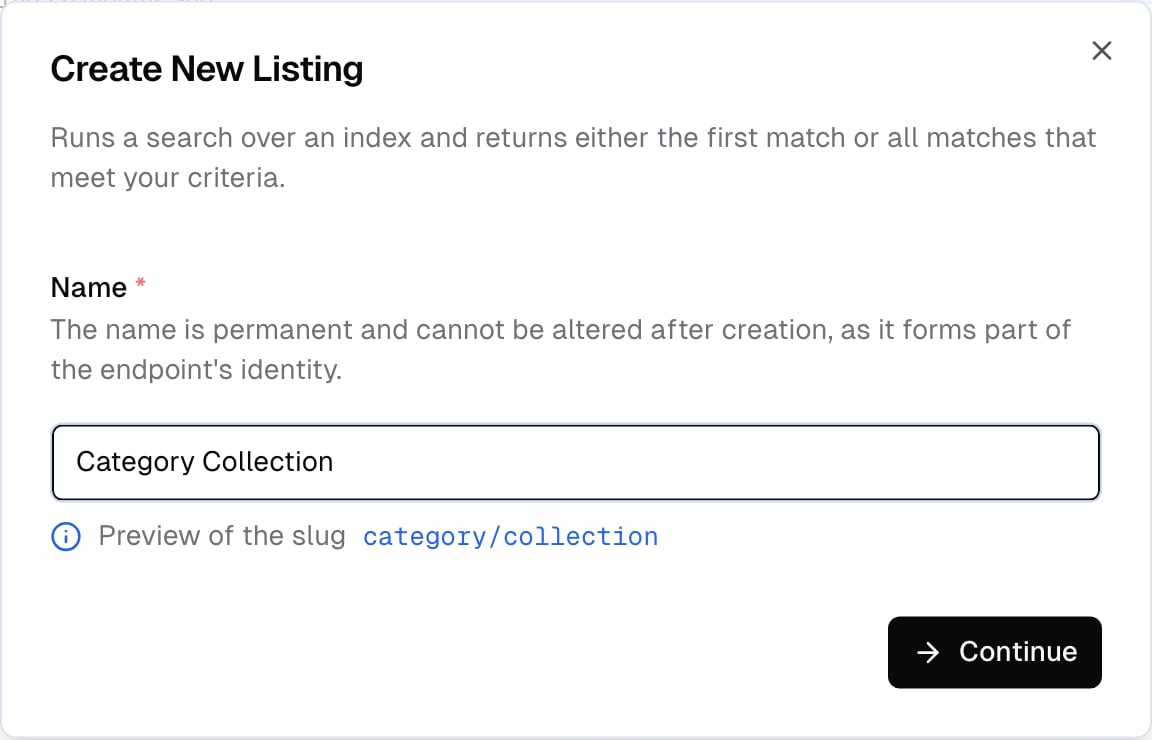
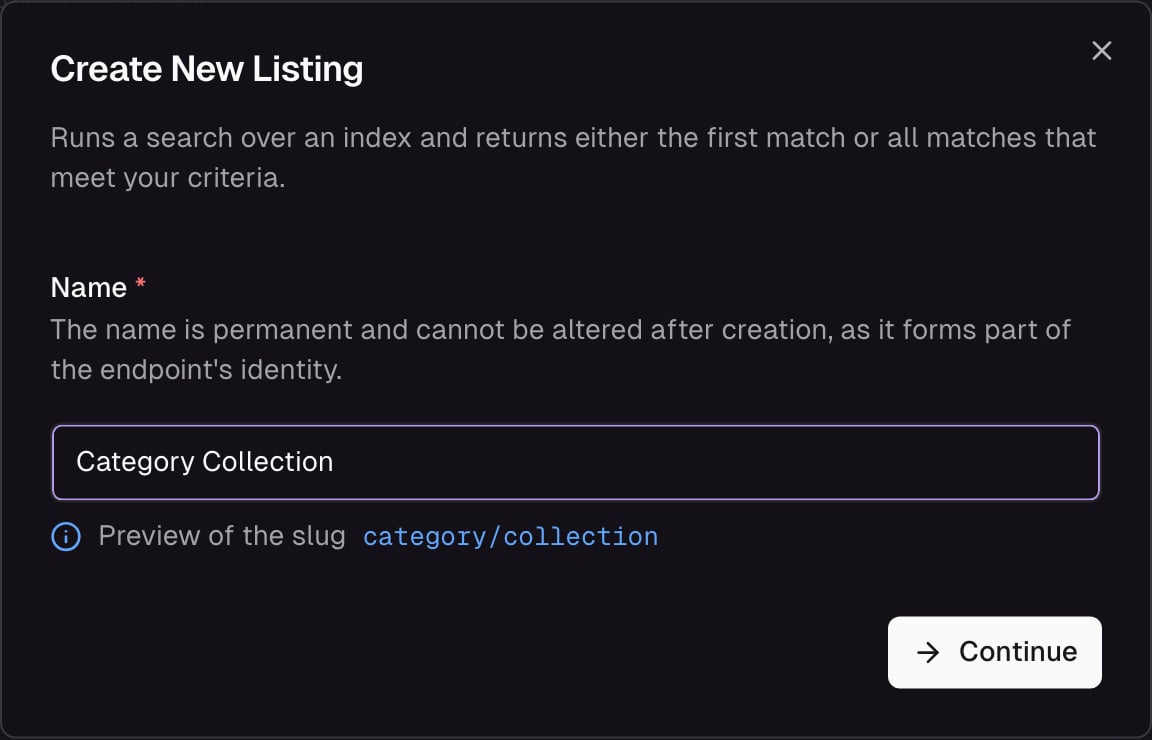
Create a new Search Listing - name and endpoint
Listing Settings
The Settings tab covers what the listing accepts as input, how results are returned, and which storage it reads from.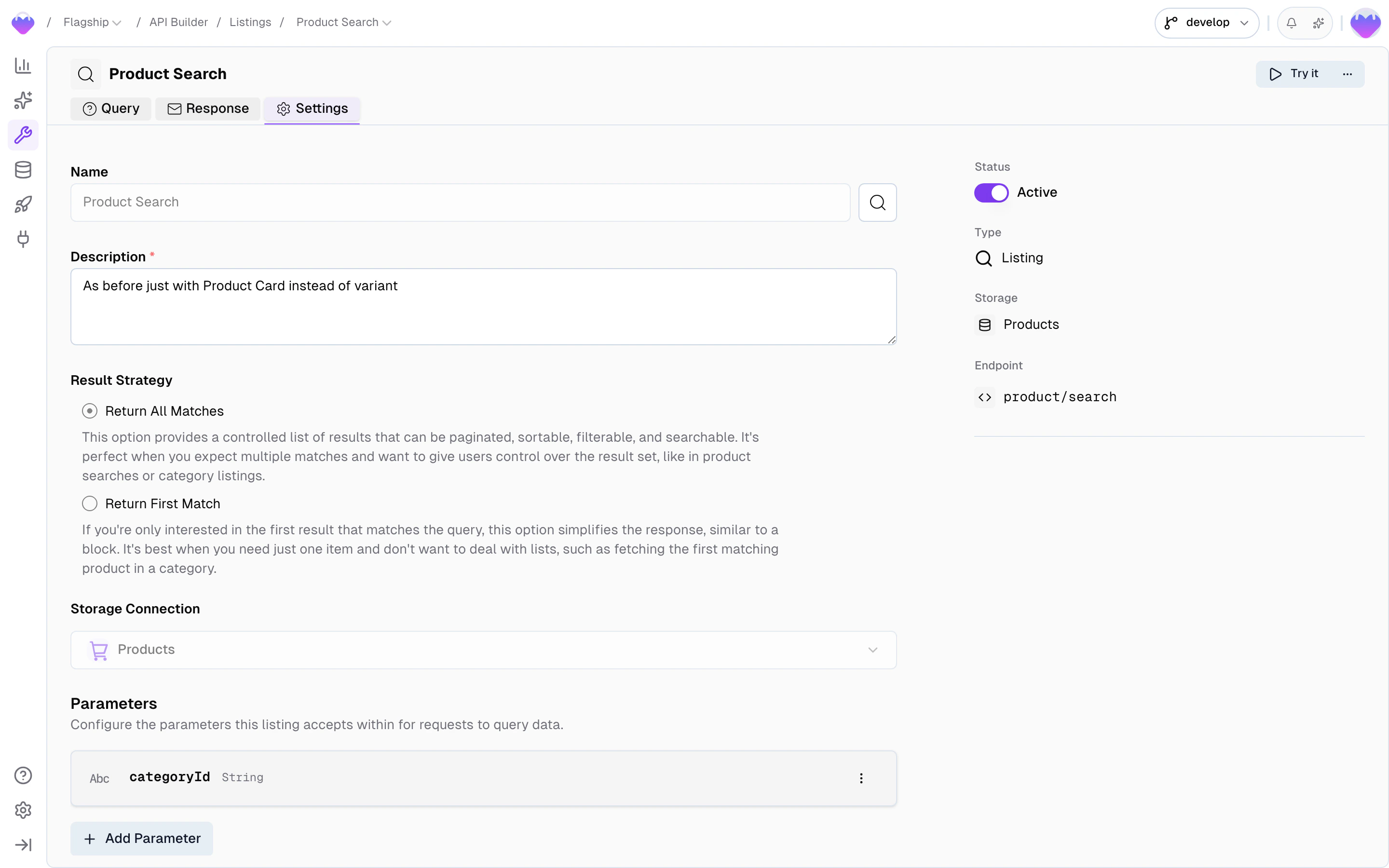
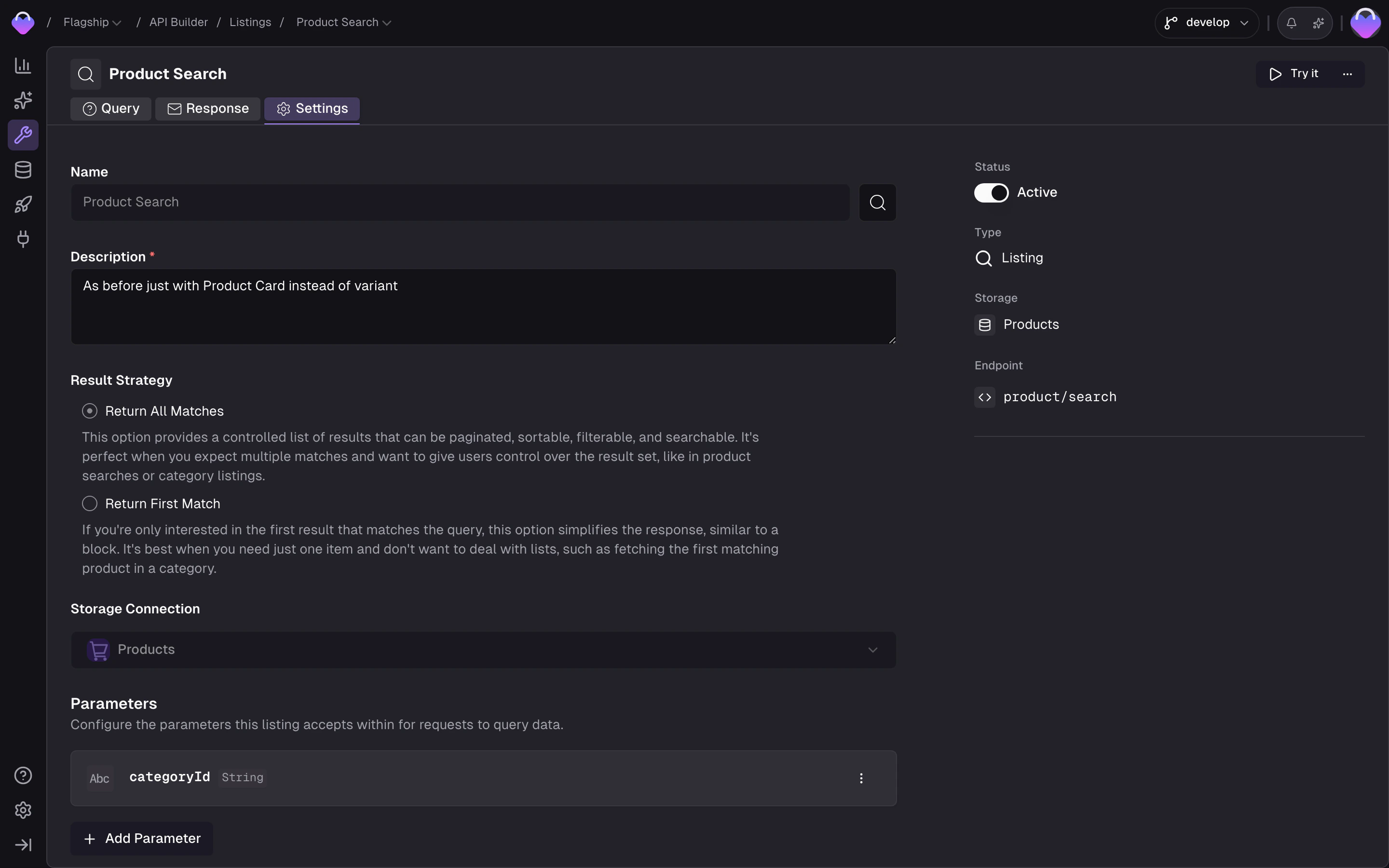
Listing Settings - input parameters, result strategy, storage connection
Input Parameters
Parameters let you scope a listing to a specific subset - for example, fetching products in a specific category. Parameters can be strings (a category ID) or arrays (a list of product IDs). In the Base Query card inside the Query tab, map parameters to query criteria that filter the results. Parameters are typically controlled by the frontend based on context (the current category, the current brand), while query options (search, filters, sorting, pagination) are controlled by the user. This separation keeps the core content gated while letting users refine results.Result Strategy
When the connected storage is a commerce storage, choose which level the listing returns:- Product level - one row per product. Returns shared fields (name, description, brand, categories). Variant-specific data is derived via the connected block’s Price, Variant Field, and Variant List fields. Use for category grids, search results, and product cards.
- Variant level - one row per variant. Returns variant fields (price, options, SKU, stock) plus the inherited shared fields. Use for cart line items, wishlist rows, and variant pickers.
Storage
The listing reads from a connected Data Storage. The Result Strategy above selects which level of that storage drives the rows.Query Settings
The Query tab controls how the listing can be filtered, searched, sorted, and paginated.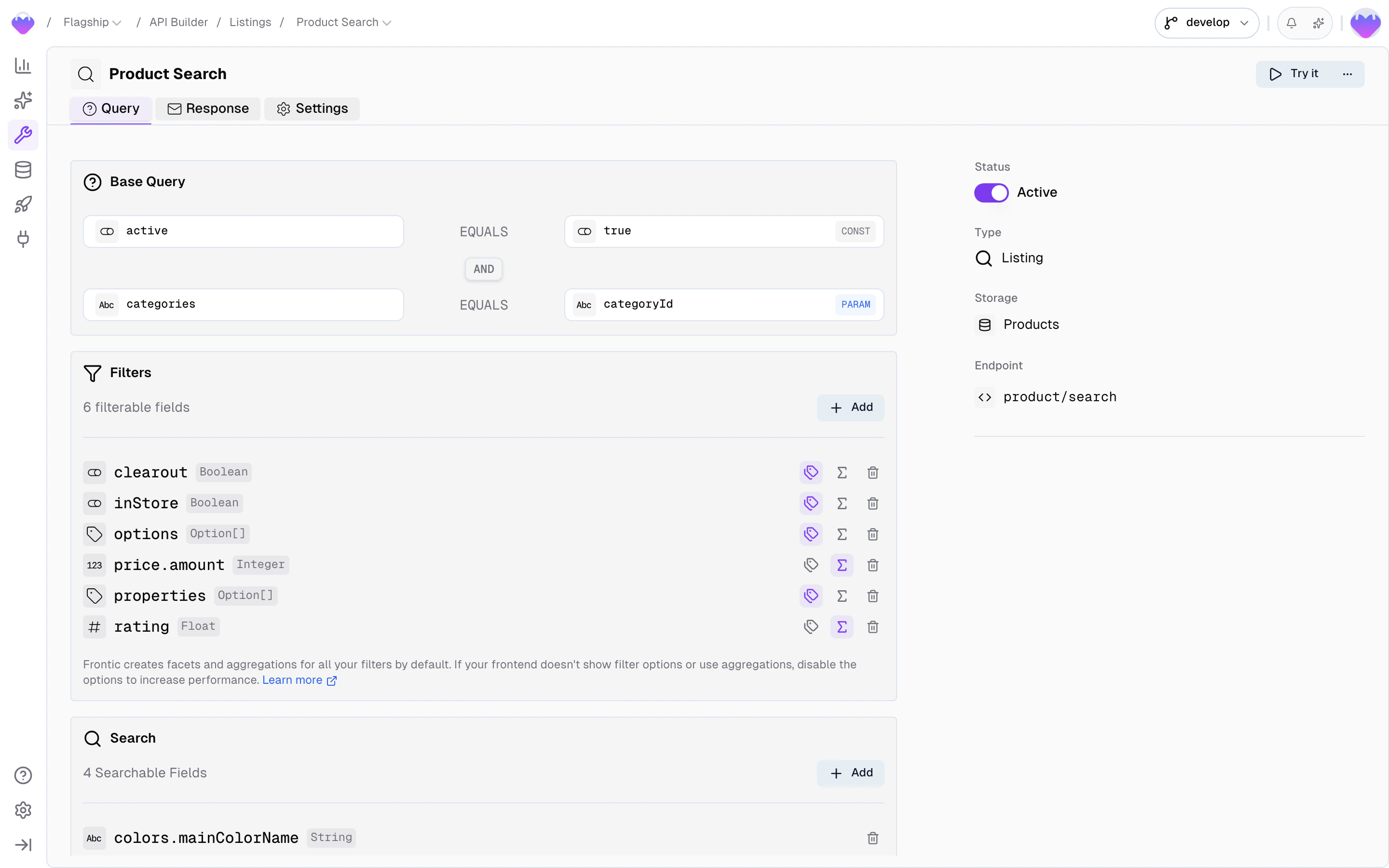
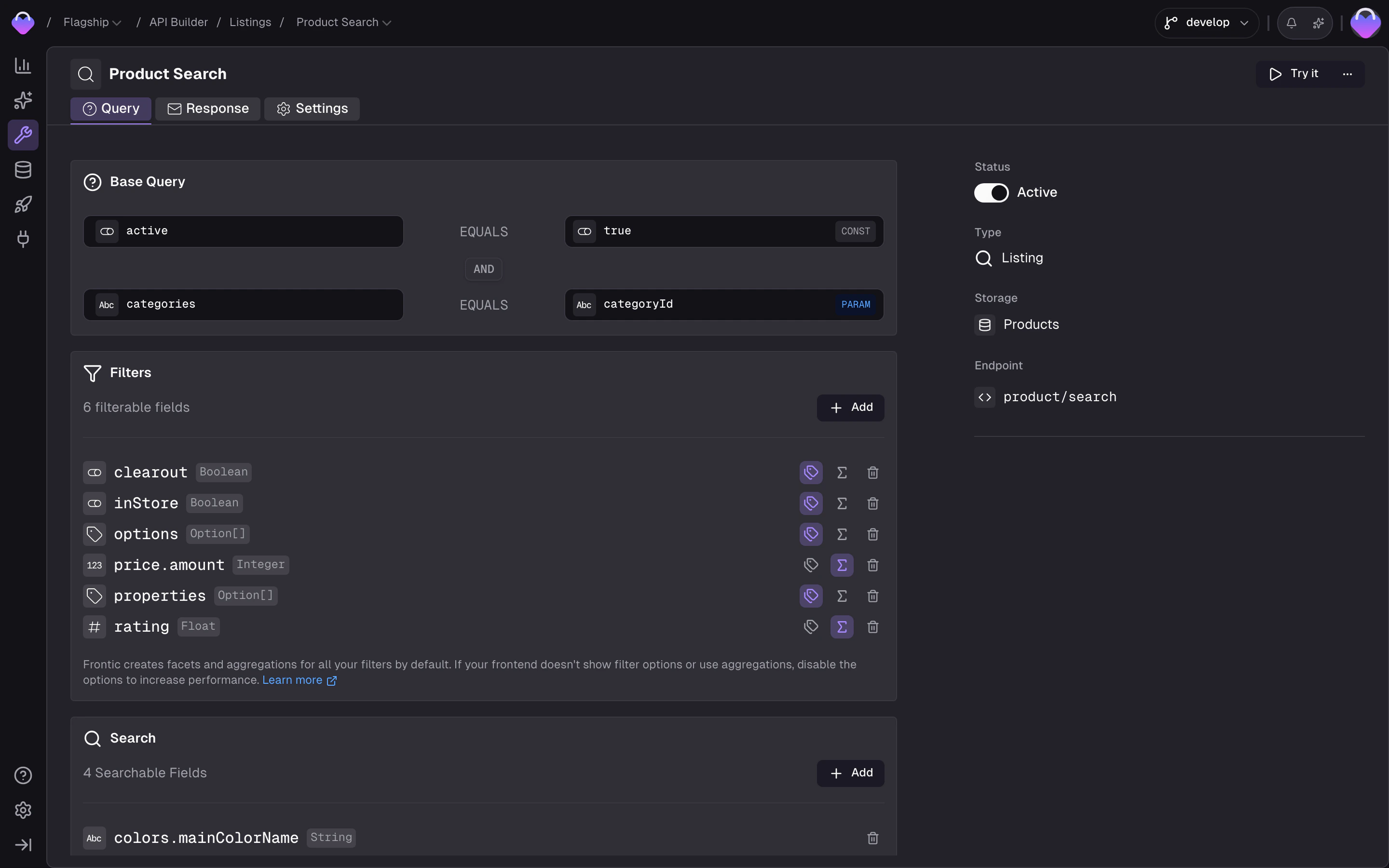
Query Settings - base query, filters, search, sorting, pagination
Base query
A pre-defined query that always applies to the listing - every request runs through these conditions before user filters are applied. Use it to scope the listing to a subset of records (e.g. only active products, only items in a specific category). Each condition has three parts:- Field - a storage field or block field to match against. The value input adapts to the field’s type, so booleans, numbers, strings, and enums all get the right widget.
- Operator - how to compare. Available operators:
equals/notEquals- exact match. Works on both string and array fields - on arrays, Frontic turns it into an “includes” check under the hood. This is the operator to use when matching against a field that holds a list of values (e.g. category IDs).like/notLike- partial match (contains)gt/gte/lt/lte- numeric comparisons
- Value - a static value or a mapped parameter, set via the source toggle on the right of the input:
- Static - compare against a fixed value. The widget matches the field type: a switch for booleans, a number input for integers and floats, a dropdown for enums, a text input for everything else.
- Mapped - compare against an input parameter. The picker only lists parameters whose type matches the field. If exactly one matches, it’s selected automatically. If none match, the picker is disabled with a “No matching parameter” hint.
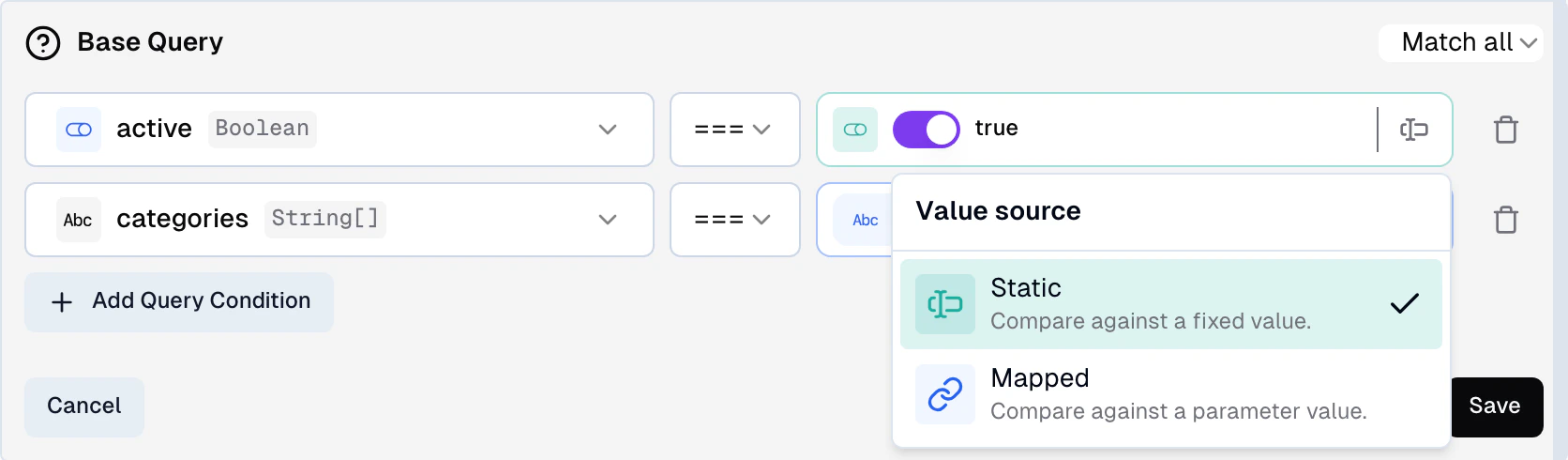
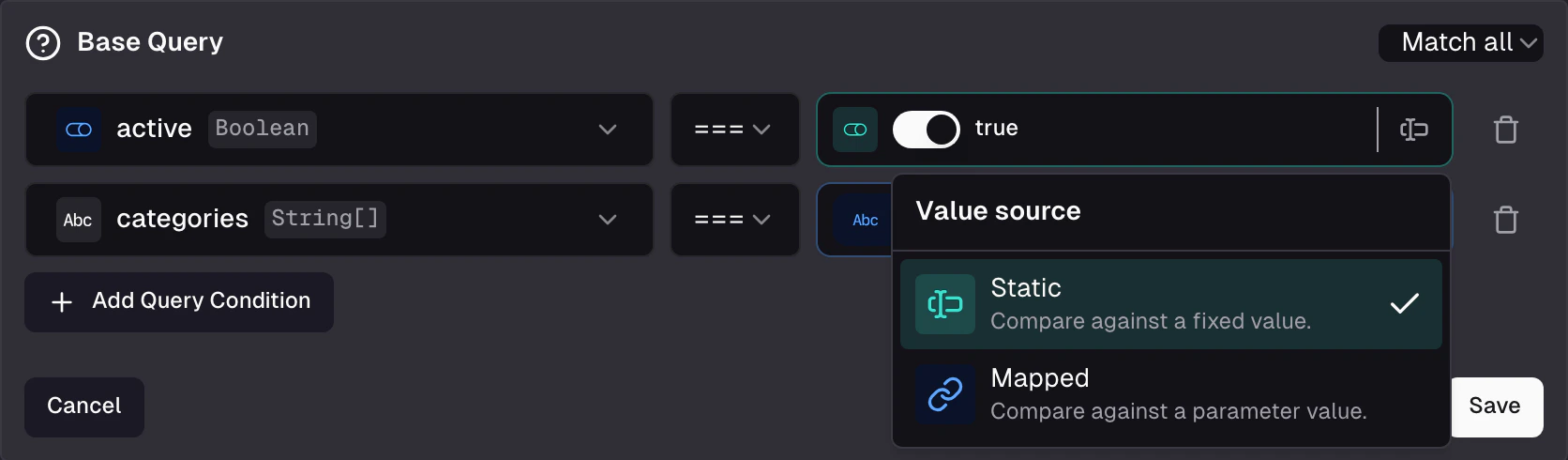
Base Query - conditions combine static values with mapped parameters
Filter options
Filter, search, sorting, and pagination settings are configured directly in the Query tab below the base query. Select which fields users can filter on. Each selected field becomes a filter in the API response with facet data your frontend can render as checkboxes, dropdowns, or sliders.- Fields - select from block fields or storage fields. Each selected field becomes a filterable dimension.
- Facets - enabled by default (up to 200 values per filter). Disable for high-cardinality fields like price ranges to reduce response size. See Filter facets below for the response shape.
- Active vs. total - facets are returned in two sets:
result(matching the current filters) andtotal(all items). Your UI can show both “X results with this filter” and “Y total items.”
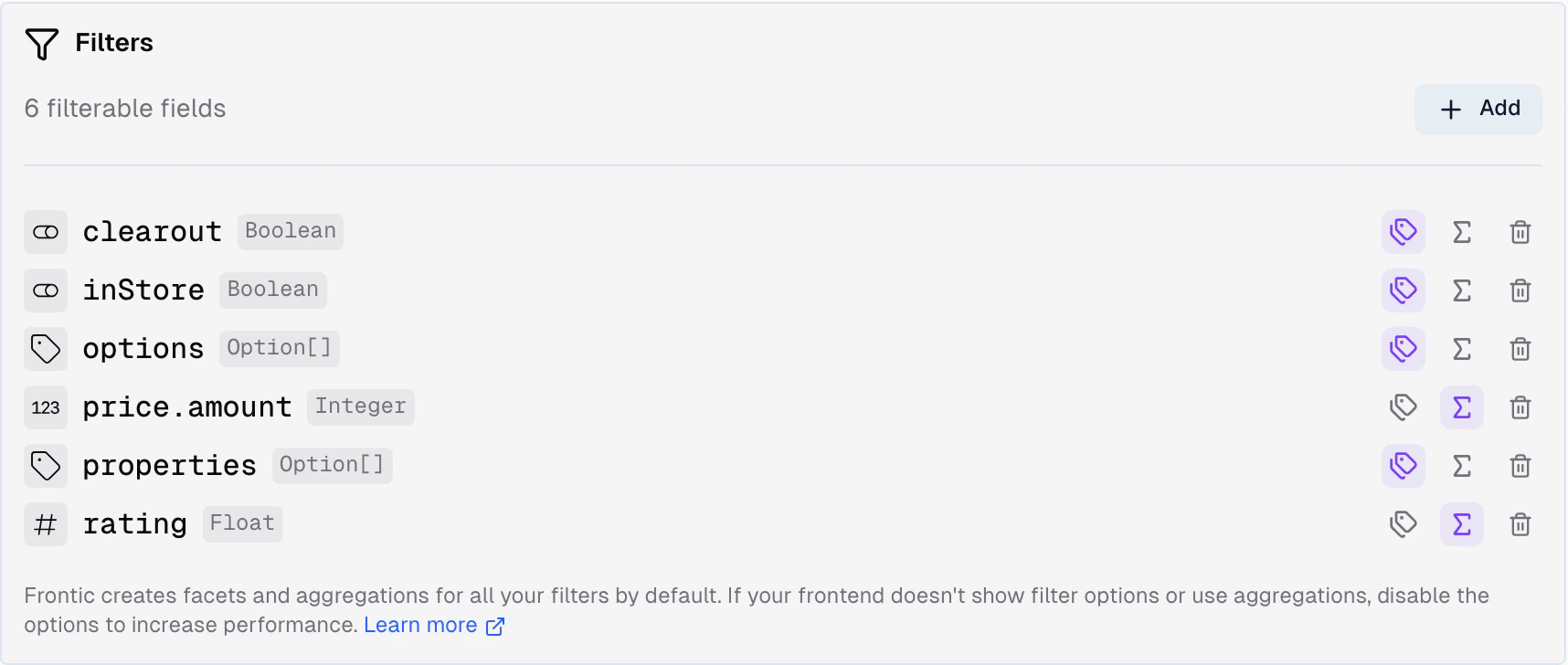
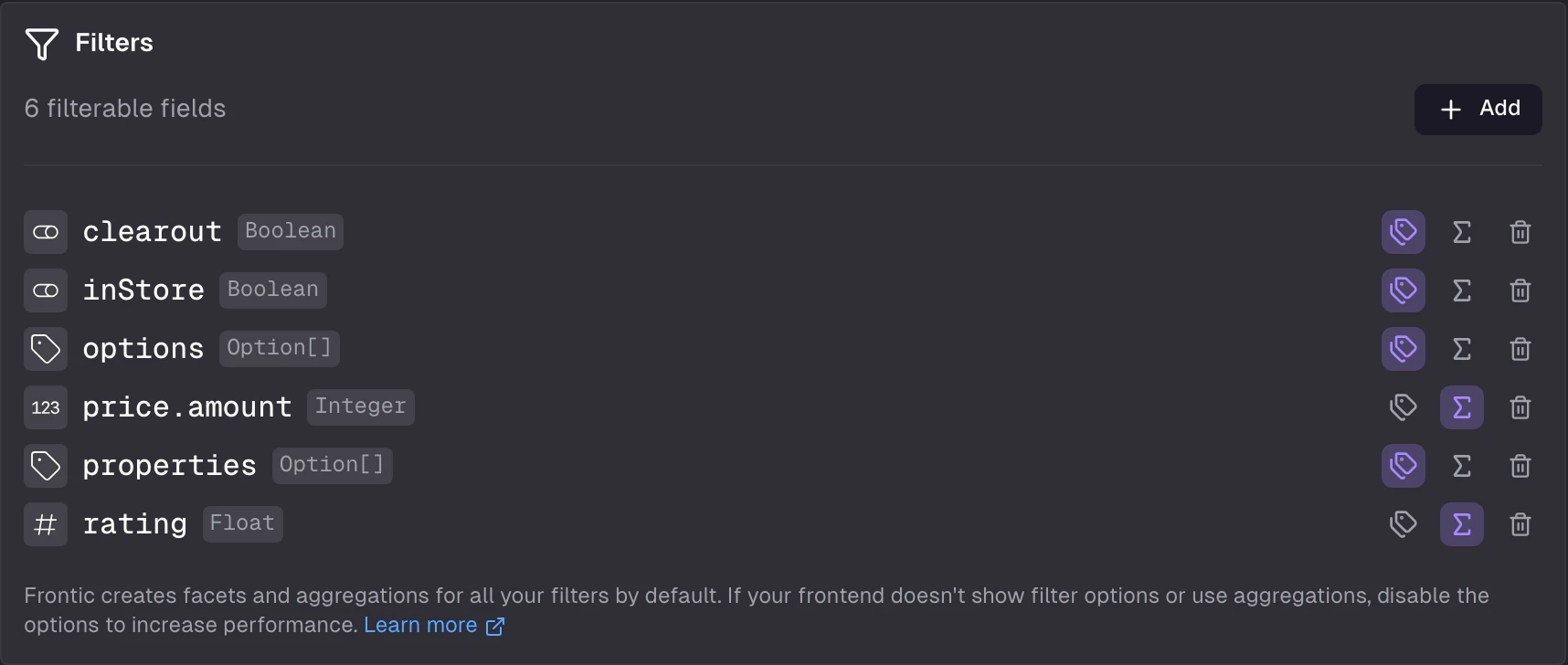
Filters - selected fields with facet and aggregation toggles
Dynamic filters
When you select anOption composite as a filter, Frontic auto-generates dynamic facets grouped by attribute. One Option field produces separate filter groups for color, size, material, etc. - no manual setup needed. The facets are aggregated across variants, so a product-level listing shows all available options.
Searchable fields
Select which fields support full-text search. Often used for product names, aliases, or descriptions.- Fields - select from block fields or storage fields. Multiple fields can be searchable at once.
- Fuzzy matching - enabled by default to counteract typos. Disable for exact matches only.
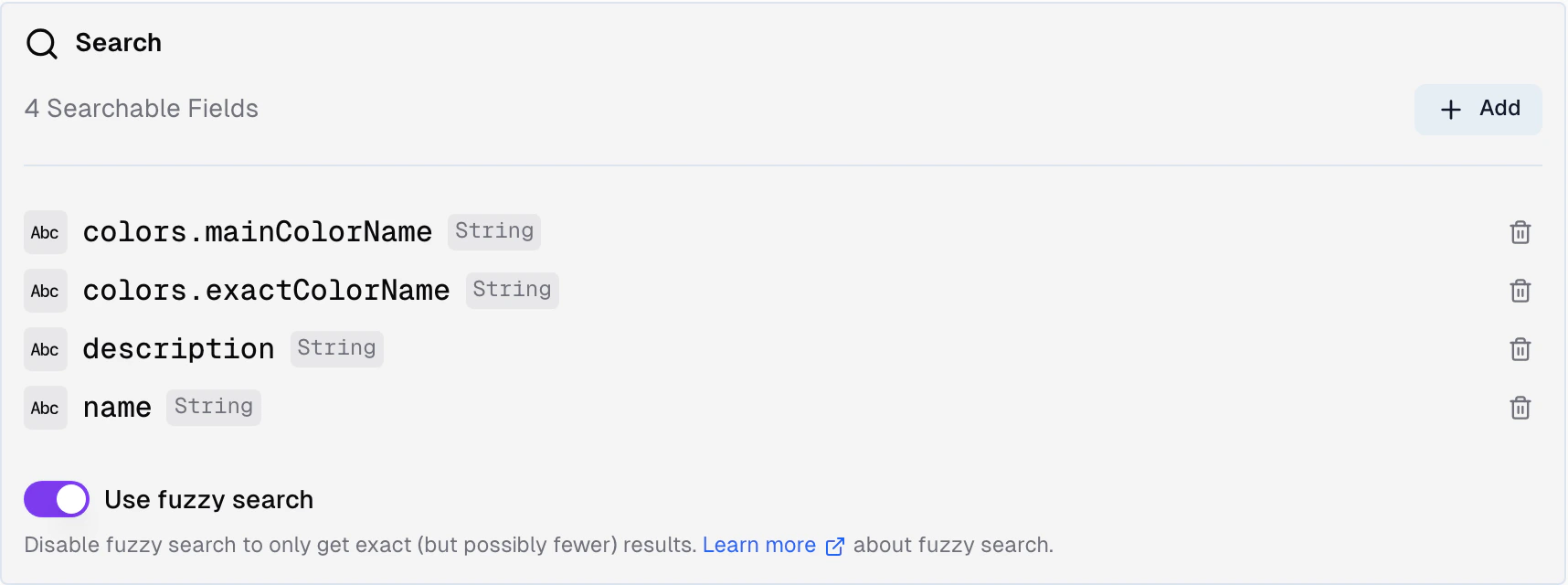
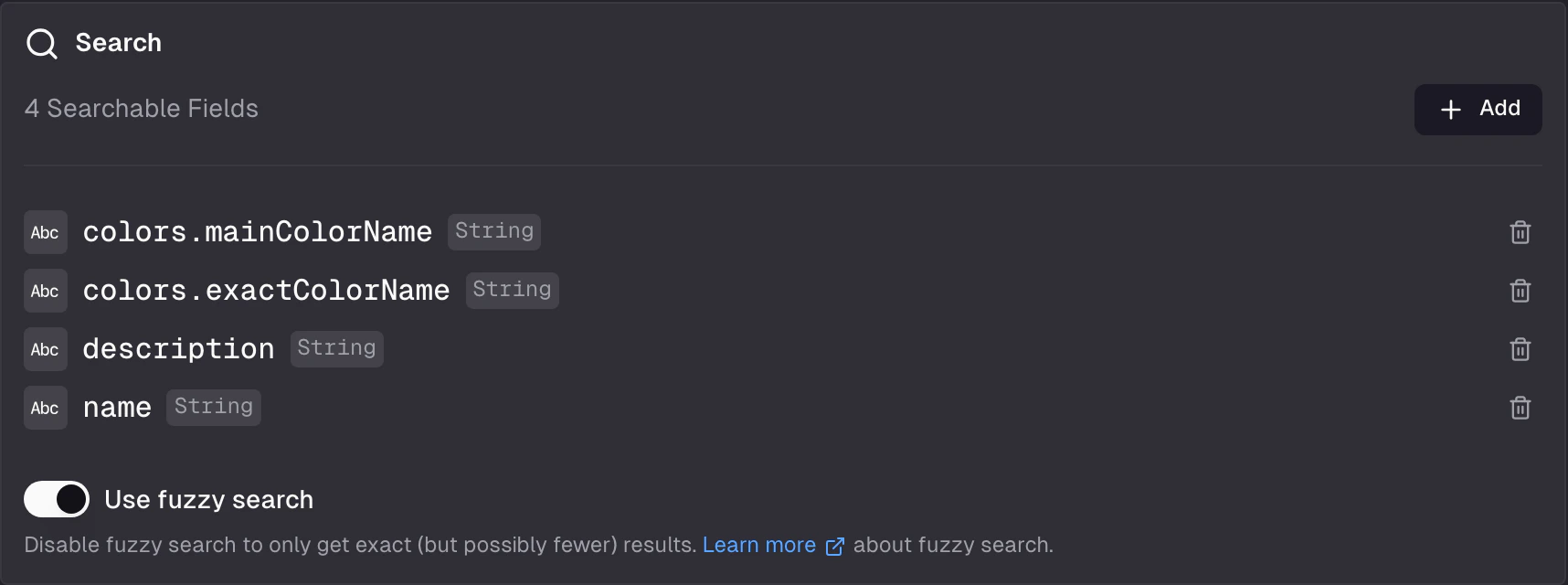
Search - selected fields support full-text search
Sorting
Define which fields users can sort by.- Sort fields - select from block fields or storage fields
- Default sort - which field and direction (ascending/descending) to use when no sort is specified
- Multiple options - users can choose between up to 3 sort options
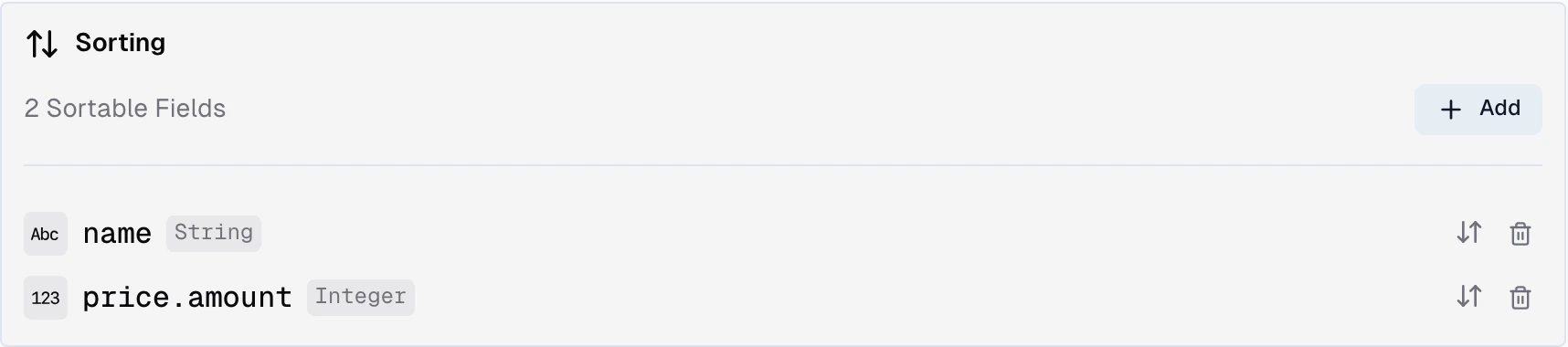
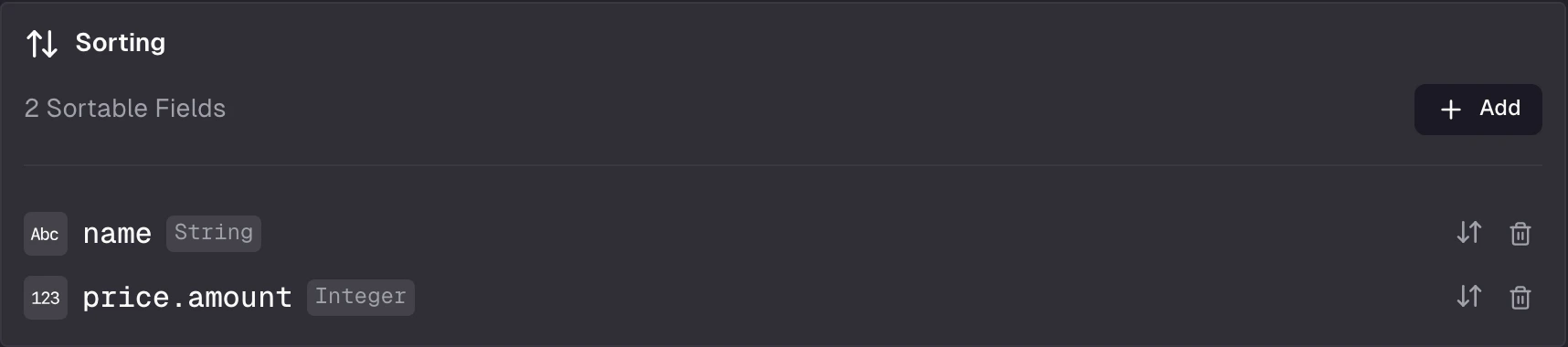
Sort - fields, default selection, direction
Dynamic sortings
For category-specific product positioning or other parameterized sort orders, use the built-in “Sorting” data type in your storage. When you add it as a sort option, Frontic asks you to select a parameter whose value matches the key inside your sorting structure. Missing keys are handled gracefully. Sorting keys (and the parameter) must be strings.Pagination
- Default page size - how many items per page when no limit is specified
- Maximum page size - the upper bound for the
limitparameter


Pagination - default and maximum page size
Fetch a listing
The minimal call takes the listing name and its parameters:- Client SDK
- Nuxt Module
query object to filter, sort, search, and paginate. Filters support equals, range, contains, and and / or / not for chaining - by default they’re AND-combined. Passing an array of values to equals or contains is treated as an OR group.
- Client SDK
- Nuxt Module
useFronticSearch wraps useFronticListing with reactive state and ready-to-use methods for adding/removing filters, sorting, paginating, searching, and resetting state.
See the Client SDK reference and Nuxt module reference for the full API surface, including all filter operators and per-request overrides.
Response
The response contains items and metadata for building your UI.array
The resulting items, each shaped like the connected Detail Block.
number
Total number of items matching the query.
object
Current page information:
current, last, limit, next, prev.object
Facet data for each configured filter field.
object
Aggregation results (min, max, avg, sum, total) for configured filter fields.
array
Configured sorting options (up to 3).
Filter facets
Each entry underfilter describes one filter’s available options under the current query. Every option carries option, value, count, selected, and disabled - enough for your UI to render checkboxes, dropdowns, or sliders without extra requests.
count / disabled reflect that assumption. When a filter is applied as an OR group, only selected options get a real count - non-selected options return count: null so your UI can keep them selectable without showing a misleading number.
Aggregations
For each filter field,aggregation returns result (matching the current query) and total (across all items). Numeric fields include min, max, avg, sum, total; string fields include only total. Disable aggregations on individual filter fields to reduce response size.
API Playground
Preview - the API Playground is in early access. It runs against your live backend today, but the UI and feature set are still settling before general availability. Reach out if you want to try it.
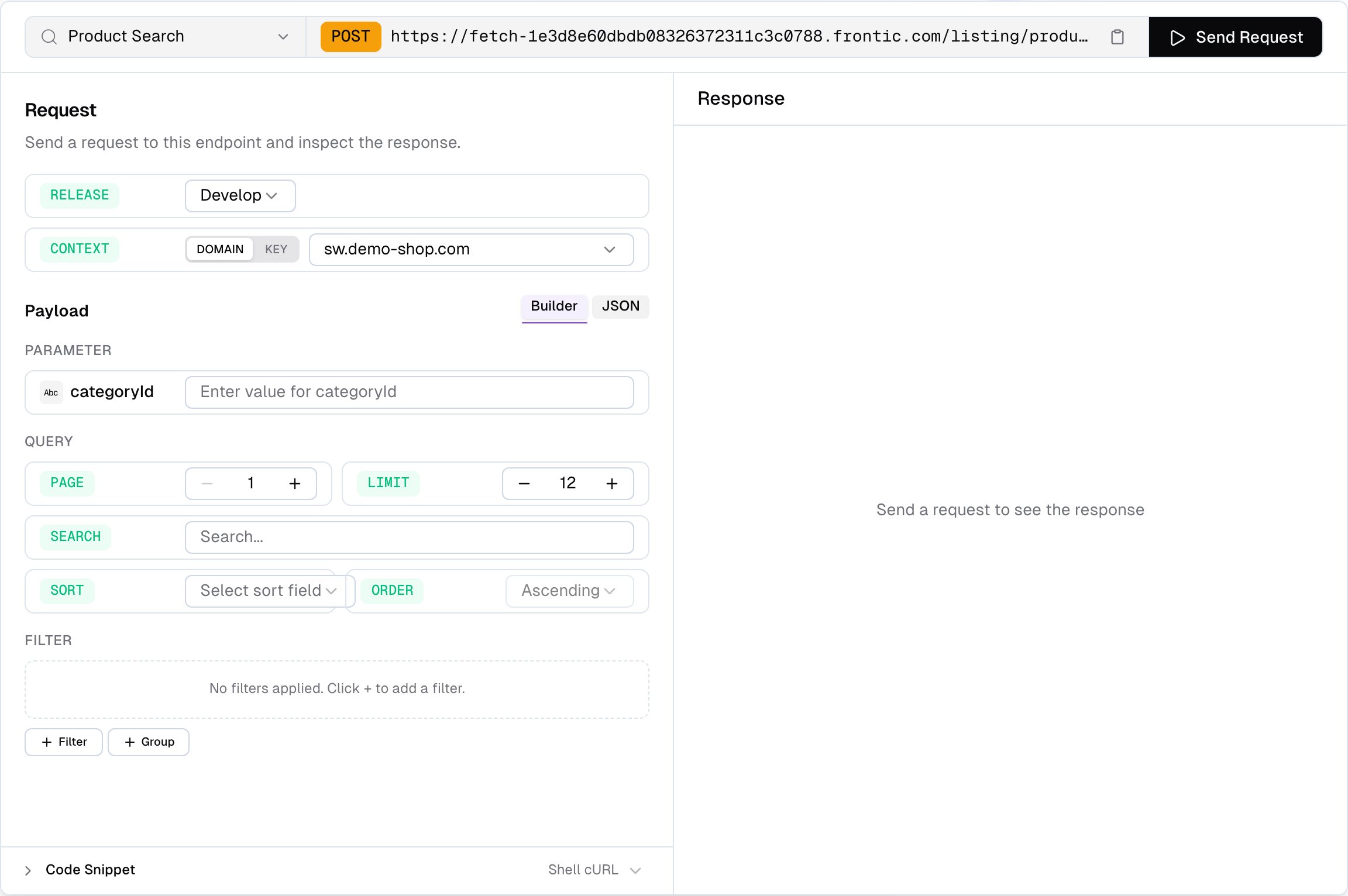
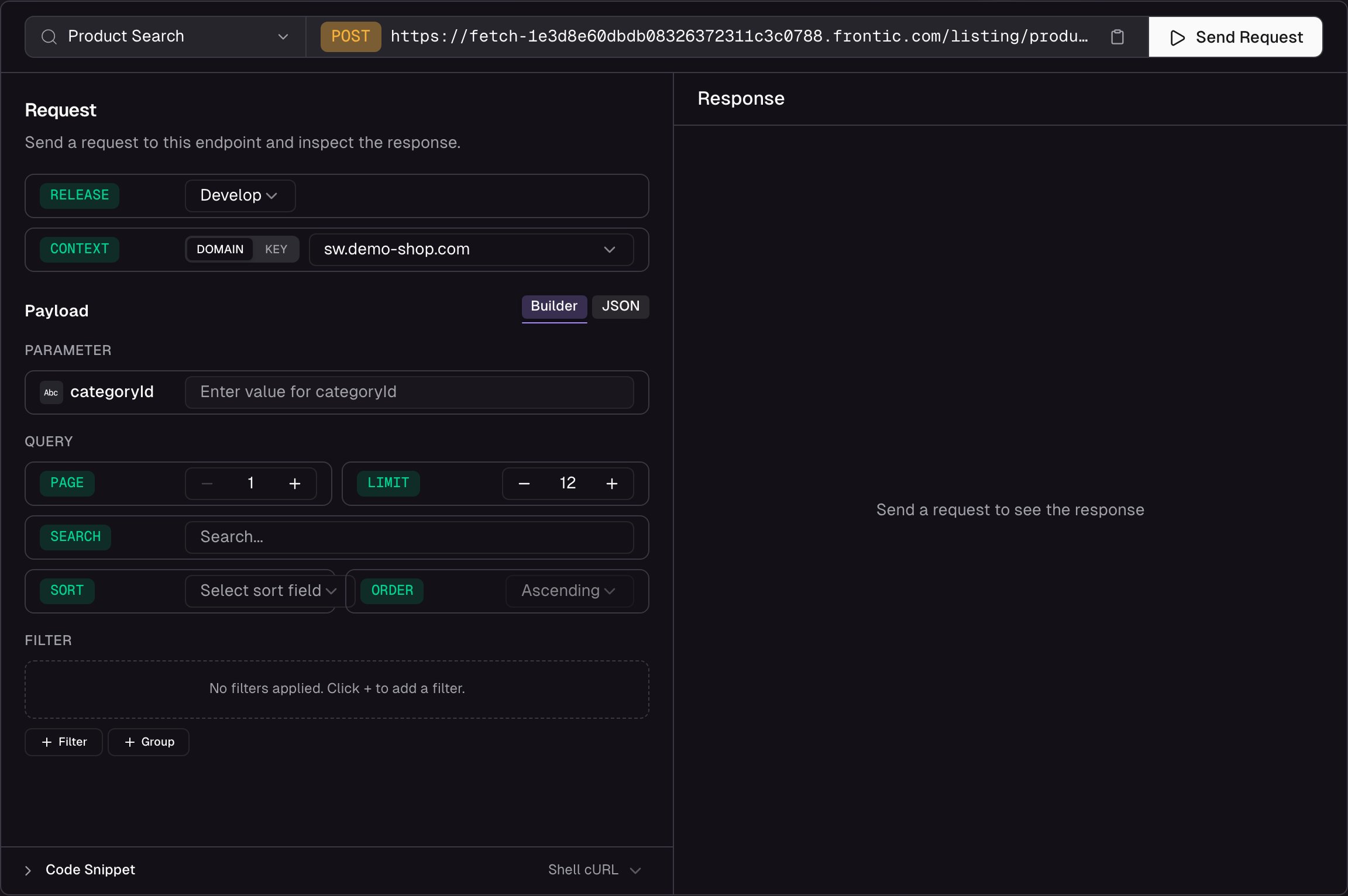
API Playground for a Search Listing - parameters, filters, sorting, pagination, and response
- Fill parameters - each listing parameter gets its own typed input field, pre-filled with defaults where available
- Pick a release stage - run the request against
develop,preview, orpublic. Preview and public only appear when those environments exist on the project - Paginate - page and limit steppers that sync with the response. If you exceed the last page, the playground auto-clamps
- Search - type a search query and see how your searchable fields respond
- Sort - pick a sort field and direction from the configured options
- Build filters visually - a filter builder that supports AND/OR groups matching your configured filter options. After the first request, facet values from the response are loaded into the filter inputs so you can pick from real data
- Switch context - pick Domain to send a
contextDomainand let Frontic resolve the matching context, or Key to send an explicitcontextKey - Inspect the response - status, response time, and payload size are shown alongside the body so you can spot performance issues. The full JSON response is browseable and copyable
- Copy code snippets - auto-generated from your current configuration, ready to paste into your project
- Edit raw JSON - switch to the raw tab to craft custom request payloads by hand