

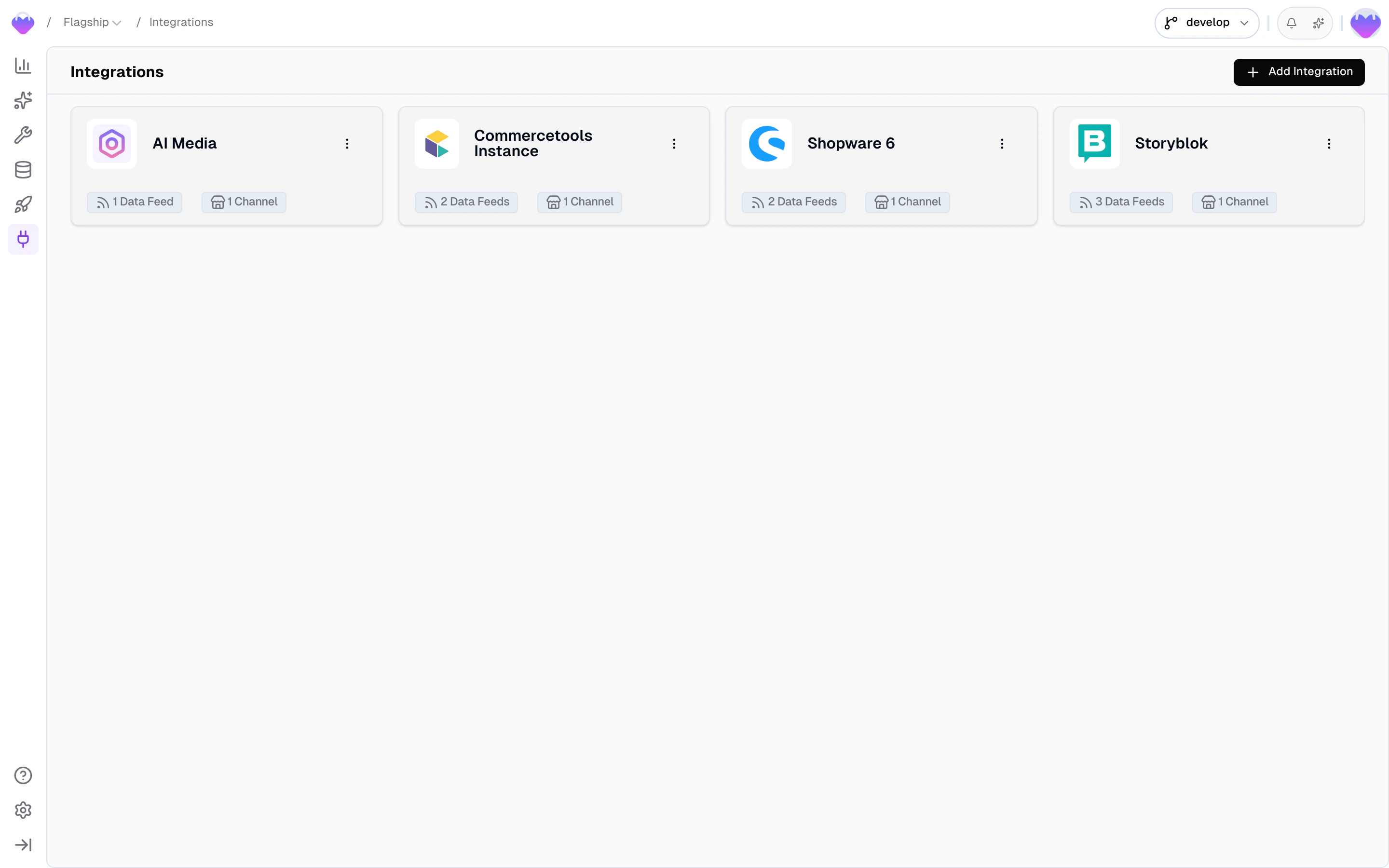
Overview of all data source integrations
The ingest flow
Data moves through two steps on its way into your project:1
Data Feed
The connector retrieves data from the source and normalizes it into
feed records with a defined structure - product/variant hierarchy,
channels, translations, and currencies are already in place. For
custom integrations, records arrive as-is.
2
Data Sync
A Data Sync picks up the feed records, maps fields through the
Value Composer, resolves
translations and currency mappings across all your project’s locales
and regions, and writes the result into each connected
Data Storage - shaped for your
experience, not for the source system.
Integrations and Data Feeds
An Integration is your connection to an external data source. It holds the credentials, the connection instance, and the channels that map the source’s locales and scopes to your project. Integrations live at the team level, so a single integration can serve multiple projects. Each integration has one or more Data Feeds - one per resource type. A Shopware integration might expose aproducts feed and a categories feed. For built-in connectors, the feed does more than pass data through - it normalizes the source’s structure into a shape Frontic can work with. A Shopify product with inline variants, for example, becomes separate product and variant feed records, each with proper keys, translations, and currency annotations.
A feed can have multiple subscribing Data Syncs - pointing to different storages, even across different projects.
Data Feeds
You manage feeds by clicking on an integration in the Integrations section. Each feed has four tabs:Records
Browse and inspect feed records before they flow into the Value Composer and get shaped into storage records.- Filter by any field - click the filter bar to open a field picker that lists every field on the feed schema. Pick a field, choose an operator (
equals,contains,is empty, …), set a value, and the list narrows down. Stack multiple filters to drill in further. - Switch channel, translation, and currency - the settings dropdown lets you pick which integration channel, translation, and currency to inspect against, useful when the same feed serves multiple locales or scopes.
- Toggle products vs. variants - for product-type feeds, switch the fetch mode between browsing parent products and individual variants.
- Inspect individual records - the detail panel lists every field with its type, supports searching within fields, and offers a JSON view for the raw payload. System fields (
key,parentKey,createdAt,updatedAt) sit alongside the payload.
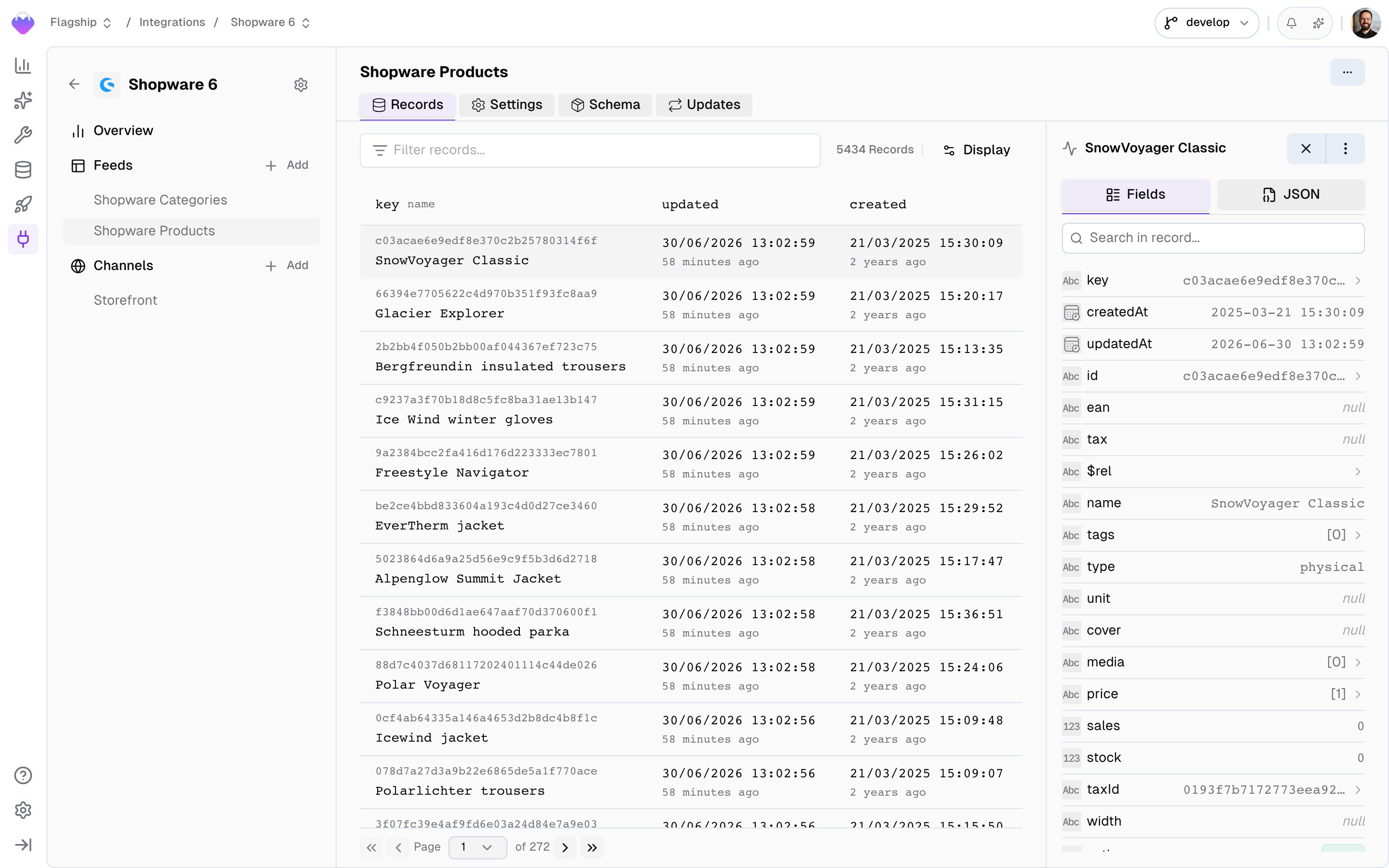
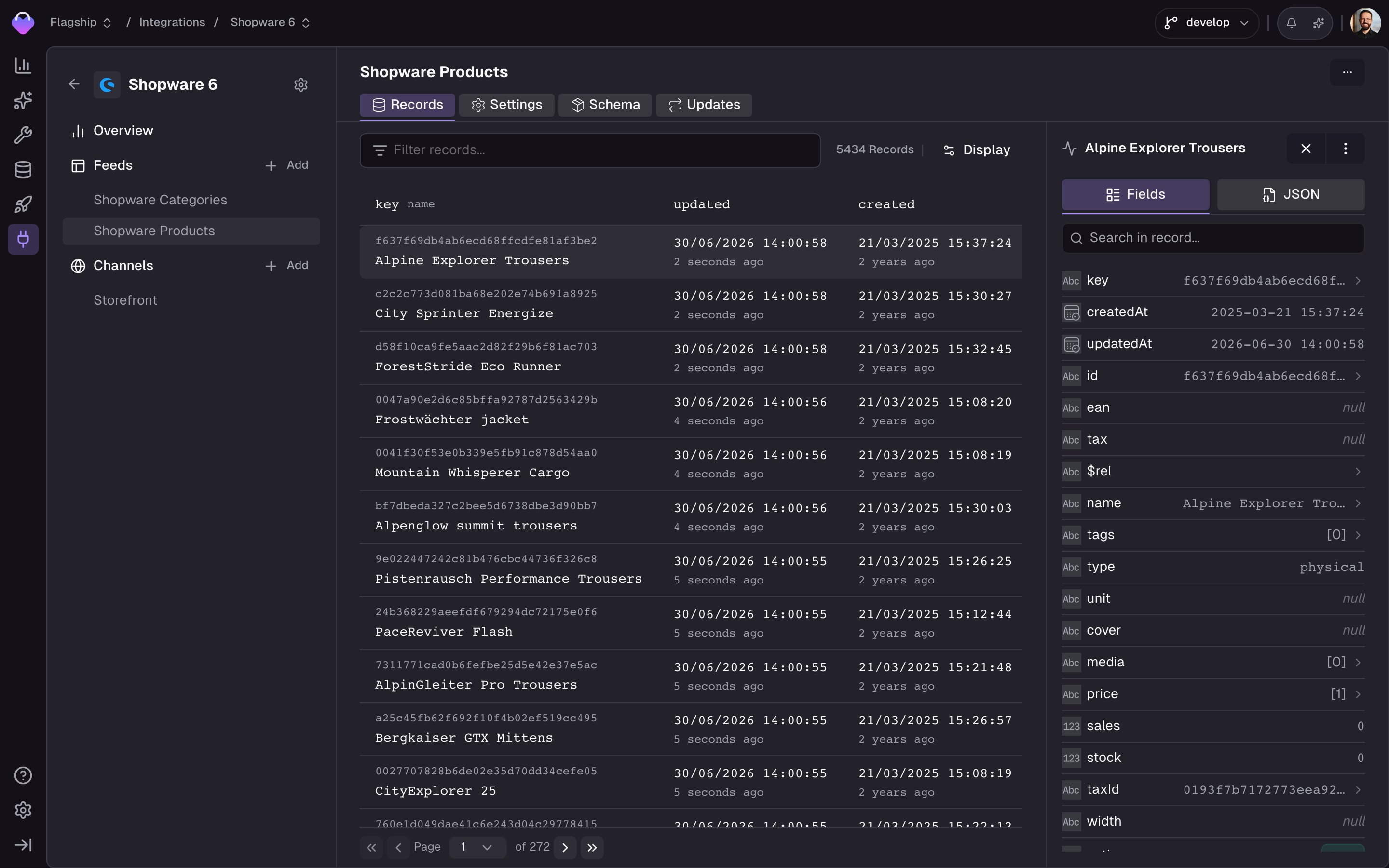
Feed Records tab - filter, paginate, and inspect feed records
Settings
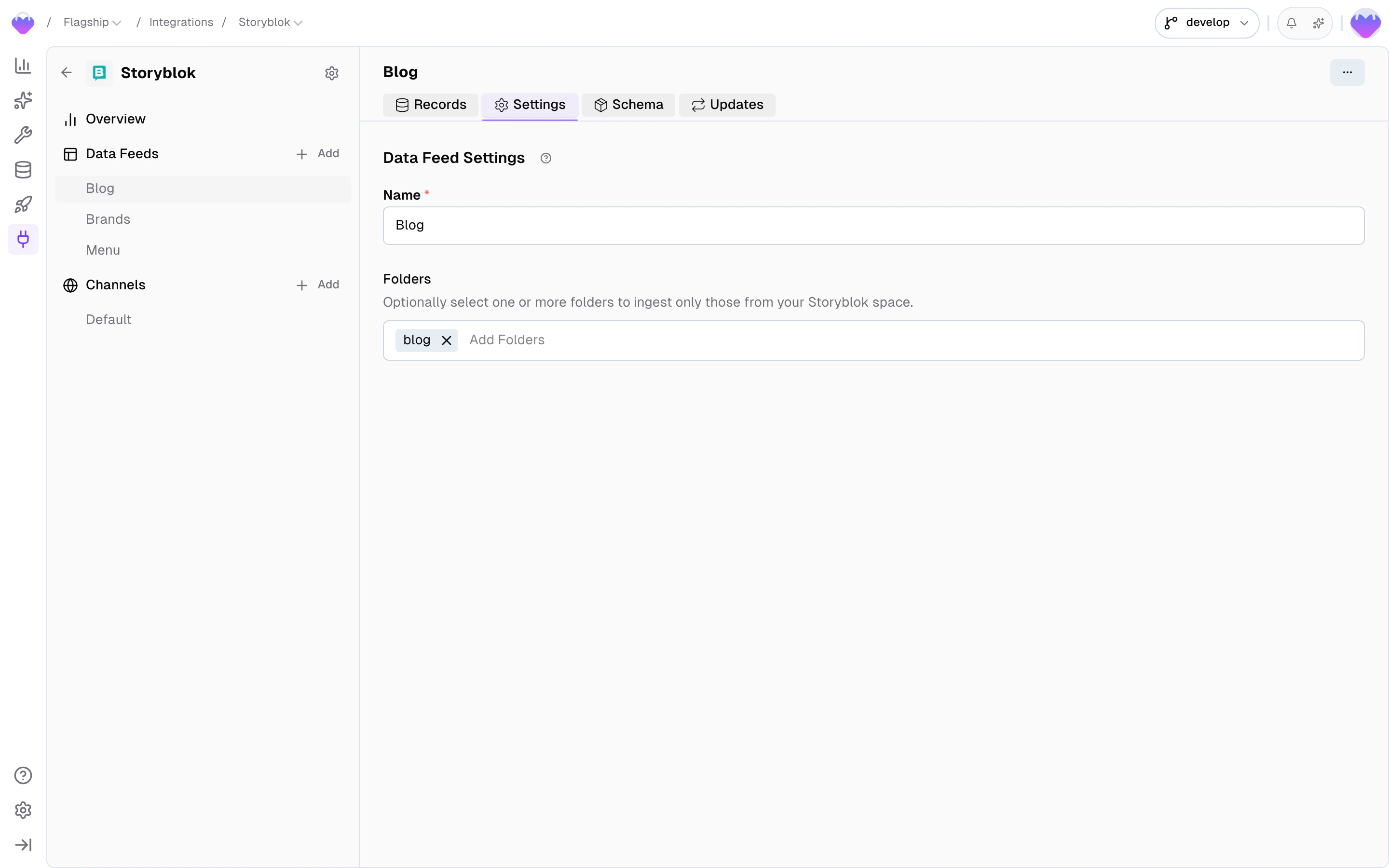
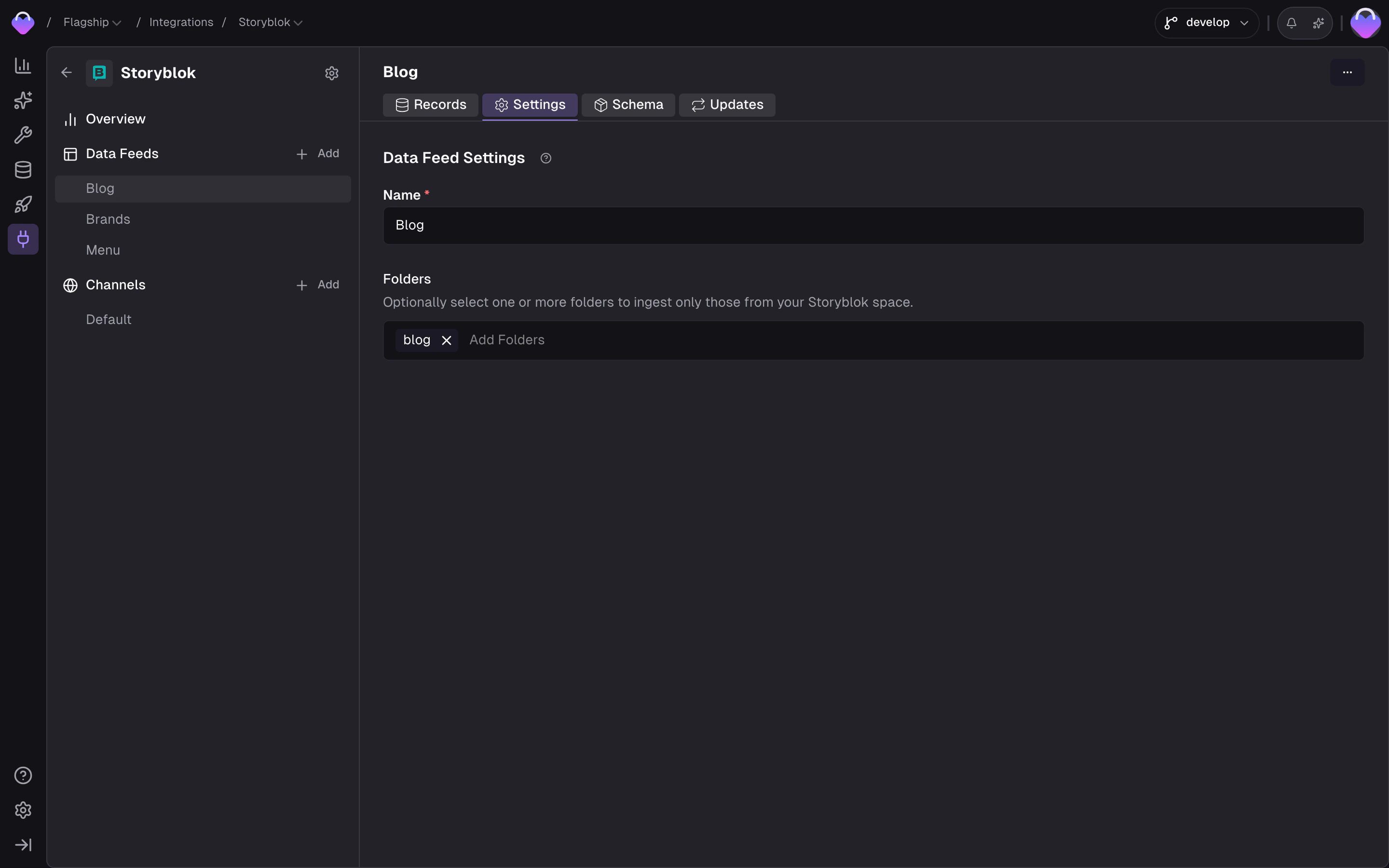
Data Feed Settings - name, source ID, and parent source ID
Schema
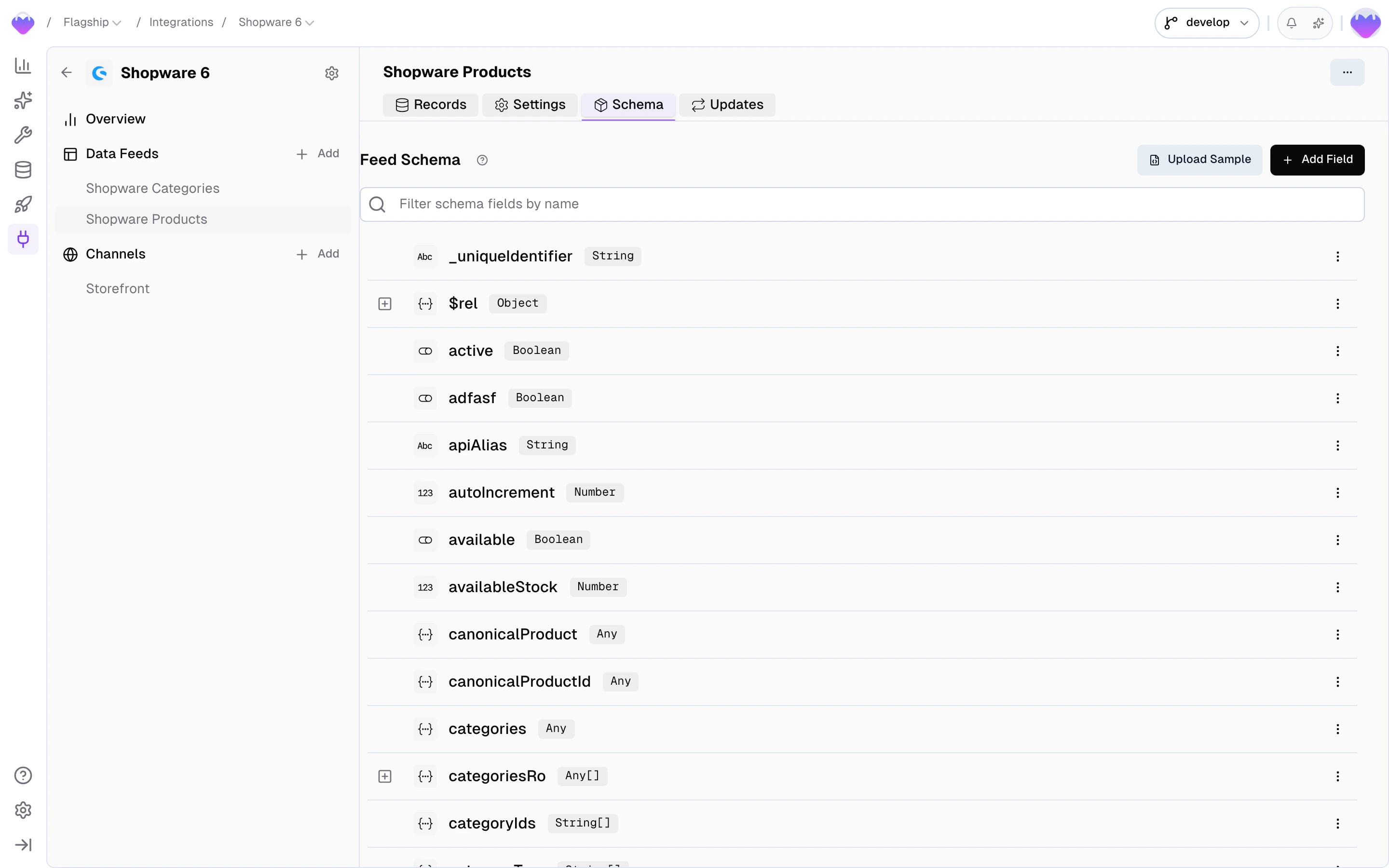
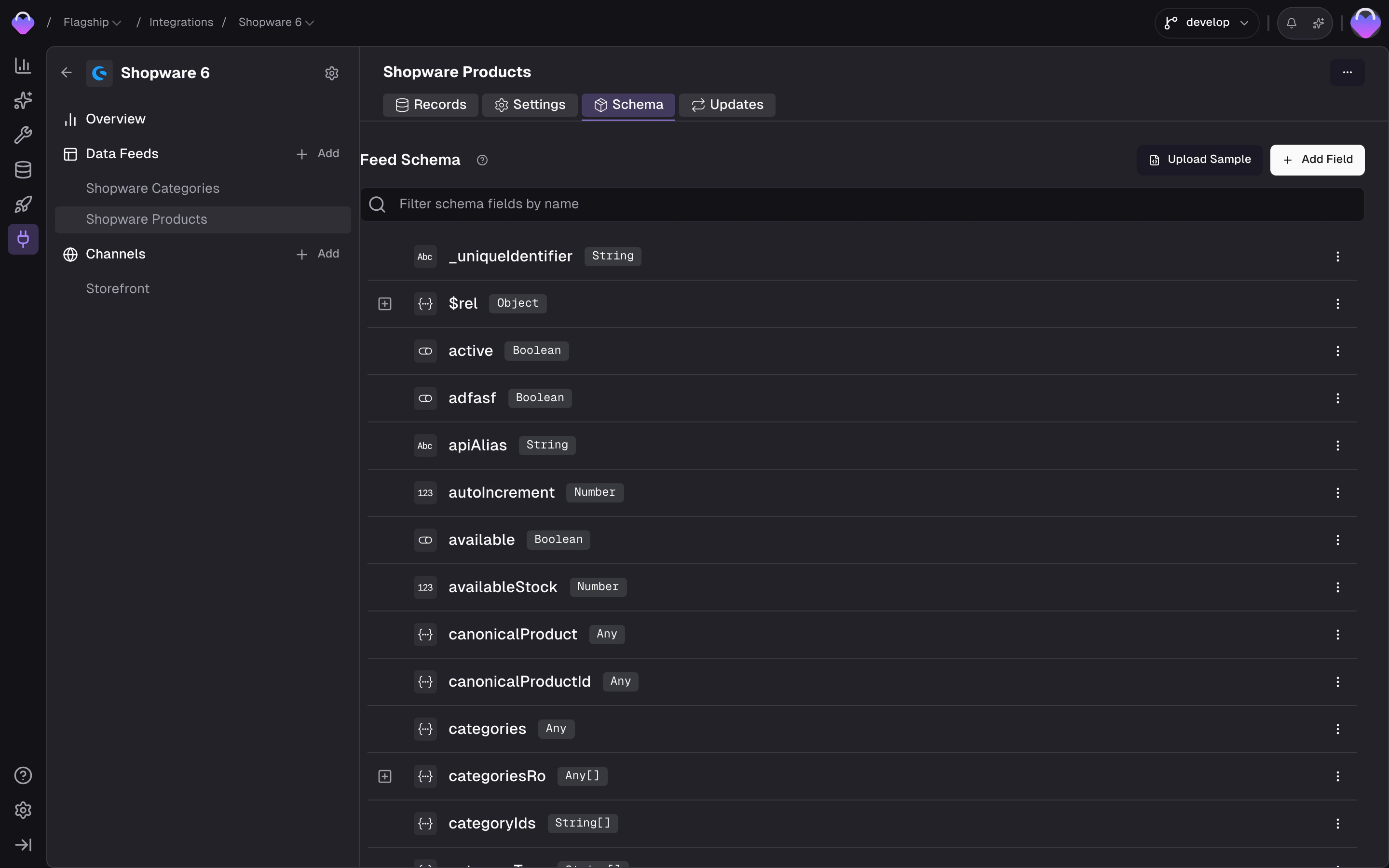
Feed Schema tab - auto-inferred fields with types and status
- New - the field showed up on a record but the schema hasn’t seen it before. Review and accept (or mute) so downstream processing knows what to do with it.
- Active - the field is in use; available in Value Composer slots and tracked by change detection.
- Muted - the field is ignored. Nothing on the field reaches a Data Sync, and changes to it don’t trigger downstream rebuilds.
dimensions field that’s a string for some products and a structured object for others) and you don’t want the coercion fallback, the cleanest fix is to define the field by hand with the type you want to enforce, and split the alternative shape off into a separate field via the Value Composer during sync.
Updates
Three update methods exist for keeping feed data current. Which ones are available depends on the connector - built-in connectors pre-configure the methods they support.- Ingest - push records directly to the Frontic Ingest API. Full control over timing, individual records or batch updates.
- Trigger - send a webhook to Frontic’s trigger endpoint. Frontic fetches the latest data from the source and syncs any changes.
- Polling - scheduled sync jobs that periodically check the source for updates. Configure the interval, time window, and active hours.
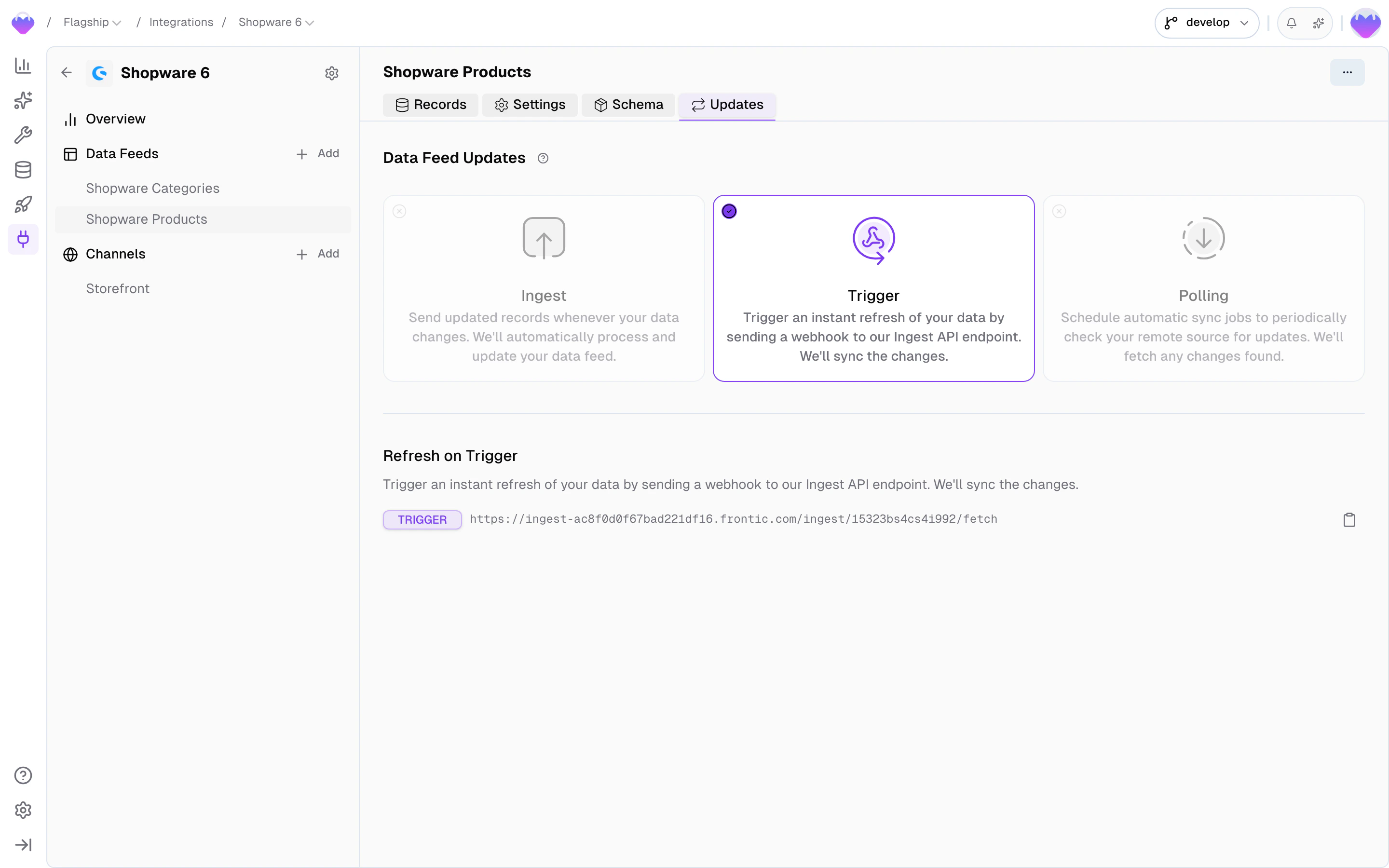
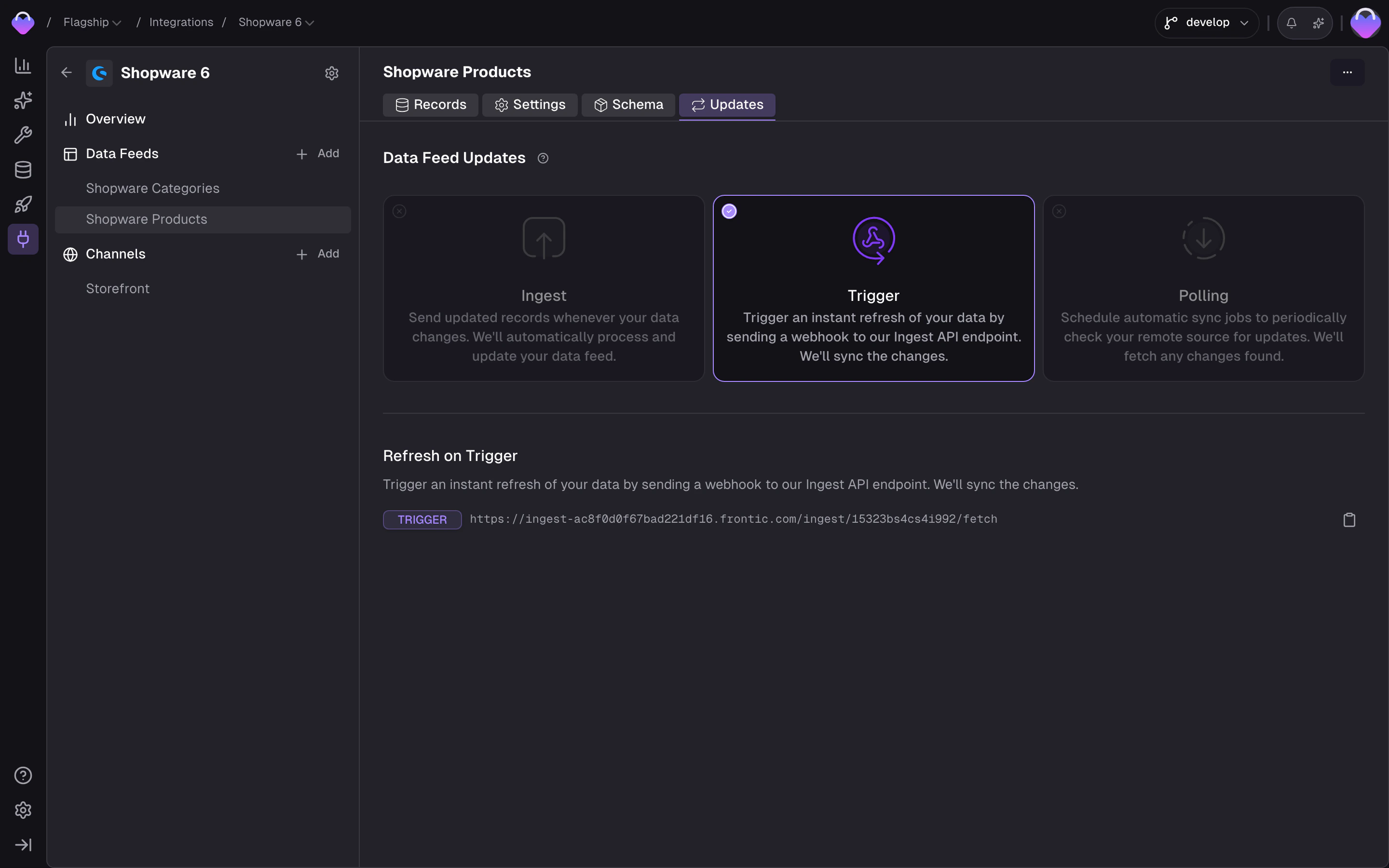
Feed Updates tab - Ingest, Trigger, and Polling methods