> ## Documentation Index
> Fetch the complete documentation index at: https://docs.frontic.com/llms.txt
> Use this file to discover all available pages before exploring further.
# Value Composer
The **Value Composer** is the per-field configuration inside a [Data Sync](/data-integration/data-storages#populate-a-storage). For every field in the target Data Storage, it defines how that field's value gets produced from the incoming feed record.
A Data Sync does two things: it maps the integration's channels and translations onto your project's scopes and locales, and it holds the Value Composer configuration that defines what every field of the target record becomes. This page covers the second part.
Value Composer runs at **sync time** — it produces the values that land in a storage record. To include a value from *another* storage without syncing it in, see [Mapped fields](/data-integration/data-storages#mapped-fields) — they resolve as the response is built, so the value appears alongside the stored fields.
[Buddy](/essentials/buddy) can read, create, debug, and manage Value Composer configurations for you. Describe the source shape and the target shape, and Buddy will build a working configuration — often faster than setting it up by hand. You can always refine the result in the UI afterward.
## Four slot modes
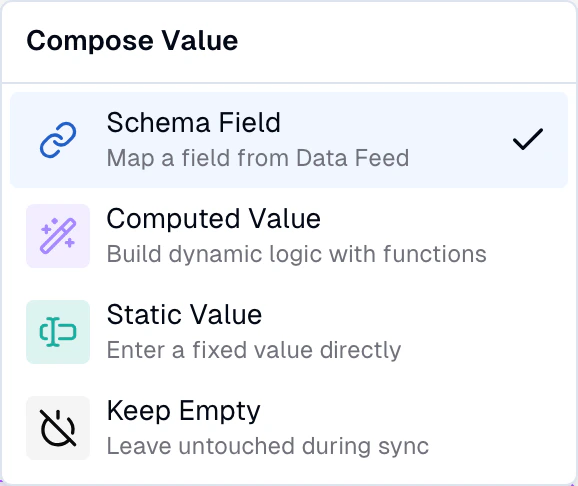
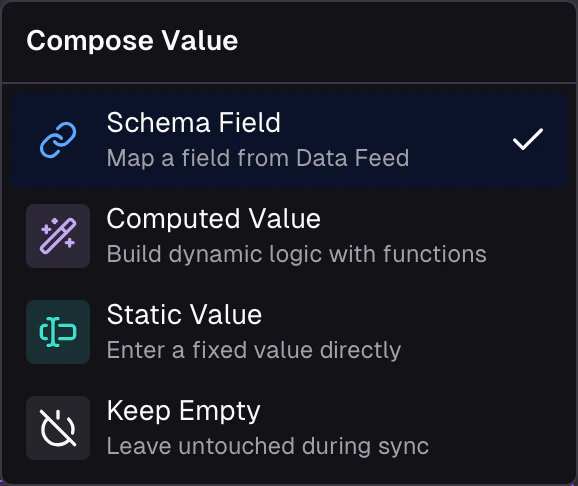
Each field in the storage mapping is a **slot**. Every slot operates in one of four modes:
| Mode | What it does | When to use it |
| ------------------ | ---------------------------------------------- | ----------------------------------------------------- |
| **Schema Field** | Maps a field directly from the feed record | Straight field renames, 1:1 mappings |
| **Computed Value** | Builds the value through a chain of operations | Reshaping, conditional logic, combining, transforming |
| **Static Value** | Sets a fixed value that never changes | Flags, defaults, brand-wide constants |
| **Keep Empty** | Leaves the field untouched during sync | Fields you don't want to populate yet |
Schema Field and Static are straightforward — pick a source field or enter a constant. **Computed Value** is where the Value Composer becomes interesting: a declarative language of chainable operations that take feed fields, static inputs, and the output of other operations as arguments.
 ## Operations
Computed Value mode gives you access to a wide range of operations across categories like logic, comparison, text, math, array, object, and transform. Operations are type-aware — the UI only shows operations compatible with the slot's expected output type, so you don't have to memorize what's available.
See the [Value Composer reference](/reference/value-composer) for the full catalogue with arguments and return types.
## Working with slots
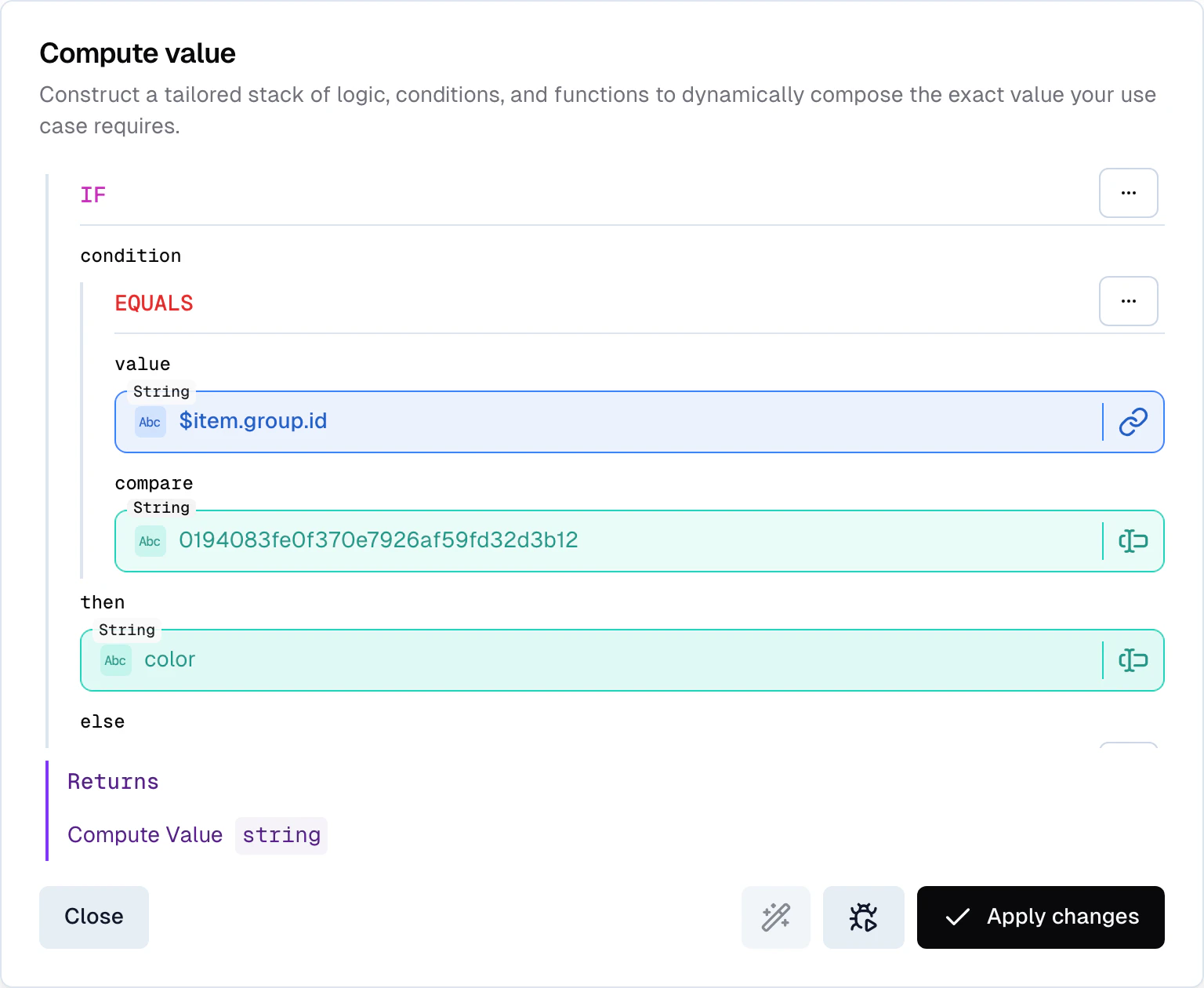
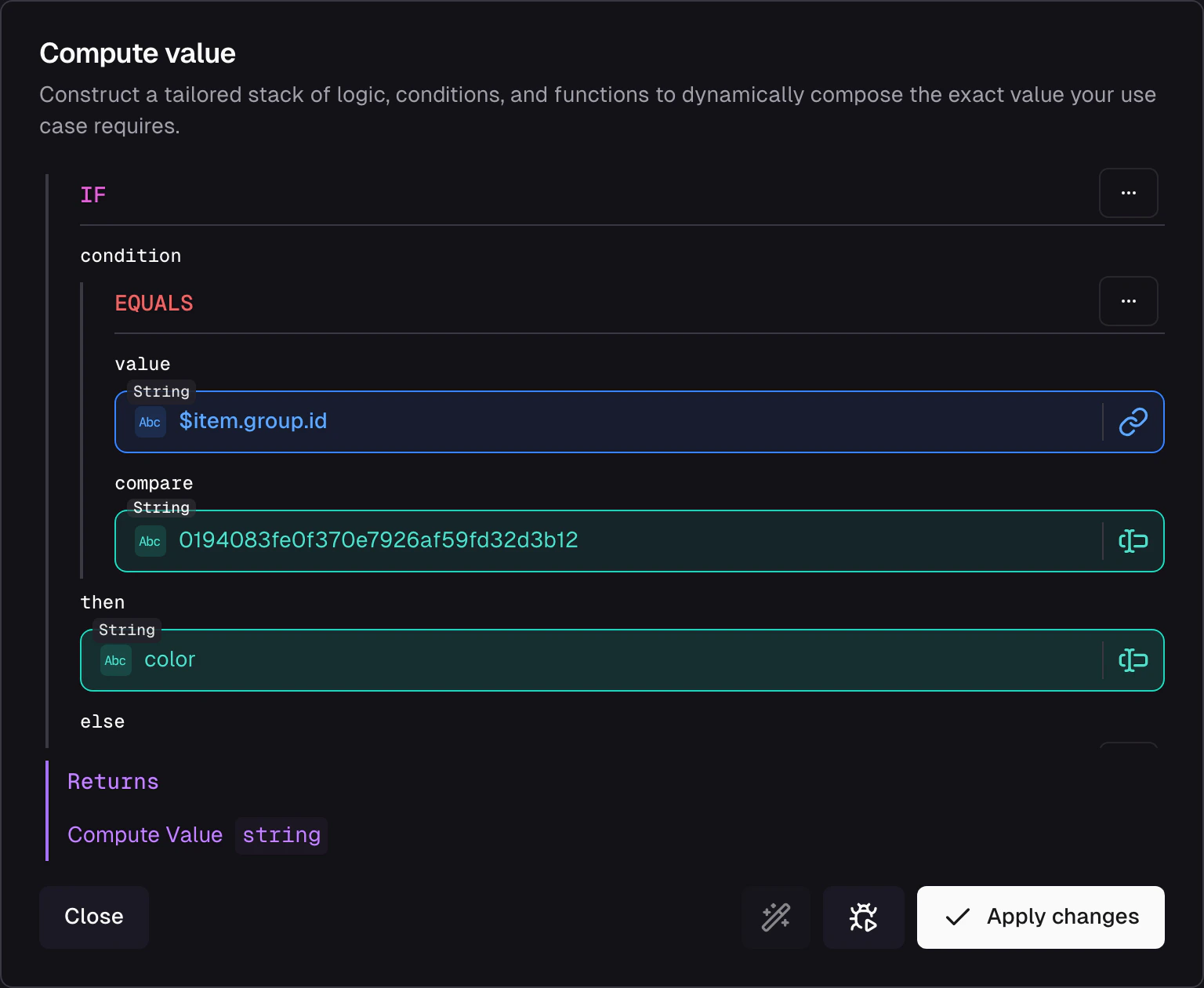
Every slot in the composer can be switched between the four modes. When you select **Computed Value**, a dialog opens where you build the operation chain visually.
## Operations
Computed Value mode gives you access to a wide range of operations across categories like logic, comparison, text, math, array, object, and transform. Operations are type-aware — the UI only shows operations compatible with the slot's expected output type, so you don't have to memorize what's available.
See the [Value Composer reference](/reference/value-composer) for the full catalogue with arguments and return types.
## Working with slots
Every slot in the composer can be switched between the four modes. When you select **Computed Value**, a dialog opens where you build the operation chain visually.
 ### Copy, paste, and wrap
Slots support clipboard operations that speed up repetitive work:
* **Copy** a slot's configuration to reuse it on another field
* **Paste** a copied configuration into a different slot — the UI checks type compatibility before allowing it
* **Wrap** an existing slot inside a new operation. For example, wrap a Schema Field in an `if` to make it conditional, or wrap a `concat` result in `tolower` to normalize it. The UI shows which operations are compatible wrappers for the current slot type.
### Iteration context
When working inside an array mapping (e.g. transforming an array of images into an array of `MediaFile` composites), the Value Composer provides special variables:
* **`$item`** — the current element in the array being iterated
* **`$parent`** — access the parent iteration context when nesting arrays inside arrays
For example, if each image has a list of size variants, use `$item.url` for the current variant and `$parent.alt` for the parent image's alt text.
### Auto-complete from feed schema
When selecting a Schema Field, the UI auto-completes from the [feed schema](/data-integration/ingest#schema). If a field doesn't appear in auto-complete, either the schema hasn't been inferred yet (no records have arrived) or the field needs to be added manually in the feed's Schema tab. You can also create new feed schema fields directly from the composer UI.
## Debug configurations
The Value Composer has a built-in debugger that runs your configuration against a JSON payload. Load an initial payload from a feed record with **Search Record**, paste your own, or edit the current one at any time — the payload persists between runs and is fully yours to manipulate. It's not connected to the live record, so changes you make stay until you load a different one. The payload is shared across both debugger levels.
### Field-level debugger
Open the debugger from the **Compose Value** dialog to test a single field's configuration in isolation:
### Copy, paste, and wrap
Slots support clipboard operations that speed up repetitive work:
* **Copy** a slot's configuration to reuse it on another field
* **Paste** a copied configuration into a different slot — the UI checks type compatibility before allowing it
* **Wrap** an existing slot inside a new operation. For example, wrap a Schema Field in an `if` to make it conditional, or wrap a `concat` result in `tolower` to normalize it. The UI shows which operations are compatible wrappers for the current slot type.
### Iteration context
When working inside an array mapping (e.g. transforming an array of images into an array of `MediaFile` composites), the Value Composer provides special variables:
* **`$item`** — the current element in the array being iterated
* **`$parent`** — access the parent iteration context when nesting arrays inside arrays
For example, if each image has a list of size variants, use `$item.url` for the current variant and `$parent.alt` for the parent image's alt text.
### Auto-complete from feed schema
When selecting a Schema Field, the UI auto-completes from the [feed schema](/data-integration/ingest#schema). If a field doesn't appear in auto-complete, either the schema hasn't been inferred yet (no records have arrived) or the field needs to be added manually in the feed's Schema tab. You can also create new feed schema fields directly from the composer UI.
## Debug configurations
The Value Composer has a built-in debugger that runs your configuration against a JSON payload. Load an initial payload from a feed record with **Search Record**, paste your own, or edit the current one at any time — the payload persists between runs and is fully yours to manipulate. It's not connected to the live record, so changes you make stay until you load a different one. The payload is shared across both debugger levels.
### Field-level debugger
Open the debugger from the **Compose Value** dialog to test a single field's configuration in isolation:
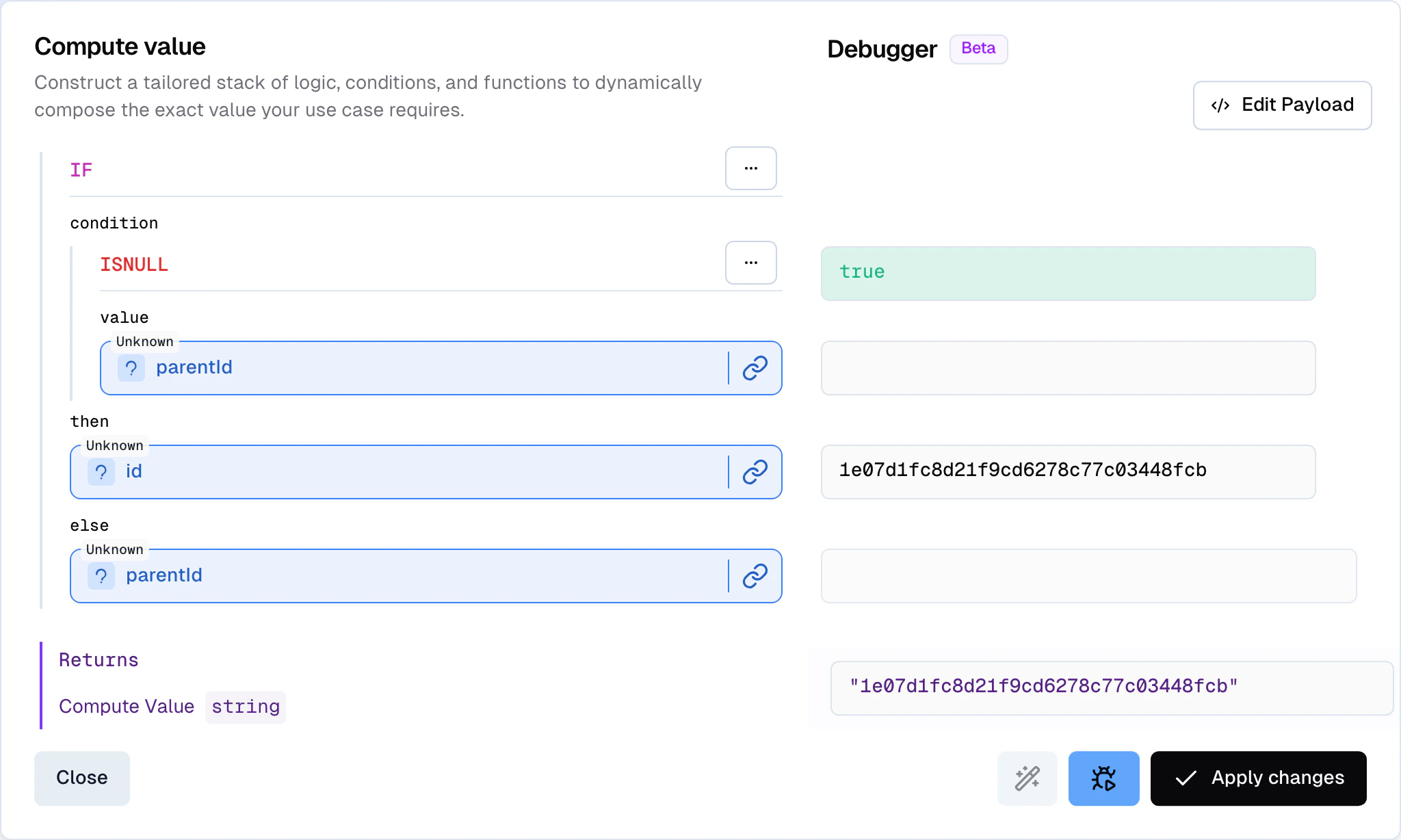
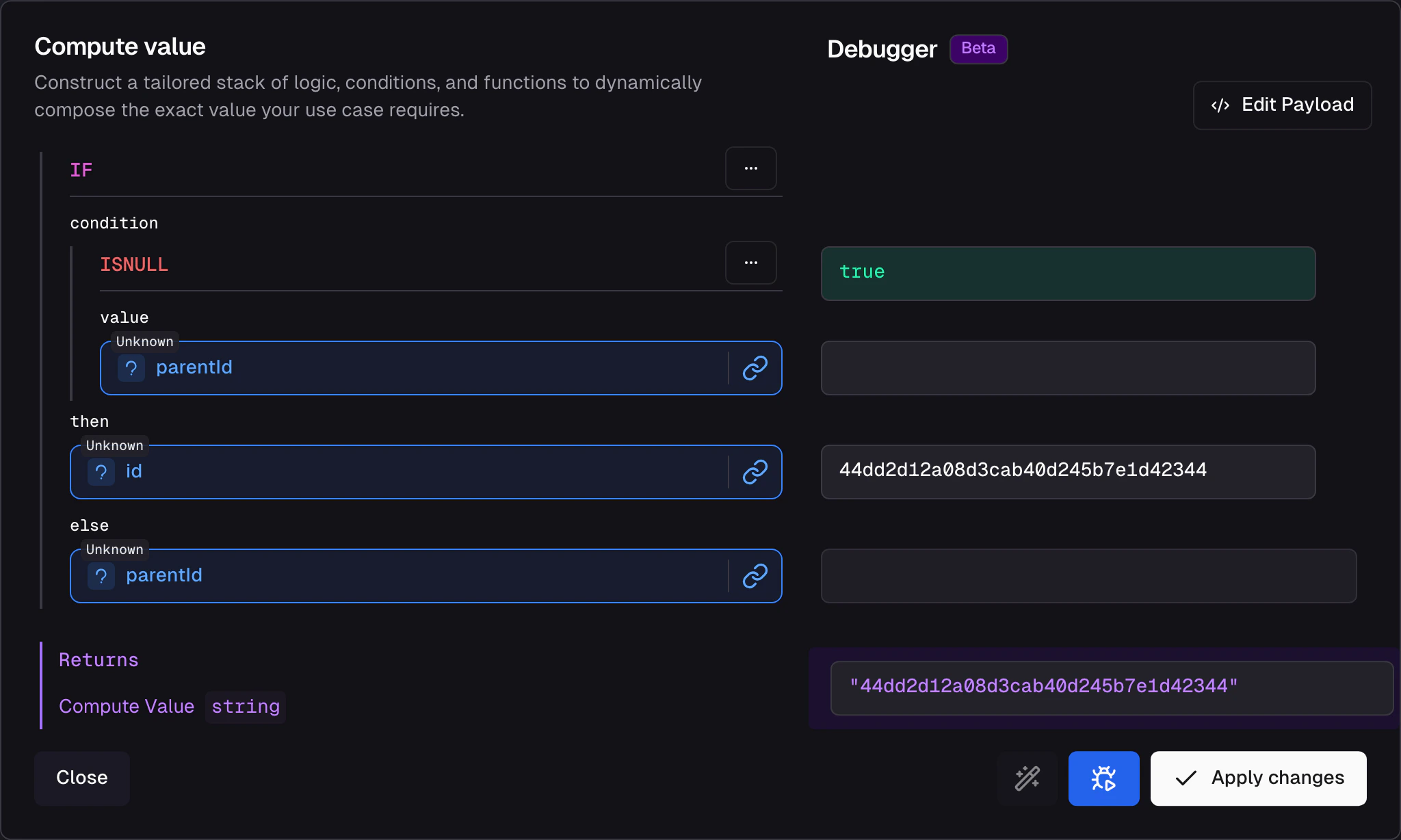 * **Node-wise output** — see what each operation in the chain produces before it feeds into the next
* **Live updates** — results refresh as you modify the configuration
### Record-level debugger
* **Node-wise output** — see what each operation in the chain produces before it feeds into the next
* **Live updates** — results refresh as you modify the configuration
### Record-level debugger
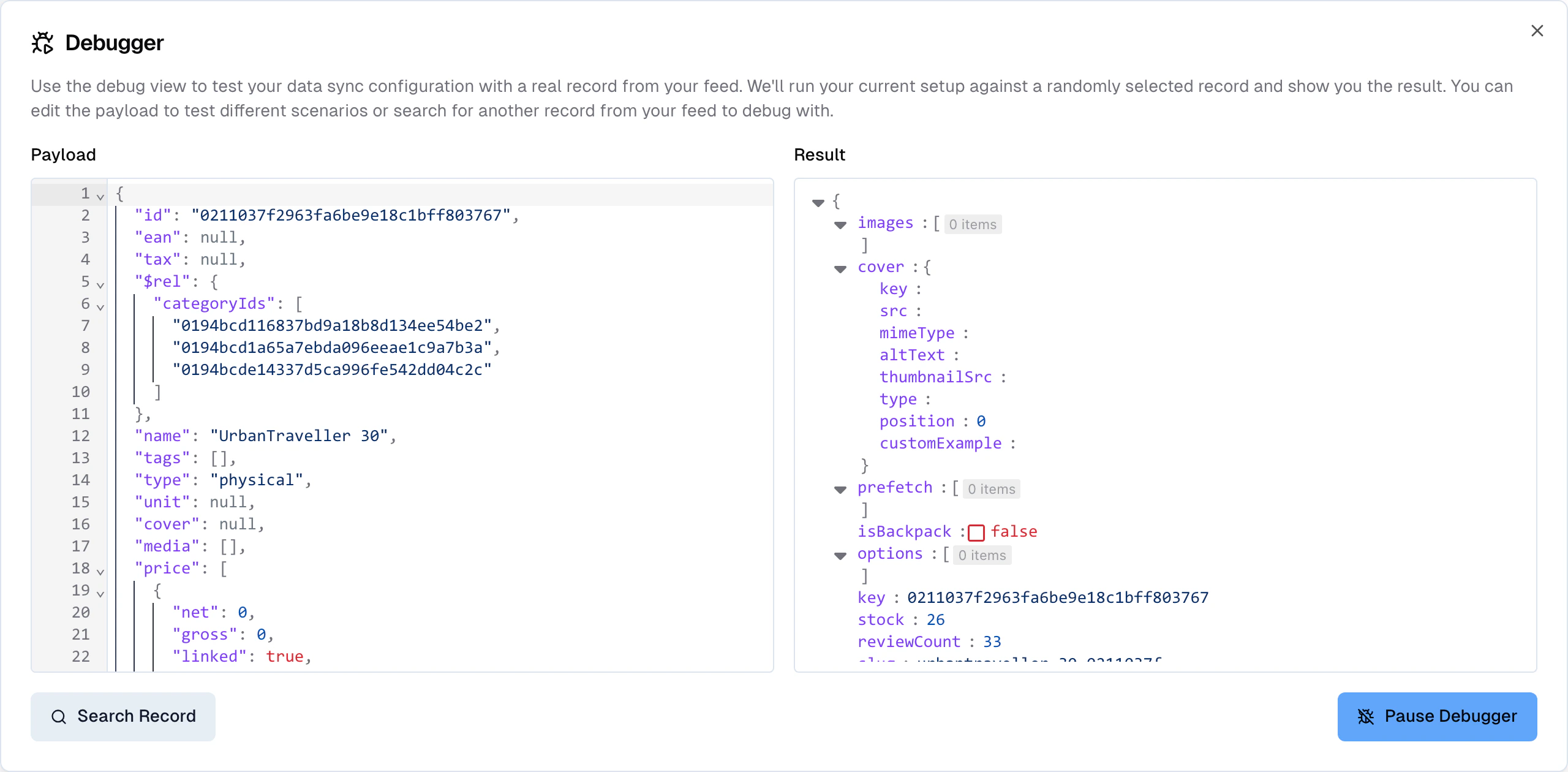
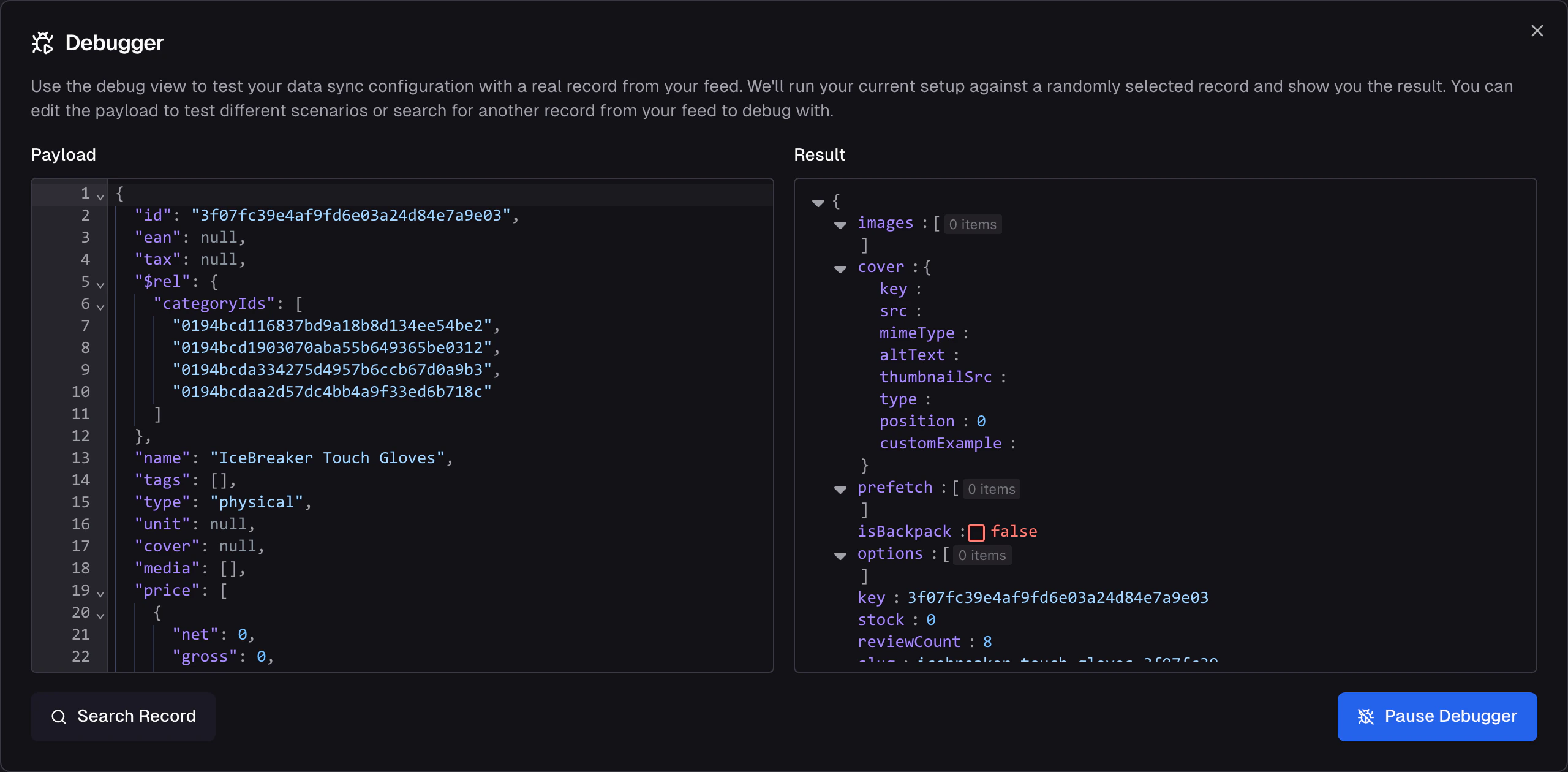 Test all field configurations at once across the entire storage mapping:
* Runs every slot's configuration against the selected record
* Shows the complete output for each storage field
* Highlights fields with errors so you can spot broken configurations without checking each one individually
Use the field-level debugger while building individual compositions, and the record-level debugger as a final check before activating the sync.
## Worked examples
The examples below use a sample product record. Each covers a pattern that shows up in most Data Syncs.
```json theme={"theme":"css-variables"}
{
"name": "iPhone Pro",
"description": "The Apple iPhone Pro is a high-end smartphone with a 6.7-inch display, 128GB of storage, and a 12MP camera.",
"price": 999.99,
"currency": "USD",
"inStock": true,
"stock": 15,
"colors": ["Graphite", "Silver", "Gold", "Sierra Blue"],
"storage_options": [128, 256, 512, 1024],
"specs": {
"screen_size": "6.7 inches",
"resolution": "2778 x 1284",
"processor": "A15 Bionic",
"ram": "6GB",
"battery": "4352 mAh"
},
"vendor": {
"name": "Apple",
"website": "https://www.apple.com",
"support_phone": "1-800-MY-APPLE",
"headquarters": "Cupertino, CA"
},
"images": [
{
"path": "/images/iphone-pro-front.jpg",
"mimeType": "image/jpeg",
"alt": "iPhone Pro front view",
"key": "550e8400-e29b-41d4-a716-446655440000"
},
{
"path": "/images/iphone-pro-back.jpg",
"mimeType": "image/jpeg",
"alt": "iPhone Pro back view",
"key": "550e8400-e29b-41d4-a716-446655440001"
}
],
"properties": [
{ "id": "color", "value": "#2F4F4F", "label": "Graphite" },
{ "id": "material", "value": "Stainless Steel", "label": "Stainless Steel" },
{ "id": "weight", "value": "238g", "label": "238 grams" }
]
}
```
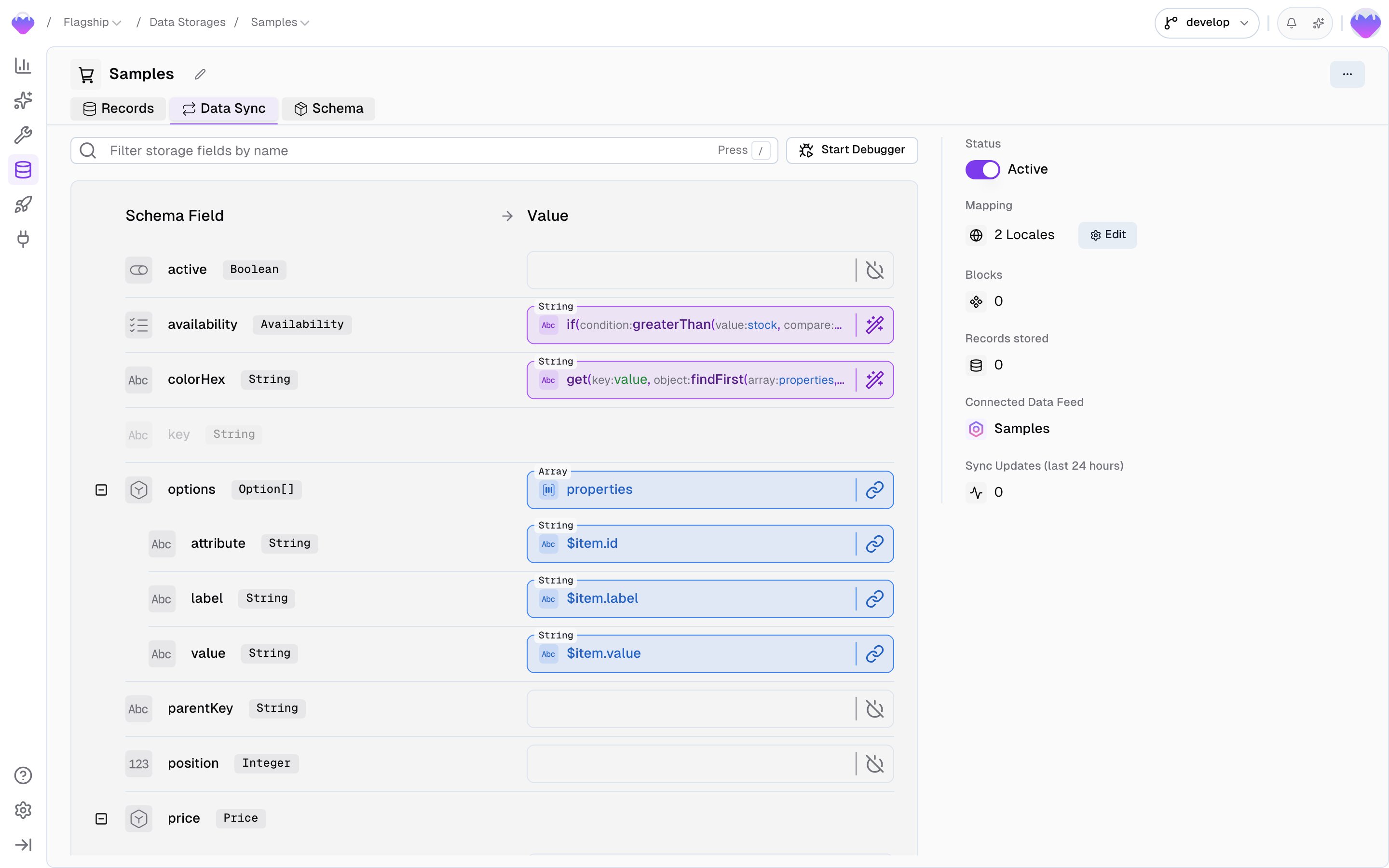
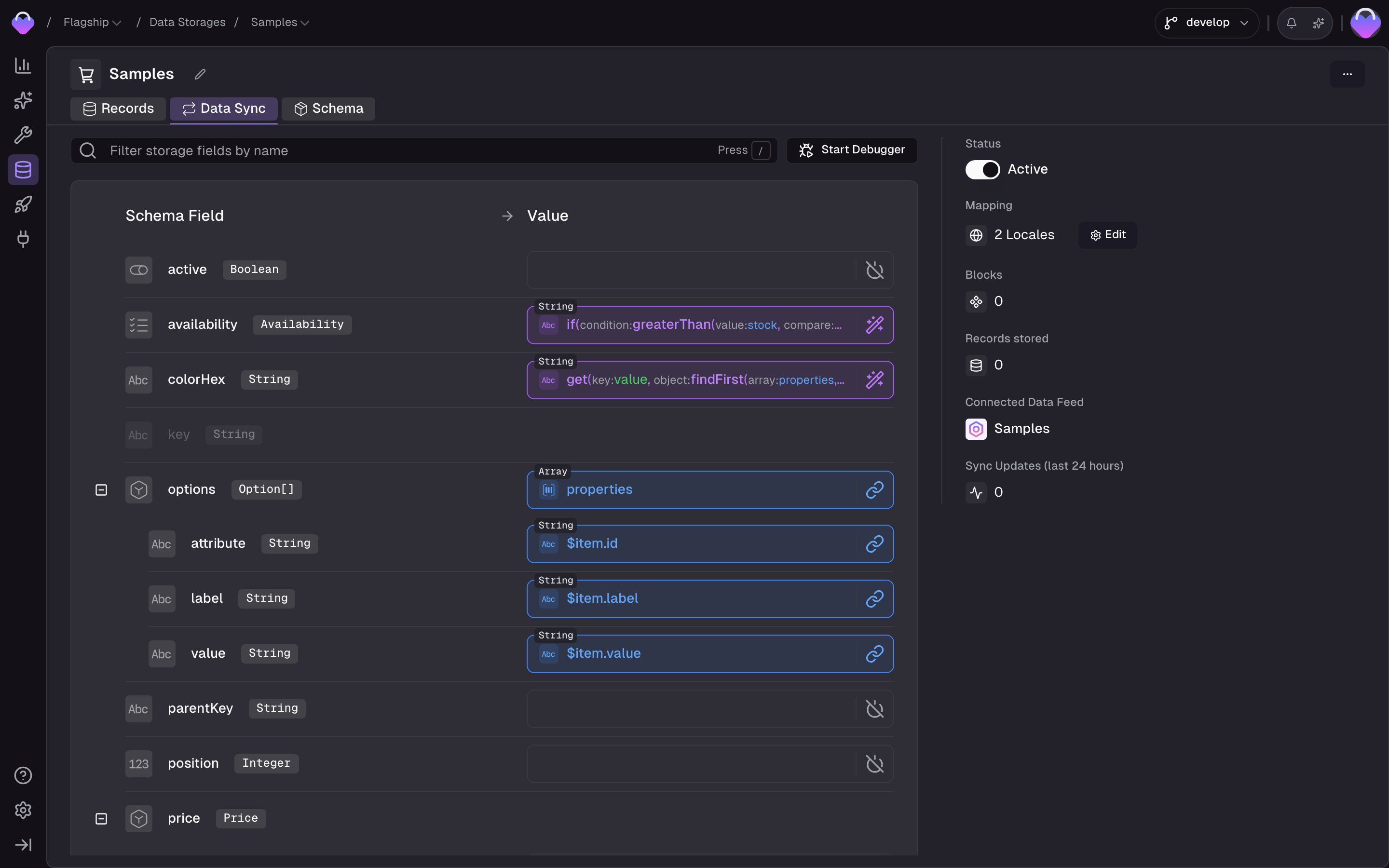
Each example below comes from a working **Samples** Data Sync configured against the payload above. The hero shot shows all four mappings side by side; each example then zooms in on the field-level debugger with the live result.
Test all field configurations at once across the entire storage mapping:
* Runs every slot's configuration against the selected record
* Shows the complete output for each storage field
* Highlights fields with errors so you can spot broken configurations without checking each one individually
Use the field-level debugger while building individual compositions, and the record-level debugger as a final check before activating the sync.
## Worked examples
The examples below use a sample product record. Each covers a pattern that shows up in most Data Syncs.
```json theme={"theme":"css-variables"}
{
"name": "iPhone Pro",
"description": "The Apple iPhone Pro is a high-end smartphone with a 6.7-inch display, 128GB of storage, and a 12MP camera.",
"price": 999.99,
"currency": "USD",
"inStock": true,
"stock": 15,
"colors": ["Graphite", "Silver", "Gold", "Sierra Blue"],
"storage_options": [128, 256, 512, 1024],
"specs": {
"screen_size": "6.7 inches",
"resolution": "2778 x 1284",
"processor": "A15 Bionic",
"ram": "6GB",
"battery": "4352 mAh"
},
"vendor": {
"name": "Apple",
"website": "https://www.apple.com",
"support_phone": "1-800-MY-APPLE",
"headquarters": "Cupertino, CA"
},
"images": [
{
"path": "/images/iphone-pro-front.jpg",
"mimeType": "image/jpeg",
"alt": "iPhone Pro front view",
"key": "550e8400-e29b-41d4-a716-446655440000"
},
{
"path": "/images/iphone-pro-back.jpg",
"mimeType": "image/jpeg",
"alt": "iPhone Pro back view",
"key": "550e8400-e29b-41d4-a716-446655440001"
}
],
"properties": [
{ "id": "color", "value": "#2F4F4F", "label": "Graphite" },
{ "id": "material", "value": "Stainless Steel", "label": "Stainless Steel" },
{ "id": "weight", "value": "238g", "label": "238 grams" }
]
}
```
Each example below comes from a working **Samples** Data Sync configured against the payload above. The hero shot shows all four mappings side by side; each example then zooms in on the field-level debugger with the live result.
 ### Example 1: Concatenate values
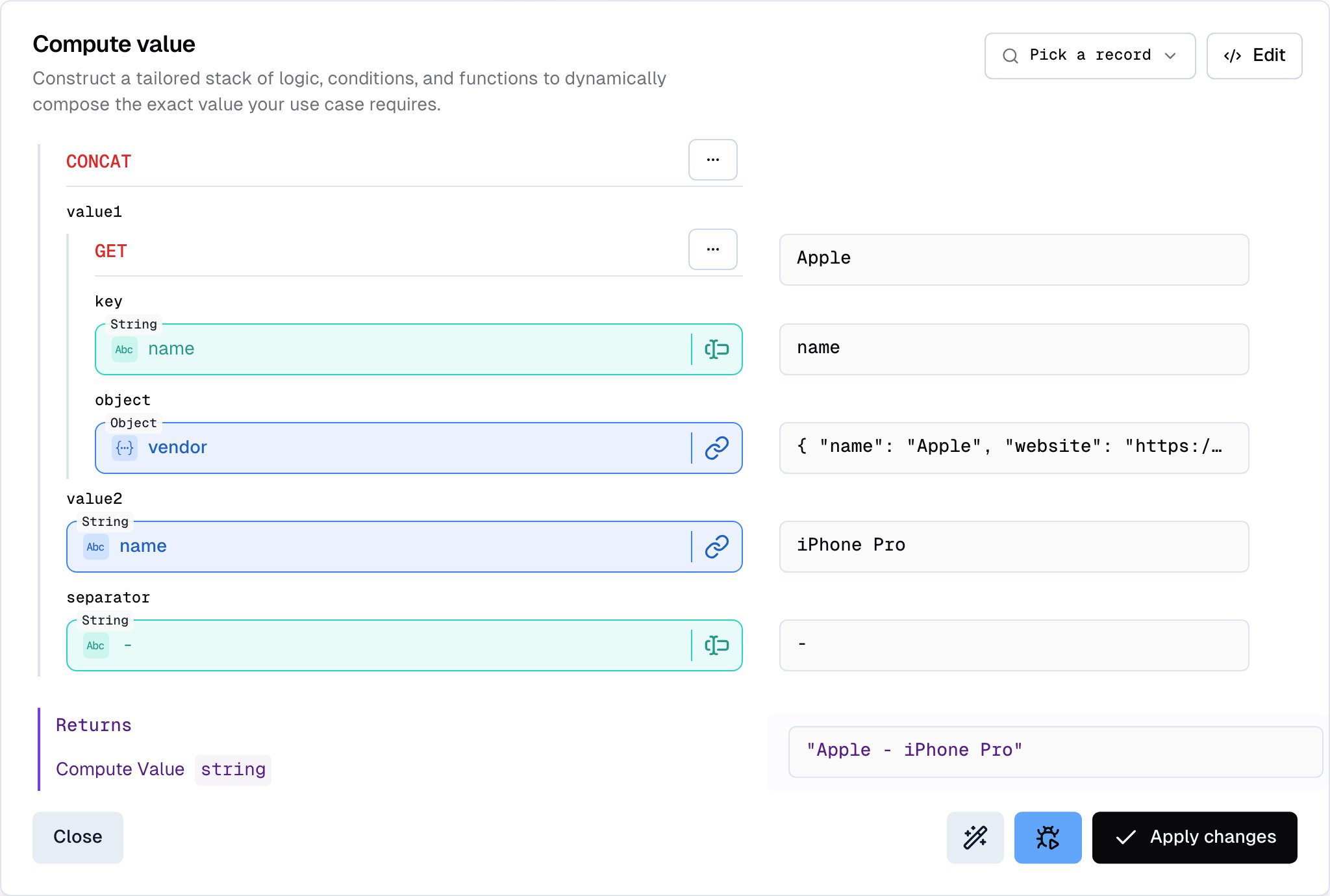
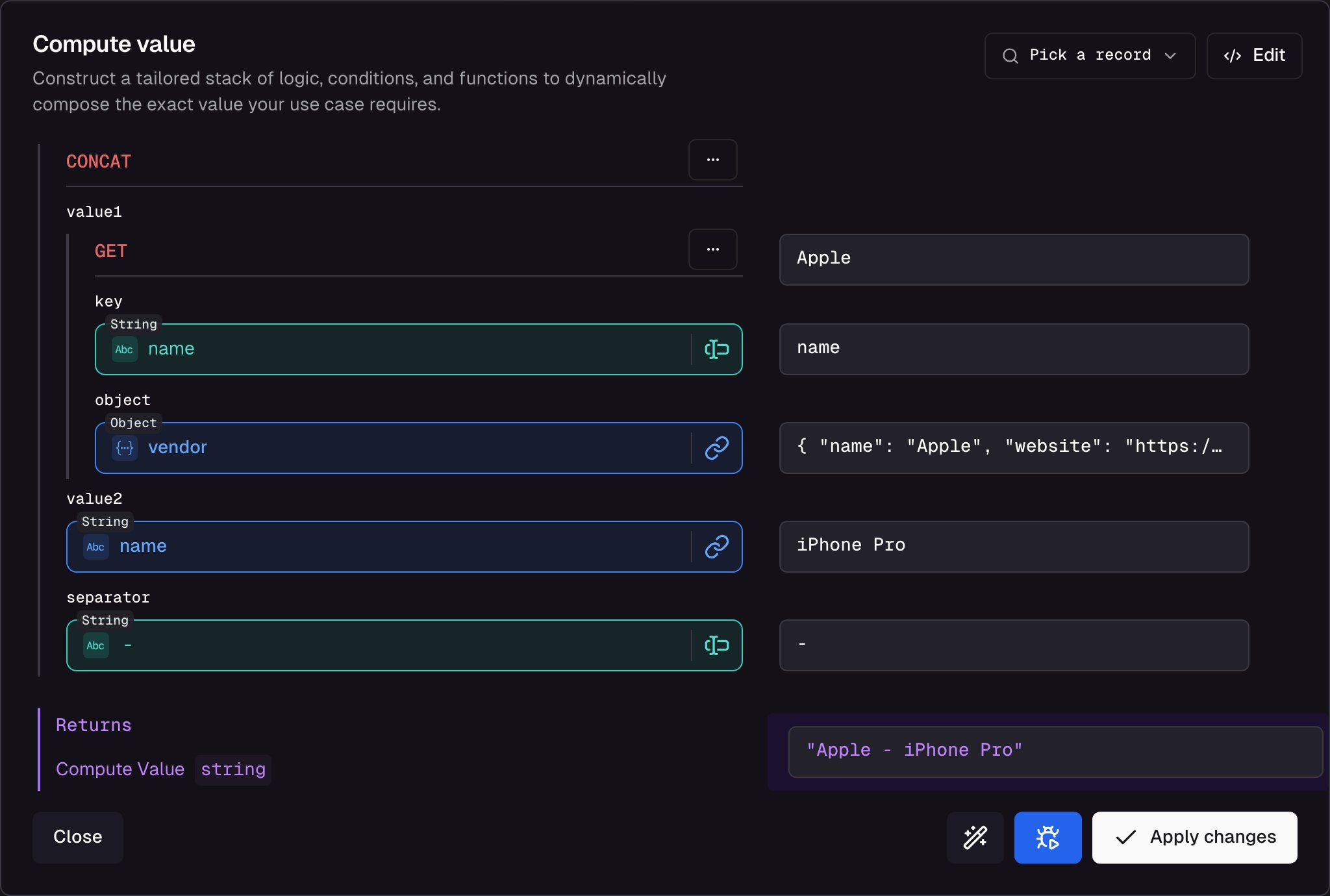
Combine `vendor.name` and the top-level `name` into a single `title` field — producing "Apple - iPhone Pro".
1. Switch the `title` slot to **Computed Value** and add `concat` — it exposes three slots: `value1`, `value2`, `separator`.
2. Wire `value1` to **Schema Field** → `vendor.name`, `value2` to **Schema Field** → `name`, and `separator` to **Static Value** → `-`.
3. Open the field-level debugger to see the result update against the loaded payload.
When you pick a Schema Field like `vendor.name`, the composer renders it as a nested `GET` block — the `key` slot holds `name` and the `object` slot holds `vendor` — rather than a single chip. The breakdown just makes the path explicit; the behavior is identical.
### Example 1: Concatenate values
Combine `vendor.name` and the top-level `name` into a single `title` field — producing "Apple - iPhone Pro".
1. Switch the `title` slot to **Computed Value** and add `concat` — it exposes three slots: `value1`, `value2`, `separator`.
2. Wire `value1` to **Schema Field** → `vendor.name`, `value2` to **Schema Field** → `name`, and `separator` to **Static Value** → `-`.
3. Open the field-level debugger to see the result update against the loaded payload.
When you pick a Schema Field like `vendor.name`, the composer renders it as a nested `GET` block — the `key` slot holds `name` and the `object` slot holds `vendor` — rather than a single chip. The breakdown just makes the path explicit; the behavior is identical.
 ### Example 2: Conditional logic into an Enum
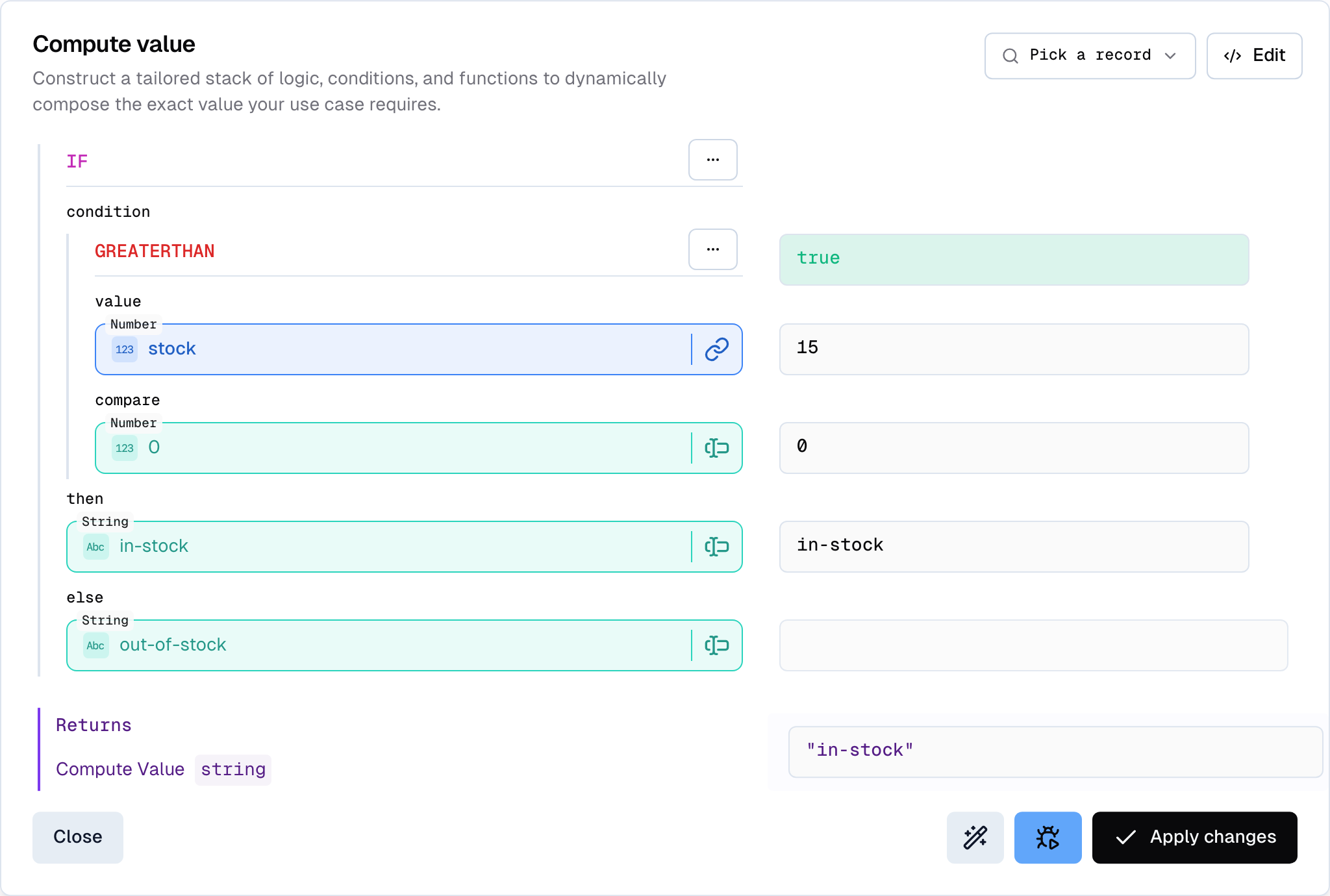
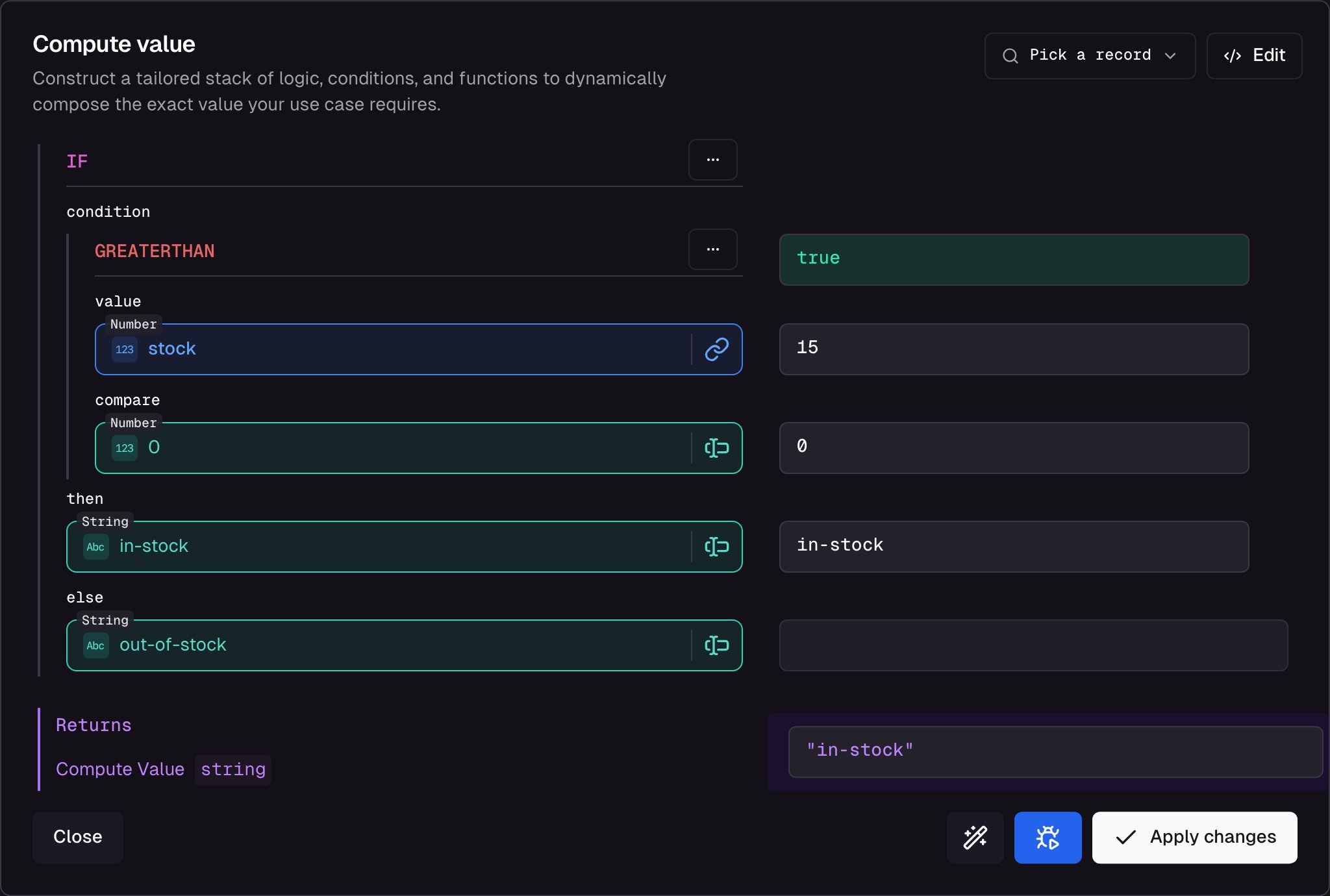
Set the `availability` enum (members `in-stock`, `out-of-stock`, `preorder`, `backorder`) based on whether the record has any `stock`.
When the target slot is an Enum, **Static Value** lets you pick a member from a dropdown — you don't type the key. The Value Composer treats the enum like any other typed slot, so an `if` returning two static enum values is a clean fit.
1. Switch the `availability` slot to **Computed Value** and add `if`. It has three slots: `condition`, `then`, `else`.
2. Set `condition` to **Computed Value** → `greaterThan`, with `value` → **Schema Field** → `stock` and `compare` → **Static Value** → `0`.
3. Set `then` → **Static Value** → `in-stock` and `else` → **Static Value** → `out-of-stock` (both from the Enum dropdown).
With the sample payload (`stock: 15`), the result is `in-stock`. Click **Edit Payload** and change `stock` to `0` to flip it to `out-of-stock`.
### Example 2: Conditional logic into an Enum
Set the `availability` enum (members `in-stock`, `out-of-stock`, `preorder`, `backorder`) based on whether the record has any `stock`.
When the target slot is an Enum, **Static Value** lets you pick a member from a dropdown — you don't type the key. The Value Composer treats the enum like any other typed slot, so an `if` returning two static enum values is a clean fit.
1. Switch the `availability` slot to **Computed Value** and add `if`. It has three slots: `condition`, `then`, `else`.
2. Set `condition` to **Computed Value** → `greaterThan`, with `value` → **Schema Field** → `stock` and `compare` → **Static Value** → `0`.
3. Set `then` → **Static Value** → `in-stock` and `else` → **Static Value** → `out-of-stock` (both from the Enum dropdown).
With the sample payload (`stock: 15`), the result is `in-stock`. Click **Edit Payload** and change `stock` to `0` to flip it to `out-of-stock`.
 ### Example 3: Array transformation
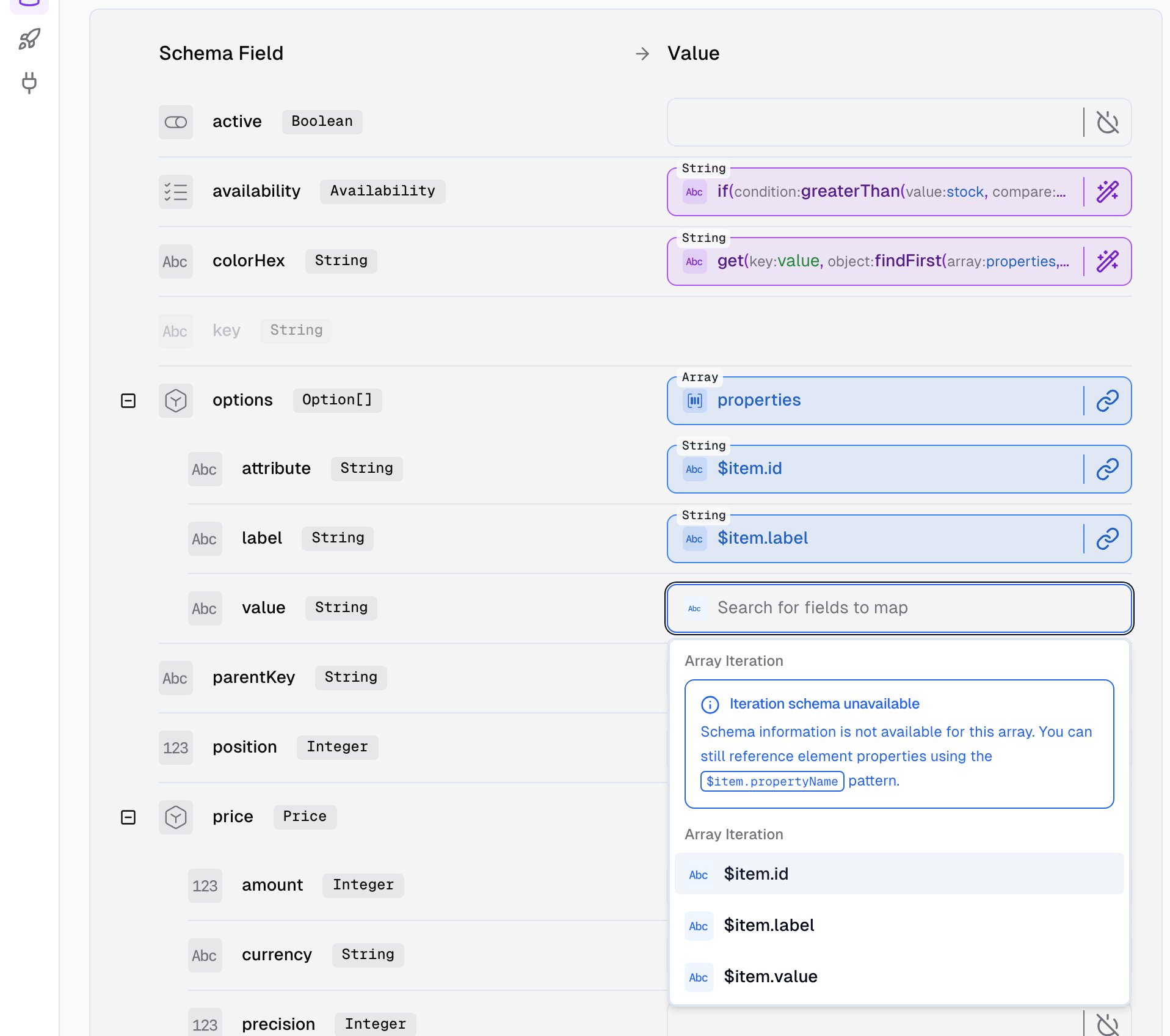
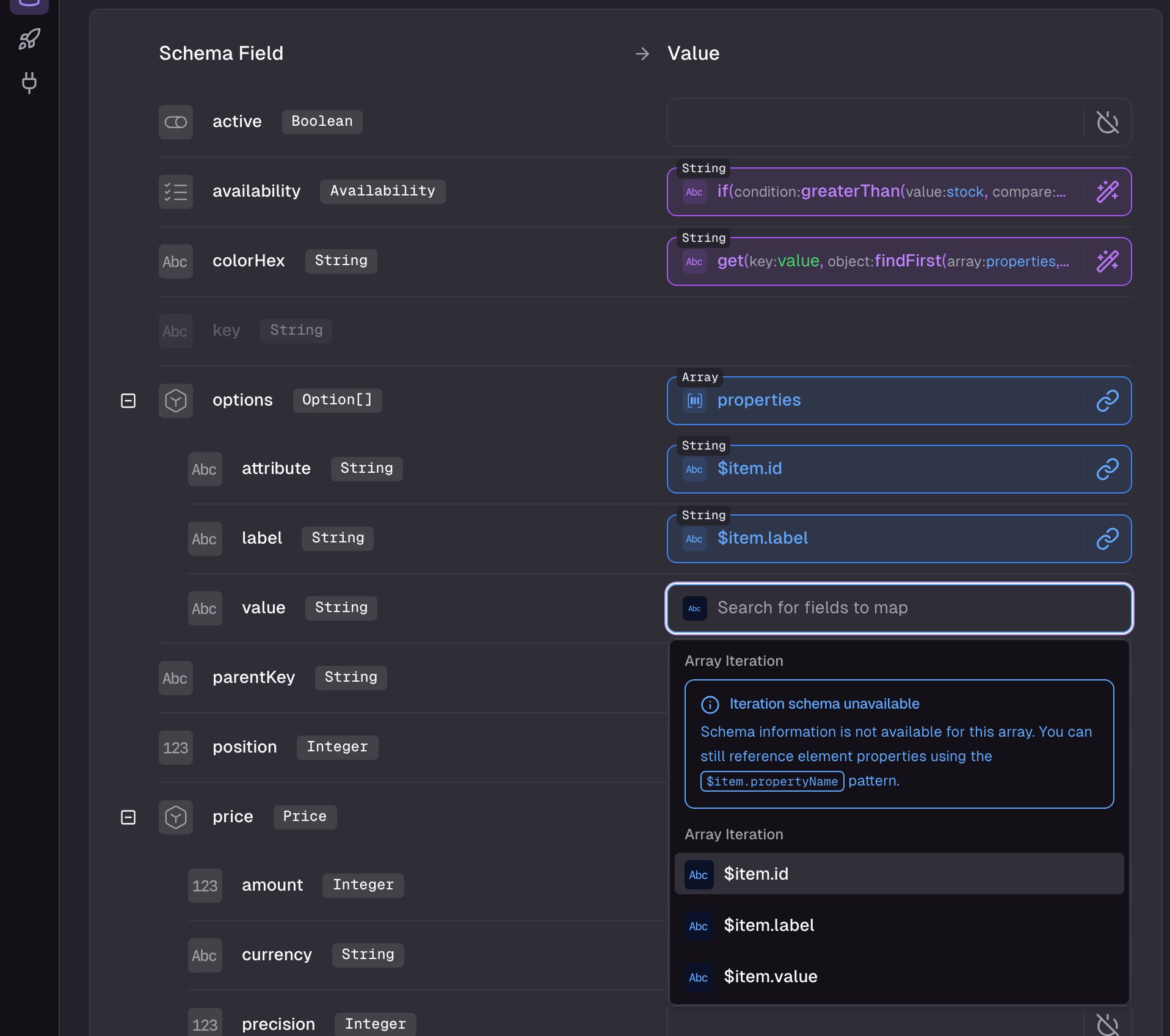
Transform the feed's `properties` array — items like `{ id, label, value }` — into the storage's `options` field, an array of `Option` composites (`attribute` / `label` / `value`).
Array transformations are configured **inline on the mapping page**, not in a separate dialog: the storage's `options` row exposes a reference array slot plus one slot per sub-field of `Option`, all visible at once.
1. On the `options` row, set the reference array to **Schema Field** → `properties`. This is what the composer iterates over — one `Option` per source element.
2. Inside the iteration, each sub-field maps from the current element using `$item`:
* `attribute` → **Schema Field** → `$item.id`
* `label` → **Schema Field** → `$item.label`
* `value` → **Schema Field** → `$item.value`
If `properties` doesn't show up in auto-complete, the feed schema hasn't picked it up yet. Add the field manually on the Data Feed's **Schema** tab, or type it in and confirm — the schema accepts new fields you declare from the composer.
### Example 3: Array transformation
Transform the feed's `properties` array — items like `{ id, label, value }` — into the storage's `options` field, an array of `Option` composites (`attribute` / `label` / `value`).
Array transformations are configured **inline on the mapping page**, not in a separate dialog: the storage's `options` row exposes a reference array slot plus one slot per sub-field of `Option`, all visible at once.
1. On the `options` row, set the reference array to **Schema Field** → `properties`. This is what the composer iterates over — one `Option` per source element.
2. Inside the iteration, each sub-field maps from the current element using `$item`:
* `attribute` → **Schema Field** → `$item.id`
* `label` → **Schema Field** → `$item.label`
* `value` → **Schema Field** → `$item.value`
If `properties` doesn't show up in auto-complete, the feed schema hasn't picked it up yet. Add the field manually on the Data Feed's **Schema** tab, or type it in and confirm — the schema accepts new fields you declare from the composer.
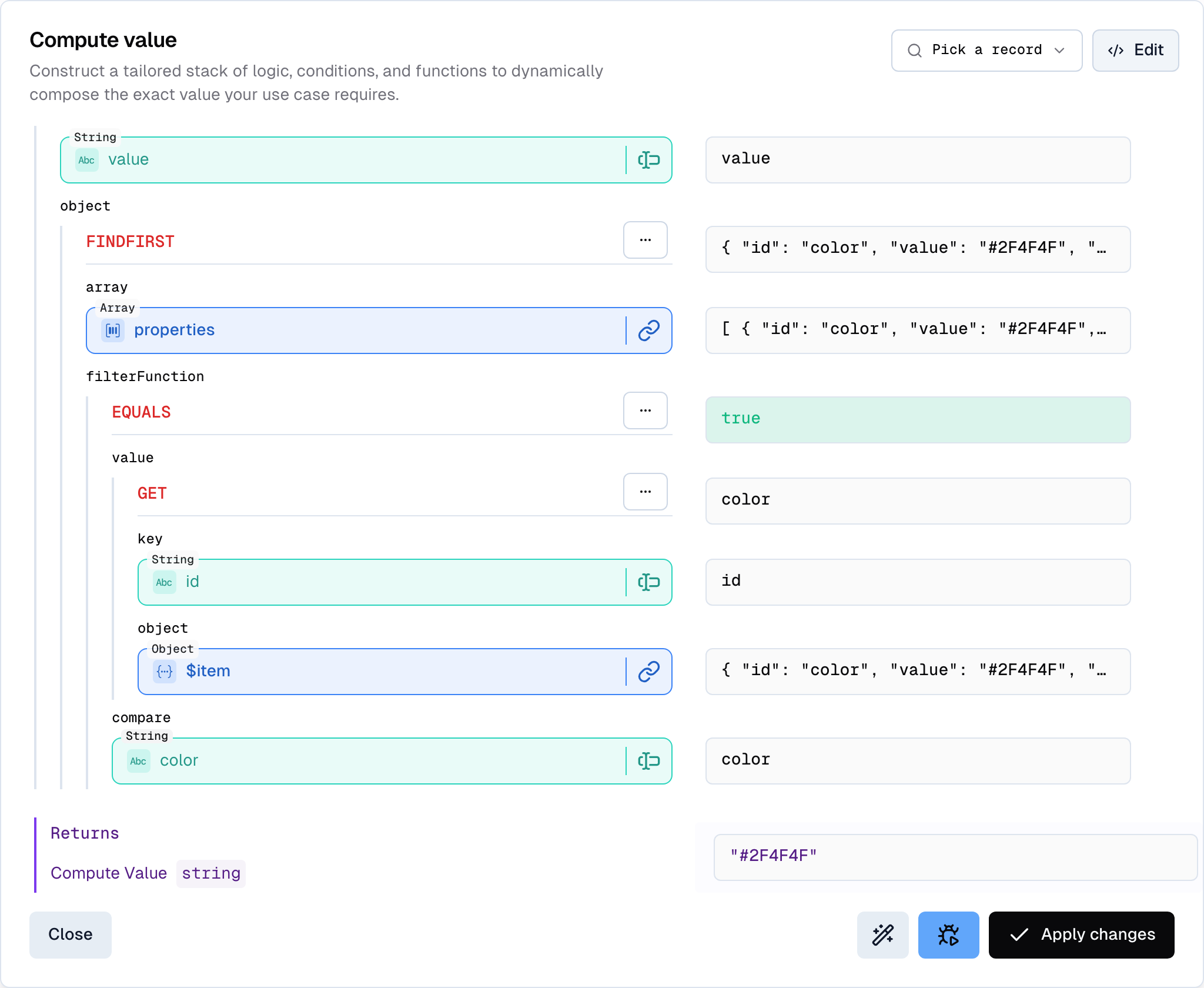
 ### Example 4: Extract a single value from a nested array
Example 3 mapped *every* property — but often you just need *one*. Here, extract the color hex out of the same `properties` array and store it on the top-level `colorHex` field, ready to render as a swatch.
1. Switch the `colorHex` slot to **Computed Value** and add `findFirst` — it has an `array` slot and a `filterFunction` slot.
2. Set `array` to **Schema Field** → `properties`. Then on `filterFunction`, add `equals` and wire its `value` slot to **Schema Field** → `$item.id` and its `compare` slot to **Static Value** → `color`. This keeps only the property whose `id` is `color`.
3. `findFirst` returns the whole matched object; we want just its `value`. **Wrap** the `findFirst` slot in `get`, then set `get`'s `key` to **Static Value** → `value`.
Against the sample payload the debugger returns `#2F4F4F`.
### Example 4: Extract a single value from a nested array
Example 3 mapped *every* property — but often you just need *one*. Here, extract the color hex out of the same `properties` array and store it on the top-level `colorHex` field, ready to render as a swatch.
1. Switch the `colorHex` slot to **Computed Value** and add `findFirst` — it has an `array` slot and a `filterFunction` slot.
2. Set `array` to **Schema Field** → `properties`. Then on `filterFunction`, add `equals` and wire its `value` slot to **Schema Field** → `$item.id` and its `compare` slot to **Static Value** → `color`. This keeps only the property whose `id` is `color`.
3. `findFirst` returns the whole matched object; we want just its `value`. **Wrap** the `findFirst` slot in `get`, then set `get`'s `key` to **Static Value** → `value`.
Against the sample payload the debugger returns `#2F4F4F`.
 ## Tips
* **Start with Schema Field, upgrade when needed.** Most fields start as direct mappings. Switch to Computed Value when you discover the simpler mode can't express what you need.
* **Use the debugger early and often.** The field-level debugger shows node-wise output, so you can pinpoint exactly which operation in the chain produces the wrong result.
* **Use wrap to extend existing configurations.** Need to lowercase a mapped field? Don't rebuild — wrap the existing Schema Field slot in a `tolower` operation.
* **Edit the payload when real data hasn't arrived yet.** Craft a test input that exercises the edge cases you care about without waiting for production data.
* **Cast types when they don't match.** Source data often has numbers as strings (e.g. `"123"` instead of `123`). Use `toNumber`, `toBoolean`, or `toString` to make sure the value matches the storage field type — a price field expects a number, not a string that looks like one.
* **Watch the feed schema.** Fields you reference need to exist in the schema. If auto-complete isn't finding a field, check the feed's Schema tab or add it manually.
* **Let [Buddy](/essentials/buddy) build the first draft.** Describe the source shape and the target shape, and Buddy will propose a working configuration you can refine in the UI.
## Related
Storage schemas, field types, and how Data Syncs connect feeds to storages.
Connectors and Data Feeds — where the source records come from.
Complete catalogue of every operation with arguments and return types.
The field types your storage supports and that composer outputs must match.
## Tips
* **Start with Schema Field, upgrade when needed.** Most fields start as direct mappings. Switch to Computed Value when you discover the simpler mode can't express what you need.
* **Use the debugger early and often.** The field-level debugger shows node-wise output, so you can pinpoint exactly which operation in the chain produces the wrong result.
* **Use wrap to extend existing configurations.** Need to lowercase a mapped field? Don't rebuild — wrap the existing Schema Field slot in a `tolower` operation.
* **Edit the payload when real data hasn't arrived yet.** Craft a test input that exercises the edge cases you care about without waiting for production data.
* **Cast types when they don't match.** Source data often has numbers as strings (e.g. `"123"` instead of `123`). Use `toNumber`, `toBoolean`, or `toString` to make sure the value matches the storage field type — a price field expects a number, not a string that looks like one.
* **Watch the feed schema.** Fields you reference need to exist in the schema. If auto-complete isn't finding a field, check the feed's Schema tab or add it manually.
* **Let [Buddy](/essentials/buddy) build the first draft.** Describe the source shape and the target shape, and Buddy will propose a working configuration you can refine in the UI.
## Related
Storage schemas, field types, and how Data Syncs connect feeds to storages.
Connectors and Data Feeds — where the source records come from.
Complete catalogue of every operation with arguments and return types.
The field types your storage supports and that composer outputs must match.