> ## Documentation Index
> Fetch the complete documentation index at: https://docs.frontic.com/llms.txt
> Use this file to discover all available pages before exploring further.
# Ingest Data
Ingest is the process of importing data — products, categories, content, and more — from external sources into your project using [Connectors](/connectors/overview). It can be a one-time import or a continuous sync that keeps your project up to date.
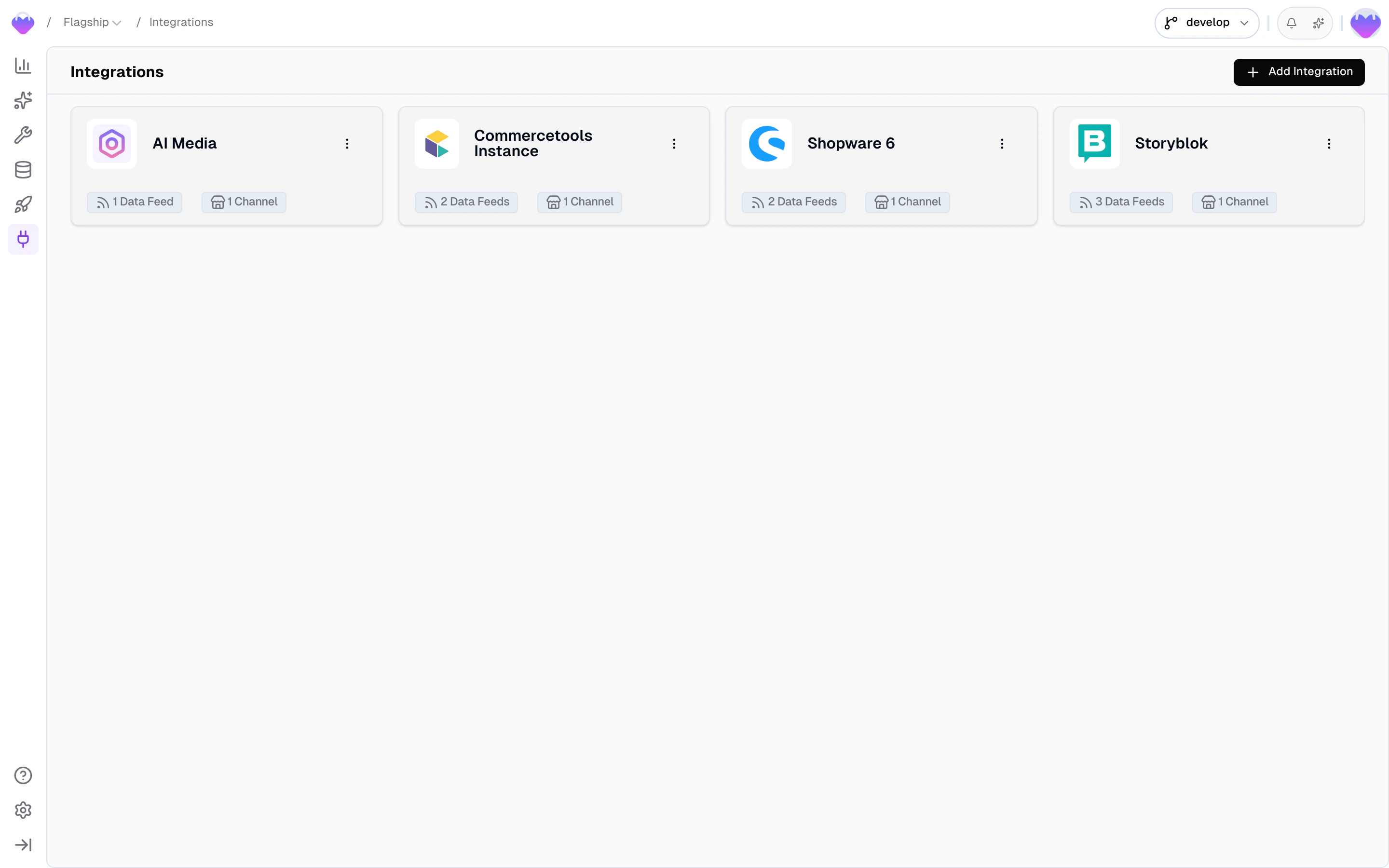
Manage your integrations from the [ Integrations](https://app.frontic.com/integrations) section of the admin app.
 ## The ingest flow
Data moves through two steps on its way into your project:
The connector retrieves data from the source and normalizes it into
feed records with a defined structure — product/variant hierarchy,
channels, translations, and currencies are already in place. For
[custom integrations](/connectors/custom), records arrive as-is.
A Data Sync picks up the feed records, maps fields through the
[Value Composer](/data-integration/value-composer), resolves
translations and currency mappings across all your project's locales
and regions, and writes the result into each connected
[Data Storage](/data-integration/data-storages) — shaped for your
experience, not for the source system.
## Integrations and Data Feeds
An [** Integration**](https://app.frontic.com/integrations) is your connection to an external data source. It holds the credentials, the connection instance, and the **channels** that map the source's locales and scopes to your project. Integrations live at the **team level**, so a single integration can serve multiple projects.
Each integration has one or more **Data Feeds** — one per resource type. A Shopware integration might expose a `products` feed and a `categories` feed. For built-in connectors, the feed does more than pass data through — it normalizes the source's structure into a shape Frontic can work with. A Shopify product with inline variants, for example, becomes separate product and variant feed records, each with proper keys, translations, and currency annotations.
A feed can have multiple subscribing Data Syncs — pointing to different storages, even across different projects.
### Data Feeds
You manage feeds by clicking on an integration in the [ Integrations](https://app.frontic.com/integrations) section.
When using a built-in connector, most of this is handled for you — identifiers, parent keys, schema, and update settings are all pre-configured. Connect the source and you're ready to go. The details below are useful when you want to understand what's happening under the hood or when working with a [custom integration](/connectors/custom).
Each feed has four tabs:
#### Records
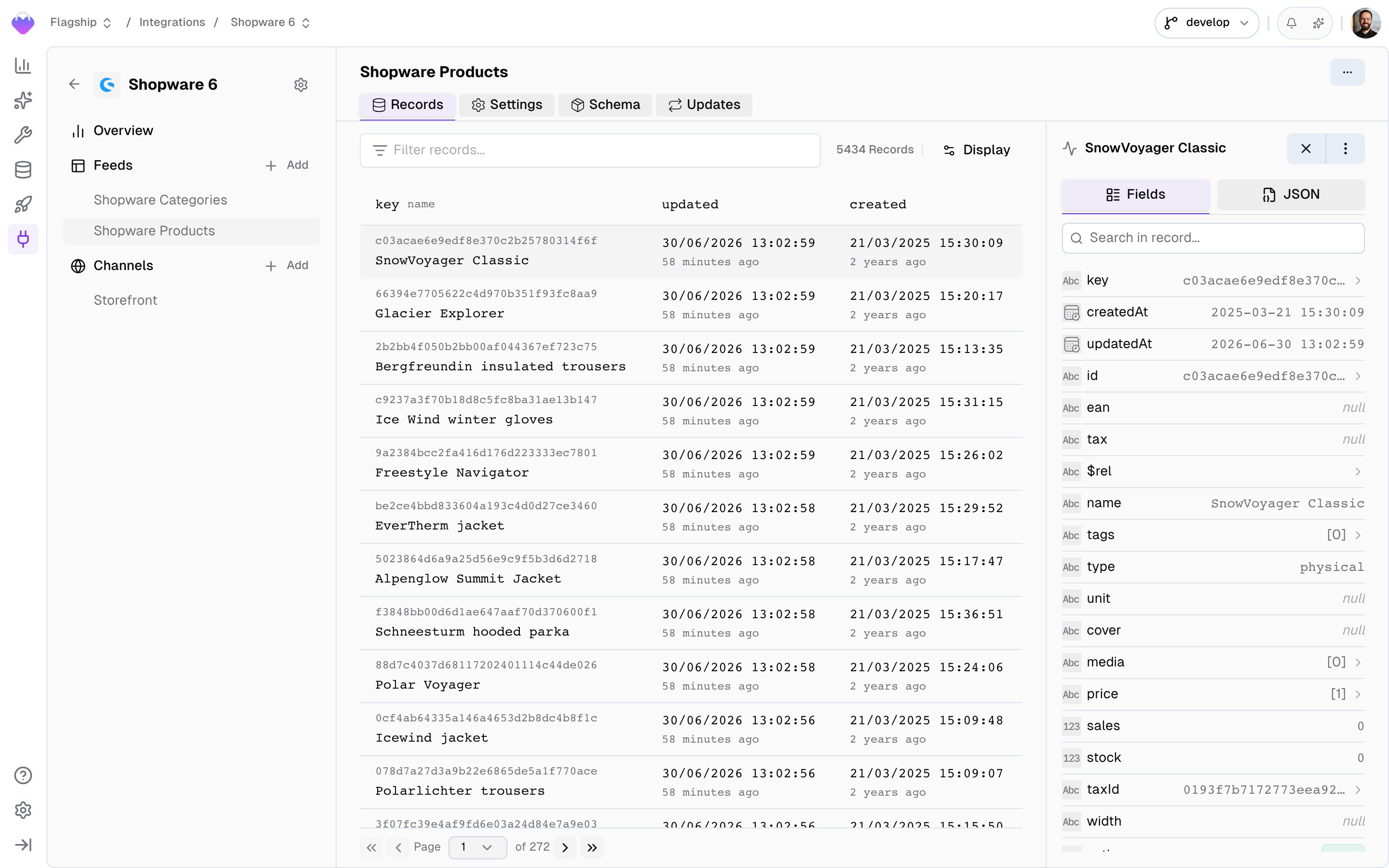
Browse and inspect feed records before they flow into the Value Composer and get shaped into storage records.
* **Filter by any field** — click the filter bar to open a field picker that lists every field on the feed schema. Pick a field, choose an operator (`equals`, `contains`, `is empty`, …), set a value, and the list narrows down. Stack multiple filters to drill in further.
* **Switch channel, translation, and currency** — the settings dropdown lets you pick which integration channel, translation, and currency to inspect against, useful when the same feed serves multiple locales or scopes.
* **Toggle products vs. variants** — for product-type feeds, switch the fetch mode between browsing parent products and individual variants.
* **Inspect individual records** — the detail panel lists every field with its type, supports searching within fields, and offers a JSON view for the raw payload. System fields (`key`, `parentKey`, `createdAt`, `updatedAt`) sit alongside the payload.
## The ingest flow
Data moves through two steps on its way into your project:
The connector retrieves data from the source and normalizes it into
feed records with a defined structure — product/variant hierarchy,
channels, translations, and currencies are already in place. For
[custom integrations](/connectors/custom), records arrive as-is.
A Data Sync picks up the feed records, maps fields through the
[Value Composer](/data-integration/value-composer), resolves
translations and currency mappings across all your project's locales
and regions, and writes the result into each connected
[Data Storage](/data-integration/data-storages) — shaped for your
experience, not for the source system.
## Integrations and Data Feeds
An [** Integration**](https://app.frontic.com/integrations) is your connection to an external data source. It holds the credentials, the connection instance, and the **channels** that map the source's locales and scopes to your project. Integrations live at the **team level**, so a single integration can serve multiple projects.
Each integration has one or more **Data Feeds** — one per resource type. A Shopware integration might expose a `products` feed and a `categories` feed. For built-in connectors, the feed does more than pass data through — it normalizes the source's structure into a shape Frontic can work with. A Shopify product with inline variants, for example, becomes separate product and variant feed records, each with proper keys, translations, and currency annotations.
A feed can have multiple subscribing Data Syncs — pointing to different storages, even across different projects.
### Data Feeds
You manage feeds by clicking on an integration in the [ Integrations](https://app.frontic.com/integrations) section.
When using a built-in connector, most of this is handled for you — identifiers, parent keys, schema, and update settings are all pre-configured. Connect the source and you're ready to go. The details below are useful when you want to understand what's happening under the hood or when working with a [custom integration](/connectors/custom).
Each feed has four tabs:
#### Records
Browse and inspect feed records before they flow into the Value Composer and get shaped into storage records.
* **Filter by any field** — click the filter bar to open a field picker that lists every field on the feed schema. Pick a field, choose an operator (`equals`, `contains`, `is empty`, …), set a value, and the list narrows down. Stack multiple filters to drill in further.
* **Switch channel, translation, and currency** — the settings dropdown lets you pick which integration channel, translation, and currency to inspect against, useful when the same feed serves multiple locales or scopes.
* **Toggle products vs. variants** — for product-type feeds, switch the fetch mode between browsing parent products and individual variants.
* **Inspect individual records** — the detail panel lists every field with its type, supports searching within fields, and offers a JSON view for the raw payload. System fields (`key`, `parentKey`, `createdAt`, `updatedAt`) sit alongside the payload.
 #### Settings
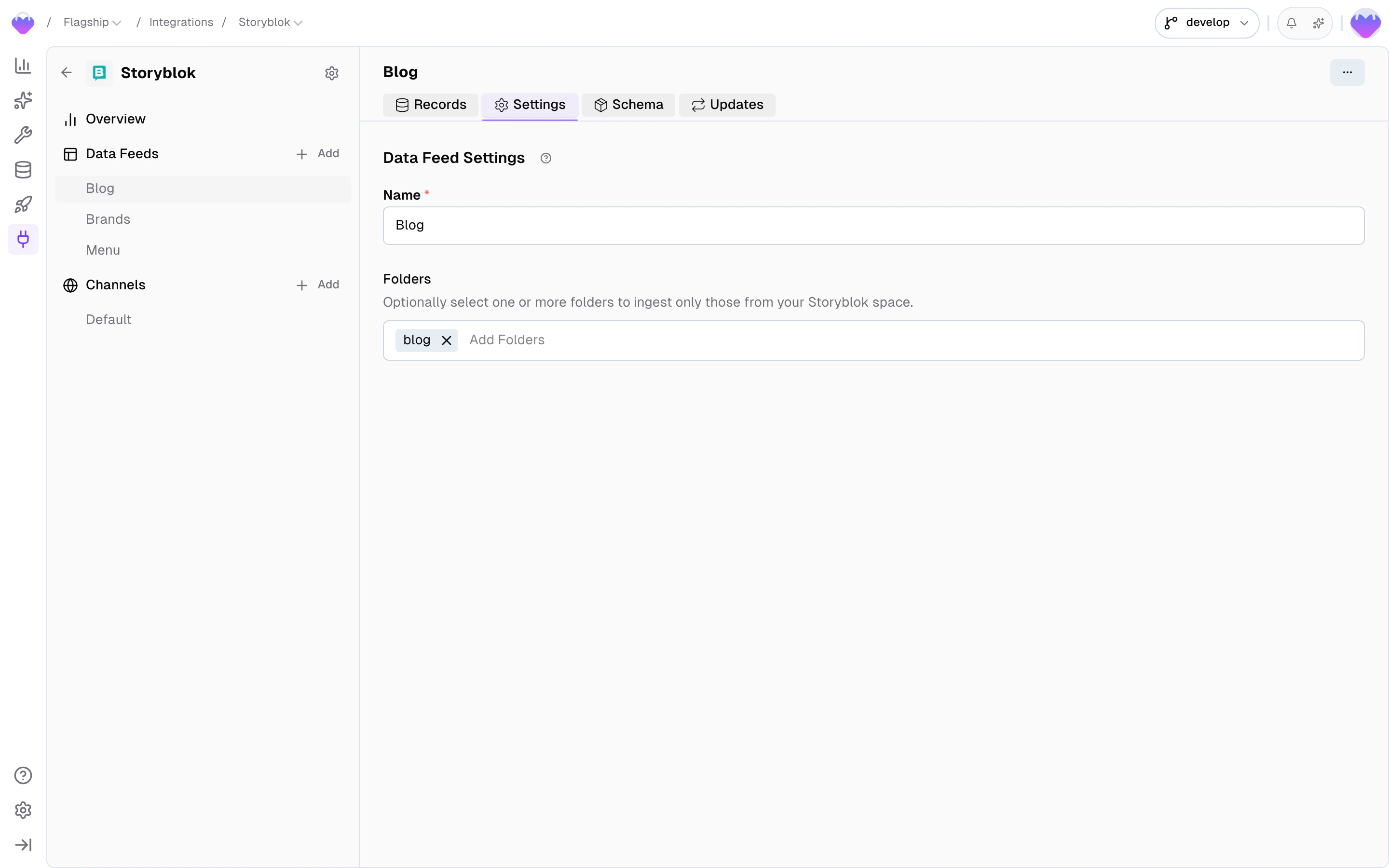
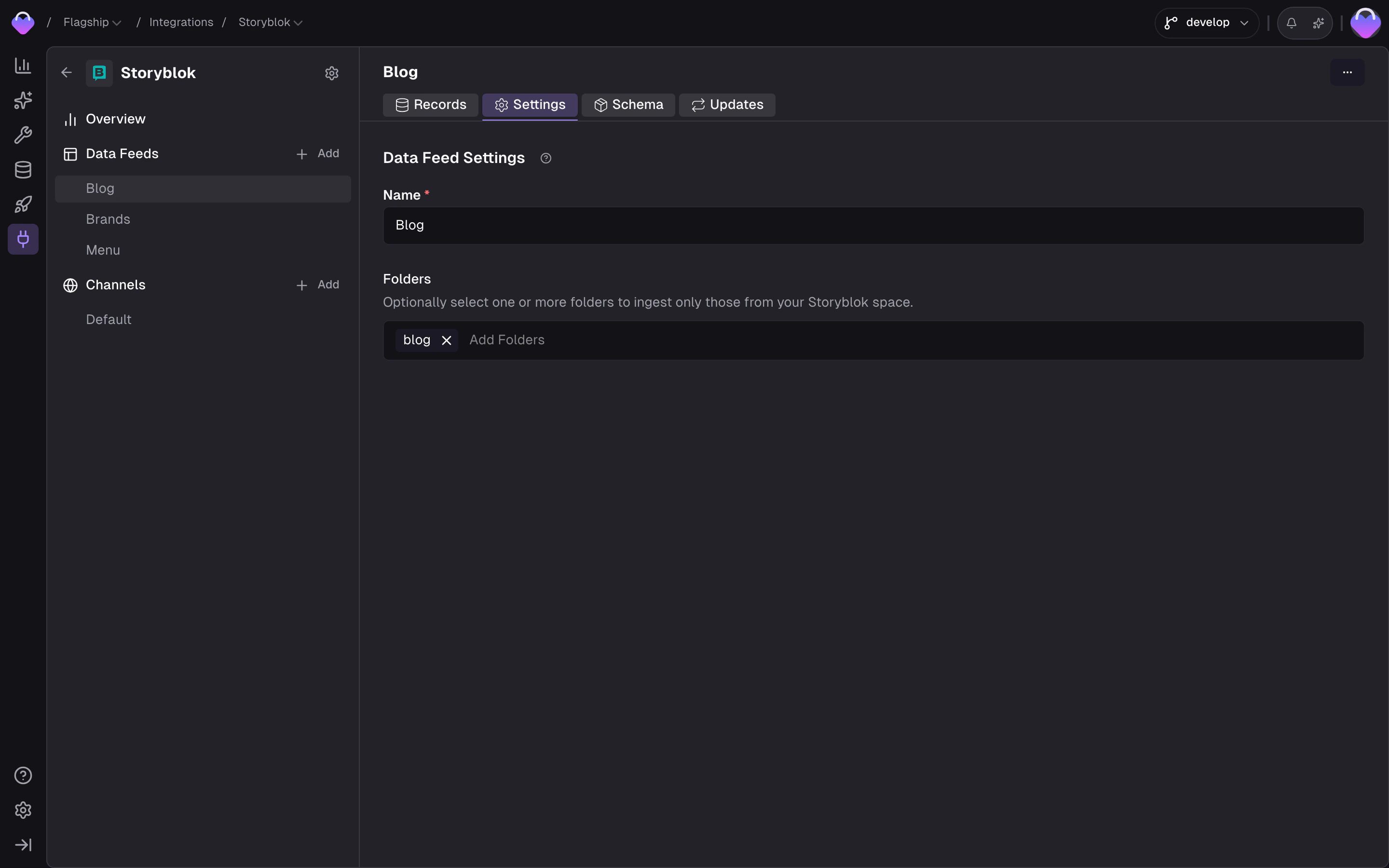 Every feed has a **name**, a **Field for Source ID** (the field that uniquely identifies each record), and a **Field for Parent Source ID** (for parent/child relationships like product/variant). Beyond that, settings depend on the connector type — a CSV feed, for example, lets you configure the delimiter, a regex pattern for file matching, processing order, and custom record identifiers.
#### Schema
Every feed has a **name**, a **Field for Source ID** (the field that uniquely identifies each record), and a **Field for Parent Source ID** (for parent/child relationships like product/variant). Beyond that, settings depend on the connector type — a CSV feed, for example, lets you configure the delimiter, a regex pattern for file matching, processing order, and custom record identifiers.
#### Schema
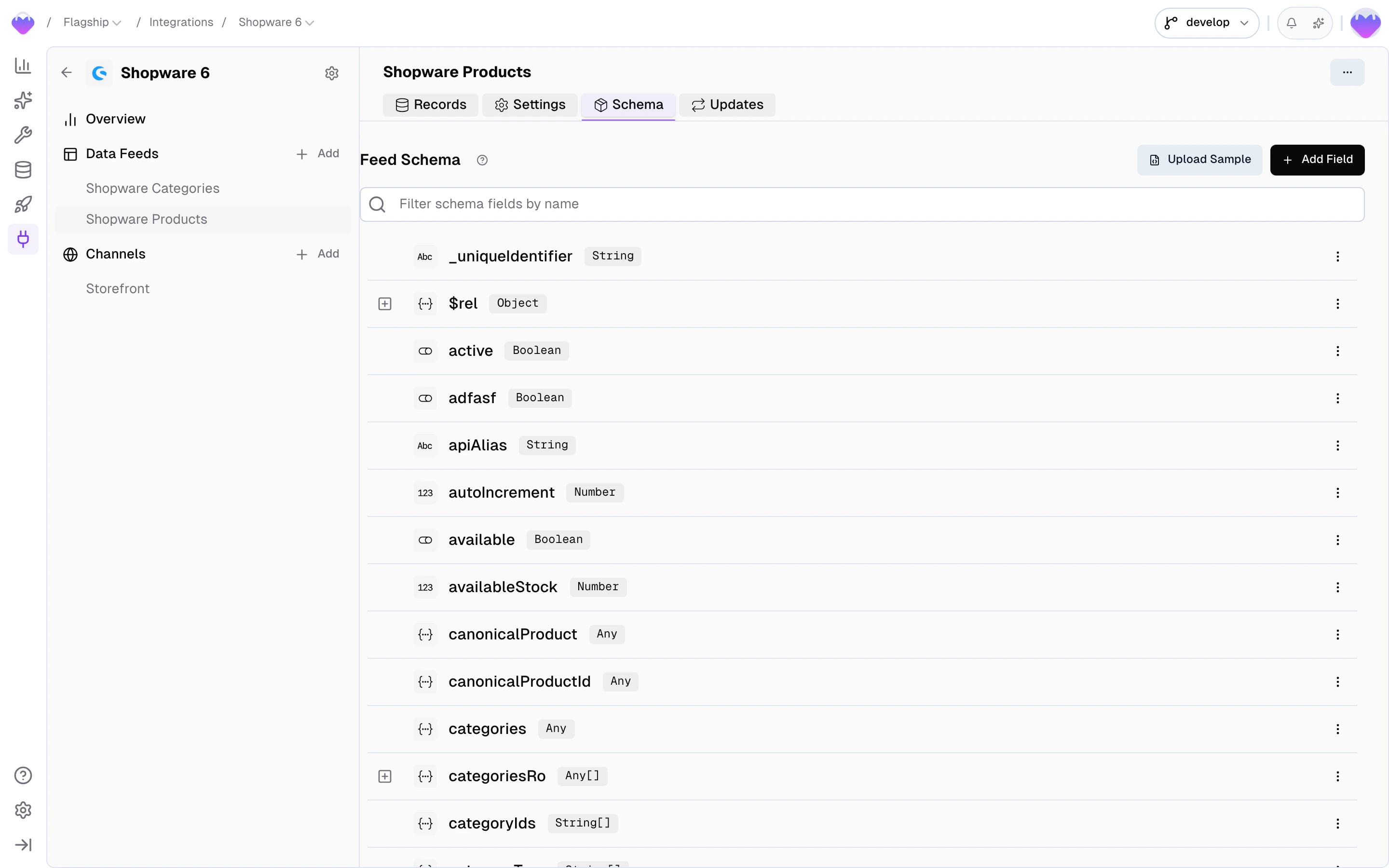
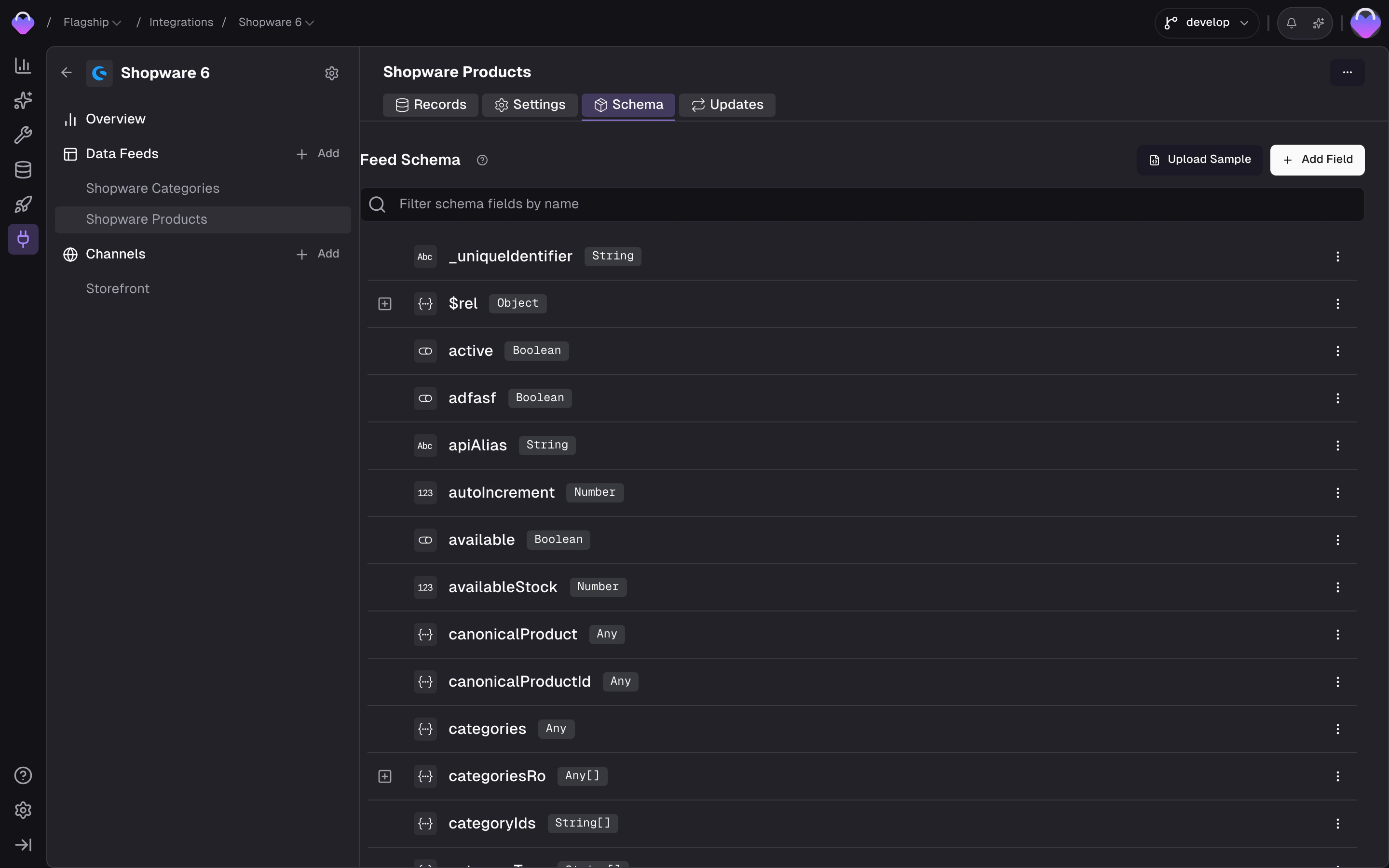 The feed schema is **inferred automatically** once the first records arrive — field names, types, and structure. Want to get ahead of that? Upload a sample record or define fields by hand. Either way, new fields that appear later are picked up on the fly.
Frontic will periodically update the schema by itself with new record updates. You can also update the schema from one of your records in the feed record browser.
The feed schema is more than documentation — it defines which fields are available in the [Value Composer](/data-integration/value-composer) and drives **change detection** through the entire pipeline. Only fields present in the schema can be used in a Data Sync. Fields you don't need can be **muted**, which excludes them from processing entirely.
Change detection starts here: when a record updates, Frontic checks whether any of the changed fields are actually connected to a storage schema. If not, the update is a no-op and the storage record stays untouched. The same logic carries forward to block indices — only blocks with real changes get rebuilt. This keeps the pipeline fast and your frontend caches stable, since they only purge when something genuinely changes.
Each field in the schema carries a status:
* **New** — the field showed up on a record but the schema hasn't seen it before. Review and accept (or mute) so downstream processing knows what to do with it.
* **Active** — the field is in use; available in Value Composer slots and tracked by change detection.
* **Muted** — the field is ignored. Nothing on the field reaches a Data Sync, and changes to it don't trigger downstream rebuilds.
**Mixed types.** When a field's value type varies across records — sometimes a string, sometimes a number, sometimes an array — the schema picks the first type it saw and downstream coercion handles the rest where it can. If the variance is meaningful (e.g. a `dimensions` field that's a string for some products and a structured object for others) and you don't want the coercion fallback, the cleanest fix is to **define the field by hand** with the type you want to enforce, and split the alternative shape off into a separate field via the [Value Composer](/data-integration/value-composer) during sync.
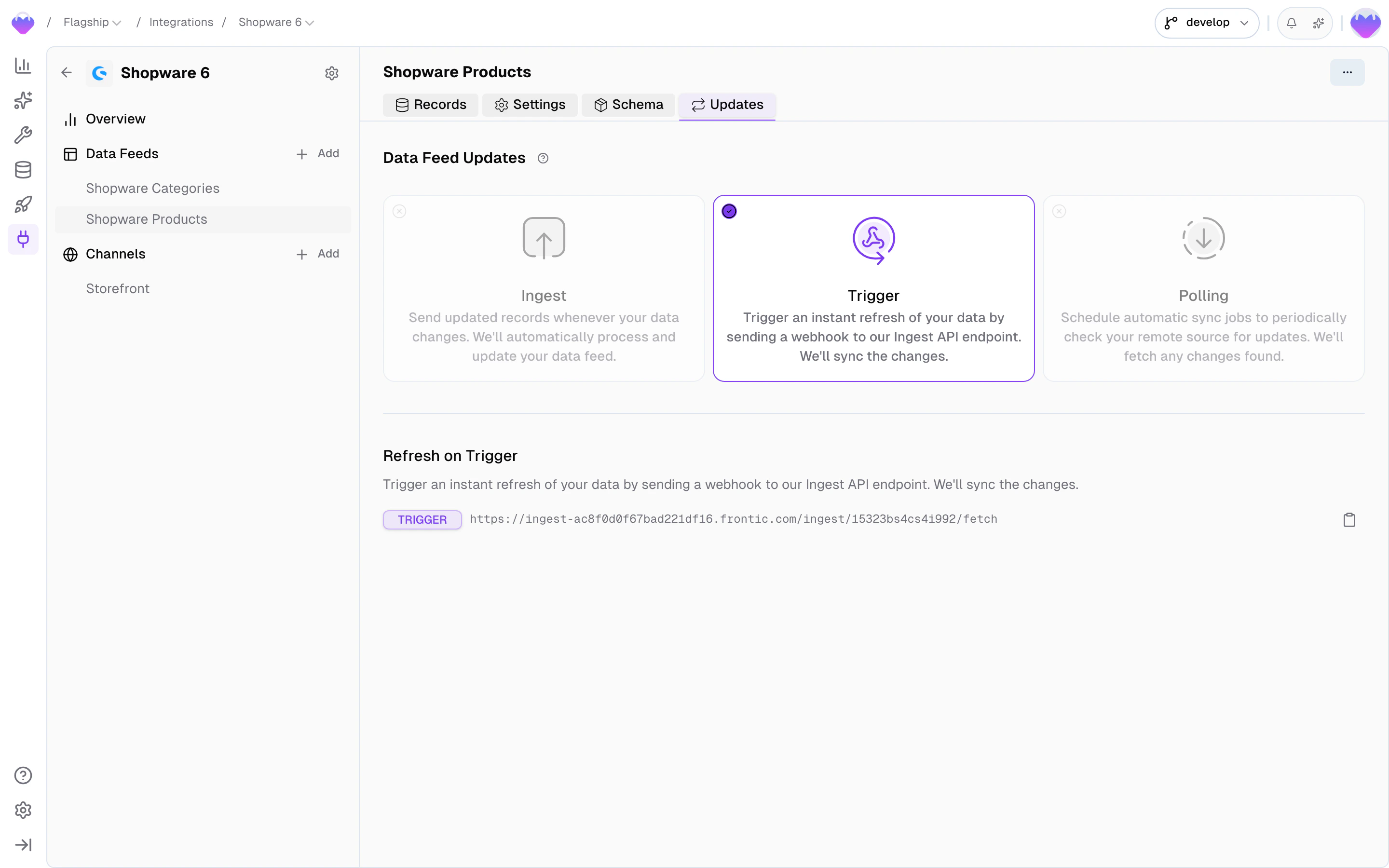
#### Updates
Three update methods exist for keeping feed data current. Which ones are available depends on the connector — built-in connectors pre-configure the methods they support.
* **Ingest** — push records directly to the Frontic [Ingest API](/reference/ingest-api). Full control over timing, individual records or batch updates.
* **Trigger** — send a webhook to Frontic's trigger endpoint. Frontic fetches the latest data from the source and syncs any changes.
* **Polling** — scheduled sync jobs that periodically check the source for updates. Configure the interval, time window, and active hours.
The feed schema is **inferred automatically** once the first records arrive — field names, types, and structure. Want to get ahead of that? Upload a sample record or define fields by hand. Either way, new fields that appear later are picked up on the fly.
Frontic will periodically update the schema by itself with new record updates. You can also update the schema from one of your records in the feed record browser.
The feed schema is more than documentation — it defines which fields are available in the [Value Composer](/data-integration/value-composer) and drives **change detection** through the entire pipeline. Only fields present in the schema can be used in a Data Sync. Fields you don't need can be **muted**, which excludes them from processing entirely.
Change detection starts here: when a record updates, Frontic checks whether any of the changed fields are actually connected to a storage schema. If not, the update is a no-op and the storage record stays untouched. The same logic carries forward to block indices — only blocks with real changes get rebuilt. This keeps the pipeline fast and your frontend caches stable, since they only purge when something genuinely changes.
Each field in the schema carries a status:
* **New** — the field showed up on a record but the schema hasn't seen it before. Review and accept (or mute) so downstream processing knows what to do with it.
* **Active** — the field is in use; available in Value Composer slots and tracked by change detection.
* **Muted** — the field is ignored. Nothing on the field reaches a Data Sync, and changes to it don't trigger downstream rebuilds.
**Mixed types.** When a field's value type varies across records — sometimes a string, sometimes a number, sometimes an array — the schema picks the first type it saw and downstream coercion handles the rest where it can. If the variance is meaningful (e.g. a `dimensions` field that's a string for some products and a structured object for others) and you don't want the coercion fallback, the cleanest fix is to **define the field by hand** with the type you want to enforce, and split the alternative shape off into a separate field via the [Value Composer](/data-integration/value-composer) during sync.
#### Updates
Three update methods exist for keeping feed data current. Which ones are available depends on the connector — built-in connectors pre-configure the methods they support.
* **Ingest** — push records directly to the Frontic [Ingest API](/reference/ingest-api). Full control over timing, individual records or batch updates.
* **Trigger** — send a webhook to Frontic's trigger endpoint. Frontic fetches the latest data from the source and syncs any changes.
* **Polling** — scheduled sync jobs that periodically check the source for updates. Configure the interval, time window, and active hours.
 Check your [connector's documentation](/connectors/overview) for which methods it supports.
## What happens next
Once feed records are flowing, a **Data Sync** connects the feed to a [Data Storage](/data-integration/data-storages) and transforms the records into the shape your storage expects. That process is covered on the [Data Storages](/data-integration/data-storages#populate-a-storage) page.
Check your [connector's documentation](/connectors/overview) for which methods it supports.
## What happens next
Once feed records are flowing, a **Data Sync** connects the feed to a [Data Storage](/data-integration/data-storages) and transforms the records into the shape your storage expects. That process is covered on the [Data Storages](/data-integration/data-storages#populate-a-storage) page.