> ## Documentation Index
> Fetch the complete documentation index at: https://docs.frontic.com/llms.txt
> Use this file to discover all available pages before exploring further.
# Data Storages
Data Storages are where your data lives in its final, consumer-shaped form — structured for the experience you're building, not for the source it came from. Each storage has a typed schema, and its records are populated through a [Data Sync](/data-integration/ingest#what-happens-next) that transforms feed records into the shape your storage expects.
You build [Detail Blocks](/api-builder/blocks), [Search Listings](/api-builder/listings), and [Page URLs](/api-builder/pages) on top of storages — they're the foundation everything else reads from.
Manage your storages from the [Data Storages](https://app.frontic.com/storages) section of the admin app.
## Define storages
You can create a new Storage by clicking the ** New Data Storage** button in the [Data Storages](https://app.frontic.com/storages) section of the admin app.
If you work from an IDE agent workflow, you can also create storages with the `create_storage` MCP tool. See the [Frontic Tools reference](/reference/mcp/frontic-tools#create_storage) for the tool parameters and follow-up schema workflow.
### Create a new storage
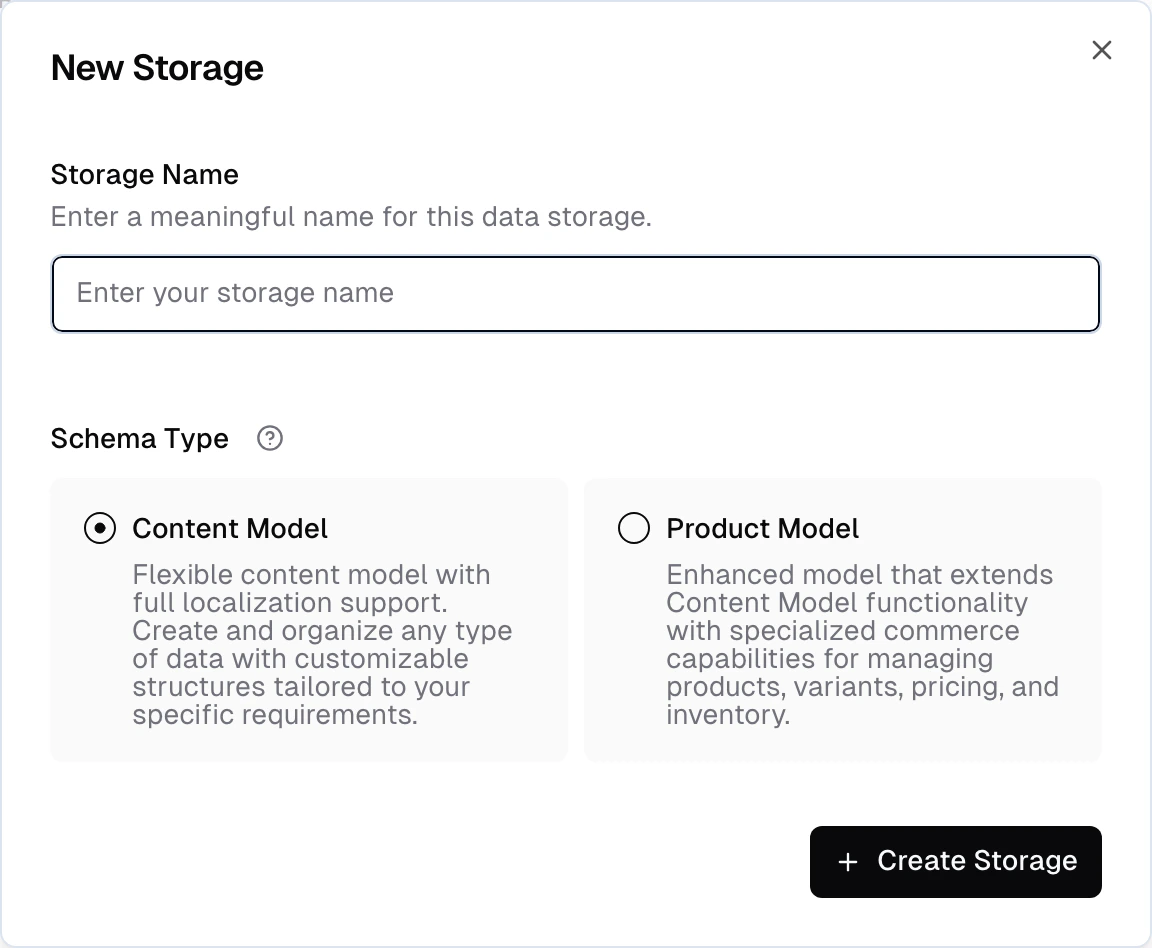
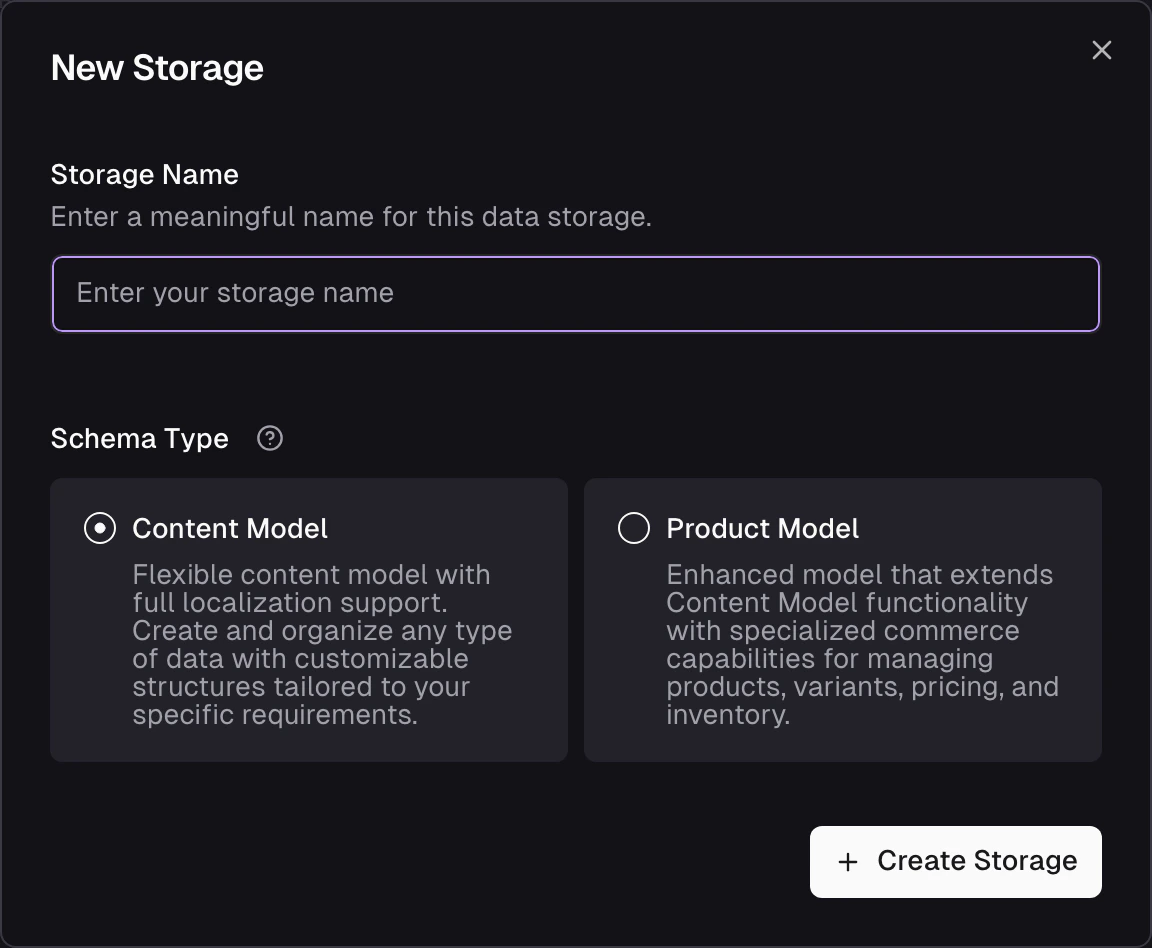
Start by defining a name and selecting a schema type. The type specifies specific features that are available for the storage.
 | Type | Description |
| ------------ | --------------------------------------------------------------------------------- |
| **Products** | Designed for storing product data, including structures like variants and prices. |
| **Content** | Used for storing all other types of data. |
After you save, the storage will be empty and show up in the list of storages.
Open the storage to see the available fields. Every storage starts with four system fields:
* `key` — unique identifier for the record
* `active` — boolean to enable or disable a record
* `parentKey` — links to a parent record (for tree hierarchies)
* `position` - can be used as a custom sorting order
**Products** storages add two more for variant-level data:
* `options` — a list of options that define the variant (e.g. color, size)
* `price` — the variant's price
These system fields are added automatically and cannot be removed.
### Add fields
Add additional fields to a storage by clicking the ** Add Field** button.
You can select from a variety of field types, each with its own properties and capabilities.
Refer to the [Storage Field Types Reference](/reference/storage-field-types) for an overview of the available field types.
Additionally, for each field you can configure the following:
* **Name** - the internal name of the field
* **Description** - a description of the field that will make it easier for others to understand the purpose of the field
* **Array** - whether the field is an array. Array fields can contain multiple values of the same type.
* **Translatable** - whether the field is translatable. Translatable fields can have different values for each language.
* **Scoped** - whether the field is restricted to a specific scope. Scoped fields can only be used in certain contexts.
For product storages, you can also configure the following:
* **Shared Across Variants** - whether the field is shared across variants. Shared fields will have the same value for all variants of a product.
#### Mapped fields
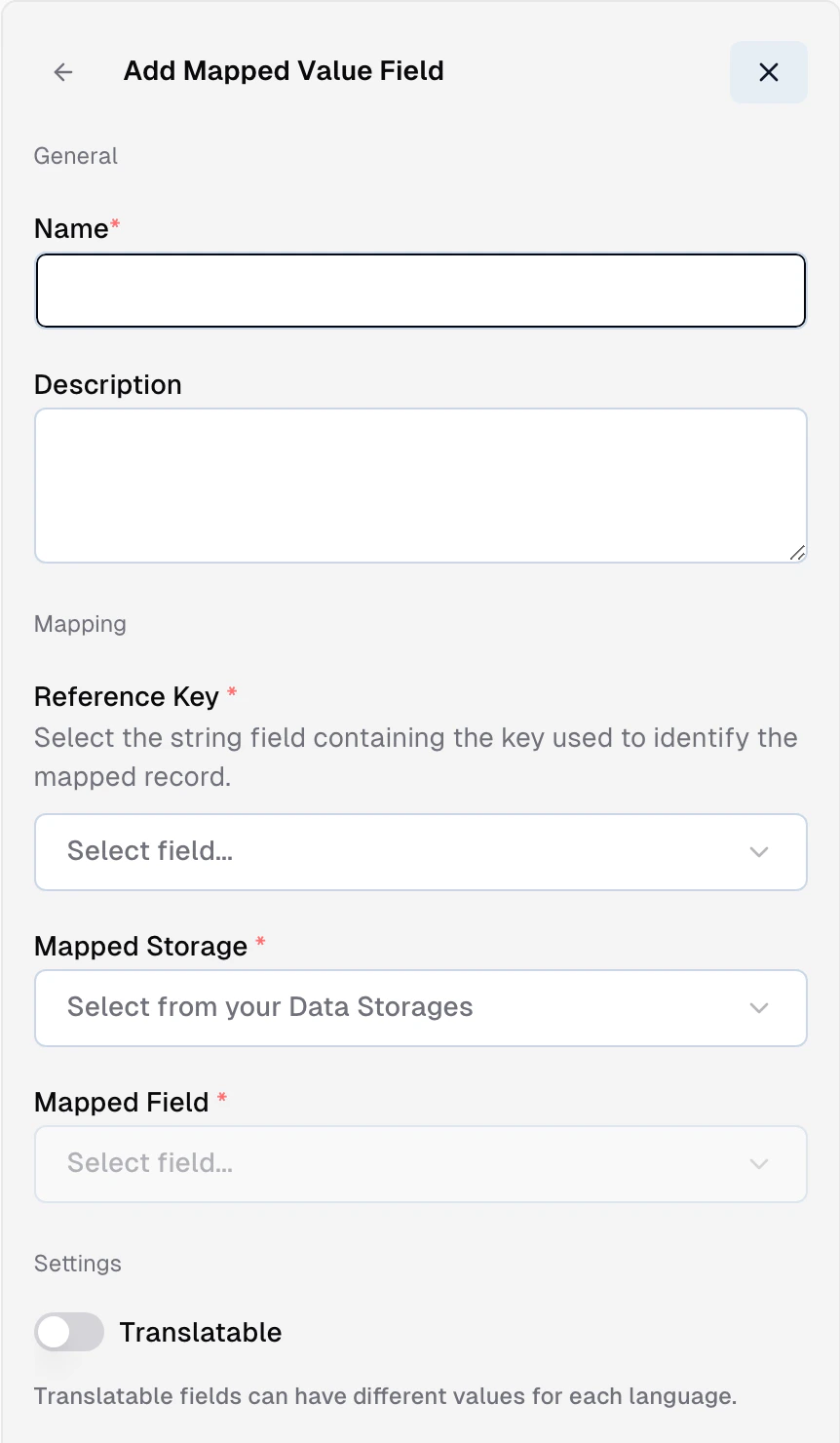
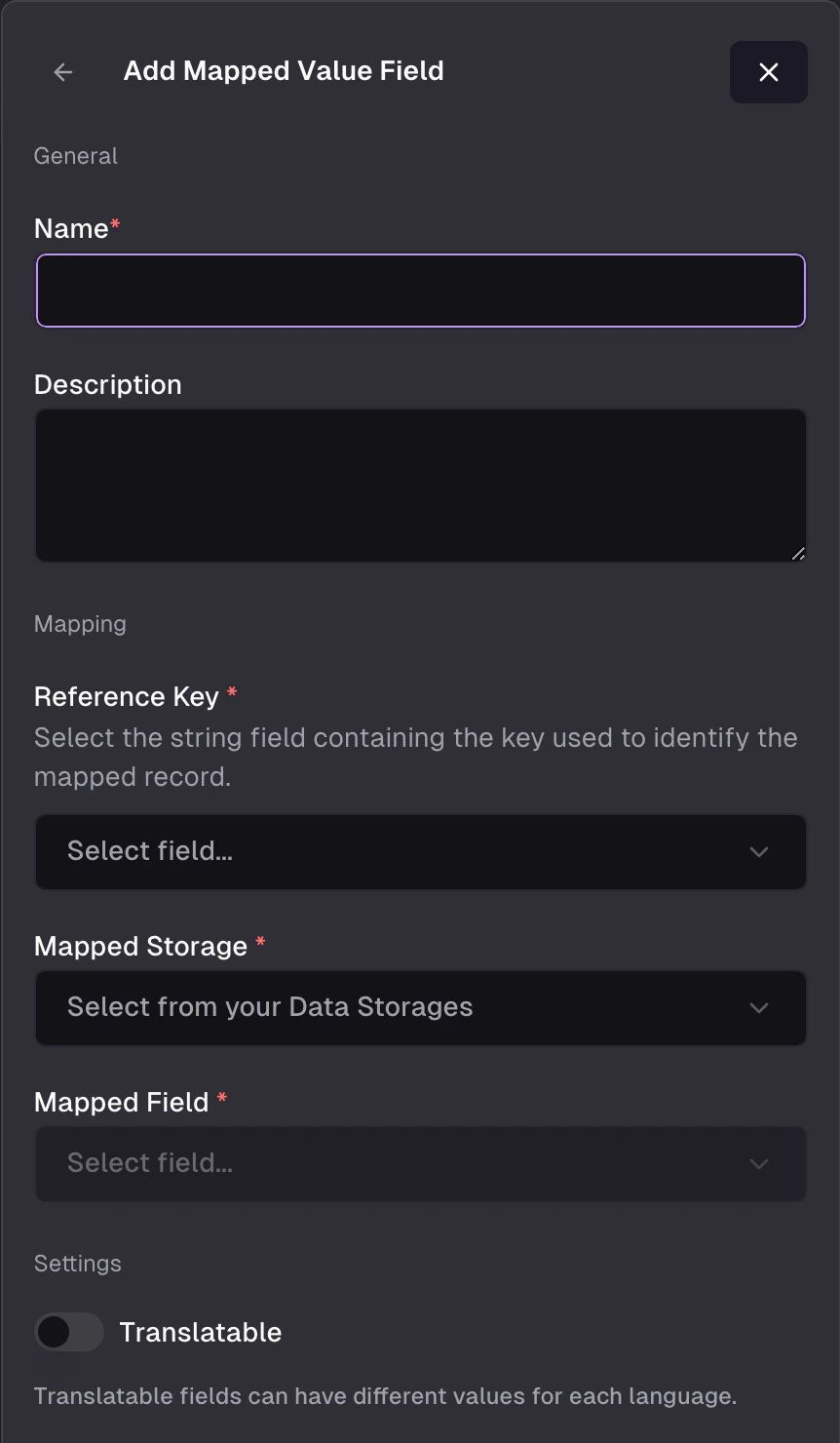
A **mapped field** is a storage field whose value is resolved from another storage when a record is returned by the API — you define a lookup and the field appears on the response as if it lived in the record directly. Useful when two storages share a key and you want the values to stay in sync without duplicating them into the sync step.
In the admin app, add a field and pick **Mapped Value** from the Special group. You configure four things:
* **Target storage** — the other storage you're pulling from (e.g. `Brands`).
* **Target field** — the field on the target storage whose value comes back (e.g. `Brands.name`).
* **Source field** — the field on the current storage used as the lookup key (e.g. `Products.brandId`).
* **Paths** (optional) — dot-path into a composite on either side when the match or the value is inside a composite structure.
When the record is returned, Frontic pulls the target-storage value for the record where **target field (+ path)** matches the current record's **source field (+ path)** and serves it alongside the other fields. From the caller's point of view there's no difference between a stored value and a mapped one. The mapping isn't copied into the current storage, so edits on the target storage flow through immediately — update a name in `Brands` and every product using that mapping reflects the change on its next response.
| Type | Description |
| ------------ | --------------------------------------------------------------------------------- |
| **Products** | Designed for storing product data, including structures like variants and prices. |
| **Content** | Used for storing all other types of data. |
After you save, the storage will be empty and show up in the list of storages.
Open the storage to see the available fields. Every storage starts with four system fields:
* `key` — unique identifier for the record
* `active` — boolean to enable or disable a record
* `parentKey` — links to a parent record (for tree hierarchies)
* `position` - can be used as a custom sorting order
**Products** storages add two more for variant-level data:
* `options` — a list of options that define the variant (e.g. color, size)
* `price` — the variant's price
These system fields are added automatically and cannot be removed.
### Add fields
Add additional fields to a storage by clicking the ** Add Field** button.
You can select from a variety of field types, each with its own properties and capabilities.
Refer to the [Storage Field Types Reference](/reference/storage-field-types) for an overview of the available field types.
Additionally, for each field you can configure the following:
* **Name** - the internal name of the field
* **Description** - a description of the field that will make it easier for others to understand the purpose of the field
* **Array** - whether the field is an array. Array fields can contain multiple values of the same type.
* **Translatable** - whether the field is translatable. Translatable fields can have different values for each language.
* **Scoped** - whether the field is restricted to a specific scope. Scoped fields can only be used in certain contexts.
For product storages, you can also configure the following:
* **Shared Across Variants** - whether the field is shared across variants. Shared fields will have the same value for all variants of a product.
#### Mapped fields
A **mapped field** is a storage field whose value is resolved from another storage when a record is returned by the API — you define a lookup and the field appears on the response as if it lived in the record directly. Useful when two storages share a key and you want the values to stay in sync without duplicating them into the sync step.
In the admin app, add a field and pick **Mapped Value** from the Special group. You configure four things:
* **Target storage** — the other storage you're pulling from (e.g. `Brands`).
* **Target field** — the field on the target storage whose value comes back (e.g. `Brands.name`).
* **Source field** — the field on the current storage used as the lookup key (e.g. `Products.brandId`).
* **Paths** (optional) — dot-path into a composite on either side when the match or the value is inside a composite structure.
When the record is returned, Frontic pulls the target-storage value for the record where **target field (+ path)** matches the current record's **source field (+ path)** and serves it alongside the other fields. From the caller's point of view there's no difference between a stored value and a mapped one. The mapping isn't copied into the current storage, so edits on the target storage flow through immediately — update a name in `Brands` and every product using that mapping reflects the change on its next response.
 Worked example — pulling a brand name onto products without duplicating it:
| Storage | Field | Purpose |
| ---------- | --------- | ------------------------------------------------------------------------- |
| `Brands` | `id` | The brand identifier (target field) |
| `Brands` | `name` | Display name, the value you want to read |
| `Products` | `brandId` | Reference on each product (source field) |
| `Products` | `brand` | Mapped field — returns `Brands.name` where `Brands.id = Products.brandId` |
Now every product response includes `brand: "Nike"` (or whatever resolves) without that string living in the Products storage.
**Constraints worth knowing:**
* A mapped field's source can't itself be a mapped field — chained lookups are blocked. If you need "A → B → C", flatten the hop (add a direct A → C lookup, or populate the intermediate value during sync).
* Mapped fields resolve when the response is built, not at sync time. If the target storage is empty or the lookup doesn't match, the field comes back null.
* A field that's marked as a mapped field can't also be populated by a sync or a computed value — the mapping is the single source for that field.
**When to map vs. when to copy**
Mapping is the right call when the target data is **already modelled as its own storage** and you'd otherwise duplicate work to keep it fresh. Copying (populating the value during sync with a [computed field](/data-integration/value-composer)) is the right call when the target data is cheap to denormalise and you want the value stored alongside the rest of the record — for search indexing, for filter performance, or because the source data doesn't have a stable storage to map from.
Common rule of thumb: if the reference changes, does the display need to change? Yes → map it. No → copy it during sync.
#### Option fields
The built-in [`Option` composite](/reference/storage-field-types#composites) stores product options like color, size, or material. Each item in the array has an `attribute` (the option key), a `value` (the specific choice), and a `label` (the display name for the attribute):
```json theme={"theme":"css-variables"}
[
{ "attribute": "color", "value": "Red", "label": "Color" },
{ "attribute": "color", "value": "Blue", "label": "Color" },
{ "attribute": "size", "value": "M", "label": "Size" },
{ "attribute": "size", "value": "L", "label": "Size" }
]
```
Option fields are always arrays. When you select an Option field as a filter in a [Search Listing](/api-builder/listings#filter-options), Frontic automatically generates **dynamic facets grouped by attribute** — one filter group for "color", another for "size", etc. The facets are aggregated across variants, so a product-level listing shows all available options from all variants.
#### Sorting fields
The built-in [`Sorting` composite](/reference/storage-field-types#composites) enables parameterized sort orders — for example, category-specific product positioning. Each item has a `key` (matching a listing parameter value, like a category ID) and a `position` (numeric):
```json theme={"theme":"css-variables"}
[
{ "key": "shoes", "position": 1 },
{ "key": "sportswear", "position": 5 },
{ "key": "sale", "position": 12 }
]
```
When you use a Sorting field as a [sort option in a listing](/api-builder/listings#sorting), Frontic asks you to link it to a listing parameter. At query time, the parameter's value is matched against the `key`, and items are sorted by the corresponding `position`. Products without a matching key are placed at the end.
### Mock data
If you don't have a data source connected yet — or want to test your API surface before real data arrives — you can generate mock records directly on any storage.
#### Per-field mock settings
When adding or editing a field, expand the **Mock** section to configure how test data is generated for that field.
Worked example — pulling a brand name onto products without duplicating it:
| Storage | Field | Purpose |
| ---------- | --------- | ------------------------------------------------------------------------- |
| `Brands` | `id` | The brand identifier (target field) |
| `Brands` | `name` | Display name, the value you want to read |
| `Products` | `brandId` | Reference on each product (source field) |
| `Products` | `brand` | Mapped field — returns `Brands.name` where `Brands.id = Products.brandId` |
Now every product response includes `brand: "Nike"` (or whatever resolves) without that string living in the Products storage.
**Constraints worth knowing:**
* A mapped field's source can't itself be a mapped field — chained lookups are blocked. If you need "A → B → C", flatten the hop (add a direct A → C lookup, or populate the intermediate value during sync).
* Mapped fields resolve when the response is built, not at sync time. If the target storage is empty or the lookup doesn't match, the field comes back null.
* A field that's marked as a mapped field can't also be populated by a sync or a computed value — the mapping is the single source for that field.
**When to map vs. when to copy**
Mapping is the right call when the target data is **already modelled as its own storage** and you'd otherwise duplicate work to keep it fresh. Copying (populating the value during sync with a [computed field](/data-integration/value-composer)) is the right call when the target data is cheap to denormalise and you want the value stored alongside the rest of the record — for search indexing, for filter performance, or because the source data doesn't have a stable storage to map from.
Common rule of thumb: if the reference changes, does the display need to change? Yes → map it. No → copy it during sync.
#### Option fields
The built-in [`Option` composite](/reference/storage-field-types#composites) stores product options like color, size, or material. Each item in the array has an `attribute` (the option key), a `value` (the specific choice), and a `label` (the display name for the attribute):
```json theme={"theme":"css-variables"}
[
{ "attribute": "color", "value": "Red", "label": "Color" },
{ "attribute": "color", "value": "Blue", "label": "Color" },
{ "attribute": "size", "value": "M", "label": "Size" },
{ "attribute": "size", "value": "L", "label": "Size" }
]
```
Option fields are always arrays. When you select an Option field as a filter in a [Search Listing](/api-builder/listings#filter-options), Frontic automatically generates **dynamic facets grouped by attribute** — one filter group for "color", another for "size", etc. The facets are aggregated across variants, so a product-level listing shows all available options from all variants.
#### Sorting fields
The built-in [`Sorting` composite](/reference/storage-field-types#composites) enables parameterized sort orders — for example, category-specific product positioning. Each item has a `key` (matching a listing parameter value, like a category ID) and a `position` (numeric):
```json theme={"theme":"css-variables"}
[
{ "key": "shoes", "position": 1 },
{ "key": "sportswear", "position": 5 },
{ "key": "sale", "position": 12 }
]
```
When you use a Sorting field as a [sort option in a listing](/api-builder/listings#sorting), Frontic asks you to link it to a listing parameter. At query time, the parameter's value is matched against the `key`, and items are sorted by the corresponding `position`. Products without a matching key are placed at the end.
### Mock data
If you don't have a data source connected yet — or want to test your API surface before real data arrives — you can generate mock records directly on any storage.
#### Per-field mock settings
When adding or editing a field, expand the **Mock** section to configure how test data is generated for that field.
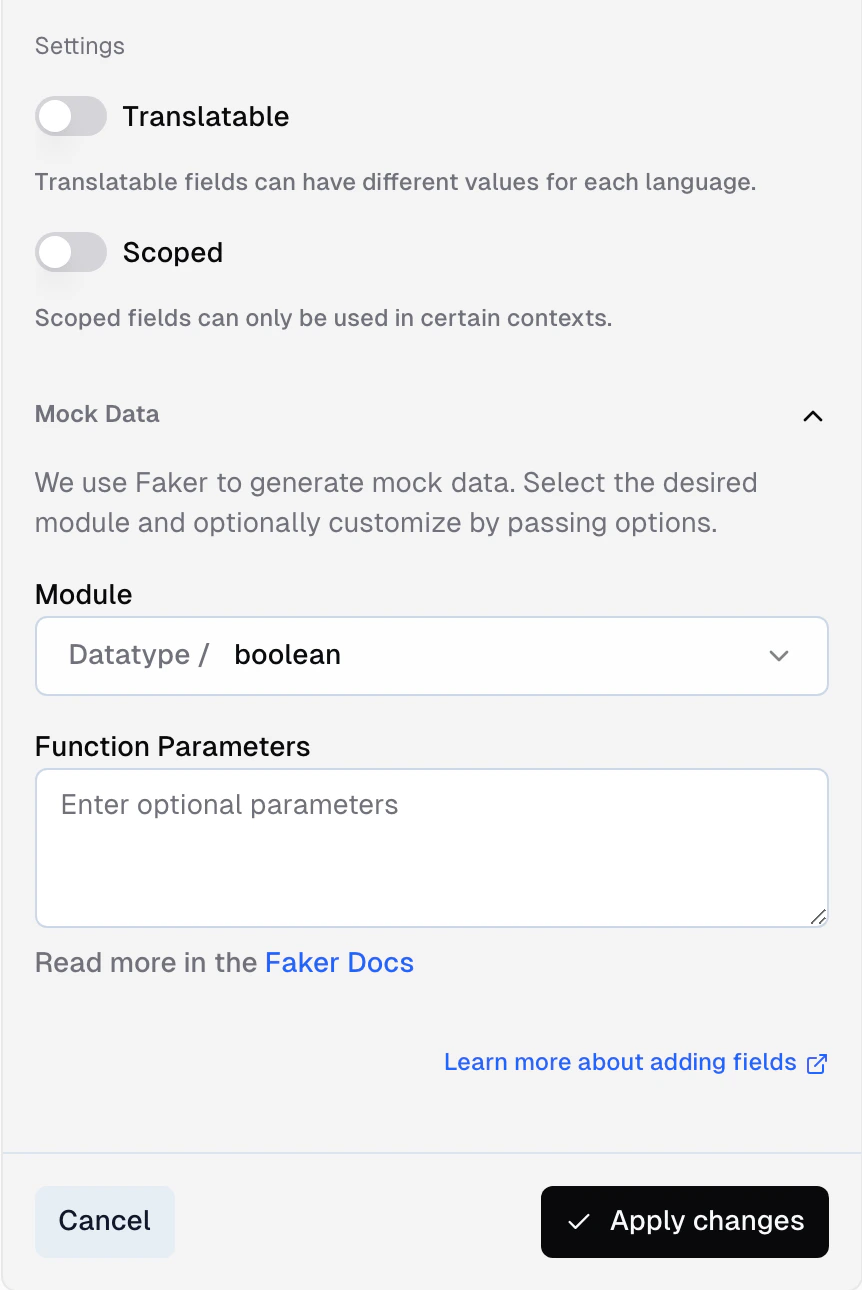
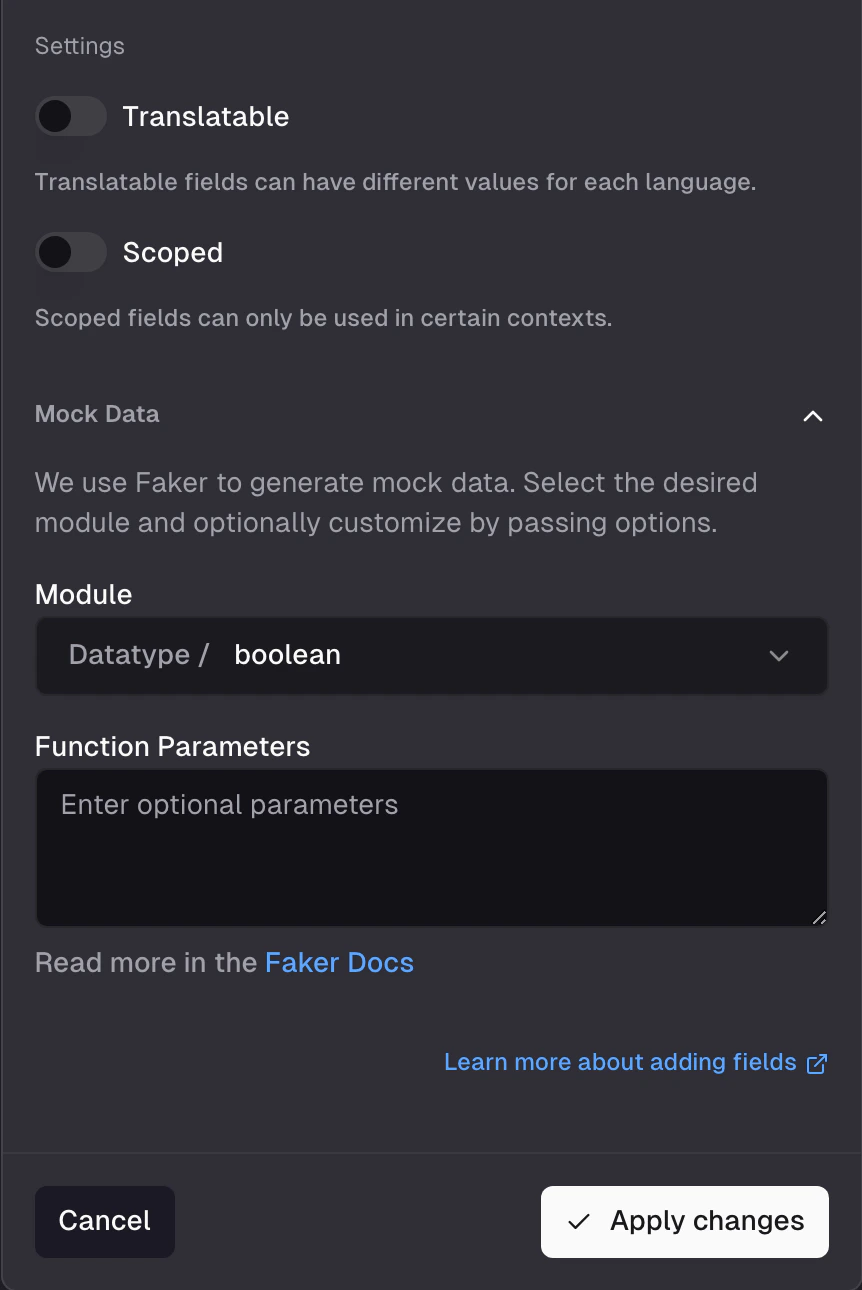 Each field can be assigned a Faker module (e.g. `commerce.productName`, `image.url`, `number.int`) that produces realistic values. For numeric fields, set a min/max range. For array fields, set how many items to generate.
See [Faker.js](https://fakerjs.dev/) for the available modules and configuration options.
#### Generate and remove mock records
From the storage detail page, click the menu and select **Generate mock records**. Choose how many records to generate (1–500) and Frontic fills the storage with test data based on your field mock settings.
Each field can be assigned a Faker module (e.g. `commerce.productName`, `image.url`, `number.int`) that produces realistic values. For numeric fields, set a min/max range. For array fields, set how many items to generate.
See [Faker.js](https://fakerjs.dev/) for the available modules and configuration options.
#### Generate and remove mock records
From the storage detail page, click the menu and select **Generate mock records**. Choose how many records to generate (1–500) and Frontic fills the storage with test data based on your field mock settings.
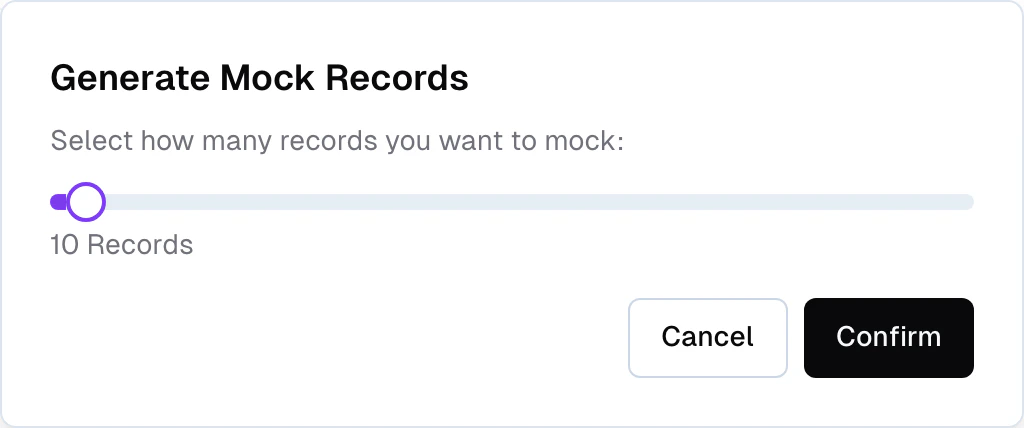
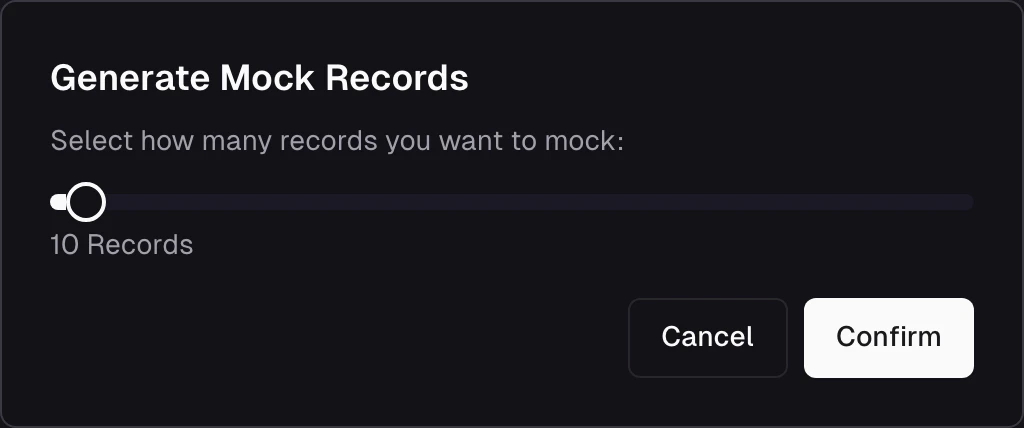 On storages **without a Data Sync**, you can generate full mock records to test your API surface before real data arrives. When you're done testing, use **Remove mock records** to clean up before connecting a feed.
On storages **with a Data Sync**, bulk record generation is disabled — but per-field mock settings still work. Add a field with a mock module and it gets populated with generated values alongside the synced data from the feed. This is useful for prototyping fields you plan to source later — for example, a boolean flag with 50/50 randomness, or a placeholder description while translations are still in progress.
## Populate a storage
A storage starts empty. To populate it, connect it to a [Data Feed](/data-integration/ingest#data-feeds) through a **Data Sync** — the layer that maps and transforms feed records into storage records.
If you haven't set up an integration and data feed yet, start with the [Ingest](/data-integration/ingest) page first.
### Connect a data feed
Click **Connect** on the right side of your storage view to start the process of connecting a data feed.
On storages **without a Data Sync**, you can generate full mock records to test your API surface before real data arrives. When you're done testing, use **Remove mock records** to clean up before connecting a feed.
On storages **with a Data Sync**, bulk record generation is disabled — but per-field mock settings still work. Add a field with a mock module and it gets populated with generated values alongside the synced data from the feed. This is useful for prototyping fields you plan to source later — for example, a boolean flag with 50/50 randomness, or a placeholder description while translations are still in progress.
## Populate a storage
A storage starts empty. To populate it, connect it to a [Data Feed](/data-integration/ingest#data-feeds) through a **Data Sync** — the layer that maps and transforms feed records into storage records.
If you haven't set up an integration and data feed yet, start with the [Ingest](/data-integration/ingest) page first.
### Connect a data feed
Click **Connect** on the right side of your storage view to start the process of connecting a data feed.
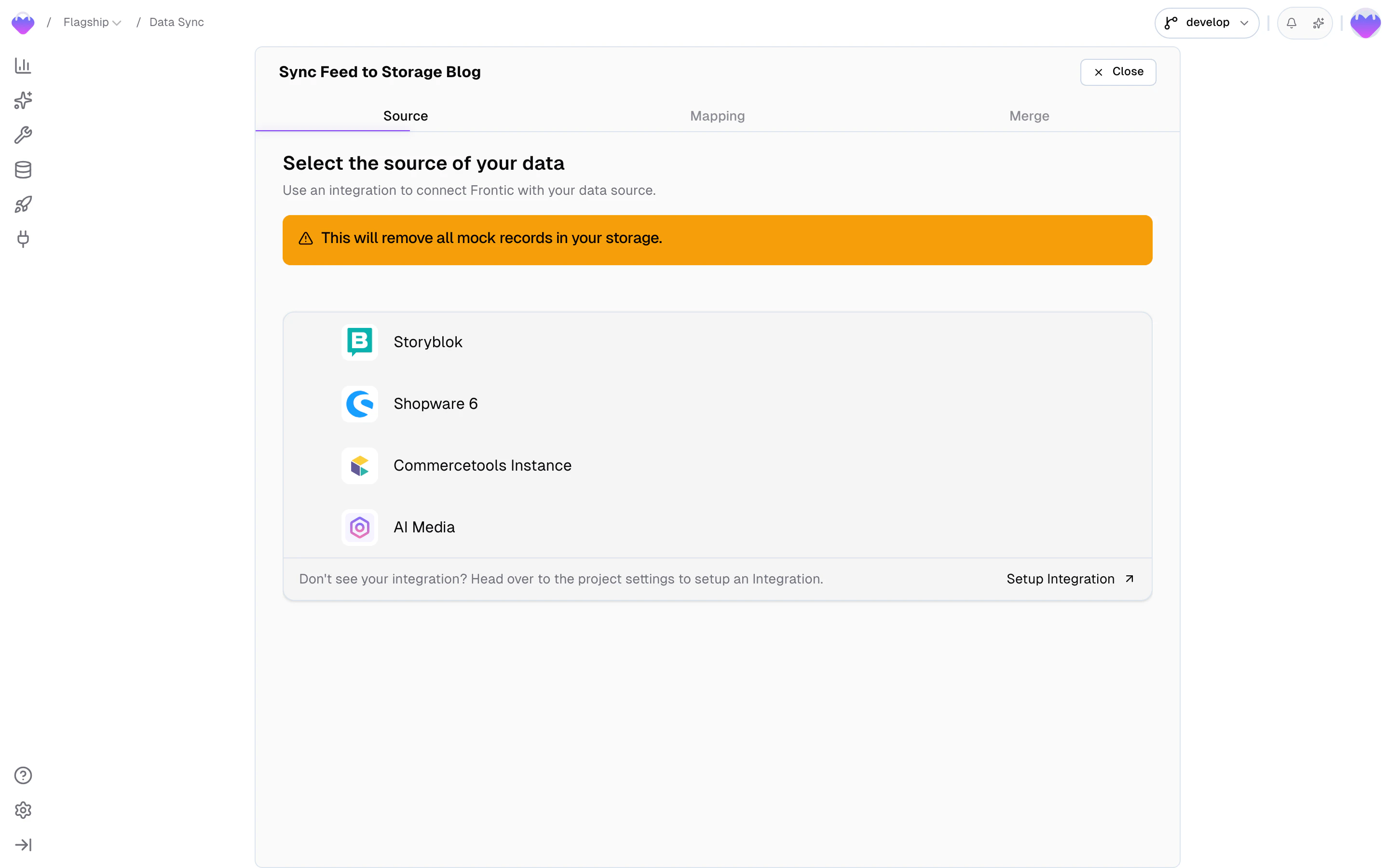
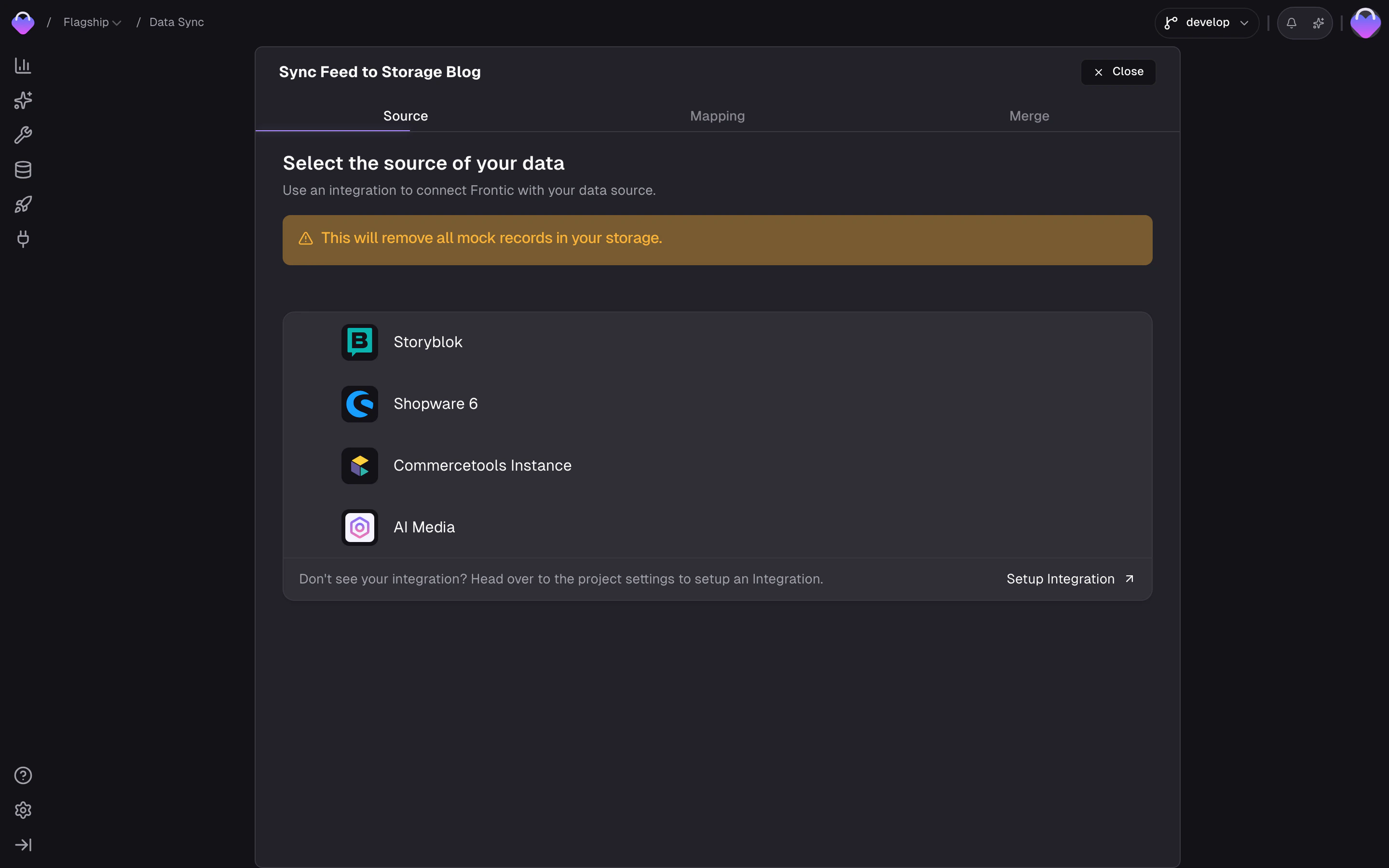 The wizard will guide you through the process of creating a data sync.
You can select from a list of data sources. The available data sources depend on the integrations you have enabled in your project.
After selecting a data source, you can select which data feed to connect to the storage.
Data Syncs — including which feed a storage connects to and how fields are mapped — are covered by [Release Control](/releases/overview). Changes to a sync don't affect the public API version until you publish a new release. The feed itself stays live across all stages, so new data keeps flowing while you refine the mapping in develop.
### Configure the data sync
The wizard walks you through two mapping steps:
1. **Channel → Scope mapping** — map the integration's channels to your project's scopes, and within each scope, map the integration's translations to your project's locales. This tells Frontic which source content belongs to which market and language.
2. **Field mapping** — for each storage field, define how it gets its value from the feed. Each slot operates in one of four modes: **Schema Field** (directly from a feed field), **Computed Value** (transformed through the Value Composer), **Static Value** (a fixed value), or **Keep Empty**.
For the full details on field mapping — including [worked examples](/data-integration/value-composer#worked-examples) for concatenation, conditional logic, array transformation, and extracting from nested arrays — see the [Value Composer](/data-integration/value-composer) page.
## Browse storage records
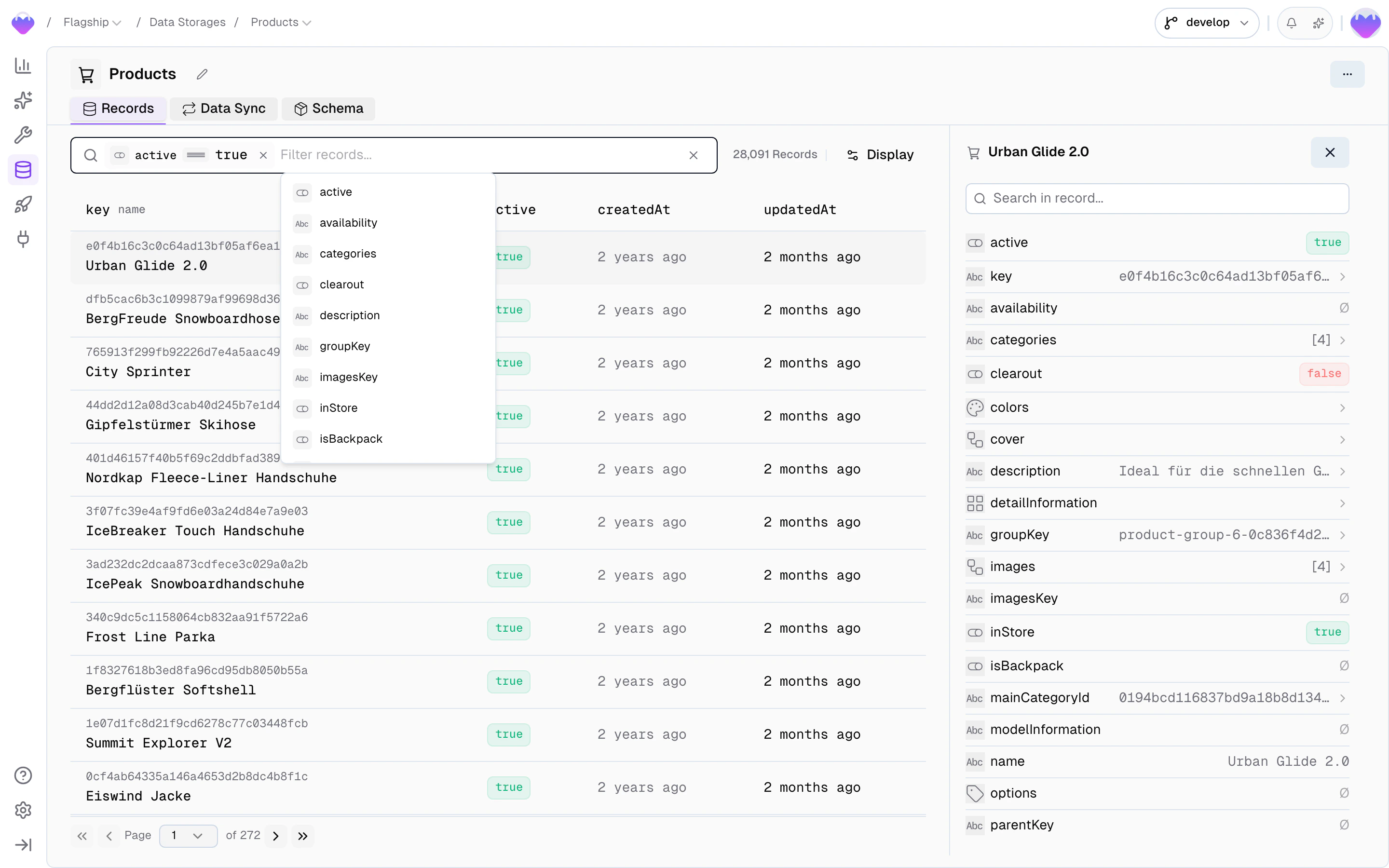
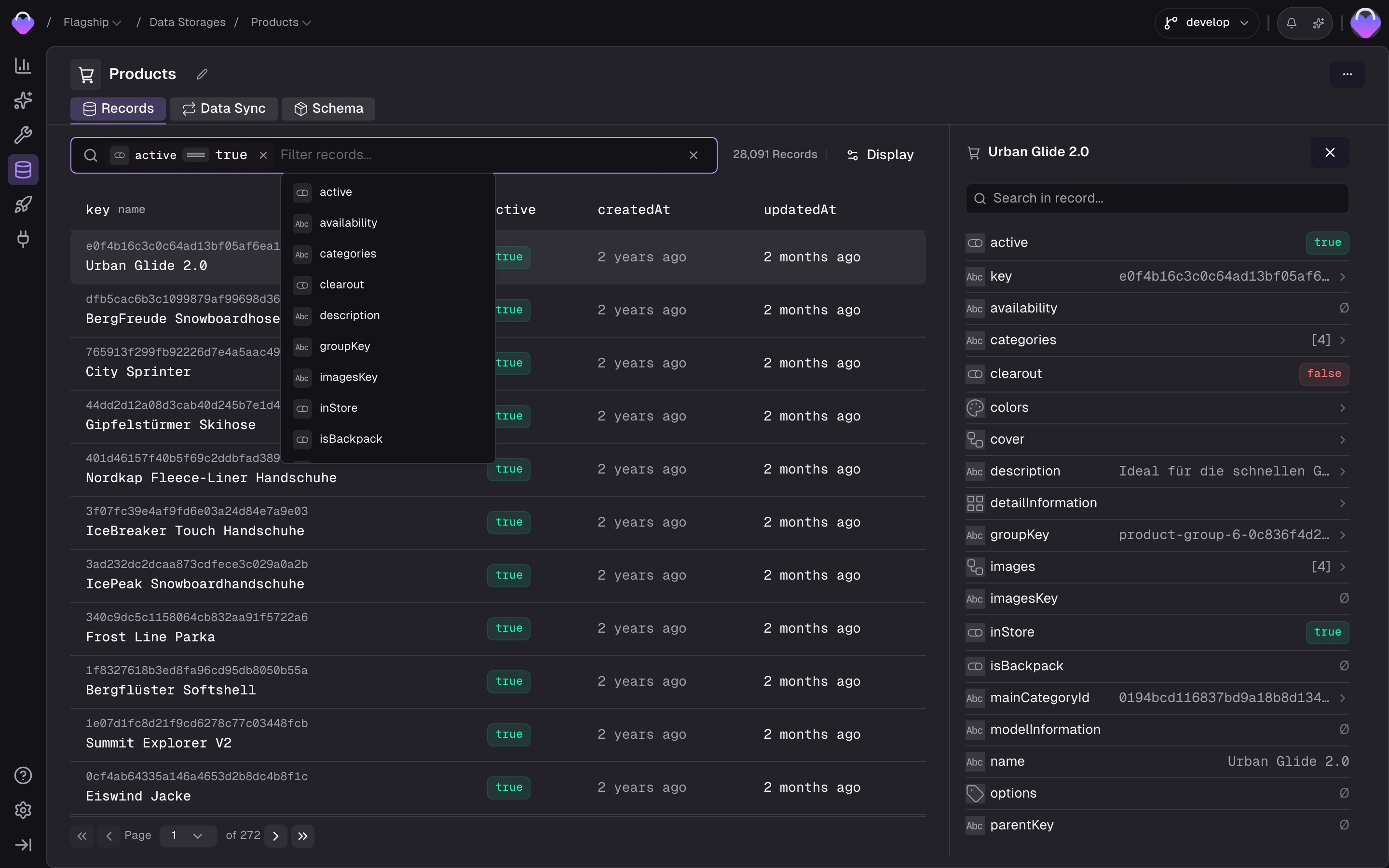
Once records are flowing through the data sync, the storage's **Records** tab lets you browse and inspect your data:
* **Filter by any field** — click the filter bar to open a field picker that lists every field on the storage. Pick a field, choose an operator (`equals`, `contains`, `is empty`, …), set a value, and the list narrows down. Stack multiple filters and toggle between **match all** and **match any** to drill in further.
* **Switch locale and scope** to see how translations and scoped values resolve
* **Inspect individual records** — view every field value, see which feed record it originated from, and check when it was last updated
* **Filter by product or variant** in product storages to navigate the parent/child hierarchy
This is where you verify that the data sync is producing the right output — before building Detail Blocks and Search Listings on top.
The wizard will guide you through the process of creating a data sync.
You can select from a list of data sources. The available data sources depend on the integrations you have enabled in your project.
After selecting a data source, you can select which data feed to connect to the storage.
Data Syncs — including which feed a storage connects to and how fields are mapped — are covered by [Release Control](/releases/overview). Changes to a sync don't affect the public API version until you publish a new release. The feed itself stays live across all stages, so new data keeps flowing while you refine the mapping in develop.
### Configure the data sync
The wizard walks you through two mapping steps:
1. **Channel → Scope mapping** — map the integration's channels to your project's scopes, and within each scope, map the integration's translations to your project's locales. This tells Frontic which source content belongs to which market and language.
2. **Field mapping** — for each storage field, define how it gets its value from the feed. Each slot operates in one of four modes: **Schema Field** (directly from a feed field), **Computed Value** (transformed through the Value Composer), **Static Value** (a fixed value), or **Keep Empty**.
For the full details on field mapping — including [worked examples](/data-integration/value-composer#worked-examples) for concatenation, conditional logic, array transformation, and extracting from nested arrays — see the [Value Composer](/data-integration/value-composer) page.
## Browse storage records
Once records are flowing through the data sync, the storage's **Records** tab lets you browse and inspect your data:
* **Filter by any field** — click the filter bar to open a field picker that lists every field on the storage. Pick a field, choose an operator (`equals`, `contains`, `is empty`, …), set a value, and the list narrows down. Stack multiple filters and toggle between **match all** and **match any** to drill in further.
* **Switch locale and scope** to see how translations and scoped values resolve
* **Inspect individual records** — view every field value, see which feed record it originated from, and check when it was last updated
* **Filter by product or variant** in product storages to navigate the parent/child hierarchy
This is where you verify that the data sync is producing the right output — before building Detail Blocks and Search Listings on top.