
> ## Documentation Index
> Fetch the complete documentation index at: https://docs.frontic.com/llms.txt
> Use this file to discover all available pages before exploring further.

# Akeneo

<div style={{ display: "flex", gap: "1.75rem", alignItems: "flex-start", marginTop: "0.5rem", marginBottom: "1.75rem" }}>
  <img src="https://mintcdn.com/frontic/zwqcoY8MRIYLLSYv/images/connectors/akeneo.png?fit=max&auto=format&n=zwqcoY8MRIYLLSYv&q=85&s=1d12ade1ab15f1717a6a669f09481f1e" alt="Akeneo" style={{ height: "56px", width: "auto", flexShrink: 0, marginTop: "0.25rem" }} width="128" height="128" data-path="images/connectors/akeneo.png" />

  <div>
    The Akeneo connector syncs your PIM's product catalog and category tree into Frontic. Akeneo's product models become parent products, individual products become variants, and the connector pre-resolves attribute values, currencies, and locales — so your Data Sync receives a normalized payload instead of raw PIM structures.
  </div>
</div>

<div style={{ display: "grid", gridTemplateColumns: "repeat(3, 1fr)", gap: "0.75rem", marginBottom: "2rem" }}>
  <div style={{ padding: "0.75rem 1rem", border: "1px solid var(--card-border, rgba(0,0,0,0.08))", borderRadius: "0.625rem" }}>
    <div style={{ display: "flex", alignItems: "center", gap: "0.5rem", fontSize: "0.75rem", textTransform: "uppercase", letterSpacing: "0.04em", opacity: 0.6, marginBottom: "0.25rem" }}>
      <Icon icon="key" iconType="solid" /> Auth
    </div>

    <div style={{ fontSize: "0.875rem", fontWeight: 500 }}>Token</div>
  </div>

  <div style={{ padding: "0.75rem 1rem", border: "1px solid var(--card-border, rgba(0,0,0,0.08))", borderRadius: "0.625rem" }}>
    <div style={{ display: "flex", alignItems: "center", gap: "0.5rem", fontSize: "0.75rem", textTransform: "uppercase", letterSpacing: "0.04em", opacity: 0.6, marginBottom: "0.25rem" }}>
      <Icon icon="arrows-rotate" iconType="solid" /> Update methods
    </div>

    <div style={{ fontSize: "0.875rem", fontWeight: 500 }}>Trigger · Polling</div>
  </div>

  <div style={{ padding: "0.75rem 1rem", border: "1px solid var(--card-border, rgba(0,0,0,0.08))", borderRadius: "0.625rem" }}>
    <div style={{ display: "flex", alignItems: "center", gap: "0.5rem", fontSize: "0.75rem", textTransform: "uppercase", letterSpacing: "0.04em", opacity: 0.6, marginBottom: "0.25rem" }}>
      <Icon icon="boxes-stacked" iconType="solid" /> Resources
    </div>

    <div style={{ fontSize: "0.875rem", fontWeight: 500 }}>Products, Categories</div>
  </div>
</div>

## What you get

<CardGroup cols={2}>
  <Card title="Products" icon="boxes-stacked">
    Akeneo product models as parent records, individual products as variants — with attributes, families, and prices pre-resolved.
  </Card>

  <Card title="Categories" icon="folder-tree">
    Power category pages, attach category context to other records, drive navigation.
  </Card>
</CardGroup>

The Akeneo connector follows the standard integration model — see [how integrations work](/connectors/overview) for Connection, Channels, and Data Feeds. This page covers the Akeneo-specific configuration and data shape.

## Connection settings

<ParamField path="Base URL" type="string" required>
  Your Akeneo instance URL, e.g. `https://my-pim.cloud.akeneo.com`.
</ParamField>

<AccordionGroup>
  <Accordion title="Connect via Connection">
    <Accordion title="Prepare Akeneo Connection">
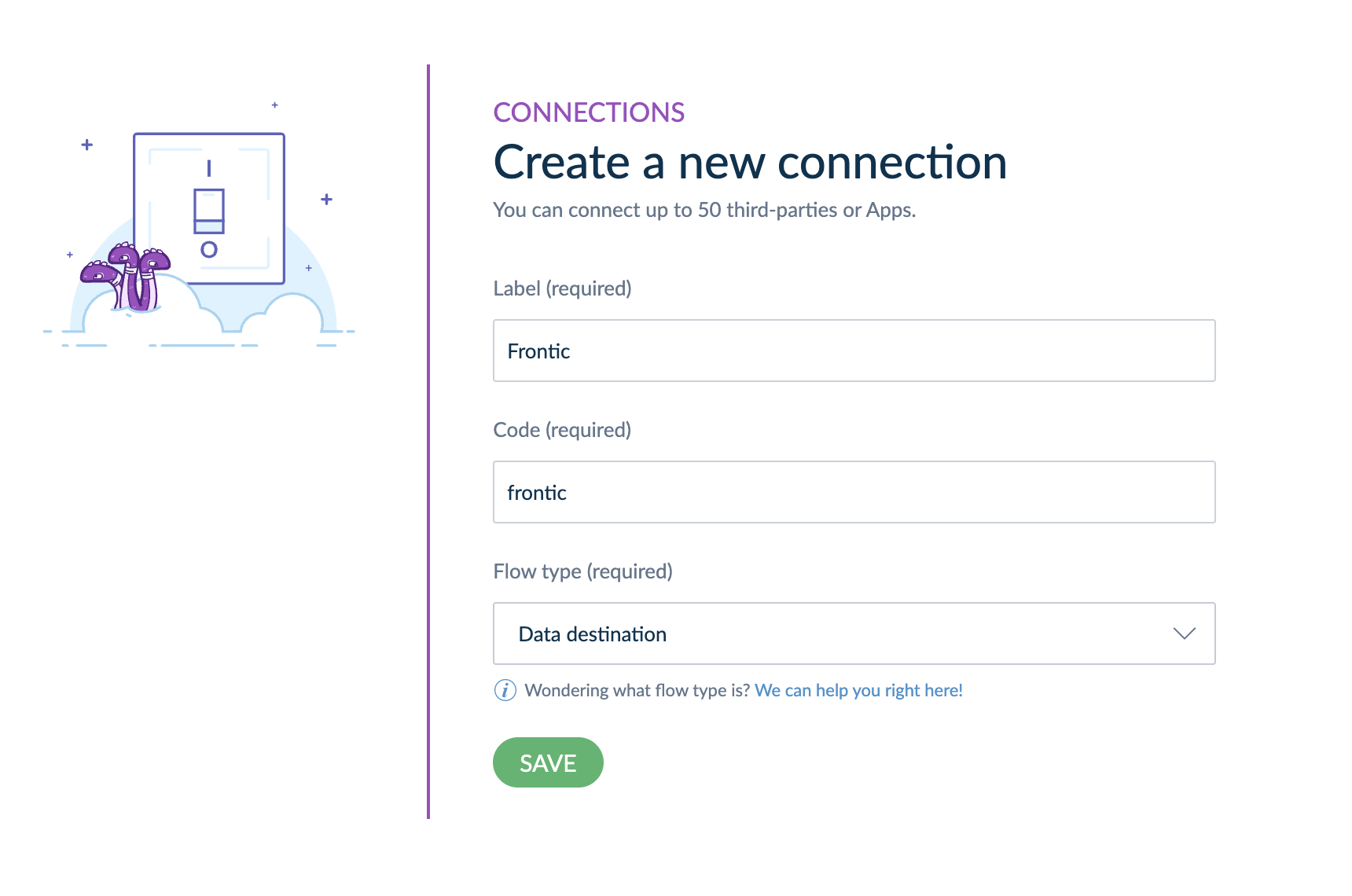
      In your Akeneo interface, navigate to **Connect → Connection Settings** and use the **Create** button to add a new API connection.

      Set up the connection like this (especially choosing **Data destination** as the **Flow type**):

      <Frame caption="Frontic admin — Akeneo Connection basic setup information">
        <img src="https://mintcdn.com/frontic/yWvj-NXYgCP3ESsq/images/connectors/akeneo/connection-setup.png?fit=max&auto=format&n=yWvj-NXYgCP3ESsq&q=85&s=06a621999b3b51faa0022509aa785c98" className="block" alt="Akeneo Connection basic setup information" width="1720" height="1140" data-path="images/connectors/akeneo/connection-setup.png" />
      </Frame>

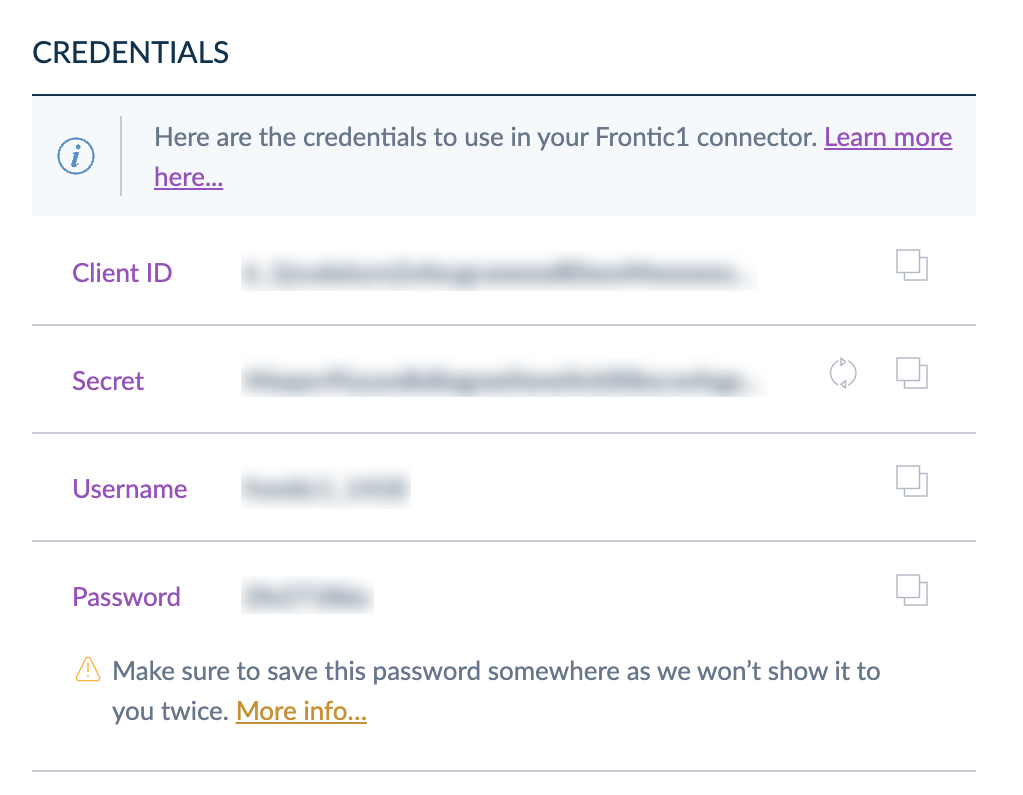
      Copy the Connection credentials on the page, you will need them to setup the Frontic integration.
      <Frame caption="Frontic admin — Akeneo Connection Credentials">
        <img src="https://mintcdn.com/frontic/yWvj-NXYgCP3ESsq/images/connectors/akeneo/credentials.png?fit=max&auto=format&n=yWvj-NXYgCP3ESsq&q=85&s=76309c53d44fffdb4a37d123d66bb219" className="block" alt="Akeneo Connection Credentials" width="1023" height="795" data-path="images/connectors/akeneo/credentials.png" />
      </Frame>

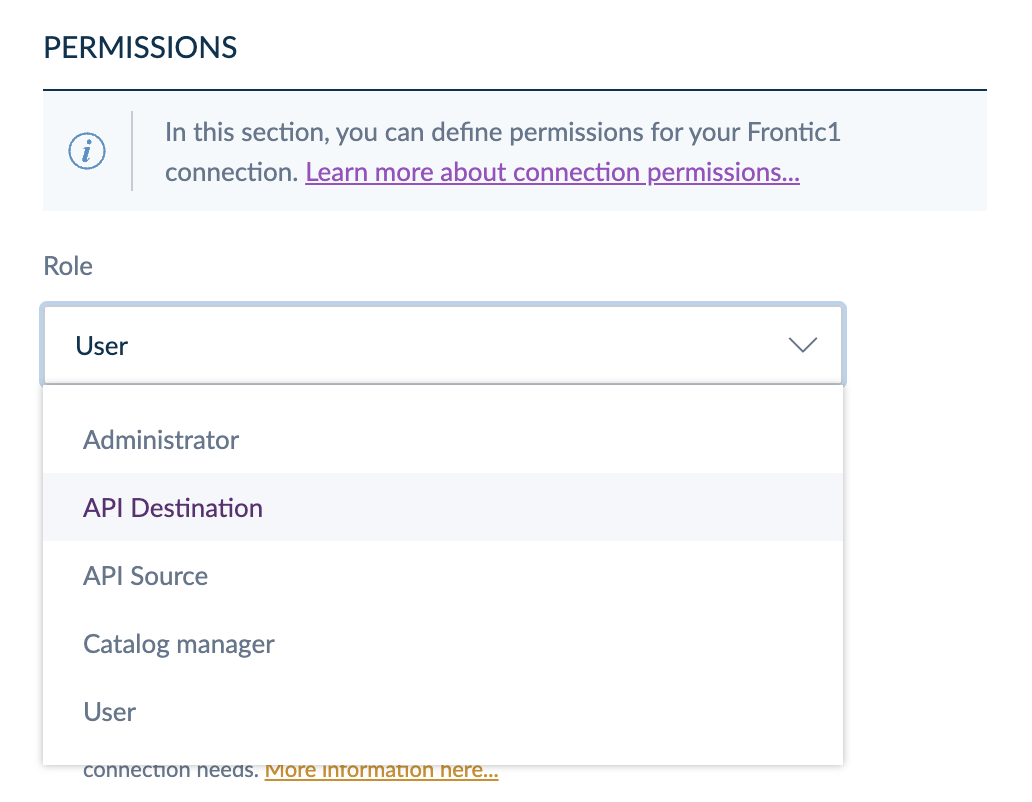
      Afterwards, make sure to configure the Akeneo Integration with the role of **API Destination**.
      <Frame caption="Frontic admin — Akeneo Connection Permissions">
        <img src="https://mintcdn.com/frontic/yWvj-NXYgCP3ESsq/images/connectors/akeneo/permissions.png?fit=max&auto=format&n=yWvj-NXYgCP3ESsq&q=85&s=e8aacb9a7ec98a883142af5b933abde0" className="block" alt="Akeneo Connection Permissions" width="1032" height="802" data-path="images/connectors/akeneo/permissions.png" />
      </Frame>
    </Accordion>

    Use this to connect your Akeneo instance via a Connection configuration in Akeneo. Use this if you don't (or can't) install the Frontic Akeneo App.

    <ParamField path="Client ID" type="string" required>
      The Akeneo Connection's Client ID given in the Akeneo configuration.
    </ParamField>

    <ParamField path="Client Secret" type="string" required>
      The Akeneo Connection's Client Secret given in the Akeneo configuration.
    </ParamField>

    <ParamField path="Username" type="string" required>
      The Akeneo Connection's username given in the Akeneo configuration.
    </ParamField>

    <ParamField path="Password" type="string" required>
      The Akeneo Connection's password given in the Akeneo configuration.
    </ParamField>
  </Accordion>

  <Accordion title="Connect via App (not yet available)">
    <Info>The Akeneo App for Frontic is not yet available</Info>

    Use this to use your Akeneo instance's installation of the Frontic Akeneo App.

    <ParamField path="Token ID" type="string" required>
      An Akeneo API connection token. Given after installing the Frontic Akeneo App from the Akeneo App Marketplace — Frontic uses this to authenticate against the Akeneo REST API.
    </ParamField>

    <Warning>
      **Akeneo Enterprise app permissions and locale alignment.** On Akeneo Enterprise instances, the connection's app permissions limit which locales it's allowed to read. The locale dropdown in Frontic shows *all* of Akeneo's enabled locales — not the subset your connection is authorised for. If you pick a locale the connection can't read, the API rejects the request at sync time and the feed errors mid-run.

      Before saving the channel, open **Connect → Connection settings → Permissions** in Akeneo and confirm the connection has at least the same locales selected as the channel will pull. The two lists should match 1:1 — match what's in Frontic to what the connection is allowed to read, not the other way around.
    </Warning>
  </Accordion>
</AccordionGroup>

The connection populates the channel's currency dropdown from Akeneo's enabled currencies (with their `enabled` flag respected).

## Channels

An Akeneo channel in Frontic carries the locales (Akeneo "locale codes") and currencies the connector pulls per record.

<ParamField path="Channel Name" type="string" required>
  A label for the channel in Frontic.
</ParamField>

<ParamField path="Available Translations" type="multiselect" required>
  Akeneo locale codes the connector pulls per record.
</ParamField>

<ParamField path="Fallback Translation" type="select" required>
  The translation used when a value is missing in another locale.
</ParamField>

<ParamField path="Currencies" type="multiselect" required>
  Currencies (from Akeneo's enabled set) the connector pulls. Product prices are pre-filtered to these.
</ParamField>

The **Refresh** button re-fetches Akeneo's enabled currencies and locales — use it after enabling new ones in Akeneo.

## Data Feeds

The Akeneo connector exposes two feed types:

| Feed           | What it pulls                                                                                                                                 |
| -------------- | --------------------------------------------------------------------------------------------------------------------------------------------- |
| **Products**   | Akeneo product models (as parents) and individual products (as variants), with their families, attributes, prices, and translations resolved. |
| **Categories** | The full category tree, parent links preserved.                                                                                               |

The standard **Settings → Updates → Schema** setup wizard applies — see [Data Feeds in the overview](/connectors/overview#data-feeds). For Akeneo specifically:

* **Updates step** — Polling is supported. The Ingest API and Triggers are not used.
* **Manual refresh** — every Akeneo feed exposes a Refresh action that re-runs the feed against the source.

### Product Feed

For a product feed, you can optionally set an attribute to be used for your products' prices.

<ParamField path="Price Attribute Code" type="select">
  The attribute which contains the product sale price
</ParamField>

## What the data looks like

### Identifiers

Akeneo's `identifier` field is what Frontic uses as the record key on both sides of the parent/variant divide — for product models, it's the model `code`; for individual products, it's the product `identifier` (typically the SKU). Treat the SKU as the stable lookup key when configuring blocks, listings, and slugs that point at variant records.

### Variants

Akeneo's product models become parent records; the individual products underneath become variants linked via `parentId`. **Standalone products (no model)** are emitted twice on purpose — once as a parent and once as a self-referencing variant — so a product with no variants still has a record on each side of the parent/variant divide. Same convention as [Shopware](/connectors/shopware#variants) and the [Custom integration](/connectors/custom#product-variants).

### Currency-resolved prices

Product prices are pre-filtered to the currencies declared on the channel. Map prices into the [Price composite](/reference/storage-field-types#composites) without per-region picking logic.

### Attributes split into options and properties

Akeneo attributes don't all play the same role: some define variants (size, colour, material — the things customers pick from), others describe the product (ingredients, dimensions, care instructions). The connector's attribute extractor splits them apart and stamps each list onto the feed record under the reserved `$`-prefix namespace:

* **`$options`** — variant-defining attributes, normalized into a single list per record
* **`$properties`** — descriptive attributes that don't drive variant selection

Map either list straight into your storage's [Option](/reference/storage-field-types#composites) and property fields in the Value Composer, instead of re-deriving them from Akeneo's raw `values` structures.

### Family and attribute caching

Akeneo families and attributes are cached on the integration's Instance to avoid refetching them per record — speeds up large catalog syncs.

## Good to know

* **Read-only.** The Akeneo connector pulls from Akeneo; it doesn't push back. Catalog edits happen in Akeneo.
* **Reserved `$`-prefix keys.** The connector emits `$options` and `$properties` on every product record. Don't use `$`-prefixed keys for your own custom attributes — Frontic reserves that namespace for connector-side normalization.

## Related

<CardGroup cols={2}>
  <Card title="Product Models" icon="boxes-stacked" href="/commerce-concepts/product-models">
    How Akeneo's product models and variants compose at the API layer.
  </Card>

  <Card title="commercetools" icon="cart-shopping" href="/connectors/commercetools">
    commercetools' connector — same `$options` / `$properties` split.
  </Card>
</CardGroup>
