> ## Documentation Index
> Fetch the complete documentation index at: https://docs.frontic.com/llms.txt
> Use this file to discover all available pages before exploring further.
# Detail Blocks
A Detail Block is an API endpoint with a user-defined schema — it returns the exact data one UI component needs. Blocks are reusable, have parameters, and can be nested inside each other.
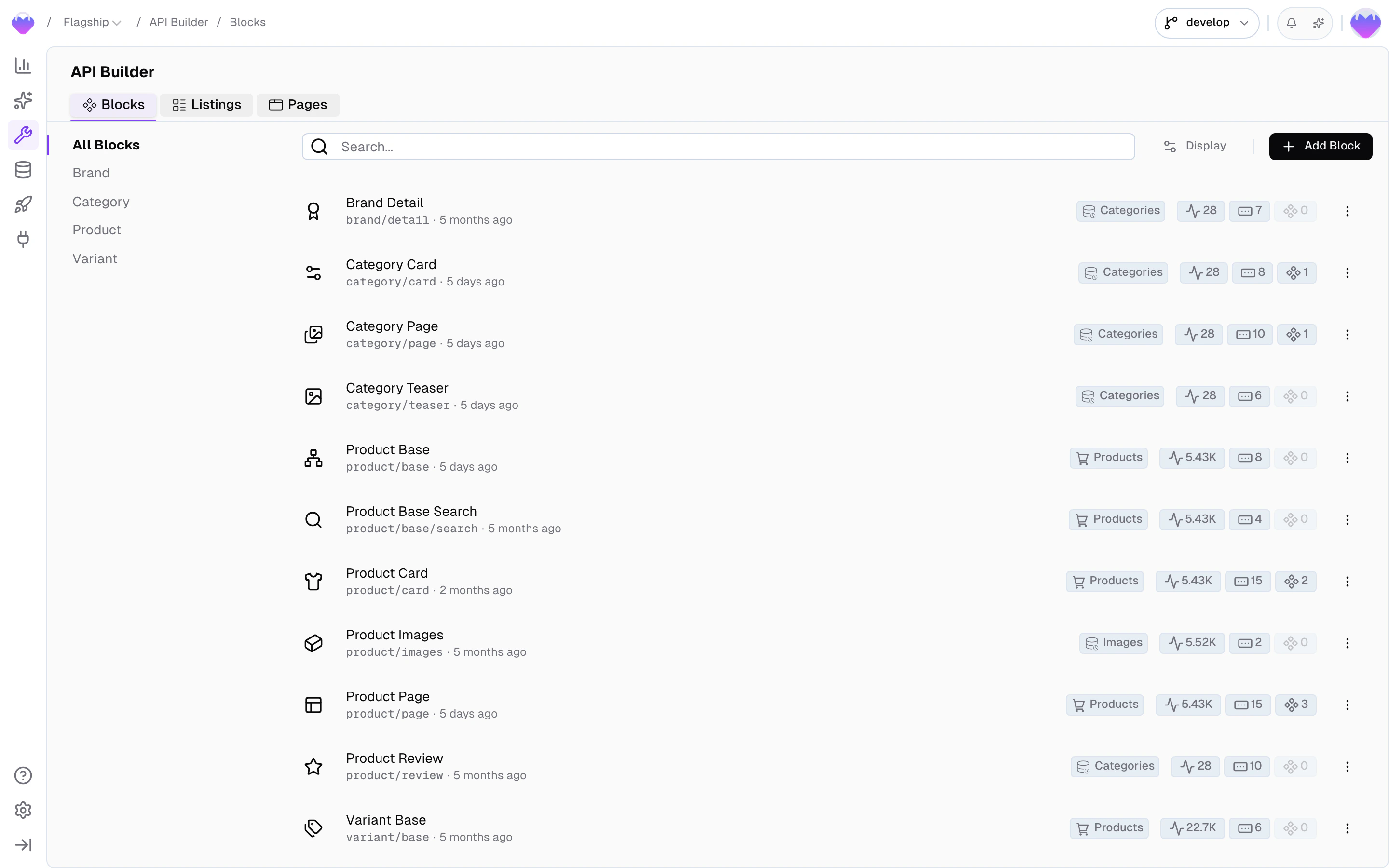
Manage your blocks in the [API Builder](https://app.frontic.com/builder/blocks) section of the admin app.
 ## Create a block
Head to the [API Builder](https://app.frontic.com/builder/blocks) and click ** Create Block**.
## Create a block
Head to the [API Builder](https://app.frontic.com/builder/blocks) and click ** Create Block**.
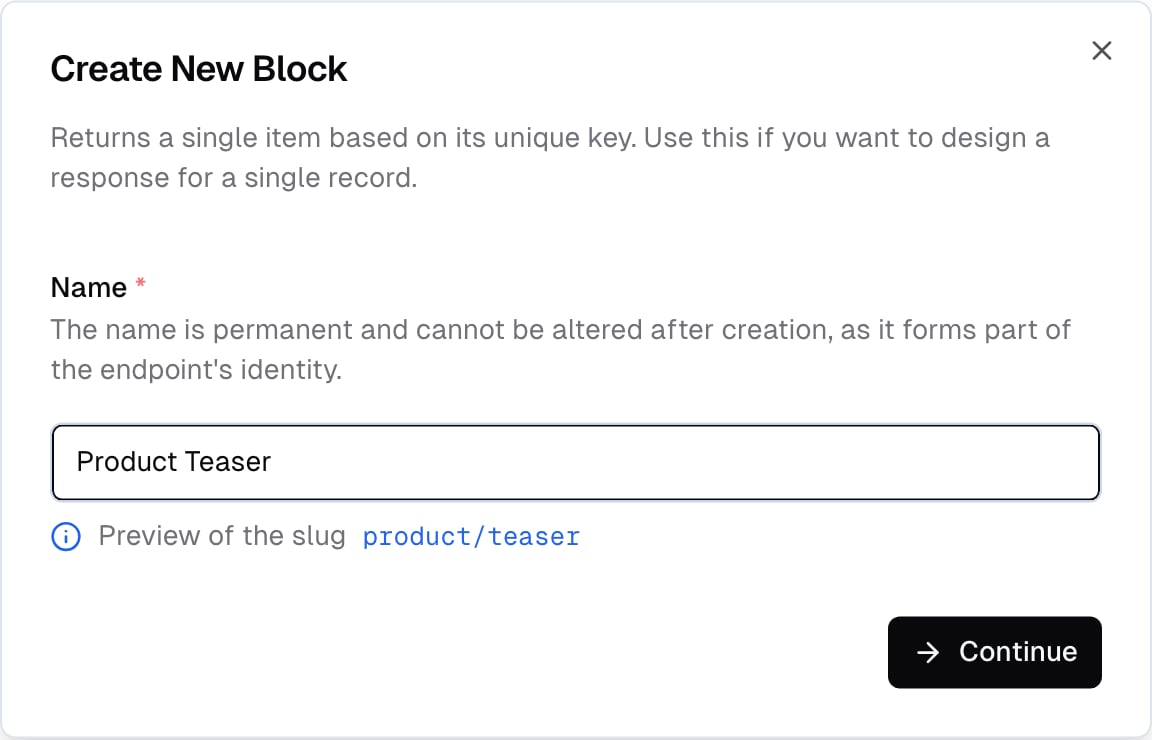
 Frontic generates an endpoint URL as you type the name.
Block names must use normal capitalized words with spaces (e.g., `Product Card`, not `ProductCard`). Frontic derives the namespace and endpoint slug from this value — incorrect casing will break the auto-generated endpoint.
### Description
Add a description for your block. This is used for the auto-generated API documentation.
### Storage connection
Connect your block to a [Data Storage](/data-integration/data-storages) to populate it with real data.
For commerce storages, you choose whether the block operates on the **product level** or the **variant level**. This determines which fields are available in the response schema:
* **Product-level blocks** access shared fields only. Variant-specific data (price, options) is available through the special field types below (Price, Variant Field, Variant List).
* **Variant-level blocks** access variant fields and shared fields — they inherit from the parent product.
See [Product Models](/commerce-concepts/product-models#product-level-vs-variant-level-blocks) for a deeper look at when to use which level.
### Response schema
Define the output — the fields your block returns. Each field you add has a **name** that determines how it appears in the API response. The return shape depends on the field type — a storage field returns the type defined in the schema (string, number, composite, etc.), a nested block returns the nested block's full response, a listing returns a collection, and a route returns URL and metadata.
Frontic generates an endpoint URL as you type the name.
Block names must use normal capitalized words with spaces (e.g., `Product Card`, not `ProductCard`). Frontic derives the namespace and endpoint slug from this value — incorrect casing will break the auto-generated endpoint.
### Description
Add a description for your block. This is used for the auto-generated API documentation.
### Storage connection
Connect your block to a [Data Storage](/data-integration/data-storages) to populate it with real data.
For commerce storages, you choose whether the block operates on the **product level** or the **variant level**. This determines which fields are available in the response schema:
* **Product-level blocks** access shared fields only. Variant-specific data (price, options) is available through the special field types below (Price, Variant Field, Variant List).
* **Variant-level blocks** access variant fields and shared fields — they inherit from the parent product.
See [Product Models](/commerce-concepts/product-models#product-level-vs-variant-level-blocks) for a deeper look at when to use which level.
### Response schema
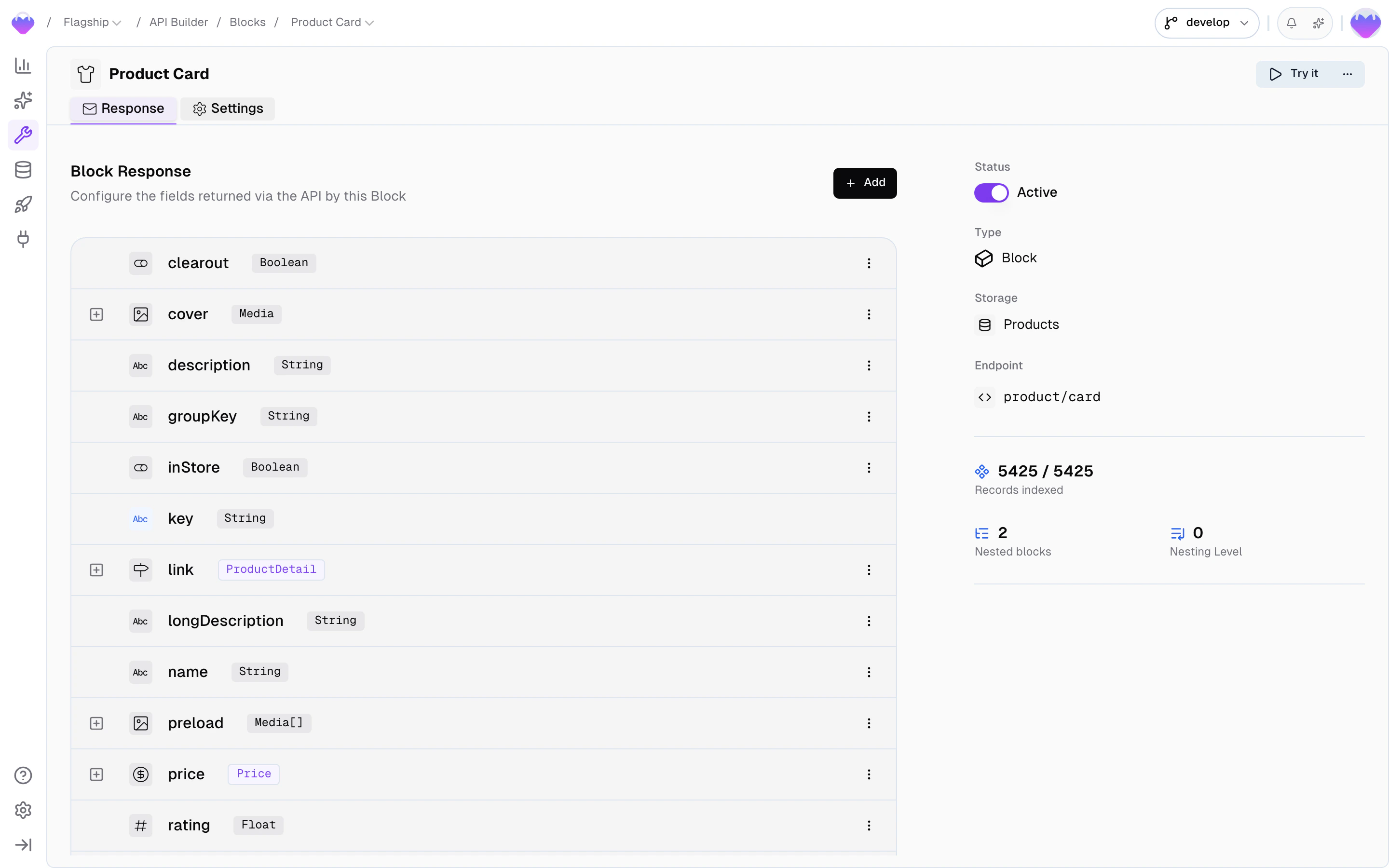
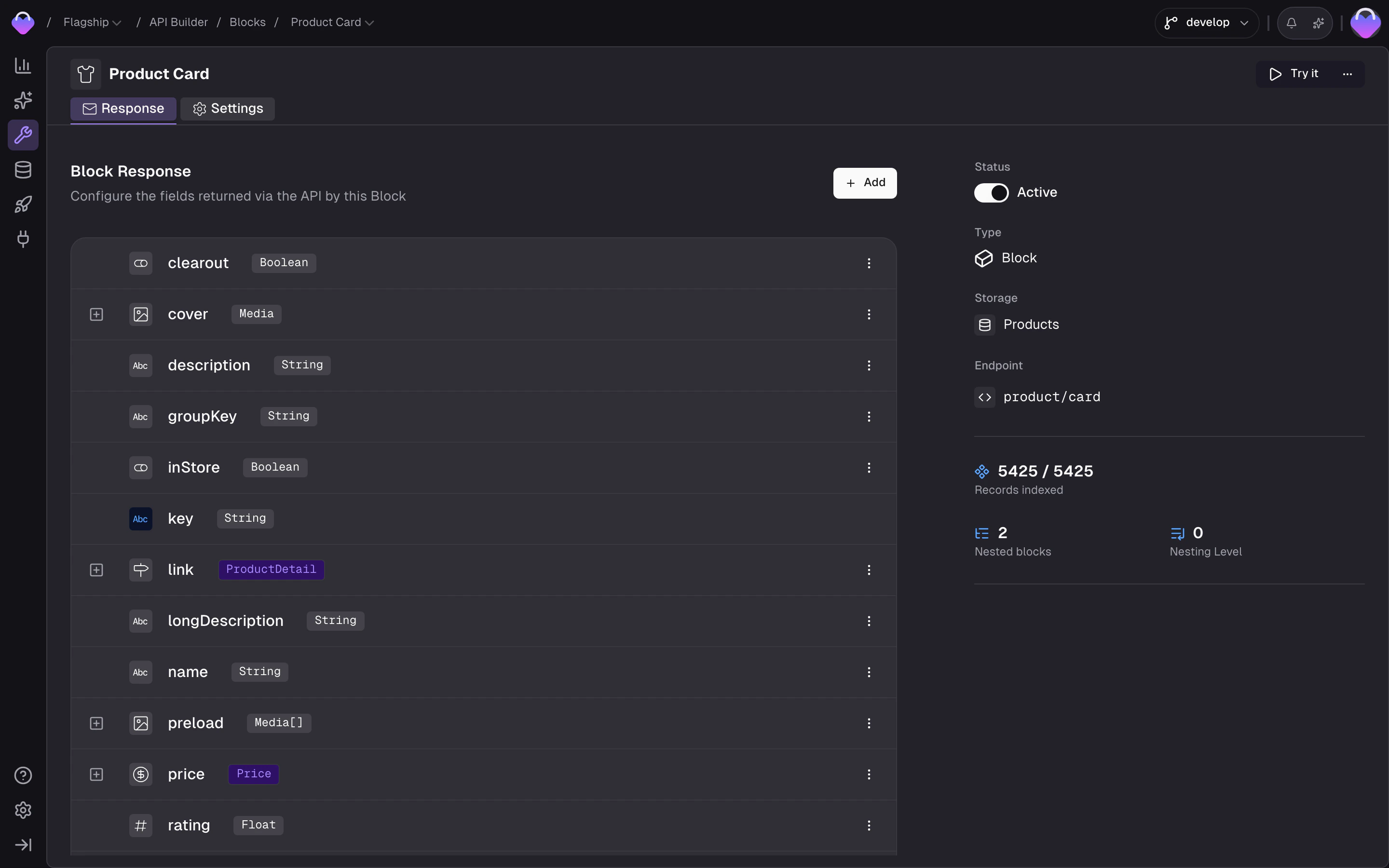
Define the output — the fields your block returns. Each field you add has a **name** that determines how it appears in the API response. The return shape depends on the field type — a storage field returns the type defined in the schema (string, number, composite, etc.), a nested block returns the nested block's full response, a listing returns a collection, and a route returns URL and metadata.
 #### Storage fields
Select a field from the connected storage. The return type matches the storage field's type — a string field returns a string, a composite like `Price` returns the full composite structure, an array field returns an array.
* **Reference** — the storage field to read from
#### Nested block
Nest another Detail Block inside this block. A typical use case: nesting a brand information block inside a product detail block.
* **Block** — the Detail Block to nest
* **Parameters** — configure the nested block's parameters so it resolves correctly
#### Nested listing
Nest a Search Listing inside this block. A typical use case: a category page block with a product listing nested inside it.
* **Listing** — the Search Listing to nest
* **Parameters** — configure the listing's parameters for resolution
#### Route
Adds a context-aware URL to the response that points to a [Page URL](/api-builder/pages). Frontic resolves this and returns the correct URL for the caller's locale and region — a product card on `demo-shop.com/de` automatically links to `/de/sneakers` and on `demo-shop.com` to `/en/sneakers`.
* **Target page** — the Page URL to link to
* **Key** — a block field to take the record key from
The following fields are available on product-level blocks from a commerce storage.
#### Variant list
Includes a list of variants in the response.
* **Variant block** — a variant-level block that shapes each variant's data
* **Active variants only** — whether to exclude inactive variants
#### Variant field
Rolls up a single field across all variants of the product — for example, all available colors or sizes.
* **Storage field** — which field to aggregate from the variants
* **Active variants only** — whether to exclude inactive variants
* **Unique values only** — whether to deduplicate the aggregated values
#### Price
Includes the price in the response, resolved to the caller's currency via [Request Context](/api-builder/overview#request-context).
* **Strategy** — which price to return when a product has multiple variants: `first`, `lowest`, or `highest`
* **Active variants only** — whether to exclude inactive variants from the price calculation
## Fetch a block
```ts theme={"theme":"css-variables"}
const block = await client.block("ProductCard", "my-product-key");
```
```vue theme={"theme":"css-variables"}
```
Every block requires a `key` parameter that identifies the record. If the block is connected to a storage, this is the record's `key` field. Without a storage connection, pass any string.
See the [Client SDK reference](/reference/client-sdk#client-block) for the full API.
## Response
The response is a JSON object shaped exactly like the block's response schema:
```json theme={"theme":"css-variables"}
{
"name": "Aurora Trail Runner",
"price": { "amount": 12900, "currency": "eur", "precision": 2 },
"image": { "url": "https://cdn.demo-shop.com/aurora-trail.jpg", "alt": "Aurora Trail Runner" }
}
```
## API Playground
Preview — the API Playground is in early access. It runs against your live backend today, but the UI and feature set are still settling before general availability. [Reach out](mailto:support@frontic.com) if you want to try it.
Open the playground from any block's detail page to test it against real data without writing code. Enter a record key, pick a release stage, set the request context, and hit **Send** — the response appears side by side with your request.
#### Storage fields
Select a field from the connected storage. The return type matches the storage field's type — a string field returns a string, a composite like `Price` returns the full composite structure, an array field returns an array.
* **Reference** — the storage field to read from
#### Nested block
Nest another Detail Block inside this block. A typical use case: nesting a brand information block inside a product detail block.
* **Block** — the Detail Block to nest
* **Parameters** — configure the nested block's parameters so it resolves correctly
#### Nested listing
Nest a Search Listing inside this block. A typical use case: a category page block with a product listing nested inside it.
* **Listing** — the Search Listing to nest
* **Parameters** — configure the listing's parameters for resolution
#### Route
Adds a context-aware URL to the response that points to a [Page URL](/api-builder/pages). Frontic resolves this and returns the correct URL for the caller's locale and region — a product card on `demo-shop.com/de` automatically links to `/de/sneakers` and on `demo-shop.com` to `/en/sneakers`.
* **Target page** — the Page URL to link to
* **Key** — a block field to take the record key from
The following fields are available on product-level blocks from a commerce storage.
#### Variant list
Includes a list of variants in the response.
* **Variant block** — a variant-level block that shapes each variant's data
* **Active variants only** — whether to exclude inactive variants
#### Variant field
Rolls up a single field across all variants of the product — for example, all available colors or sizes.
* **Storage field** — which field to aggregate from the variants
* **Active variants only** — whether to exclude inactive variants
* **Unique values only** — whether to deduplicate the aggregated values
#### Price
Includes the price in the response, resolved to the caller's currency via [Request Context](/api-builder/overview#request-context).
* **Strategy** — which price to return when a product has multiple variants: `first`, `lowest`, or `highest`
* **Active variants only** — whether to exclude inactive variants from the price calculation
## Fetch a block
```ts theme={"theme":"css-variables"}
const block = await client.block("ProductCard", "my-product-key");
```
```vue theme={"theme":"css-variables"}
```
Every block requires a `key` parameter that identifies the record. If the block is connected to a storage, this is the record's `key` field. Without a storage connection, pass any string.
See the [Client SDK reference](/reference/client-sdk#client-block) for the full API.
## Response
The response is a JSON object shaped exactly like the block's response schema:
```json theme={"theme":"css-variables"}
{
"name": "Aurora Trail Runner",
"price": { "amount": 12900, "currency": "eur", "precision": 2 },
"image": { "url": "https://cdn.demo-shop.com/aurora-trail.jpg", "alt": "Aurora Trail Runner" }
}
```
## API Playground
Preview — the API Playground is in early access. It runs against your live backend today, but the UI and feature set are still settling before general availability. [Reach out](mailto:support@frontic.com) if you want to try it.
Open the playground from any block's detail page to test it against real data without writing code. Enter a record key, pick a release stage, set the request context, and hit **Send** — the response appears side by side with your request.
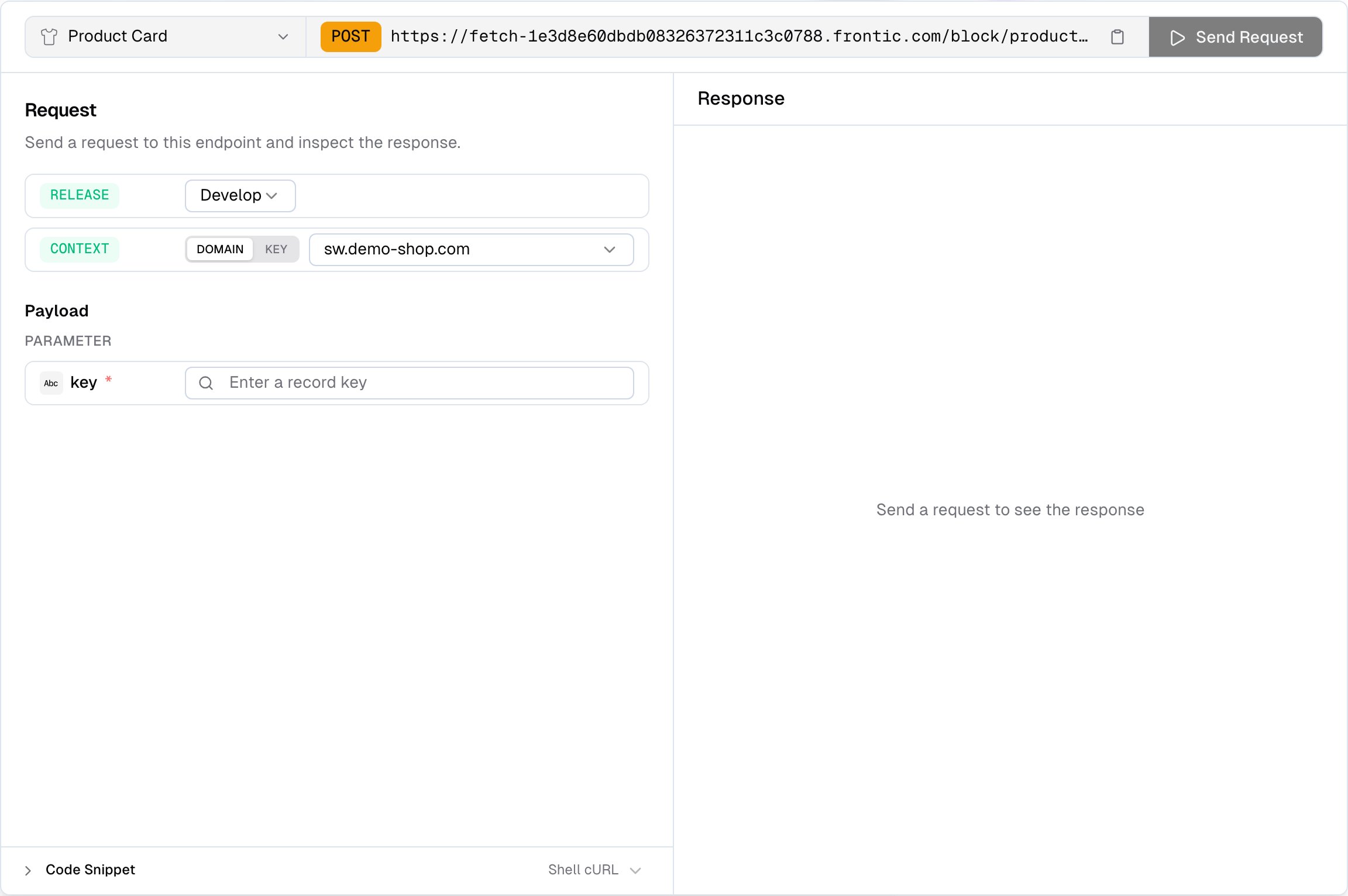
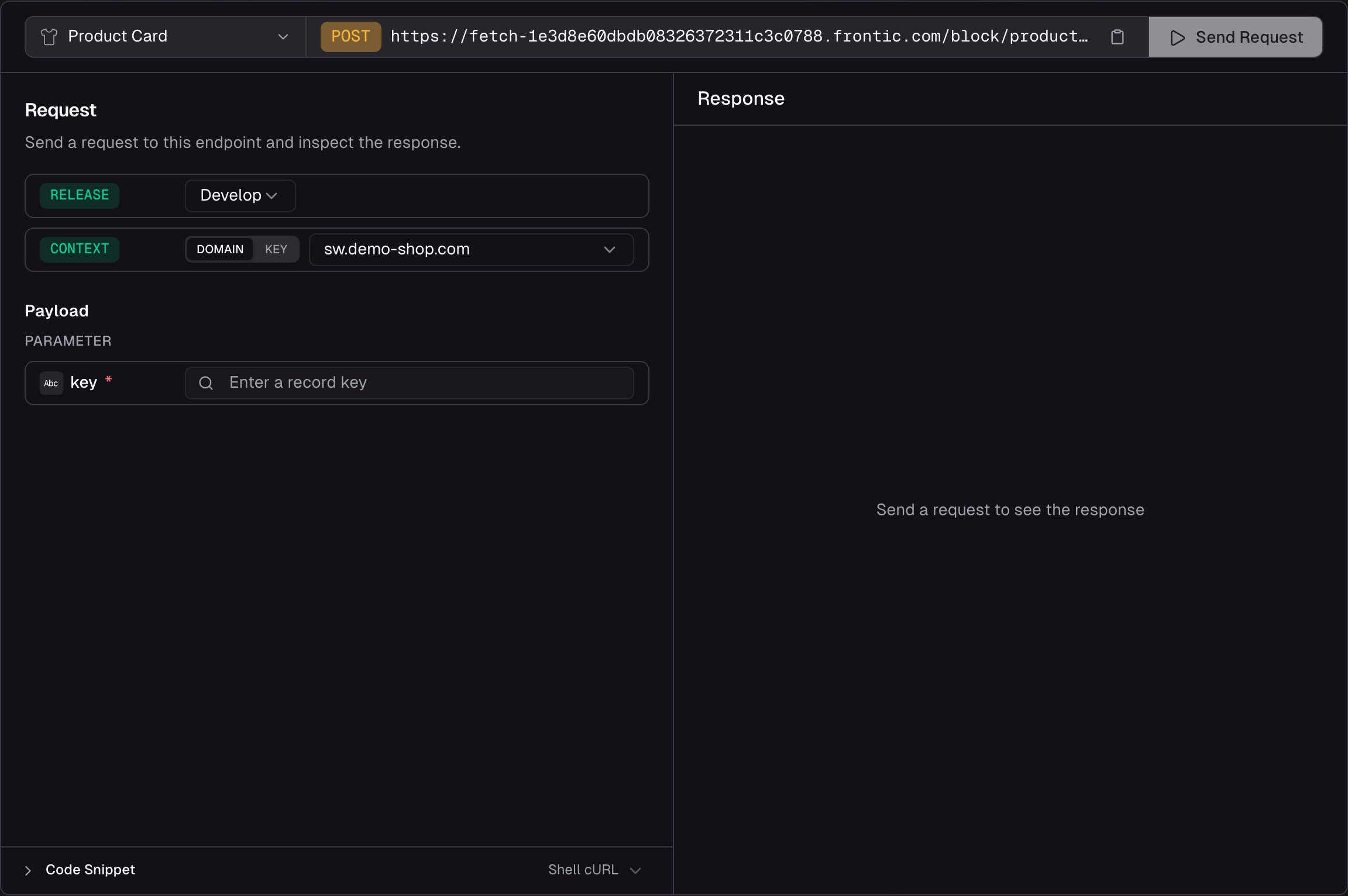 Use the playground to:
* **Verify the response shape** — confirm your block returns the fields you expect before wiring up the frontend
* **Pick a release stage** — run the request against `develop`, `preview`, or `public`. Preview and public only appear when those environments exist on the project
* **Test different contexts** — pick **Domain** to send a `contextDomain` and let Frontic resolve the matching context, or **Key** to send an explicit `contextKey`
* **Pick records from storage** — open a record browser scoped to the block's connected storage and click a row to fill the key, instead of copy-pasting it from elsewhere
* **Debug unexpected data** — check response status, timing, and payload size at a glance
* **Copy code snippets** — the playground generates ready-to-use code from your current configuration, so you can paste it straight into your project
Use the playground to:
* **Verify the response shape** — confirm your block returns the fields you expect before wiring up the frontend
* **Pick a release stage** — run the request against `develop`, `preview`, or `public`. Preview and public only appear when those environments exist on the project
* **Test different contexts** — pick **Domain** to send a `contextDomain` and let Frontic resolve the matching context, or **Key** to send an explicit `contextKey`
* **Pick records from storage** — open a record browser scoped to the block's connected storage and click a row to fill the key, instead of copy-pasting it from elsewhere
* **Debug unexpected data** — check response status, timing, and payload size at a glance
* **Copy code snippets** — the playground generates ready-to-use code from your current configuration, so you can paste it straight into your project