> ## Documentation Index
> Fetch the complete documentation index at: https://docs.frontic.com/llms.txt
> Use this file to discover all available pages before exploring further.
# Studio Settings
**Studio Settings** is where you configure defaults that apply to every [job](/studio/frontic-studio) in your project — the system prompt the Studio chat uses, the rules it always follows, and the GitHub App installation.
Find it at **Studio → Settings** in the admin app. Settings are scoped to the Frontic project, so every teammate working on the same project sees the same defaults.
## What's in Studio Settings
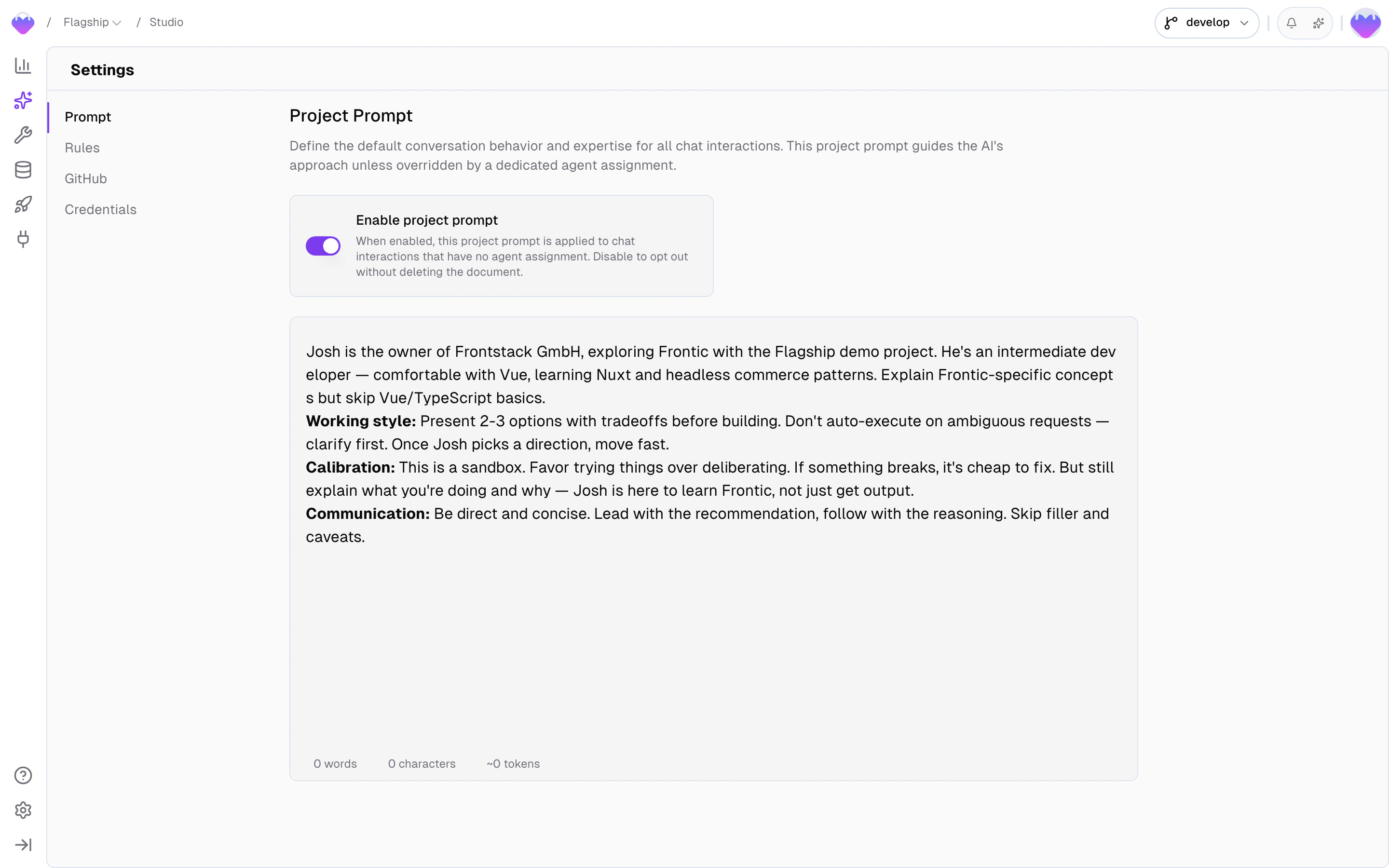
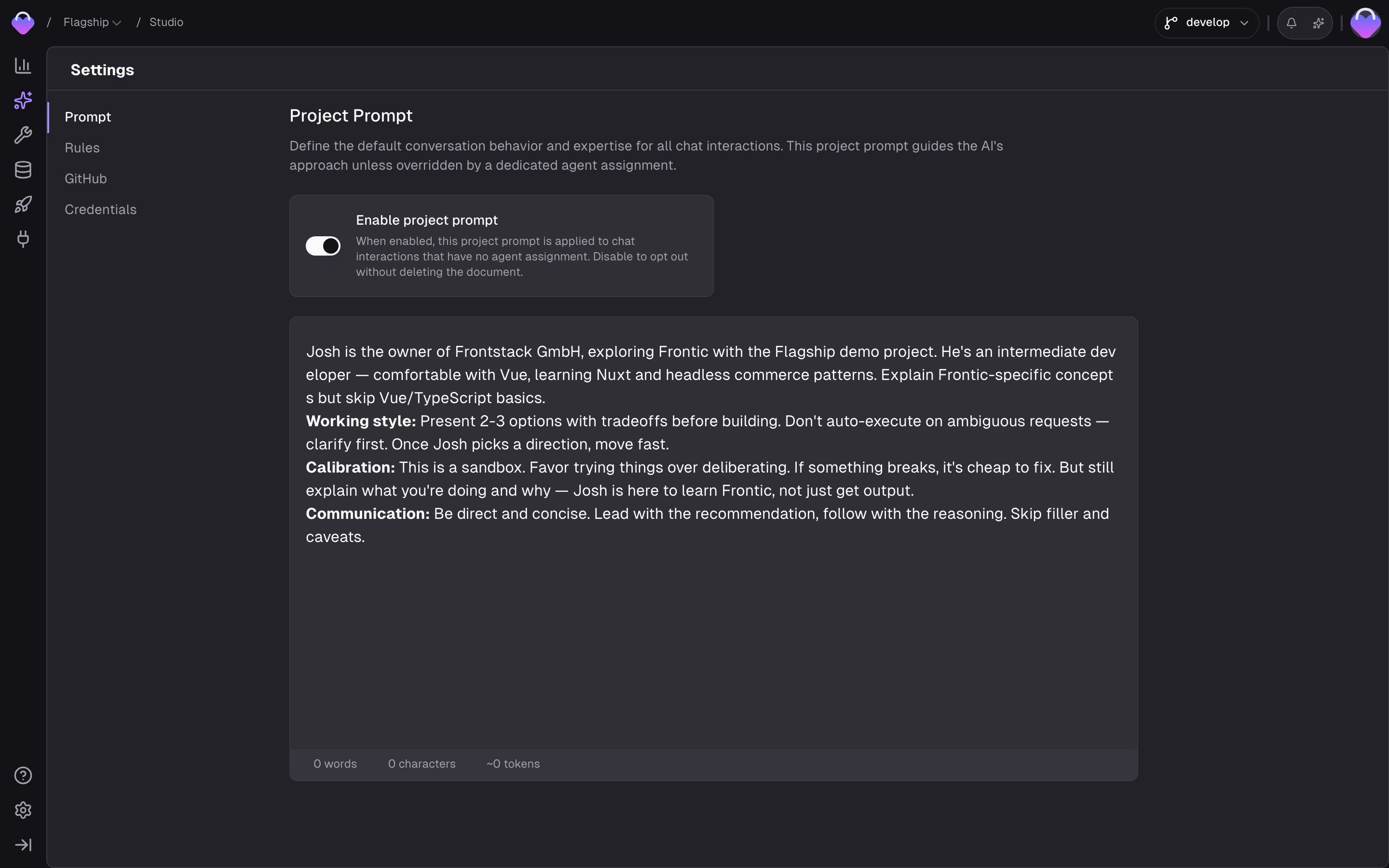
Project-specific supplement to Studio's base system prompt — business context, working style, response style.
Project-scoped rules synced to every agent surface. Parallel to [Context Rules](/context-base/rules); see below.
Optional GitHub App installation for the project. See [GitHub Integration](/studio/github-integration).
Project-scoped vault for API keys and secrets, auto-injected into every Studio workspace.
## Studio Prompt
The Studio Prompt is a **project-specific supplement** to Studio's built-in system prompt. Studio already ships with a senior-level e-commerce consultant persona, tool knowledge, verification habits, and delegation patterns. What the base prompt can't know is your specific project: what you sell, how your team works with agents, and how replies should land in chat.
A good default Studio Prompt covers:
* **Business context** — what the project sells and who it's for. "Acme is a DTC performance-footwear brand selling running shoes and apparel to runners in North America." Anchors the agent's tone, feature priorities, and design calls.
* **Working style** — how the agent should operate alongside your team. "Check in before wide-reaching changes; prefer small, verifiable steps; ask rather than guess when scope is unclear."
* **Response style** — how the agent should talk in chat. "Keep answers short. Assume senior-level context; skip re-explaining basics."
Keep it short — a handful of lines. The base Studio prompt is already substantial; adding more dilutes the project-specific signal.
**Don't put here:**
* Frontend stack (framework, language, design system) → [Context Rules](/context-base/rules). These apply across every agent surface and every workspace.
* Naming conventions, commit format, architectural guardrails, brand voice applied to generated output → [Context Rules](/context-base/rules).
* Reusable task patterns ("how to add a locale", "how to build a category page") → [Context Base Skills](/context-base/skills).
* Pointers to the Context Base — it's synced into every workspace automatically; the agent already has it.
The default Frontic prompt is already a solid starting point. Override it only when your project has specific needs the defaults don't cover.
 ## Project Rules
Project Rules are a single rules document Studio loads on every task — always applied, no targeting.
Use Project Rules for constraints that only make sense in this project: repository layout quirks, one-off architectural calls, project-only commit conventions. When a rule would also belong on other projects, write it as a [Context Rule](/context-base/rules) instead.
### Context vs. Project Rules
Both live at the project level and both shape Studio's behavior on every task. They differ in structure and in how precisely you can target them:
**One document, always applied.** Best for a short list of things that should never be missed in this project.
**Modular with per-rule targeting.** One concern per rule, each declaring when it should run. Worth it as your rule set grows.
Both also reach any local IDE agent connected to this project via the [Frontic CLI](/ide/frontic-cli#sync-your-context-base) — same behavior there as in Studio.
[Buddy](/essentials/buddy) can read and maintain Context Base documents. The rules in them don't govern Buddy — only Studio and your IDE agents follow them.
## Project Rules
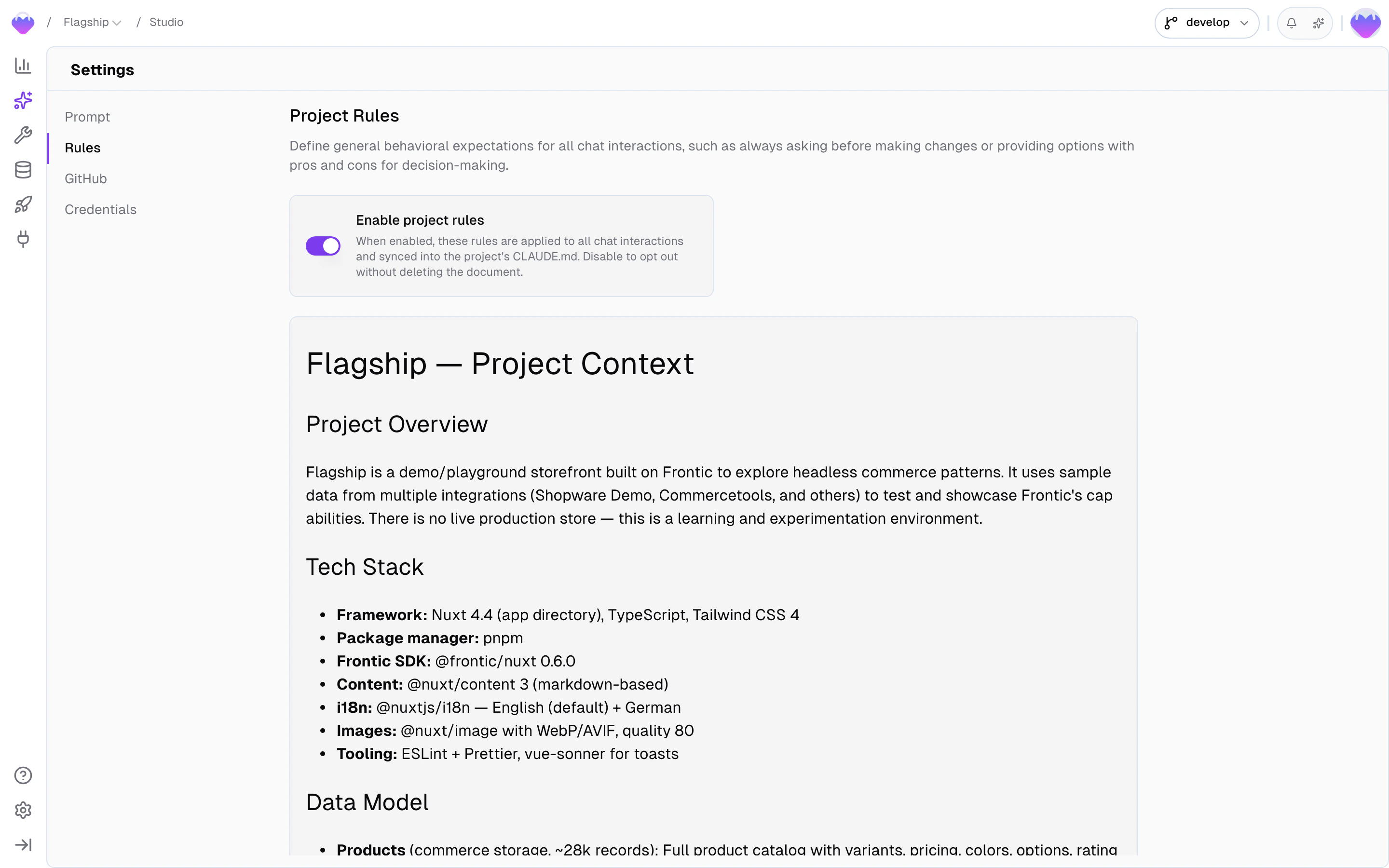
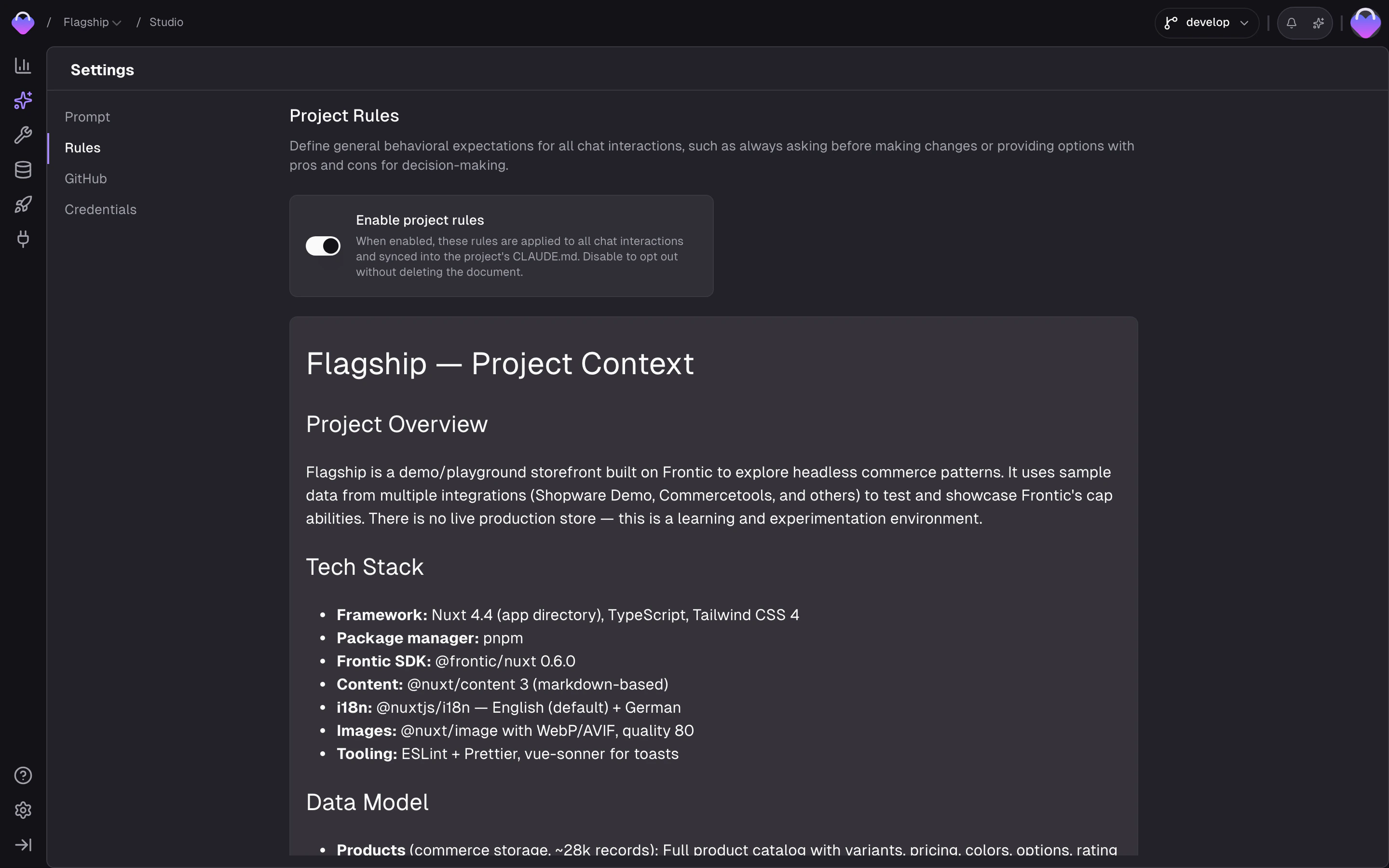
Project Rules are a single rules document Studio loads on every task — always applied, no targeting.
Use Project Rules for constraints that only make sense in this project: repository layout quirks, one-off architectural calls, project-only commit conventions. When a rule would also belong on other projects, write it as a [Context Rule](/context-base/rules) instead.
### Context vs. Project Rules
Both live at the project level and both shape Studio's behavior on every task. They differ in structure and in how precisely you can target them:
**One document, always applied.** Best for a short list of things that should never be missed in this project.
**Modular with per-rule targeting.** One concern per rule, each declaring when it should run. Worth it as your rule set grows.
Both also reach any local IDE agent connected to this project via the [Frontic CLI](/ide/frontic-cli#sync-your-context-base) — same behavior there as in Studio.
[Buddy](/essentials/buddy) can read and maintain Context Base documents. The rules in them don't govern Buddy — only Studio and your IDE agents follow them.
 ## Settings scope
One thing to note: **Studio Settings are per-project**, not per-user. Everyone on your team sees the same prompt, the same rules, the same GitHub connection, and the same credential vault. This is intentional:
* It keeps the team's agent experience consistent — one person doesn't accidentally use different rules from another
* It keeps GitHub access centrally managed via a single GitHub App installation, not per-user OAuth tokens
* It matches how the Context Base works (also per-project)
If you need per-user customization like prompt preferences or personal shortcuts, use the chat itself — mention your preferences in the job prompt. Settings are for project-wide defaults.
## GitHub Integration
Studio Settings holds the optional GitHub App installation for the project. A GitHub admin installs the Frontic GitHub App on your organization once, and every teammate on the project gets Git access in Studio — no per-user account linking. The connection powers production shipping across every workspace; Studio works without it too (you just skip this section). The repository each job targets is picked in the Create Job dialog, not here.
See [GitHub Integration](/studio/github-integration) for the setup walkthrough, commit mechanics, PR flow, and troubleshooting.
## Credentials
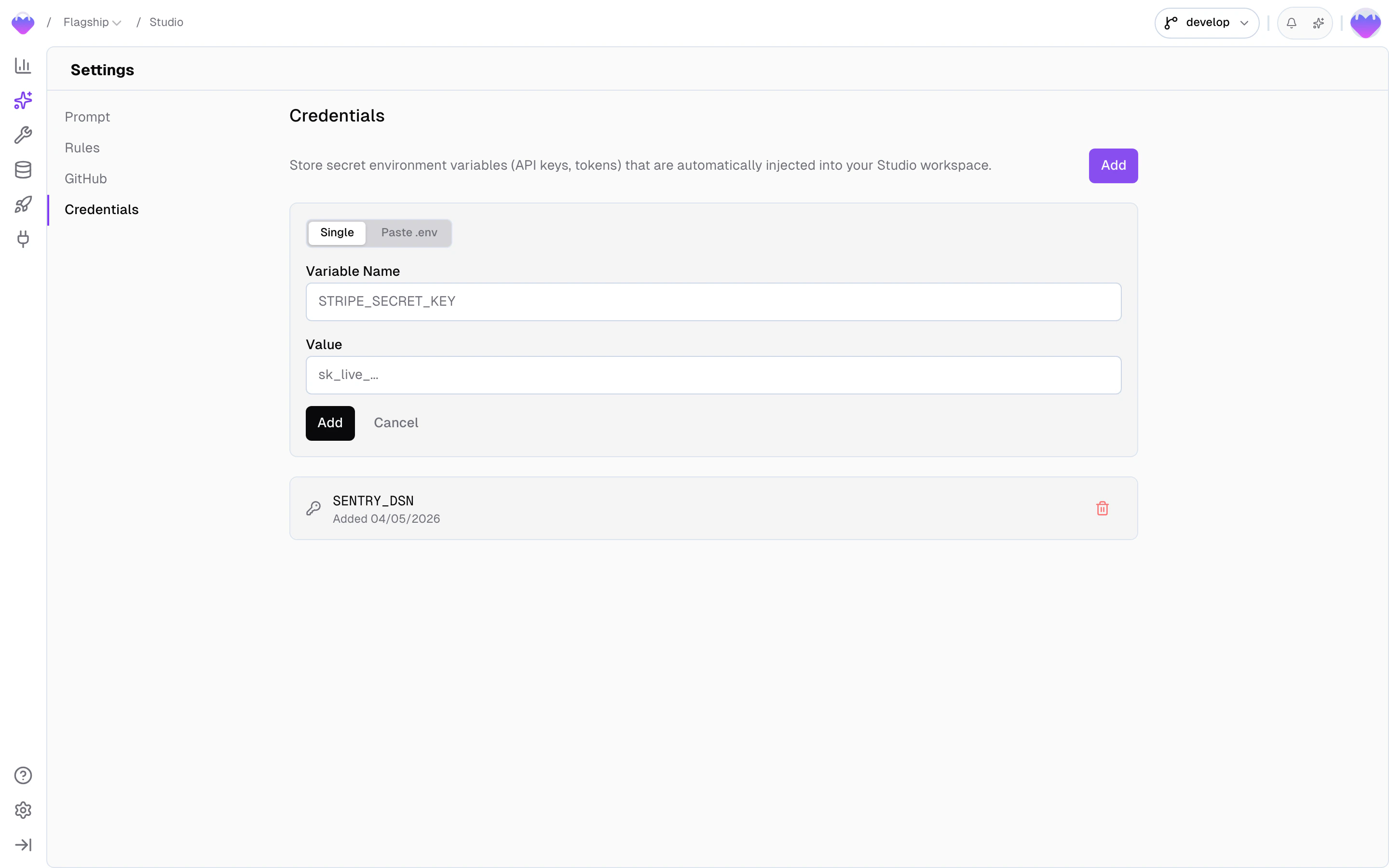
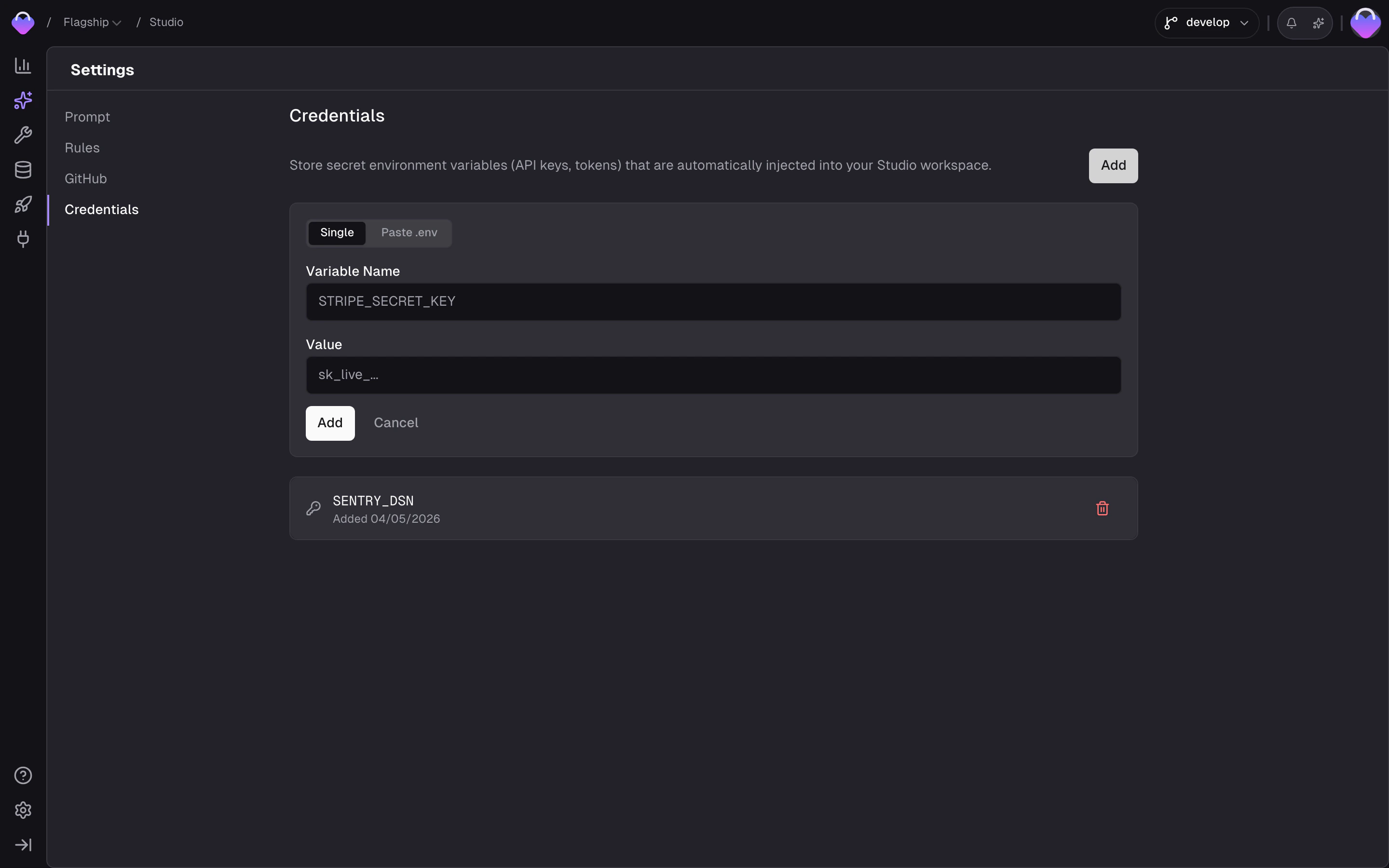
The **Credentials** tab holds the project's encrypted secret vault — API keys, tokens, and any other environment variables your code needs at runtime (Stripe keys, OpenAI keys, third-party tokens). Stored credentials are automatically injected into every [Studio workspace](/studio/workspace) when a job starts, so the agent's code reads them as environment variables without any extra wiring.
## Settings scope
One thing to note: **Studio Settings are per-project**, not per-user. Everyone on your team sees the same prompt, the same rules, the same GitHub connection, and the same credential vault. This is intentional:
* It keeps the team's agent experience consistent — one person doesn't accidentally use different rules from another
* It keeps GitHub access centrally managed via a single GitHub App installation, not per-user OAuth tokens
* It matches how the Context Base works (also per-project)
If you need per-user customization like prompt preferences or personal shortcuts, use the chat itself — mention your preferences in the job prompt. Settings are for project-wide defaults.
## GitHub Integration
Studio Settings holds the optional GitHub App installation for the project. A GitHub admin installs the Frontic GitHub App on your organization once, and every teammate on the project gets Git access in Studio — no per-user account linking. The connection powers production shipping across every workspace; Studio works without it too (you just skip this section). The repository each job targets is picked in the Create Job dialog, not here.
See [GitHub Integration](/studio/github-integration) for the setup walkthrough, commit mechanics, PR flow, and troubleshooting.
## Credentials
The **Credentials** tab holds the project's encrypted secret vault — API keys, tokens, and any other environment variables your code needs at runtime (Stripe keys, OpenAI keys, third-party tokens). Stored credentials are automatically injected into every [Studio workspace](/studio/workspace) when a job starts, so the agent's code reads them as environment variables without any extra wiring.
 ### Adding credentials
Click **Add** to open the form. Two input modes:
* **Single** — fill in a variable name and a value. Variable names follow standard env-var rules (letters, digits, underscores; cannot start with a digit).
* **Paste .env** — paste raw `KEY=VALUE` lines from an existing `.env` file to import many at once. Pasting into the variable-name field also triggers parse-and-import.
Entries you add are **staged** as unsaved until you click **Save** in the sticky bottom bar — until then you can edit or discard them. Saving sends the batch to the encrypted vault.
### What gets stored
The variable name is visible in the list. The value is **write-only** — once saved, it is never shown back in the UI. To rotate a value, delete the credential and add it again with the new value. Individual credentials can be removed at any time.
### How credentials reach the workspace
Saved credentials are pulled into the workspace environment at job start, so the variable names you chose are available to your code on the first request without restart.
If the agent runs into a missing credential mid-task — for example, a script the agent just wrote needs `STRIPE_SECRET_KEY` and the vault doesn't have one yet — Studio surfaces a **Credential required** modal in the chat. Provide the value and Studio saves it to the vault and injects it into the running workspace immediately, so the agent's next step picks it up. You can also defer with **Later** if you don't want to provide the value right now.
To use these same credentials when running the code on your own machine, run [`frontic credentials load`](/reference/frontic-cli#frontic-credentials-load) to merge the vault into a local `.env` file.
## Related
How Skills, Rules, and Commands shape the Studio chat's behavior.
Setup, commit, and PR flow.
Jobs, the Board, and how settings apply during a session.
### Adding credentials
Click **Add** to open the form. Two input modes:
* **Single** — fill in a variable name and a value. Variable names follow standard env-var rules (letters, digits, underscores; cannot start with a digit).
* **Paste .env** — paste raw `KEY=VALUE` lines from an existing `.env` file to import many at once. Pasting into the variable-name field also triggers parse-and-import.
Entries you add are **staged** as unsaved until you click **Save** in the sticky bottom bar — until then you can edit or discard them. Saving sends the batch to the encrypted vault.
### What gets stored
The variable name is visible in the list. The value is **write-only** — once saved, it is never shown back in the UI. To rotate a value, delete the credential and add it again with the new value. Individual credentials can be removed at any time.
### How credentials reach the workspace
Saved credentials are pulled into the workspace environment at job start, so the variable names you chose are available to your code on the first request without restart.
If the agent runs into a missing credential mid-task — for example, a script the agent just wrote needs `STRIPE_SECRET_KEY` and the vault doesn't have one yet — Studio surfaces a **Credential required** modal in the chat. Provide the value and Studio saves it to the vault and injects it into the running workspace immediately, so the agent's next step picks it up. You can also defer with **Later** if you don't want to provide the value right now.
To use these same credentials when running the code on your own machine, run [`frontic credentials load`](/reference/frontic-cli#frontic-credentials-load) to merge the vault into a local `.env` file.
## Related
How Skills, Rules, and Commands shape the Studio chat's behavior.
Setup, commit, and PR flow.
Jobs, the Board, and how settings apply during a session.