> ## Documentation Index
> Fetch the complete documentation index at: https://docs.frontic.com/llms.txt
> Use this file to discover all available pages before exploring further.
# Overview
The API Builder turns your [Data Storages](/data-integration/data-storages) into the **exact API surface** each part of your experience needs.
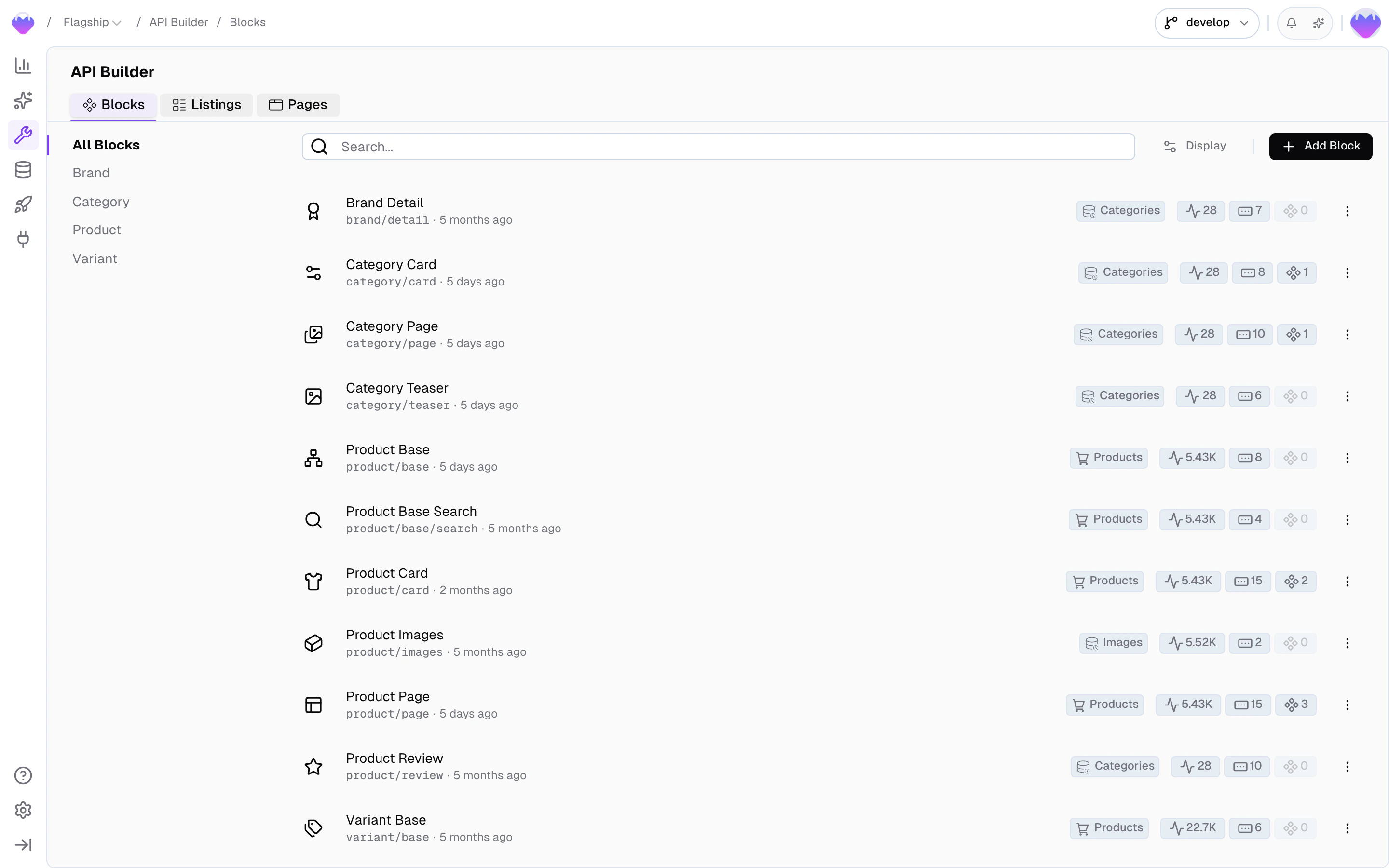
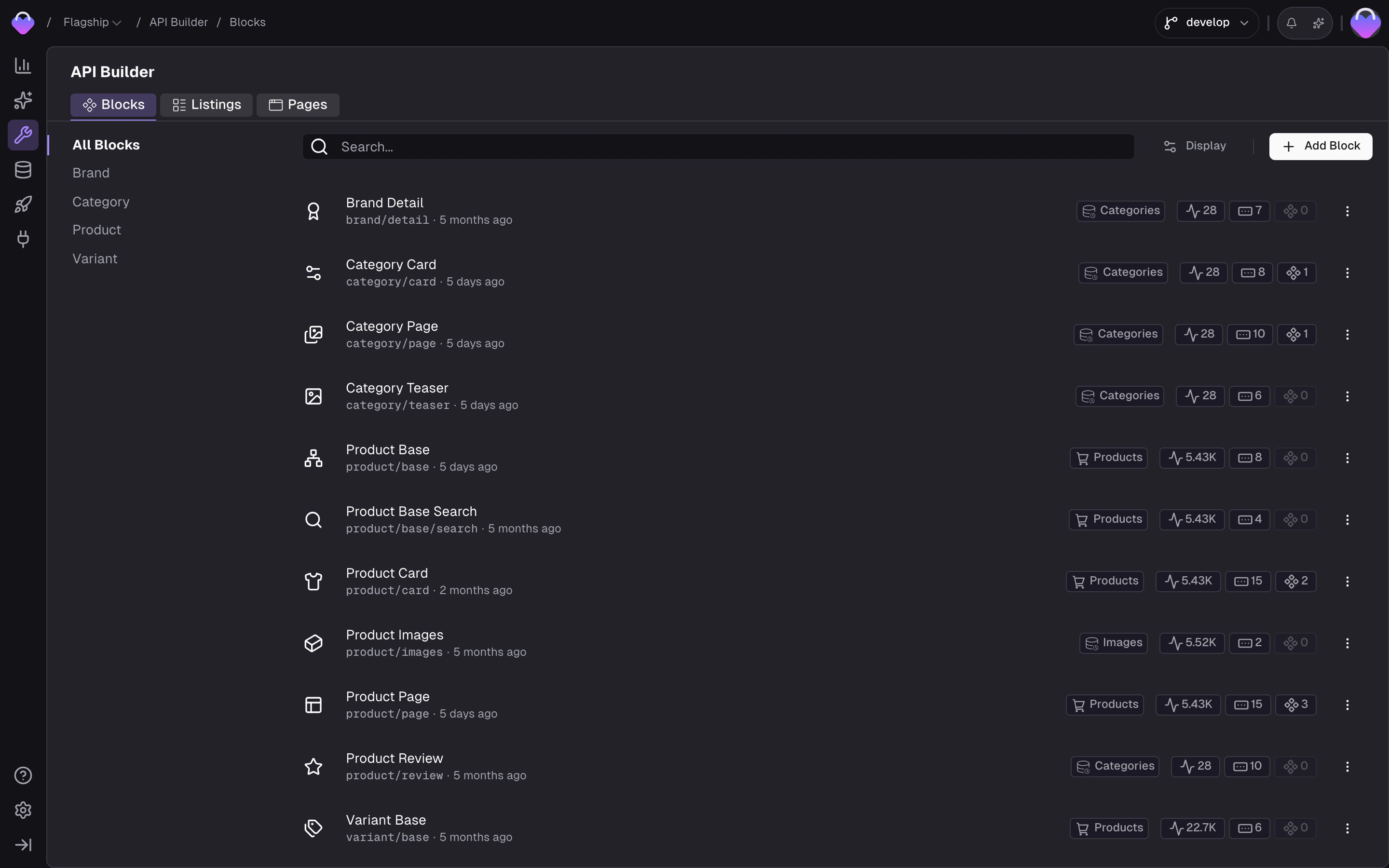 One block per component, one listing per collection, one page per route, one tree per hierarchy — nothing more, nothing less. Your frontend asks for what it needs, and the backend returns exactly that, already scoped to the caller's request context.
[Buddy](/essentials/buddy) can create and configure Detail Blocks, Search Listings, and Page URLs for you. Describe what your experience needs and Buddy handles the setup.
## The primitives
*What fields does this component need?* An API endpoint that returns
the exact data one UI component needs — reusable, parameterized, nestable.
*How do I query a collection?* Filtering, sorting, full-text search,
pagination, and facets — each item shaped like a block.
*What renders at this URL?* Ties a URL pattern to a Detail Block so
your router resolves content in a single request.
*What's the hierarchy?* Returns records as a tree — navigation menus,
category hierarchies, anything with a parent/child structure.
## How they compose
A **Detail Block** is an API endpoint shaped like a component. You
define a `ProductCard` block with a schema that returns exactly the
fields that component renders — image, title, price, badges, CTA
text. The block connects to a Data Storage and describes which
fields map into its response shape.
A **Search Listing** returns a collection of items, each shaped like
a block. A `ProductListing` listing takes a `category` filter
parameter and returns a list of `ProductCard`-shaped items, with
facets and pagination attached. Listings handle the query layer —
filter, sort, search, paginate — and delegate the per-item shape to
the block from the previous step.
A **Page URL** ties a URL pattern to a single Detail Block. A
`Product Detail` page binds `/products/{slug}` to the `ProductCard`
block — each URL resolves to exactly one record, and the same block
schema your grid uses also drives the detail view. The response
includes the page type and the matching data, so your frontend
router can pick the right component and render it straight away.
The block itself can nest a `ProductListing` (e.g. related products)
when the page needs collections.
## Request Context
Every Detail Block, Search Listing, and Page URL response is shaped by the caller's **request context**. That means one block can serve many markets, many audiences, and many languages from a single definition.
Request context is a combination of three values that together tell the backend *who's asking*:
The **audience variant** — B2B vs. B2C, different brands, wholesale vs. retail.
The **geography** — which locales are supported, which currency applies.
The **language** (`en`, `de`, `fr`) — translatable fields return the matching variant.
### Where context comes from
Your project maps domains (or paths) to `scope + region + locale` combinations in [Project Settings → Domains](/project-settings/domains). Pass the domain as `contextDomain` and Frontic resolves the matching context automatically.
```ts theme={"theme":"css-variables"}
const data = await client.block('CategoryDetail', 'running-shoes', {
contextDomain: 'www.demo-shop.com/de',
});
// Resolves → German region, de locale, public scope
```
```vue theme={"theme":"css-variables"}
```
A typical domain mapping:
| Domain | Scope | Region | Locale |
| ---------------------- | -------- | ------------------- | ------ |
| `www.demo-shop.com` | `public` | United States (USD) | `en` |
| `www.demo-shop.com/de` | `public` | Germany (EUR) | `de` |
| `b2b.demo-shop.com` | `b2b` | United States (USD) | `en` |
### Why this matters
* A `ProductListing` listing in the German domain returns the German product catalog in EUR with German copy — without market-specific code.
* A `ProductCard` block in a B2B scope returns B2B-specific images, descriptions, and pricing for the same product — without a separate B2B block.
* A Page at `/products/:slug` resolves to different URLs and different records in every domain — without duplicate route definitions.
You write each primitive once. The backend delivers the right variant based on who's asking.
### Handle context keys
Every response includes a `contextKey` in the `fs-context` header. This key tracks the session's context settings — scope, region, locale — and lets overrides survive across requests.
* **No key sent** → Frontic generates a new one with the settings from the resolved domain and returns it in the response
* **Your own key sent** (any string, 36–50 characters) → Frontic persists it with the current context settings if it doesn't exist yet, or loads the stored settings if it does
* **Key sent on subsequent requests** → Frontic applies the stored settings, even if they differ from the domain default
Store the key from the first response and pass it on every subsequent request. When a visitor switches language or currency, update the key's settings — all following requests reflect the change without touching the domain mapping.
#### Updating an existing contextKey
To change a visitor's active locale or region without minting a new key, update the stored settings on the current `contextKey` — the [Client SDK](/reference/client-sdk#clientcontextupdate) and the [Nuxt module](/reference/nuxt-module#usefronticcontext) both expose methods for this so you don't hand-craft the HTTP call. Every subsequent request using the same key reflects the change.
```ts theme={"theme":"css-variables"}
await client.contextUpdate(
{ region: 'eu', locale: 'de-DE' },
contextKey,
);
```
```ts theme={"theme":"css-variables"}
const { update } = useFronticContext();
await update({ region: 'eu', locale: 'de-DE' });
```
Common triggers:
* A visitor opens a language selector and switches from `en` to `de` — update the key with the new locale.
* A visitor picks a different market from a region dropdown (United States → Rest of Europe) — update the key with the new region; currency follows the region's setting.
* A visitor updates their preferences on a profile screen — update whichever settings changed.
### Missing or ambiguous context
If a request has no `contextDomain` or the domain doesn't match any configured mapping, Frontic falls back to the project's default region and locale. A missing `contextKey` is never an error — Frontic creates a new one automatically. An unknown key is treated the same way: persisted as a fresh context with the current domain settings. The only invalid key is one that doesn't meet the format requirements (36–50 characters).
## API Playground
Preview — the API Playground is in early access. It runs against your live backend today, but the UI and feature set are still settling before general availability. [Reach out](mailto:support@frontic.com) if you want to try it.
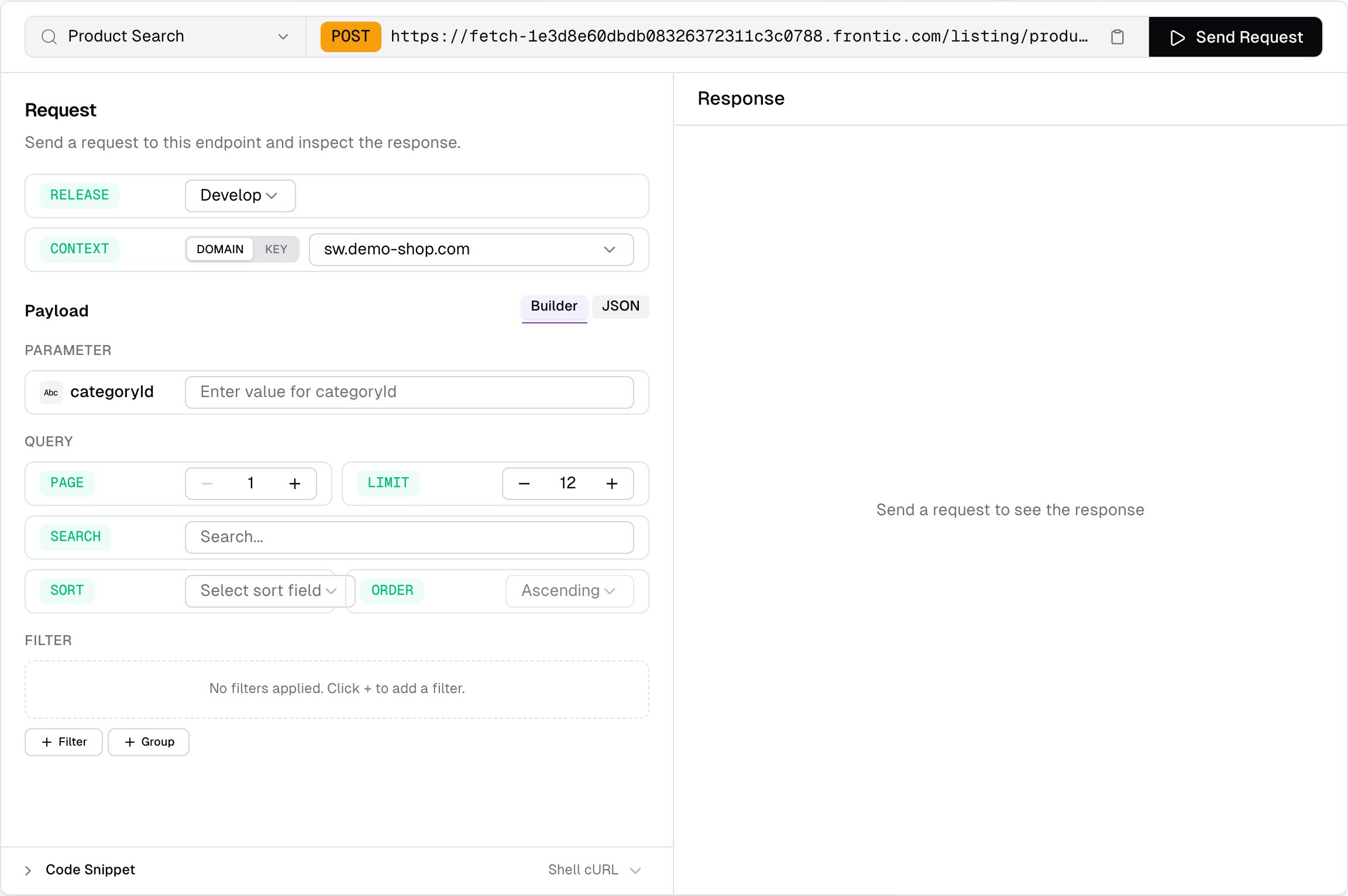
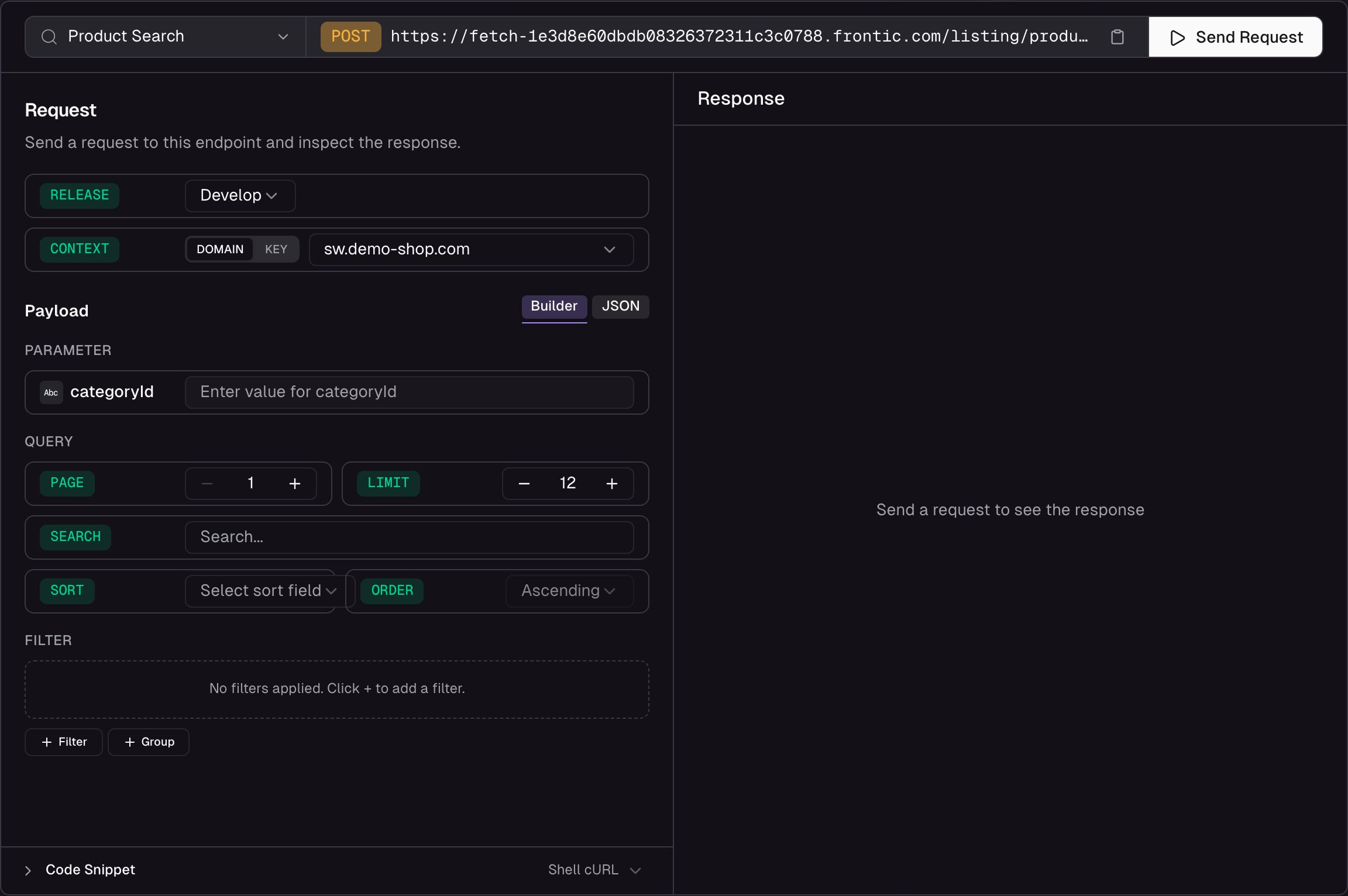
Every Detail Block, Search Listing, Menu Tree, and Page URL has a built-in **API Playground** accessible from its detail page. It lets you send real requests against your backend, inspect responses, and experiment with stage, context, filters, and parameters — without writing code or leaving the admin app.
The playground shows the full endpoint URL, picks a release stage (`develop`, `preview`, or `public`) to target, lets you configure headers (`fs-version`, `fs-secret`, `fs-domain`, `fs-context`), and generates ready-to-use code snippets from your current configuration. A resource sheet in the dialog header lets you swap between primitives — pages, blocks, listings, and trees — without closing and reopening. See [Detail Blocks](/api-builder/blocks#api-playground), [Search Listings](/api-builder/listings#api-playground), [Menu Trees](/api-builder/trees#api-playground), and [Page URLs](/api-builder/pages#api-playground) for the full details.
One block per component, one listing per collection, one page per route, one tree per hierarchy — nothing more, nothing less. Your frontend asks for what it needs, and the backend returns exactly that, already scoped to the caller's request context.
[Buddy](/essentials/buddy) can create and configure Detail Blocks, Search Listings, and Page URLs for you. Describe what your experience needs and Buddy handles the setup.
## The primitives
*What fields does this component need?* An API endpoint that returns
the exact data one UI component needs — reusable, parameterized, nestable.
*How do I query a collection?* Filtering, sorting, full-text search,
pagination, and facets — each item shaped like a block.
*What renders at this URL?* Ties a URL pattern to a Detail Block so
your router resolves content in a single request.
*What's the hierarchy?* Returns records as a tree — navigation menus,
category hierarchies, anything with a parent/child structure.
## How they compose
A **Detail Block** is an API endpoint shaped like a component. You
define a `ProductCard` block with a schema that returns exactly the
fields that component renders — image, title, price, badges, CTA
text. The block connects to a Data Storage and describes which
fields map into its response shape.
A **Search Listing** returns a collection of items, each shaped like
a block. A `ProductListing` listing takes a `category` filter
parameter and returns a list of `ProductCard`-shaped items, with
facets and pagination attached. Listings handle the query layer —
filter, sort, search, paginate — and delegate the per-item shape to
the block from the previous step.
A **Page URL** ties a URL pattern to a single Detail Block. A
`Product Detail` page binds `/products/{slug}` to the `ProductCard`
block — each URL resolves to exactly one record, and the same block
schema your grid uses also drives the detail view. The response
includes the page type and the matching data, so your frontend
router can pick the right component and render it straight away.
The block itself can nest a `ProductListing` (e.g. related products)
when the page needs collections.
## Request Context
Every Detail Block, Search Listing, and Page URL response is shaped by the caller's **request context**. That means one block can serve many markets, many audiences, and many languages from a single definition.
Request context is a combination of three values that together tell the backend *who's asking*:
The **audience variant** — B2B vs. B2C, different brands, wholesale vs. retail.
The **geography** — which locales are supported, which currency applies.
The **language** (`en`, `de`, `fr`) — translatable fields return the matching variant.
### Where context comes from
Your project maps domains (or paths) to `scope + region + locale` combinations in [Project Settings → Domains](/project-settings/domains). Pass the domain as `contextDomain` and Frontic resolves the matching context automatically.
```ts theme={"theme":"css-variables"}
const data = await client.block('CategoryDetail', 'running-shoes', {
contextDomain: 'www.demo-shop.com/de',
});
// Resolves → German region, de locale, public scope
```
```vue theme={"theme":"css-variables"}
```
A typical domain mapping:
| Domain | Scope | Region | Locale |
| ---------------------- | -------- | ------------------- | ------ |
| `www.demo-shop.com` | `public` | United States (USD) | `en` |
| `www.demo-shop.com/de` | `public` | Germany (EUR) | `de` |
| `b2b.demo-shop.com` | `b2b` | United States (USD) | `en` |
### Why this matters
* A `ProductListing` listing in the German domain returns the German product catalog in EUR with German copy — without market-specific code.
* A `ProductCard` block in a B2B scope returns B2B-specific images, descriptions, and pricing for the same product — without a separate B2B block.
* A Page at `/products/:slug` resolves to different URLs and different records in every domain — without duplicate route definitions.
You write each primitive once. The backend delivers the right variant based on who's asking.
### Handle context keys
Every response includes a `contextKey` in the `fs-context` header. This key tracks the session's context settings — scope, region, locale — and lets overrides survive across requests.
* **No key sent** → Frontic generates a new one with the settings from the resolved domain and returns it in the response
* **Your own key sent** (any string, 36–50 characters) → Frontic persists it with the current context settings if it doesn't exist yet, or loads the stored settings if it does
* **Key sent on subsequent requests** → Frontic applies the stored settings, even if they differ from the domain default
Store the key from the first response and pass it on every subsequent request. When a visitor switches language or currency, update the key's settings — all following requests reflect the change without touching the domain mapping.
#### Updating an existing contextKey
To change a visitor's active locale or region without minting a new key, update the stored settings on the current `contextKey` — the [Client SDK](/reference/client-sdk#clientcontextupdate) and the [Nuxt module](/reference/nuxt-module#usefronticcontext) both expose methods for this so you don't hand-craft the HTTP call. Every subsequent request using the same key reflects the change.
```ts theme={"theme":"css-variables"}
await client.contextUpdate(
{ region: 'eu', locale: 'de-DE' },
contextKey,
);
```
```ts theme={"theme":"css-variables"}
const { update } = useFronticContext();
await update({ region: 'eu', locale: 'de-DE' });
```
Common triggers:
* A visitor opens a language selector and switches from `en` to `de` — update the key with the new locale.
* A visitor picks a different market from a region dropdown (United States → Rest of Europe) — update the key with the new region; currency follows the region's setting.
* A visitor updates their preferences on a profile screen — update whichever settings changed.
### Missing or ambiguous context
If a request has no `contextDomain` or the domain doesn't match any configured mapping, Frontic falls back to the project's default region and locale. A missing `contextKey` is never an error — Frontic creates a new one automatically. An unknown key is treated the same way: persisted as a fresh context with the current domain settings. The only invalid key is one that doesn't meet the format requirements (36–50 characters).
## API Playground
Preview — the API Playground is in early access. It runs against your live backend today, but the UI and feature set are still settling before general availability. [Reach out](mailto:support@frontic.com) if you want to try it.
Every Detail Block, Search Listing, Menu Tree, and Page URL has a built-in **API Playground** accessible from its detail page. It lets you send real requests against your backend, inspect responses, and experiment with stage, context, filters, and parameters — without writing code or leaving the admin app.
The playground shows the full endpoint URL, picks a release stage (`develop`, `preview`, or `public`) to target, lets you configure headers (`fs-version`, `fs-secret`, `fs-domain`, `fs-context`), and generates ready-to-use code snippets from your current configuration. A resource sheet in the dialog header lets you swap between primitives — pages, blocks, listings, and trees — without closing and reopening. See [Detail Blocks](/api-builder/blocks#api-playground), [Search Listings](/api-builder/listings#api-playground), [Menu Trees](/api-builder/trees#api-playground), and [Page URLs](/api-builder/pages#api-playground) for the full details.
 ## Shipped through Releases
Changes to blocks, listings, and pages flow through [Releases](/releases/overview) alongside Data Storage schema changes, Data Sync changes, and project settings. You don't ship API changes piecemeal — you bundle everything that changed into a release and roll it out together, with preview and rollback.
## Where to go next
Schema, parameters, storage connection, nesting — everything blocks can do.
Filters, sorts, search, facets, and pagination.
Routing, URL patterns, localization, error handling.
## Shipped through Releases
Changes to blocks, listings, and pages flow through [Releases](/releases/overview) alongside Data Storage schema changes, Data Sync changes, and project settings. You don't ship API changes piecemeal — you bundle everything that changed into a release and roll it out together, with preview and rollback.
## Where to go next
Schema, parameters, storage connection, nesting — everything blocks can do.
Filters, sorts, search, facets, and pagination.
Routing, URL patterns, localization, error handling.